
Shopify Migration Checklist: Everything to Move Before You Switch Platforms

A good Shopify migration checklist is the difference between a launch week where nothing much happens and a launch week where your support inbox catches fire. Most stores that lose money during a replatform don't lose it because a migration app failed. They lose it because nobody wrote down the dozen things the app was never going to move in the first place.
The appetite for switching is real. Only 14% of merchants say they're satisfied with their current ecommerce platform, and 77% feel urgency to migrate within the next year. Shopify absorbs a big share of that movement. Cart2Cart logged 241 real store migrations in March 2026, with Shopify as the destination platform in 103 of them, and 56 of those came from WooCommerce alone.
The payoff is worth the pain. Research from commercetools found that 90% of recent migrators experienced sales and revenue improvements after switching. But that number describes migrations that were done properly, and the gap between "done properly" and "done fast" is a list like this one.
What follows is organized into three phases: before, during, and after. If you want the mechanical walkthrough of the migration itself, pair this with our complete step-by-step guide to migrating to Shopify. This page is the one you print and tick off.
What Does a Shopify Migration Checklist Need to Cover Before You Start?
Before you export a single product, you need four things settled: a full inventory of what exists on your current store, a decision on who's doing the work, a freeze window, and a rollback plan. Skipping any of these turns a two-week project into a two-month one.
Start with a scope audit. Open a spreadsheet and count everything: products, variants, collections or categories, customers, historical orders, blog posts, static pages, discount codes, active subscriptions, gift cards with remaining balance, installed apps, custom theme features, and third-party integrations (ERP, 3PL, accounting, email, ads). Write the number next to each.
Vague scope is the root cause of most blown timelines, and the raw volume matters more than most merchants expect. The largest single job Cart2Cart tracked that month moved 541,897 data entities from WooCommerce to Shopify.
Next, decide how you're staffing it. A 300-product store with no subscriptions and two integrations is a genuine DIY weekend. A 12,000-SKU catalog with B2B pricing tiers and an ERP feed is not. Our breakdown of how to choose a Shopify migration service covers what to ask before you hand over admin access, and our Shopify migration timeline breakdown gives realistic ranges by catalog size.
Then pick your freeze window. This is the period where you stop accepting new orders on the old store so the final data export is clean. Most merchants need somewhere between two and twelve hours. Choose your slowest day of the week, in your slowest month, and tell your team the exact hour it starts.
Build the rollback plan nobody wants to build
Write down, in advance, the conditions under which you'd revert to the old store and exactly how you'd do it. It takes twenty minutes and it's the cheapest insurance in the entire project.
Your plan should include: a full database or platform backup taken immediately before the freeze, your current DNS records screenshotted with their TTL values, the old store's hosting kept paid and live (but noindexed) for at least 90 days, and a named person who has authority to call the revert. Lower your DNS TTL to 300 seconds about 48 hours before launch so a rollback propagates in minutes rather than hours.
Define your abort triggers numerically. Something like: checkout error rate above 2%, or organic traffic down more than 40% after seven days, or more than 50 unresolved 404s on revenue pages. Numbers stop launch-week panic from turning into bad decisions.
What Store Data Do You Need to Export and Back Up First?
Export everything before you touch anything, and export it twice: once as raw platform backup and once as CSV or JSON you can actually read. Store both copies somewhere outside the old platform, because "I'll just re-export it later" stops working the moment you cancel that hosting plan.
Your export list should cover:
- Products: titles, descriptions, SKUs, barcodes, prices, compare-at prices, cost per item, weights, vendor, product type, tags, and image URLs
- Variants: option names, option values, per-variant SKUs, pricing, and inventory quantities
- Collections and categories: including which products belong to which, plus any manual sort orders
- Customers: names, emails, phone numbers, addresses, tags, order counts, lifetime spend, and marketing consent status
- Orders: full history with line items, discounts applied, shipping methods, tax collected, and fulfillment status
- Content: blog posts, static pages, and their existing URLs
- SEO data: page titles, meta descriptions, image alt text, and canonical tags
- Discounts: active codes, usage limits, and expiry dates
- A full URL crawl: every indexed URL on the current site, which you'll need for redirects
That last one gets forgotten constantly. Run Screaming Frog or Sitebulb against your live site now, while it still exists, and export the full URL list with status codes. Also pull your top 500 landing pages by organic traffic from Google Search Console and Google Analytics. You cannot recreate this data after the old site goes dark.
The things you genuinely cannot move
Some data does not migrate. Not "is hard to migrate", but cannot cross platform boundaries at all. Knowing this list in advance turns a launch-week crisis into a planned communication.
- Customer passwords. Shopify does not accept imported password hashes. Migrated accounts land in a deactivated state and every customer has to set a new password through an account activation email.
- Saved payment methods. Card tokens are tied to your old gateway's vault. Moving them requires a formal PCI-compliant token migration between processors, coordinated by both providers, and it is not something a migration app can do.
- Gift card and store credit balances. Shopify's Gift Card API is gated behind Shopify Plus and requires approved access scopes. Worse, gift cards can't be edited or deleted once created, so an import mistake is permanent.
- Active subscription billing schedules. These depend on both the payment token and the subscription contract. They need rebuilding inside your new Shopify subscription app, usually with customer notification.
- Loyalty and rewards points. Balances live inside your old loyalty app, not your platform. Export them manually and ask your new provider for a bulk balance import.
- Marketing consent records. The opt-in timestamp, source, and IP matter for GDPR and CASL. Many migration tools carry the boolean but drop the proof.
How Do You Move Products, Variants, and Images Without Losing Data?
Clean the data before you move it, not after. Migrating a messy catalog just gives you the same mess on a more expensive platform, and fixing 4,000 products inside Shopify admin is far slower than fixing a spreadsheet.
Your pre-migration cleanup pass should hit five things: duplicate or blank SKUs, inconsistent variant option naming ("Colour" vs "Color" vs "colour"), broken or expired image URLs, missing meta descriptions and alt text, and products that haven't sold in 24 months. That last category is often 20% to 30% of a catalog. Deleting dead products before migration cuts your import time, your review time, and your ongoing catalog noise.
Shopify has hard limits you should check against your data now. The variant ceiling is 2,048 per product since the October 2025 rollout, but the option limit is still three per product. If your current platform allows four or five option axes, you need a plan before import, not after. Our guide to adding custom product options without breaking inventory covers the workarounds.
For images, remember that a Shopify CSV import doesn't contain images. It contains image URLs, and Shopify fetches them. Those URLs must be publicly reachable over HTTPS with no password protection, which means you cannot take the old site offline until every image has been pulled and confirmed. Shopify's own import docs also cap CSV files at 15 MB, so large catalogs need splitting into batches.
Here's the uncomfortable truth most migration guides skip: installing a migration app handles maybe 30% of the job. Products, images, and basic customer records are the mechanical part, and software is good at it. The other 70% (password reset flows, gift card liabilities, subscription re-billing, redirect mapping, and app-ecosystem parity) is manual work no app touches. That 70% is what decides whether launch week is boring or brutal.
For the mechanical part, you have three routes. Manual CSV gives you total control and is fine up to a few hundred products, though you should read our notes on importing products to Shopify from a CSV file without errors first. Full migration services move everything at once.
URL-based import tools sit in between: something like Migratify: Copy Products + AI pulls product data (titles, prices, images, variants) from 100-plus source platforms by URL, with a preview step before anything lands in your catalog. That's genuinely useful when you're migrating selectively rather than wholesale, and we compared the full field in our roundup of the best Shopify migration apps.
Whichever route you take, the master checklist stays the same, but source platforms have their own quirks. WooCommerce buries data in postmeta and loses attribute structure easily (see what gets lost migrating WooCommerce products and the full WooCommerce to Shopify transfer guide). Magento's multi-store and configurable-product model needs mapping decisions before export, covered in our Magento to Shopify migration guide. Etsy has no real export API for listings, which changes the approach entirely (our Etsy to Shopify migration guide walks through it).
Once products land in Shopify, run a bulk normalization pass: standardize vendor names, fix product types, and apply consistent tagging. Doing that in the admin one product at a time is a trap. Our guide to bulk product editing on Shopify covers the faster options.
What Happens to Customer Accounts, Orders, and Loyalty Points During Migration?
Customer records migrate, customer logins do not. Every migrated customer arrives in Shopify with a deactivated account and has to set a new password via an activation email, which means you need a communication plan before launch, not a scramble after it.
Plan the reactivation sequence deliberately. Send activation invites in batches rather than blasting 40,000 at once, which looks like spam to inbox providers and torches your sending reputation right when you need it. Warm the list first with a "we've moved, here's what's changing" email a few days before launch. Shopify's passwordless customer login (a six-digit code sent to email) sidesteps the password problem entirely for many stores, and it's worth considering if your account usage is light.
Historical orders are the second surprise. Shopify's admin has no native CSV importer for orders the way it does for products and customers. Bringing order history across requires the Admin API or a tool built on it, and even then Matrixify's own documentation notes that Shopify limits what can be updated on existing orders. Imported orders are records, not live transactions: you can't refund them through the original gateway, and fulfillment data from third-party services often doesn't carry.
Decide how much history you actually need. Many merchants import 12 to 24 months for customer service purposes and archive the rest as a CSV in cold storage. Full ten-year history imports are expensive, slow, and rarely used.
For loyalty programs, get a point-balance export from your current provider before you uninstall anything, ideally as customer email plus point balance plus tier. Then confirm your new Shopify loyalty app supports a bulk balance import, because not all of them do. Customers notice missing points faster than they notice almost anything else.
Subscriptions need the most lead time. You're rebuilding billing schedules on a new subscription app while the payment tokens they depend on may not have moved. Start this conversation with both your old subscription provider and your new one at least six weeks before launch, and expect to notify subscribers about a card re-entry step if token migration isn't possible.
Finally, carry your marketing consent data properly. Copy the opt-in status, the timestamp, and the source into Shopify customer fields or metafields. If an unsubscribed customer starts receiving email again because consent flags got flattened during import, that's a compliance problem, not a bug.
How Do You Protect Your SEO Rankings When You Switch to Shopify?
Redirect mapping is the single highest-risk task on this Shopify migration checklist, and it's the one merchants rush. Analysis from Numen Technology found that 9 out of 10 website migrations damage SEO, with missing 301 redirects alone causing 30% to 50% traffic loss when old URLs start returning 404s.
The recovery math is brutal. A Search Engine Journal study of 892 domain migrations put the average recovery time for lost organic traffic at 523 days, with 17% of sites never returning to their prior levels within the study window. You do not want to be in that 17%.
Build the redirect map properly
Crawl your existing site with Screaming Frog and export every URL that returns a 200. Filter out parameters and pagination, then sort what's left by organic sessions from Search Console. Your highest-traffic 200 URLs get individually verified mapping. The long tail can follow pattern rules.
Now map each old URL to its exact new Shopify equivalent, one to one. Shopify's structure is fixed: products live at /products/{handle}, collections at /collections/{handle}, static pages at /pages/{handle}, and blog articles at /blogs/{blog-handle}/{article-handle}.
If you're coming from WooCommerce, your /product-category/ and /shop/ paths have no automatic equivalent, and Magento's .html suffixes disappear entirely. Every one of those gaps needs its own explicit rule.
Category mismatches are where mapping gets messy. Old platforms often allow nested categories (/mens/shirts/oxford/) while Shopify collections are flat. Pick the closest single collection as the target rather than dumping everything on the homepage. Homepage redirects are treated by Google as soft 404s and pass almost nothing, which is the most common way merchants throw away years of accumulated link equity.
Watch for redirect chains. If you migrated once before, you may already have old-URL-A pointing to old-URL-B. After the move that becomes A to B to C, and each hop wastes crawl budget. Flatten every chain so each original URL points directly to its final destination in one hop.
Load the map through Shopify's URL redirect importer under Content, then Menus, then URL redirects. The CSV takes two columns ("Redirect from" and "Redirect to") and you should use relative paths starting with a slash. Import in batches of around 1,000 rows so errors are traceable.
Beyond redirects, carry your title tags and meta descriptions across rather than letting Shopify autogenerate them, and rebuild your structured data in the new theme. Our deeper walkthrough on how to prevent SEO traffic loss when migrating to Shopify covers the verification steps, and it's worth reviewing Shopify collection page SEO before you finalize your collection structure, since collection URLs are the hardest ones to change later.
One Shopify-specific trap: the platform generates duplicate product paths at /collections/{collection}/products/{handle} alongside the canonical /products/{handle}. Confirm your theme outputs correct canonical tags, and read our notes on finding and fixing Shopify duplicate content.
Which Apps, Integrations, and Custom Features Need a Shopify Replacement?
Every plugin, extension, and custom feature on your old store needs an explicit decision: replace, rebuild, or drop. Do this as a written audit, because the features people forget are always the ones a customer notices on day two.
List every installed app or plugin with three columns: what it does, whether a Shopify equivalent exists, and what the data migration path is. Then be honest about the third column. Reviews, for example, are a classic casualty.
Product reviews are earned social proof that took years to accumulate, and letting them evaporate hurts both conversion and rankings, which is exactly why product reviews affect Shopify conversion rates so directly. Most review platforms support CSV export and import, and our guide on importing product reviews to Shopify covers the formats.
Pay particular attention to these categories, which almost always need rebuilding rather than migrating:
- Custom pricing and B2B tiers: wholesale rules rarely translate directly and may need Shopify's B2B features or a dedicated app
- Shipping rate logic: complex zone or weight rules should be rebuilt and tested manually, never assumed
- Tax configuration: nexus settings, exemptions, and tax-inclusive pricing rules
- Email flows: automations in Klaviyo, Mailchimp, or similar need re-pointing to Shopify events and re-triggering logic
- ERP, accounting, and 3PL connectors: these need new credentials, new field mappings, and a test sync before launch
- Theme customizations: bespoke PHP or Liquid features have to be rewritten in Shopify Liquid
Also budget for the recurring cost difference. App subscriptions on Shopify stack quickly, and a store replacing eight WooCommerce plugins can easily add $200 to $400 a month in app fees. Model that against your margins before you commit, using the framework in our Shopify pricing strategies guide.
Finally, use Shopify Flow (free on paid plans) to replace simple automation logic before you buy an app for it. A surprising number of "we need an app for this" requirements turn out to be a three-step Flow.
What Should You Test Before Launching Your New Shopify Store?
Test on a password-protected store with live payment processing, never a theme preview. Go to Online Store, then Preferences, then Restrict store access, and check the box that requires a password before anyone outside your team can see it. That's now a fully functional, fully hidden store.
Work through this list and don't skip items because they "obviously work":
- Place five real test orders using different products, different variants, different shipping zones, and a discount code. Use a real card and refund yourself.
- Verify tax calculation on orders to at least three jurisdictions you actually sell into.
- Check every shipping rate, including free-shipping thresholds and oversized-item surcharges.
- Confirm every transactional email fires: order confirmation, shipping confirmation, refund notice, and abandoned cart.
- Spot-check 50 random products against the old store for price, description, images, variants, and inventory count.
- Test the customer account activation flow end to end with a personal email address.
- Verify analytics and pixels: GA4, Meta pixel, Google Ads conversion tags, and any server-side tracking. Confirm a purchase event actually lands.
- Test on mobile, on a real phone, on cellular data. Not the responsive preview.
- Run the redirect map against a staging URL so you catch broken targets before they're live.
- Check inventory sync if you're running multiple locations, using the approach in our guide to managing Shopify inventory across multiple locations.
Before you flip DNS, submit your new sitemap in Google Search Console and, if you're changing domains, prepare the Change of Address tool. Then remove the store password, confirm in an incognito window, and watch your first live order come through with somebody actually looking at the screen.
What Should You Check in the First 30 Days After Migration?
The first 30 days are monitoring, not building. Your job is to catch problems within hours rather than weeks, because a broken redirect found on day two costs you nothing and the same redirect found on day forty costs you a quarter of a ranking.
Days 1 to 3. Watch checkout completion rate hourly against your pre-migration baseline, and keep an eye on Search Console's Coverage report for a 404 spike. Confirm orders are flowing cleanly into your fulfillment system. Read every support ticket personally this week, because customers will surface the thing your test plan missed.
Days 4 to 14. Reconcile your stock. Inventory drift between the old and new platform during the freeze window is extremely common, and our walkthrough on reconciling inventory counts after migrating to Shopify covers the count-by-count method. Also start fixing the 404s that Search Console surfaces, adding redirects as you go rather than in one weekly batch.
Days 15 to 30. Compare organic sessions, revenue, and average order value against the same period last year, not last month. A 10% to 20% organic dip in weeks two and three is normal and usually recovers. A 40% drop that isn't recovering by week four means your redirect map has a structural problem, and that's your abort trigger from the planning phase.
Run a fresh crawl of the live Shopify store at the end of week four and compare the URL list to your pre-migration crawl. Anything on the old list without a working redirect is a leak. This is also the point to fix the SEO fields that got autogenerated during import, working through our Shopify product page SEO checklist on your top revenue pages first.
Keep the old store live, password-protected or noindexed, for a full 90 days. You'll need it for refund lookups, data you forgot to export, and redirect verification. Cancelling that hosting bill six weeks early has cost more merchants more money than almost any other line on this list.
Shopify has become the default destination for a reason. It powers more than 3 million active stores, and it posted $115.6 billion in GMV in Q2 2026, up 32% year over year. But the platform doesn't do the migration for you. Work the list, phase by phase, and treat the manual 70% with the same seriousness you give the export button.

Migratify: Copy Products + AI
SponsoredProduct import made easier! Effortlessly migrate products from 100+ platforms.
Related Articles

How to Migrate to Shopify: The Complete Step-by-Step Guide for Online Stores
Planning to migrate to Shopify? Avoid data loss, broken SEO rankings, and costly downtime with this complete step-by-step migration guide for merchants.

Shopify Migration Timeline: How Long Does It Actually Take (And How to Speed It Up)
Wondering how long a move takes? See a realistic Shopify migration timeline by store size, the biggest causes of delay, and how to launch weeks faster.
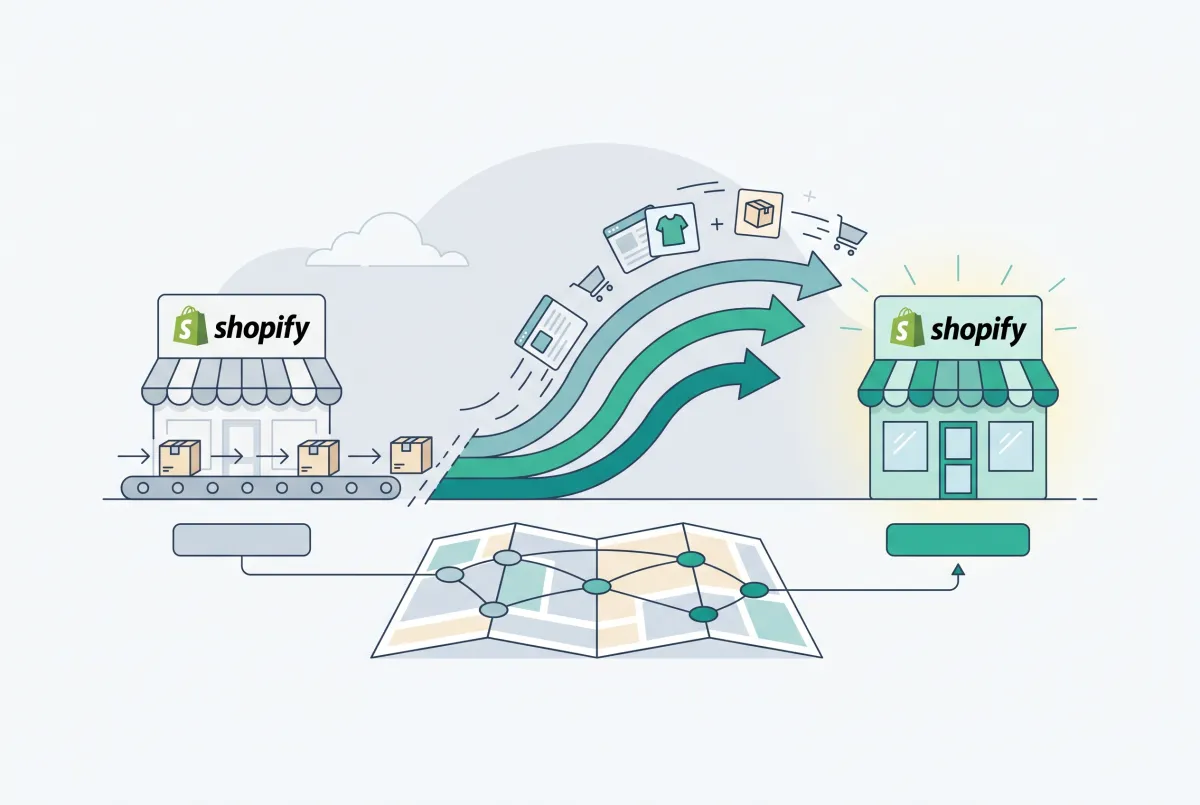
Migration traffic drops start with missed URLs. Learn how to set up 301 redirects after a Shopify migration, from redirect mapping to bulk CSV uploads.
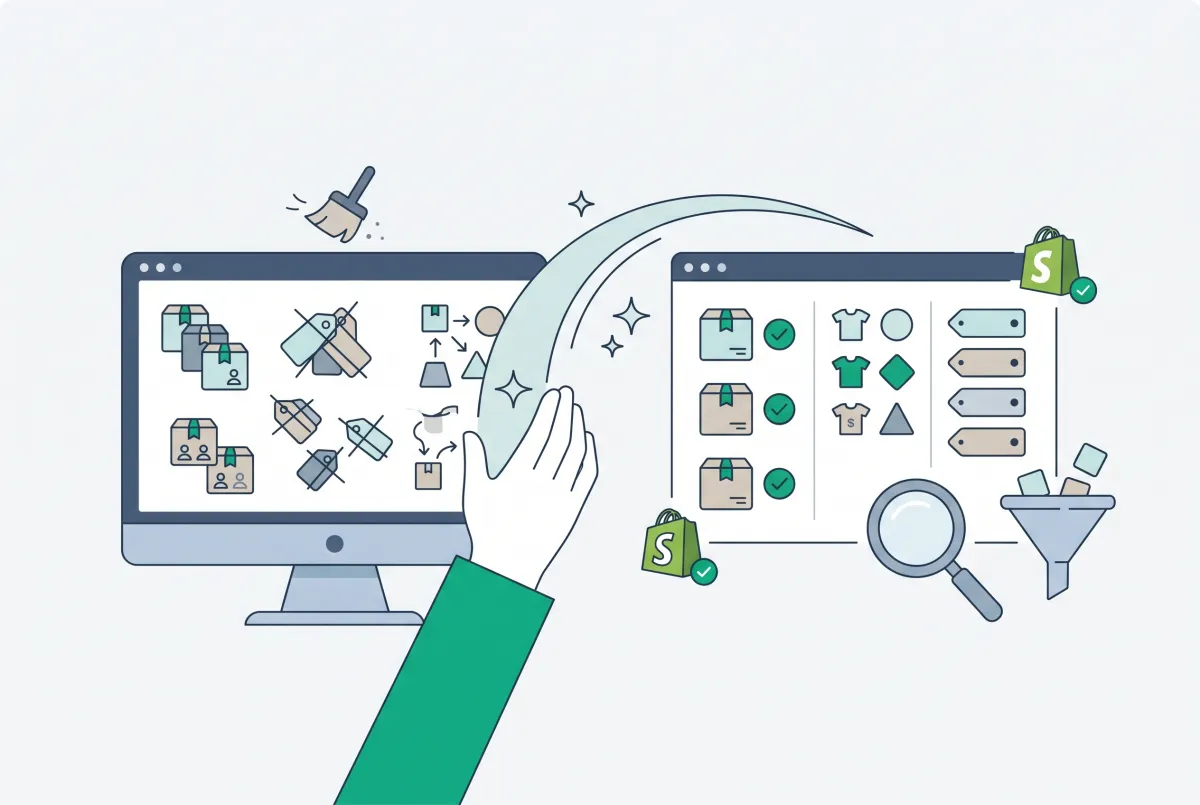
How to Clean Up Product Data After a Shopify Migration (Duplicates, Variants, Tags, and More)
Duplicate products, broken variants, orphaned metafields? Here's how to clean up product data after a Shopify migration, fast and without wrecking SEO.
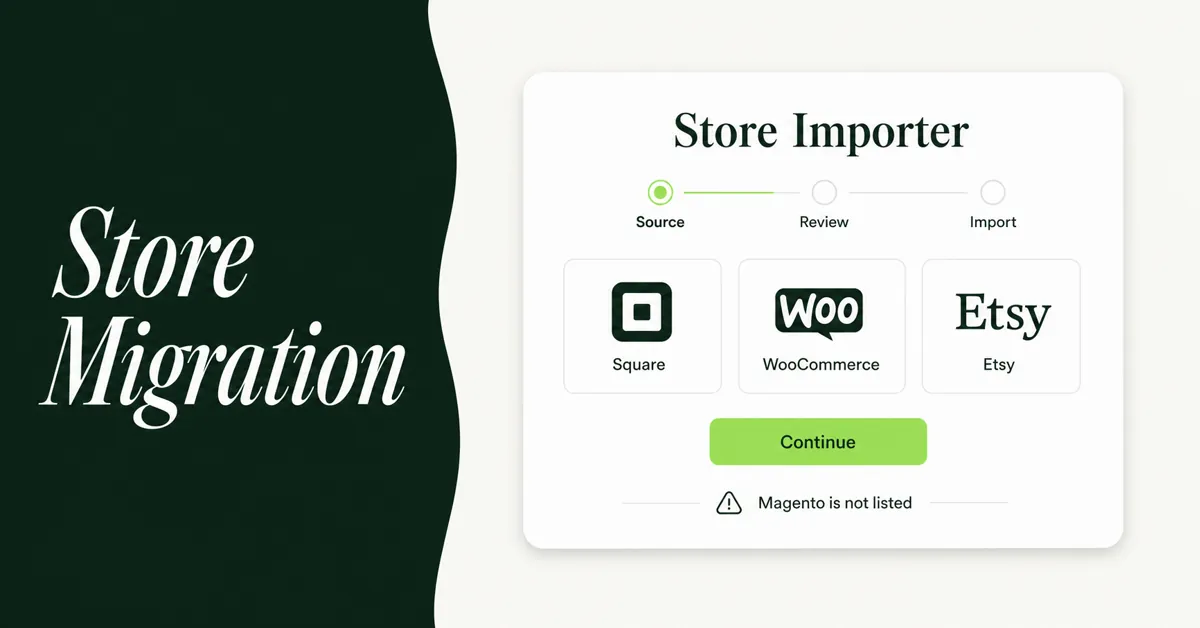
Shopify Store Migration App: What It Does Not Move in 2026
The Shopify Store Migration app imports products and customers only. See what it does not move in 2026, plus how to run the official importer correctly.

Shopify Store Migration Apps Compared in 2026: Free App vs LitExtension, Cart2Cart, Matrixify, Migratify
Shopify store migration apps compared in 2026: free Store Migration vs LitExtension, Cart2Cart, Matrixify, and Migratify. Pick by what each actually moves.