
How to Manage Shopify Inventory Across Multiple Locations (The Complete Guide)
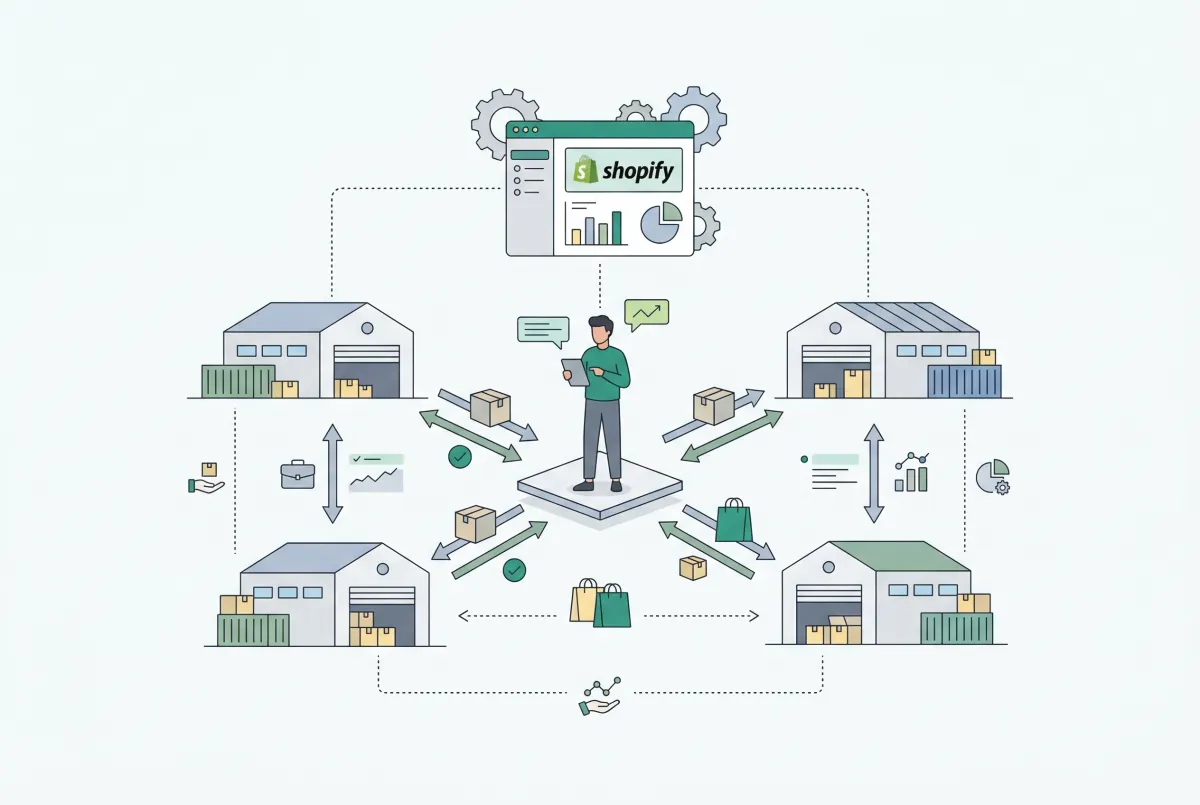
Managing Shopify inventory multiple locations is the operational challenge that separates stores that scale from stores that stall. If you're running (or planning to run) more than one warehouse, retail shop, or fulfillment center, you already know the headaches: overselling, misrouted orders, and stock counts that never quite match reality. According to recent eCommerce research, 51% of products experience at least one stockout per year, with the average out-of-stock event lasting 35 days. That's over a month of lost revenue per product. This guide walks you through every step of multi-location inventory on Shopify, from initial setup to the routing rules that determine which warehouse ships each order.
What Is Shopify Multi-Location Inventory and Which Plans Support It?
Shopify multi-location inventory lets you track stock quantities separately at each physical or virtual fulfillment point, then route orders to the right location automatically. It's built into every Shopify plan, but the number of active locations you can run varies significantly by tier.
Here's the breakdown you won't find clearly stated on most guides. Starter plans cap you at 2 active locations. Basic, Grow, and Advanced plans all support up to 10 active locations. Shopify Plus jumps to 200. Deactivated locations and fulfillment service apps don't count toward your limit, which gives you some flexibility if you're rotating seasonal pop-ups or testing new markets.
Why does this matter? Because 43% of small businesses don't track inventory at all or rely on manual, outdated systems. Running multiple locations without proper tracking isn't just risky. It's expensive. Global inventory distortion (the combined cost of stockouts and overstock) hit $1.77 trillion in 2023, representing 7.2% of total retail sales worldwide.
If you're on a Basic plan and already maxing out 10 locations, upgrading to Plus is a big cost jump. Before you do that, ask yourself whether some of those locations could be consolidated or deactivated. Not every storage closet needs its own inventory pool.
How Do You Add and Configure Locations in Your Shopify Admin?
You add locations through Settings > Locations in your Shopify admin, and each one takes about two minutes to configure. The process itself is straightforward, but the decisions you make during setup have long-term consequences for fulfillment accuracy.
Click "Add location," enter the name and full address, then check "Fulfill online orders from this location" if you want it to participate in order routing. Save it, and the location immediately becomes available for inventory assignment. After saving, go to "View or edit location priority" to drag your locations into the order you want Shopify to evaluate them for fulfillment.
The Single-to-Multi Transition Nobody Talks About
If you've been running a single location and you're adding your second, pay close attention. Your existing inventory quantities are tied to that original location. Adding a new location doesn't split your stock automatically. You'll need to manually allocate quantities to the new location, either through Shopify's inventory page or by using a bulk product editing tool to update inventory counts across locations efficiently.
The biggest mistake merchants make during this transition? Adding the new location while active orders are still in fulfillment. Those orders are already assigned to your original location. If you reassign inventory before they ship, you'll create confusion in your fulfillment queue. Wait until your open orders clear, or at least until they're packed and labeled, before redistributing stock.
International Locations Add Complexity
Merchants with locations in different countries face additional layers. Each country's location may need to handle different tax rules, duties collection, and currency settings. Shopify Markets helps manage some of this, but your inventory allocation strategy needs to account for it.
A unit sitting in your UK warehouse has different landed cost implications than the same unit in your US fulfillment center. Plan your stock distribution around where your customers actually are, not just where your supplier ships cheapest.
How Does Shopify's Order Routing and Fulfillment Priority Actually Work?
Shopify's order routing applies a sequence of rules to every incoming order, then assigns it to the highest-priority location that has the items in stock. You configure these rules in Settings > Shipping and delivery > Order routing, and you can drag them into your preferred priority order.
Four built-in routing rules are available: ship from the closest location, stay within the destination market, minimize split fulfillment, and use ranked locations. You can also create custom rules using location metafields (like a "has_capacity" flag) or, if you have developer resources, build entirely custom logic with Shopify Functions.
The "Minimize Split Fulfillment" Trade-Off
This rule deserves special attention because it's the one most merchants misunderstand. When a customer orders three items and two are in your New York warehouse but all three are in your California warehouse, "minimize split fulfillment" sends the entire order to California. That avoids two separate shipments, which saves on packaging and carrier costs.
But here's the trade-off nobody spells out: if that California warehouse is 3,000 miles from the customer in Boston, you're paying for cross-country shipping on all three items instead of shipping two items from nearby New York and one from California. Depending on your carrier rates and package dimensions, two shipments from closer locations can actually cost less than one shipment from far away. Run the numbers for your specific product weights and carrier contracts before setting this rule as your top priority.
Here's my honest take: Shopify's order routing rules are good enough for most stores. The merchants who insist they need a $500/month inventory platform after opening their second location are usually solving a process problem, not a technology problem. The real issue is that nobody trained their staff on fulfillment priority logic or set up even one stock transfer workflow. Sort out your operational fundamentals first, then buy the software.
How Do You Transfer Stock Between Shopify Locations Without Losing Accuracy?
You create stock transfers in your Shopify admin under Products > Transfers, selecting an origin location and a destination, then adding the specific products and quantities. This creates a trackable transfer record that updates inventory counts at both locations when the transfer is received.
The process works like this: click "Create transfer," choose your origin location (where stock is leaving), choose your destination (where it's going), then search for products and enter quantities. You can add reference names, notes, and custom dates. Once saved, the transfer shows as "Pending" until the receiving location confirms receipt, at which point the inventory adjusts.
Where Transfers Go Wrong
The most common accuracy killer? Partial shipments that don't get properly received. Your warehouse ships 100 units but only 94 arrive (breakage, miscounts, lost boxes). If the receiving location clicks "Receive all" without counting, your system now thinks you have 6 more units than you actually do. Multiply that across dozens of transfers per month, and your inventory accuracy erodes fast.
Build a receiving protocol: every transfer gets counted on arrival, and any discrepancy between the transfer manifest and physical count gets flagged and recorded on the spot. This sounds basic, and it is, but 43% of small businesses aren't even tracking inventory properly, so "basic" clearly isn't happening at most operations.
Bulk Transfers and CSV Imports
For large transfers, Shopify supports CSV imports. You can bulk import variant quantities to a transfer using a transfer CSV file that identifies products, variants, and quantities by location. This is particularly useful during seasonal inventory redistribution or when opening a new location that needs initial stock from multiple product lines. Tools like Edify can also help when you need to update inventory quantities in bulk across multiple locations, especially if you're adjusting stock levels after a large transfer or recount.
What Are the Limitations of Managing Shopify Inventory Across Multiple Locations Natively?
Shopify's built-in multi-location features handle the basics well but fall short on demand forecasting, automated reorder points, and real-time synchronization with external systems. You won't find native low-stock alerts that account for sales velocity by location, and there's no built-in way to set different reorder thresholds per location. That gap gets riskier once a marketplace sells from the same stock pool. If you plan to list on SHEIN, our Shopify SHEIN integration guide covers how connectors sync stock and import orders.
The transfer system, while functional, lacks automation. Every transfer is manual. If your New York location consistently runs low on a particular SKU while California overflows with it, Shopify won't suggest or auto-create a transfer. You have to monitor that pattern yourself.
Returns processing is another gap. When a customer returns a product, the inventory doesn't automatically route back to the location it shipped from. In most setups, returns land at a default location or wherever your returns processor sends them.
If you don't manually adjust the inventory at the correct location, your stock counts drift. Over time, one location shows phantom inventory it doesn't have while another has physical stock that's invisible to the system.
Cross-location reporting also leaves gaps. You can view inventory by location, but comparing sell-through rates, days of supply, or stock turn across locations requires exporting data and building your own reports. For a single store with two locations, that's manageable. For ten locations with thousands of SKUs, it's a spreadsheet nightmare.
When Do You Need a Third-Party Inventory App for Multi-Location Management?
You need a third-party solution when your order volume exceeds what manual monitoring can handle, typically around 50+ orders per day across multiple locations. Below that threshold, Shopify's native tools combined with good processes will serve most merchants well.
Specific signals that you've outgrown native tools include: stockouts happening more than once a week despite having total inventory available (just at the wrong location), staff spending more than an hour daily on manual inventory checks, and fulfillment errors exceeding 2% of orders. Automated inventory systems can reduce stockouts by up to 30% compared to manual tracking, so the ROI math is straightforward once you're losing enough sales.
Popular options include Stocky (Shopify's own app for POS users), Inventory Planner for demand forecasting, and tools like ShipHero for warehouse-level operations. The complexity of your product catalog matters too. If you sell products with custom options and variants, inventory tracking across locations gets exponentially harder because each option combination may need its own stock count at each location.
Before committing to any paid tool, spend two weeks documenting every inventory problem you encounter. Most merchants can't clearly articulate what's breaking. "Inventory is a mess" is not a problem statement. "We oversold SKU-4821 three times last week because our Portland location showed 12 units that were actually committed to pending transfers" is a problem statement. The second version tells you exactly what to fix.
What Are the Best Practices for Keeping Stock Levels Accurate Across Every Location?
Cycle counting on a rotating schedule is the single most effective practice for multi-location accuracy, beating both annual full counts and reactive spot-checks. Divide your SKUs into A/B/C groups by sales volume, then count A-items weekly, B-items monthly, and C-items quarterly.
Here are the practices that actually move the needle:
- Assign location-level ownership. Every location needs one person accountable for inventory accuracy. Not "the team." One person. When discrepancies surface, there's a name attached. This changes behavior faster than any software.
- Standardize receiving workflows. Every inbound shipment (from suppliers or transfers) gets counted on arrival. No exceptions. Record discrepancies immediately. A five-minute receiving check prevents weeks of downstream confusion.
- Process returns with location intent. When a return comes in, decide immediately which location's inventory it should replenish. Don't dump everything into a default returns bucket and sort it later. "Later" becomes "never" in a busy operation.
- Sync inventory after every physical count. If your cycle count reveals that Location A has 47 units but Shopify shows 52, adjust it immediately. Letting discrepancies sit "until we figure out why" means they never get fixed.
- Train staff on fulfillment logic. Your warehouse team needs to understand why orders route to their location. If they don't know that the system prioritizes their location for local deliveries, they can't flag problems when orders seem wrong.
The buy-online-pick-up-in-store (BOPIS) trend makes accuracy even more critical. U.S. BOPIS sales reached an estimated $154.3 billion in 2025, and 85% of BOPIS shoppers make additional in-store purchases when picking up orders. If your inventory shows "available for pickup" and the customer arrives to find it's not there, you've lost both the original sale and that upsell opportunity.
Consider your pricing and profitability strategy at the location level too. Carrying costs differ between locations. A unit sitting in an expensive urban retail space costs more per day than the same unit in a suburban warehouse. Allocate inventory based on where it generates the highest margin, not just where it sells fastest.
Finally, remember that 69% of online shoppers abandon their purchase and buy from a competitor when they encounter an out-of-stock item. Multi-location inventory exists to prevent that scenario by distributing stock closer to demand. But it only works if the data in your system reflects what's actually on the shelves. No software, no matter how expensive, can compensate for sloppy warehouse processes. Get the fundamentals right, and Shopify's native tools will take you further than you think.
Related Articles
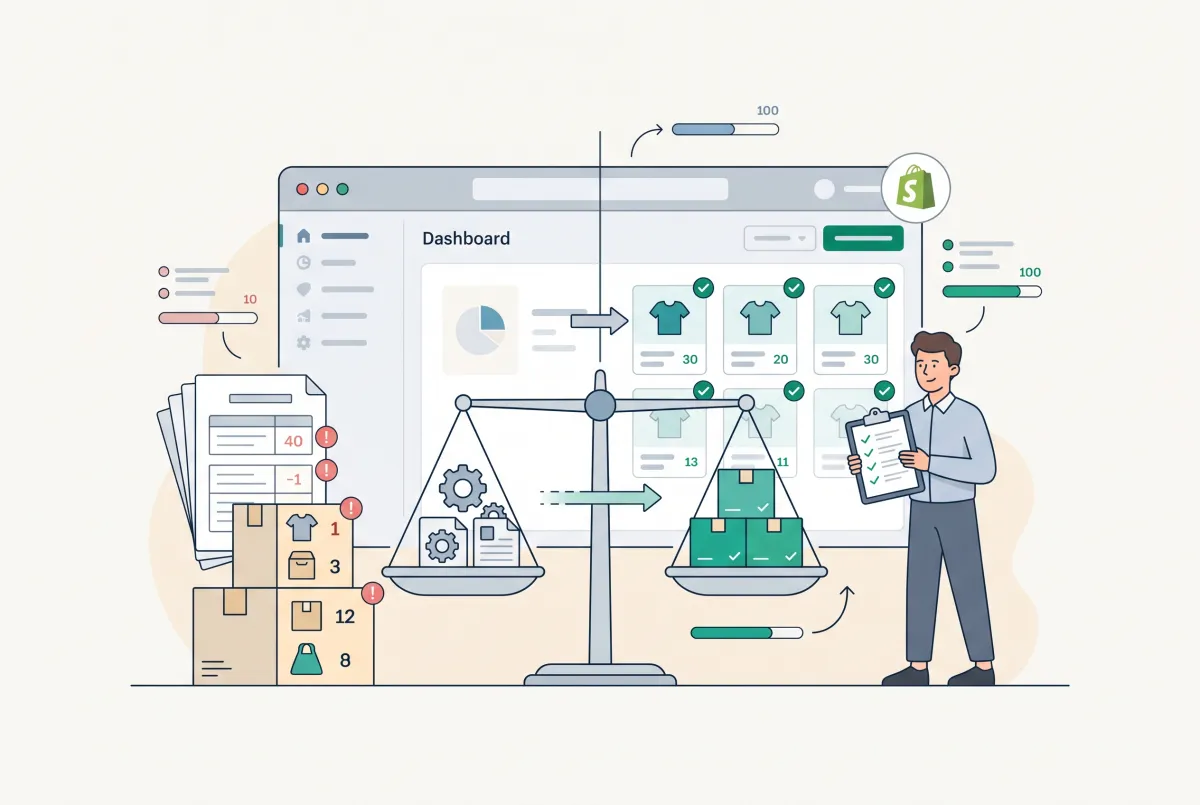
How to Reconcile Inventory Counts After Migrating to Shopify
Learn how to reconcile inventory counts after migrating to Shopify, catch variant and multi-location errors, and fix discrepancies before you oversell.
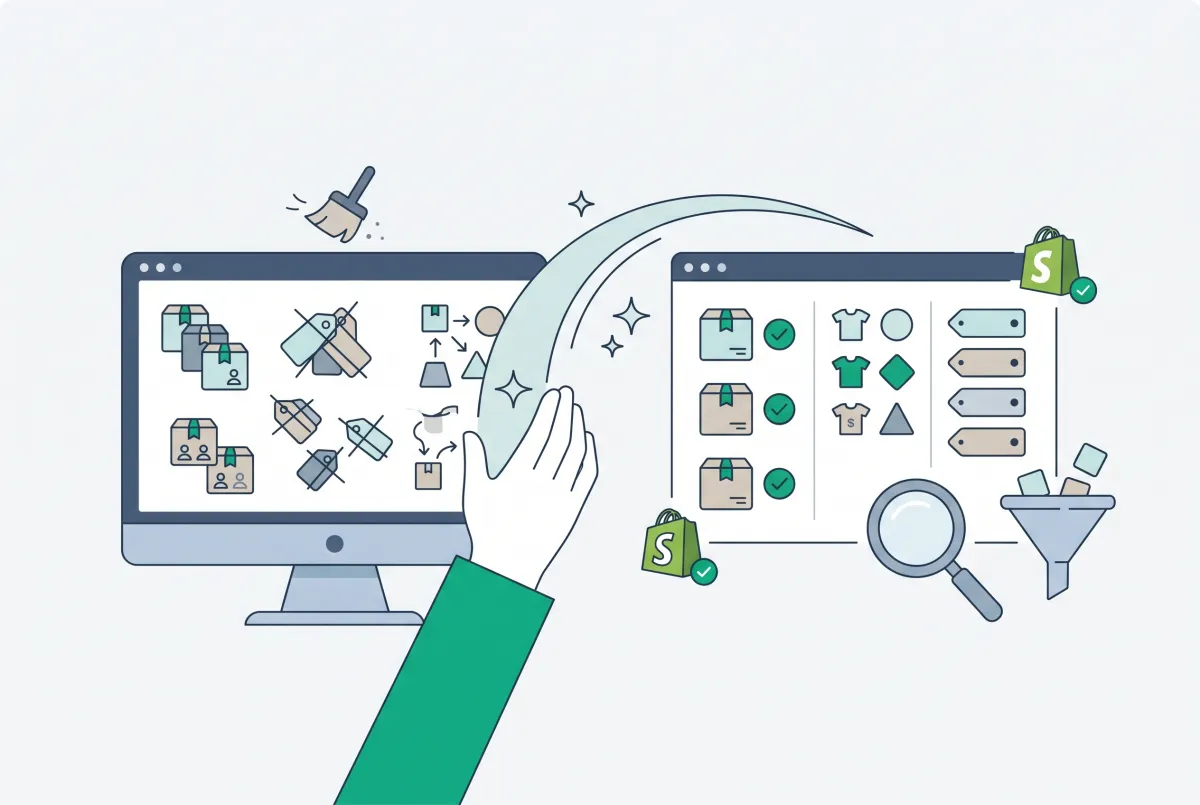
How to Clean Up Product Data After a Shopify Migration (Duplicates, Variants, Tags, and More)
Duplicate products, broken variants, orphaned metafields? Here's how to clean up product data after a Shopify migration, fast and without wrecking SEO.
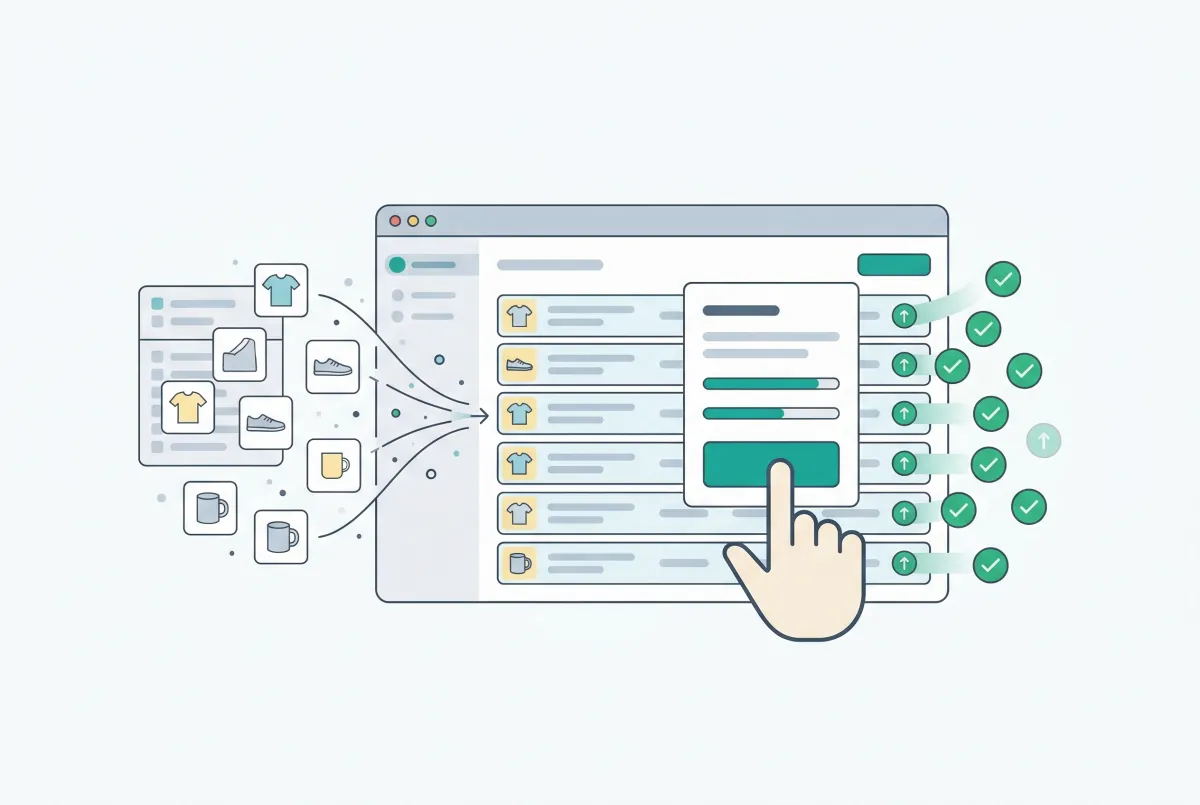
Shopify Bulk Product Editing: The Complete Guide to Updating Your Catalog Fast
Master Shopify bulk product editing with the native editor, CSV imports, and third-party apps. Update prices, tags, and descriptions across your catalog fast.
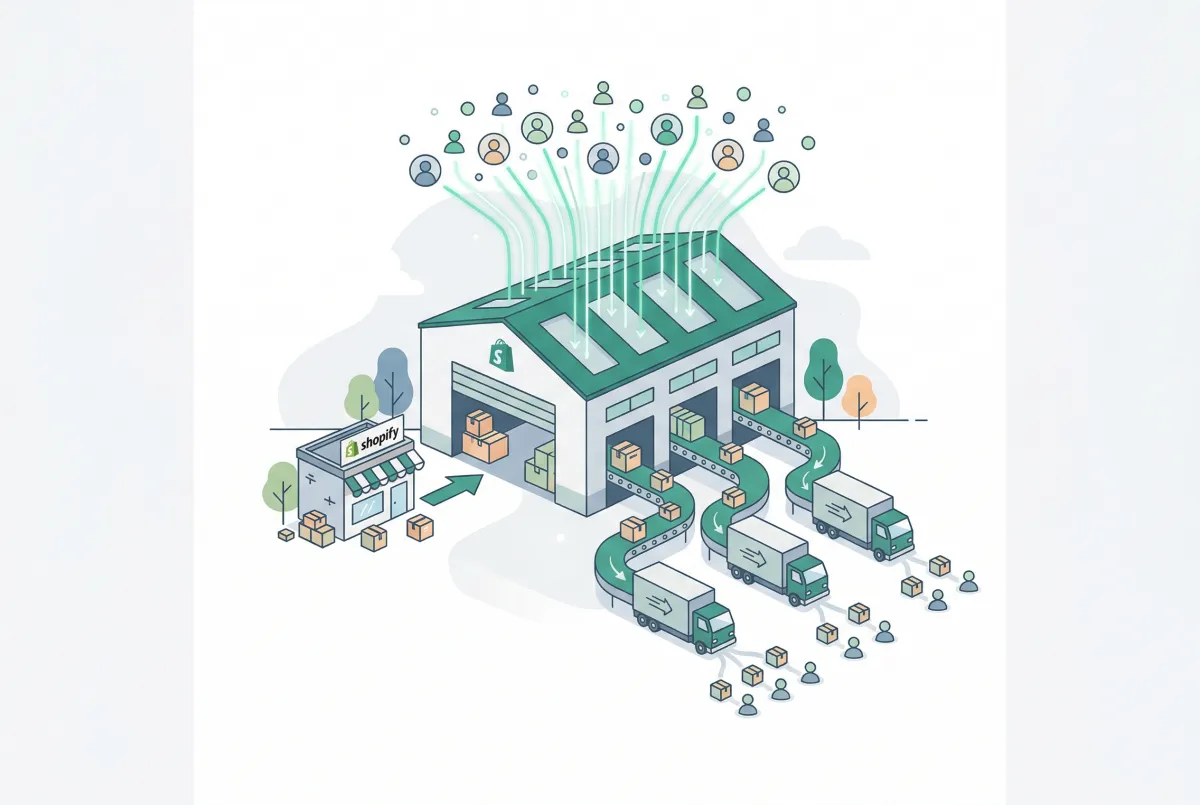
Learn how to build a Shopify store that handles 10x more traffic without crashing. Covers speed optimization, app audits, checkout, and scale readiness.
Shopify Pricing Strategies: How to Price Products for Maximum Profit
Stop leaving money on the table. Learn Shopify pricing strategies that actually work, with real cost formulas, psychology tactics, and testing methods.

How to Import Products to Shopify from a CSV File (Without Errors)
Learn how to import products to Shopify from a CSV file without errors. Covers formatting, variants, images, and detailed fixes for every common issue.