
Compare-at Pricing on Shopify: How to Show Discounts That Actually Convert
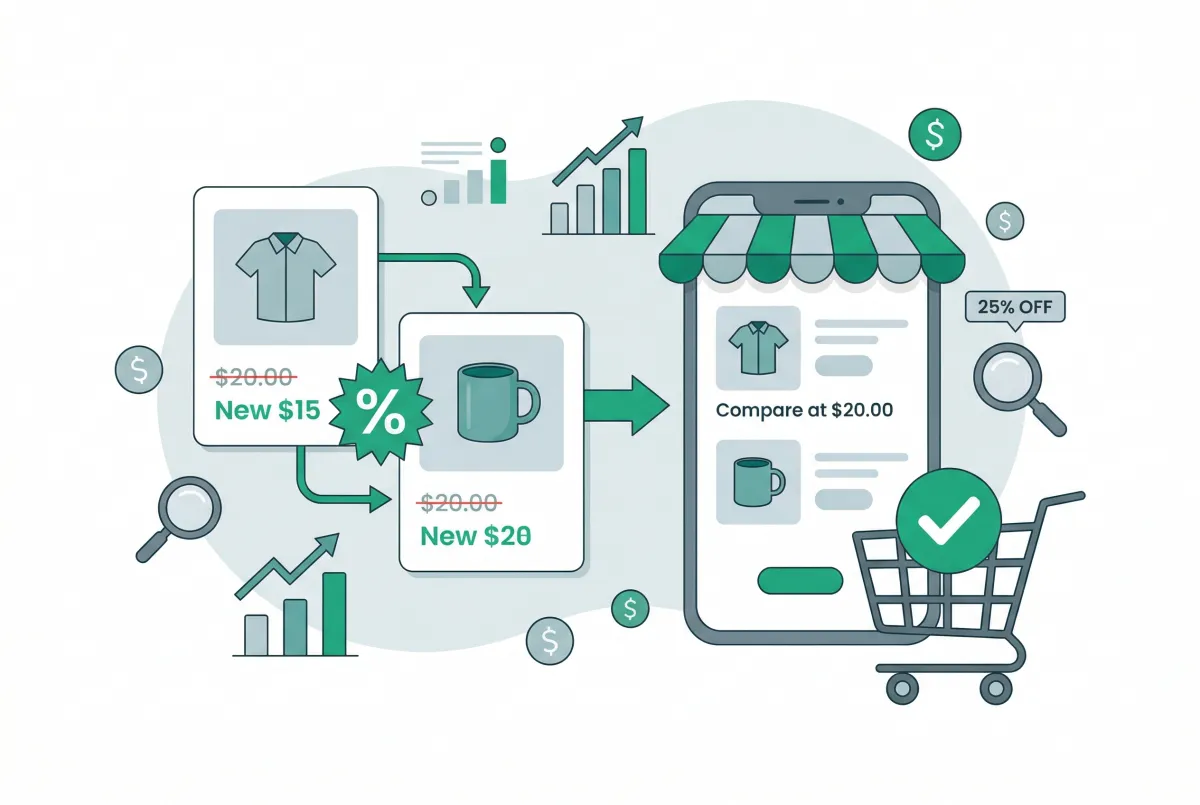
Compare-at pricing on Shopify is one of those features that looks simple on the surface but trips up merchants constantly. You enter a higher "original" price, Shopify crosses it out, and the current price looks like a deal. Not quite. Between theme compatibility issues, legal requirements most sellers don't know about, and the very real risk of training customers to never pay full price, there's a lot more to get right than filling in a second price field.
This guide covers everything from setup to strategy, including the mistakes that quietly kill conversions instead of boosting them.
What Is Compare-at Price on Shopify, and How Does It Actually Work?
Compare-at price is Shopify's built-in field for showing a "was/now" price comparison directly on your product page. You enter the original (higher) price in the "Compare-at price" field and your actual selling price in the "Price" field. Shopify's theme then displays the compare-at price with a strikethrough.
Here's what confuses many merchants: compare-at pricing and discount codes are two completely separate systems in Shopify. An automatic discount code (like "SAVE20") applies a reduction at checkout, but it will not create strikethrough pricing on your product pages unless you use a third-party app. Compare-at price is the only native way to show that visual "was $50, now $35" format directly on product listings and collection pages.
The compare-at price lives at the variant level, not the product level. If you sell a t-shirt in three sizes and only want to mark one size as on sale, you can do that. This also means that for products with multiple variants, you need to set the compare-at price on every single variant you want to show as discounted.
Most Shopify themes automatically display a "Sale" badge on collection grid thumbnails when a compare-at price is active. The price appears with a strikethrough on the product detail page too. But the exact styling depends entirely on your theme: some show "Save 30%," others just cross out the old number. If your broader pricing strategy relies on how that discount is communicated visually, check your theme's output before going live.
Why Does Showing the Strikethrough Price Increase Conversions?
Strikethrough pricing works because it gives shoppers an instant reference point. According to research from Growth Suite, product page discount visibility increases conversion rates by 25-40% compared to revealing discounts only at checkout. That gap comes down to psychology.
The principle at work is called "anchoring." When a customer sees "$80" crossed out next to a "$55" price tag, their brain registers the $80 as the product's true value. The $55 feels like a win. Remove that $80 and the $55 is just a price with no emotional hook.
Moderate discounts hit the sweet spot. Discounts in the 10-25% range can increase ecommerce conversion rates by 25-35% compared to non-discounted products. Go too small and customers don't care. Go too deep and they question product quality.
There's also a practical benefit. When shoppers see the discounted price on the product page itself (not hidden until checkout), they're more likely to add to cart. There's no surprise, no disappointment, and no reason to abandon the cart looking for a coupon code they don't have. If you're working on other conversion levers, product reviews paired with visible discounts create a particularly strong trust signal.
How Do You Set Up Compare-at Pricing on Shopify (Single Products and Bulk)?
Setting up compare-at pricing for a single product takes about 30 seconds. Go to your Shopify admin, navigate to Products, select the product, scroll to the Pricing section, and enter the higher "original" price in the "Compare-at price" field. Make sure the "Price" field contains your actual selling price, then hit Save.
For products with multiple variants, you'll need to click into each variant individually and set the compare-at price there. Shopify does not let you set a product-level compare-at price that cascades to all variants automatically.
Bulk Editing Compare-at Prices
If you're running a store-wide sale or marking down an entire collection, editing products one by one is painful. Shopify's built-in bulk editor lets you select multiple products from the Products list, click "Edit products," and add the "Compare-at price" column to the spreadsheet view.
That works for maybe 20-30 products. For larger catalogs, a CSV export/import through Shopify's native tool or a dedicated bulk editor is faster. Edify, for example, lets you filter products by collection, vendor, or tag and apply price changes across hundreds of products at once, with preview and scheduling so you can set a sale to start and end automatically. For a full walkthrough of bulk editing methods, check out our guide to bulk product editing on Shopify.
Using CSV Files
If you prefer the spreadsheet route, export your products as CSV from Settings > Export. The relevant columns are "Variant Compare At Price" and "Variant Price." Fill in your compare-at values, save the file, and re-import it.
Make sure you don't accidentally overwrite other product data by only including the columns you're changing plus the required identifiers (Handle or ID).
Why Is Your Compare-at Price Not Showing, and How Do You Fix It?
This is one of the most common support questions in the Shopify community, and the fix is usually one of five things.
Your compare-at price is lower than or equal to your selling price. The compare-at price must be higher than the Price field. If they're the same value, or the compare-at is lower, Shopify's theme logic ignores it entirely. No error message; it just doesn't display.
Your theme doesn't support compare-at pricing display. Most official Shopify themes (Dawn, Refresh, Sense) handle this natively. But some third-party or heavily customized themes may not include the Liquid code that renders strikethrough pricing. Check your theme's product template for references to compare_at_price.
You set it at the product level but not the variant level. Compare-at price is a variant-level field. If your product has variants and you only filled in the field on the main product view without clicking into each variant, the data might not be saved where the theme expects it.
Shopify Markets or EEA pricing overrides are active. If you're using Shopify Markets with different pricing for different regions, the compare-at price you set in your default market may not carry over to international markets. Check your Markets settings and ensure the compare-at price is configured for each market where you want it visible.
Mobile rendering differences. Some themes display compare-at pricing differently on mobile. The strikethrough might be there but styled in a way that's hard to notice (small text, same color as the sale price, or positioned below the fold). Always preview your product pages on an actual phone, not just the theme editor's mobile preview.
If you've checked all five and the price still isn't showing, try switching to a default Shopify theme temporarily. If the compare-at price appears there, the issue is in your custom theme's code. Good product page optimization also means structured data picks up your sale pricing correctly, so fixing display issues has SEO benefits too.
What Are the Legal Rules Around Compare-at Pricing on Shopify You Cannot Ignore?
This is the section most "how to set up compare-at price" articles skip entirely, and it's the one that can actually get you in trouble. Fake reference pricing isn't just shady; it's illegal in most major markets.
In the United States, the FTC's 16 CFR 233.1 is clear: a "former price" used in advertising must be a bona fide price at which the product was openly offered to the public for a reasonably substantial period of time. You can't create a product, set the price at $100 for one day, then immediately drop it to $60 and advertise "was $100."
The regulation also prohibits artificially inflated prices established solely to justify later "reductions." The original price needs to have been real, recent, and genuinely offered.
The European Union goes further. Under the Omnibus Directive, when you announce a price reduction in the EEA, you must display the lowest price you charged for that product within the previous 30 days. You can't just show any old higher price as the compare-at value.
Shopify's admin only has two price fields (price and compare-at price), so if you run frequent promotions, you may need a third-party app to track and display the 30-day lowest price automatically.
What should you document? Keep records of when prices changed, what the selling price was before you set a compare-at value, and how long products were offered at each price point. If a customer or regulator questions your pricing, you want a clear paper trail showing the compare-at price was legitimate.
If you're selling to customers in both the US and EU (which many Shopify merchants do through Markets), you need to comply with both sets of rules. The EU's 30-day rule is the stricter standard, so building your process around that requirement keeps you compliant everywhere.
When Should You Use Compare-at Pricing, and When Should You Stop?
Compare-at pricing is a promotion tool, not a permanent store fixture. That distinction matters more than most merchants realize. Promo code issuance increased 31% in the first half of 2024 compared to the same period the prior year. Discounting is accelerating across ecommerce, and the merchants who stand out will be the ones who use it deliberately rather than reflexively.
Here's my honest take: most Shopify merchants treat compare-at pricing as a permanent store feature. Products are always "on sale," the strikethrough price never disappears, and customers have no idea what the real price is supposed to be. That is not a discount strategy.
It's a trust problem in slow motion. A compare-at price that never turns off is just a higher number you added to make the real price look good. Customers figure this out faster than you think.
The math backs this up. A 20% discount on a product with a 40% gross profit margin cuts your profit per unit by 50%. If you're running that discount permanently, you've just accepted a 50% profit reduction as your baseline. That's a pricing problem, not a promotion. For a deeper look at protecting your margins, read our guide on running Shopify sales without destroying your margins.
When Compare-at Pricing Works Best
- Seasonal sales with a clear end date. Black Friday, holiday sales, end-of-season clearance. Customers understand these are time-limited.
- New product launches. An introductory price with a compare-at showing the "regular" price you'll charge after launch creates urgency.
- Clearing slow-moving inventory. Products that aren't selling at full price get a genuine markdown. The compare-at price was real because you were actually charging it.
- Bundle or collection promotions. Marking down a specific collection for a limited time while keeping the rest of your store at full price.
When You Should Remove It
- It's been active for more than 30 days. Beyond a month, you're no longer running a promotion. You've changed your price. Remove the compare-at and adjust your pricing strategy.
- Repeat customers only buy during sales. If your returning customers are waiting for discounts before purchasing, you've trained them to expect the lower price. That's a signal to pull back.
- You can't remember the last time the product sold at the compare-at price. If the "original" price was never real or hasn't been real in months, take it down. See the legal section above for why this matters.
Merchants who rotate compare-at pricing strategically build healthier customer relationships. Their shoppers treat discounts as genuine opportunities rather than permanent fixtures. Your product descriptions should reinforce the value of what you sell at any price, not rely on a crossed-out number to do the convincing.
The bottom line: use compare-at pricing when you have a genuine reason, set an end date before you start, and actually follow through on removing it. Your margins and your brand will both be better for it.
Related Articles

Shopify Pricing Strategies: How to Price Products for Maximum Profit
Stop leaving money on the table. Learn Shopify pricing strategies that actually work, with real cost formulas, psychology tactics, and testing methods.
How to Run a Shopify Sale Without Destroying Your Margins
Learn how to run a Shopify sale that drives revenue without crushing profit margins. Strategy, math, and tools every store owner needs before discounting.
How to Schedule Bulk Price Changes on Shopify (3 Methods That Actually Work)
Three methods to schedule bulk price changes on Shopify: native bulk editor, CSV import, and dedicated apps. Stop updating prices one by one at midnight.
Shopify Bulk Product Editing: The Complete Guide to Updating Your Catalog Fast
Master Shopify bulk product editing with the native editor, CSV imports, and third-party apps. Update prices, tags, and descriptions across your catalog fast.

Best Shopify Bulk Product Editor Apps Compared (2026)
Compare Shopify bulk product editor apps by undo depth, backup windows, 2026 pricing, scheduling, and catalog size so you pick a safe fit for your store.

Learn to write Shopify product descriptions that rank on Google and convert shoppers into buyers. Includes SEO tips, copywriting frameworks, and examples.