
WooCommerce to Shopify Migration: Step-by-Step Product Transfer Guide

A WooCommerce to Shopify migration sounds straightforward until you're knee-deep in broken CSV imports and missing product images. Thousands of merchants make this switch every year, and the ones who succeed share one trait: they prepare obsessively before touching a single export button. This guide walks you through the complete product transfer process, from pre-migration cleanup to post-launch quality checks, so your catalog arrives on Shopify intact and your SEO rankings stay healthy.
WooCommerce still powers roughly 4.53 million active stores worldwide, holding about 33.4% of the global ecommerce market according to 2025 figures. But a growing number of those merchants are packing up and heading to Shopify. Here's why, and exactly how to do it right.
Why Are Merchants Migrating from WooCommerce to Shopify Right Now?
The biggest driver is cost. According to a Shopify-commissioned TCO study, WooCommerce carries 41% higher operating costs and 49% higher implementation costs compared to Shopify. For small-to-mid-size merchants juggling hosting bills, security patches, plugin conflicts, and PHP updates, that gap adds up fast.
Then there's the momentum factor. Shopify crossed $1 trillion in cumulative gross merchandise volume in 2024, and a study of 60+ rising apparel brands found 83% run on Shopify versus just 3% on WooCommerce. The ecosystem (apps, themes, developer community) is pulling merchants toward Shopify whether they planned the move or not.
Performance matters too. One fashion retailer reduced checkout abandonment by 27% within a month of moving from WooCommerce to Shopify, largely because Shopify's checkout is faster and more mobile-friendly out of the box. That's revenue you're leaving on the table every month you delay.
WooCommerce isn't a bad platform. It's flexible, open-source, and deeply customizable. But flexibility becomes a liability when you're spending more time managing infrastructure than selling products. That's the inflection point where migration makes sense. Still deciding whether to leave at all? Start with our Shopify vs WooCommerce fees and features comparison before you touch an export.
What Product Data Can (and Cannot) Be Transferred from WooCommerce to Shopify?
Most of your core product data transfers cleanly: titles, descriptions, prices, images, variants, SKUs, weight, and inventory quantities. Shopify's CSV import and most migration tools handle these fields without issues. The data that doesn't transfer is where merchants get surprised.
Here's what typically gets lost or mangled during the move:
- Custom fields and metadata: WooCommerce lets you attach unlimited custom fields to products via plugins like ACF. Shopify uses metafields, and the mapping isn't automatic.
- Product reviews: These live in WooCommerce's WordPress comments database. They don't export with your product CSV.
- Advanced pricing rules: Tiered pricing, role-based pricing, and dynamic discount structures won't carry over natively.
- SEO metadata: Your Yoast or RankMath meta titles and descriptions require manual export and re-import on the Shopify side.
- Category hierarchy: WooCommerce categories and tags map loosely to Shopify collections, but nested structures need rebuilding.
Knowing what won't transfer before you start prevents the "where did my data go?" panic that hits most merchants mid-migration.
How Do You Prepare Your WooCommerce Store Before Starting the Migration?
Preparation is the entire migration. Here's my hot take: most guides treat the CSV export as step one. It should be step three.
The real work (auditing your product catalog for duplicate SKUs, broken image links, inconsistent variant naming, and missing descriptions) needs to happen before you touch an export tool. Merchants who skip the audit phase spend more time fixing Shopify import errors than they would have spent cleaning WooCommerce first.
Start with a product audit. Export your WooCommerce products to CSV and open it in a spreadsheet. Look for these specific problems:
Common CSV Issues That Break Shopify Imports
- Missing SKUs: Shopify uses SKUs to identify variants. Blank SKU fields create duplicate confusion during import.
- Duplicate variants: WooCommerce lets you create identical variant combinations. Shopify rejects them.
- Blank image URLs: Products with empty image fields import as text-only listings, which tanks conversion rates.
- Inconsistent pricing formats: Mixing "$19.99" with "19.99" or using commas as decimal separators causes parsing errors.
- HTML in descriptions: WooCommerce descriptions often contain shortcodes, plugin-specific markup, and broken HTML that displays as raw code on Shopify.
Clean all of this before exporting your final migration file. Fix the SKUs, remove dead image links, and standardize your variant naming (don't mix "Small" and "S" and "Sm" for the same option). Strip shortcodes from descriptions.
This cleanup phase typically takes 2 to 5 hours depending on catalog size. That investment saves you 10+ hours of post-import troubleshooting.
What Are the Three Ways to Complete a WooCommerce to Shopify Migration?
You have three paths, and each fits a different store size and complexity level. The right choice depends on your product count, variant structure, and tolerance for manual work.
Option 1: Shopify's Built-in CSV Import
Shopify's native import tool works for stores with fewer than 500 simple products. Export from WooCommerce, reformat the CSV to match Shopify's product CSV template, and upload through the Products section of your Shopify admin. It's free but manual, and you'll need to remap column headers yourself.
Option 2: Dedicated Migration Apps
For stores with complex catalogs, a migration app handles the heavy lifting. Migratify connects directly to WooCommerce and transfers products (titles, descriptions, images, variants, and pricing) without requiring CSV reformatting. It also includes AI-powered editing tools that can clean up product titles and descriptions during the transfer, which is particularly valuable for large catalogs with inconsistent formatting. For stores with 500+ products or complex variant structures, this approach saves significant time compared to manual CSV work.
Option 3: Enterprise Migration Services
Stores with 10,000+ products, heavy customizations, or complex integrations may need a professional migration service. Companies like Cart2Cart and LitExtension offer managed migrations with dedicated support. Budget $500 to $5,000 depending on catalog size and complexity.
One critical step that almost no guide mentions: run a dry run first. Import 10 to 20 products as a test batch before committing your full catalog.
Check that images loaded correctly, variants mapped properly, and descriptions render without broken HTML. This single step prevents hours of cleanup work. Delete the test products and run the full migration only after everything checks out.
How Do You Handle Shopify's Product Variant and Option Limits After Migration?
Shopify expanded its variant limit from 100 to 2,048 variants per product in October 2025, requiring more than 6,500 app partners to update their integrations. This is a massive change that most migration guides still haven't caught up with. If you're reading advice that warns about a 100-variant ceiling, that information is outdated.
However, the 3-option limit per product still applies. Each Shopify product can have up to 3 option types (like Size, Color, and Material), but each option can now have many more values. So a product with 16 sizes, 16 colors, and 8 materials can have up to 2,048 variant combinations.
What happens when your WooCommerce products need more than 3 option types? This is common for customizable products (think engraved jewelry or configurable furniture). You'll need to restructure those products for Shopify's architecture or use an app like Optionize to add custom product options in Shopify beyond the native 3-option limit.
During migration, flag any WooCommerce product with more than 3 attribute types. These products need manual restructuring before or after import. You might split them into separate Shopify products, consolidate options, or implement custom option fields through an app. The key is identifying these products during your pre-migration audit, not discovering them after import when Shopify silently drops extra attributes.
If you're coming from WooCommerce where plugins like WooCommerce Product Add-Ons gave you unlimited custom fields, the transition requires rethinking your product architecture. Some merchants find this limiting at first. In practice, the 2,048-variant ceiling is generous enough for almost every product type, and apps fill the gap for genuinely complex customization needs.
How Do You Protect Your SEO Rankings When Moving Products to Shopify?
URL structure changes are the single biggest SEO risk during any platform migration. WooCommerce product URLs typically follow a pattern like /product/blue-widget/, while Shopify uses /products/blue-widget. Without 301 redirects, every inbound link and Google index entry pointing to your old URLs returns a 404 error. Research shows poorly managed migrations can result in traffic drops of 20% to 70%, with some businesses never fully recovering.
Here's your SEO migration checklist:
- Map every old URL to its new Shopify URL. Export all WooCommerce product URLs and create a redirect spreadsheet mapping each one to the corresponding Shopify URL.
- Set up 301 redirects in Shopify. Go to Online Store > Navigation > URL Redirects. For bulk redirects, upload a CSV with old and new paths.
- Transfer meta titles and descriptions. Export them from Yoast/RankMath and re-apply them in Shopify (either manually or through a bulk editing tool).
- Preserve image alt text. This often gets stripped during migration. Verify that alt text transferred for your top-performing product images.
- Submit an updated sitemap. After migration, submit your new Shopify sitemap to Google Search Console and request indexing for your key product pages.
The redirect step alone can save your organic traffic. One large retailer lost approximately $5 million in the first month after a redesign because their team skipped URL redirect implementation. Don't let that be your story.
After setting up redirects, you can bulk edit your product catalog to fine-tune meta titles, descriptions, and other SEO fields across your entire Shopify store.
What Should You Check Immediately After Your Product Migration Completes?
The first 48 hours after migration are when you catch problems before customers do. Run through this post-migration quality checklist systematically. Don't assume everything transferred correctly because the import tool said "success."
Check these items in order:
- Product count: Does the number of products in Shopify match WooCommerce? Count variants separately.
- Image integrity: Open 20 random products and verify all images loaded. Broken image links are the most common import failure.
- Variant mapping: Confirm that size/color/material options display correctly and that pricing is accurate for each variant.
- Inventory quantities: Spot-check 15 to 20 products to verify stock levels transferred correctly.
- Product descriptions: Look for broken HTML, missing formatting, leftover WooCommerce shortcodes, or encoding issues (like & displaying instead of &).
- URL redirects: Test 10+ old WooCommerce URLs to confirm they redirect to the correct Shopify product pages.
- Pricing accuracy: Compare sale prices, compare-at prices, and tax settings between the two platforms.
Place a few test orders, run through the full checkout flow, and try different product variants before going live. This is your safety net before flipping the DNS switch and pointing your domain to Shopify.
If you find widespread issues with product data (wrong prices, missing descriptions, mangled variant names), don't try fixing them one at a time. Use a bulk editing tool like Edify to correct problems across hundreds of products simultaneously.
What Happens to Your Product Reviews When You Leave WooCommerce?
Your product reviews don't migrate automatically. This is the invisible casualty of every WooCommerce to Shopify migration, and almost no guide talks about it. Reviews live in WooCommerce's WordPress comments table, completely separate from your product data. When you export products via CSV, reviews stay behind.
This matters more than you might think. Product reviews directly influence conversion rates, and losing hundreds or thousands of reviews means losing the social proof that drives sales. You essentially start from zero on Shopify unless you take deliberate steps to bring them over.
Here's how to handle it:
- Export reviews from WooCommerce. Use a WordPress plugin like WP All Export to extract reviews as a CSV file, including the reviewer name, rating, review text, date, and associated product.
- Map reviews to Shopify products. Match each review to its new Shopify product using SKUs or product titles as the linking key.
- Import into Shopify. You can import your product reviews to Shopify using a reviews app. WiseReviews specializes in importing reviews from platforms like Amazon, AliExpress, and Etsy, and displays them with customizable widgets that match your store's branding. For importing WooCommerce reviews specifically, look for a reviews app that supports CSV import from WordPress export files.
Don't treat reviews as an afterthought. Plan the review migration alongside your product migration. Having your reviews live on Shopify from day one means you don't lose the conversion lift they provide during those critical first weeks after launch.
The WooCommerce to Shopify migration isn't technically difficult. The difficulty is in the details: the SKU that's blank, the variant that's duplicated, the redirect that's missing, the reviews that got left behind. Handle those details before and during the move, and you'll land on Shopify with a clean catalog, intact rankings, and customers who never noticed the switch.

Migratify: Copy Products + AI
SponsoredProduct import made easier! Effortlessly migrate products from 100+ platforms.
Related Articles
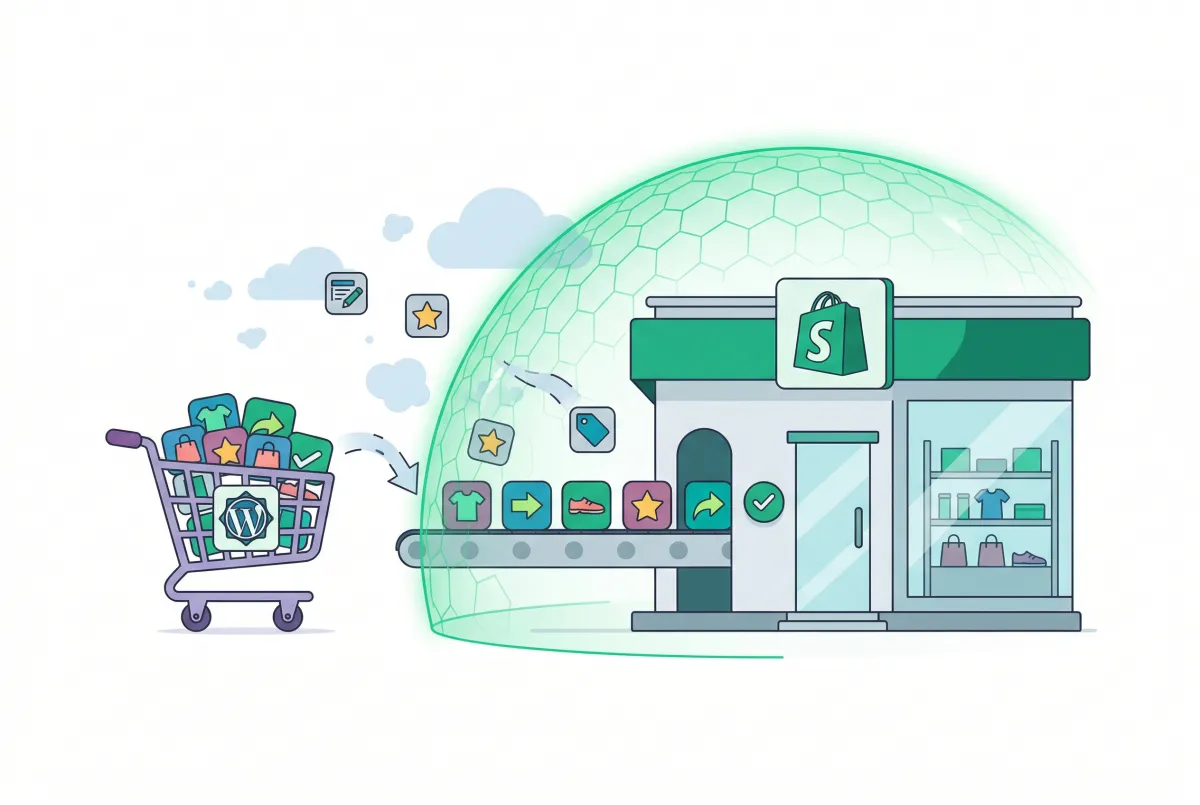
Migrate Products from WooCommerce to Shopify: The Data That Gets Lost (And How to Protect It)
Planning to migrate products from WooCommerce to Shopify? Here is which fields vanish, what limits break your catalog, and how to audit the result.

Shopify vs WooCommerce in 2026: Fees, Features, and When to Switch
Compare Shopify vs WooCommerce in 2026: real fees, hosting vs SaaS costs, checkout conversion, control, and when growing SMBs should switch platforms.

How to Import Products to Shopify from a CSV File (Without Errors)
Learn how to import products to Shopify from a CSV file without errors. Covers formatting, variants, images, and detailed fixes for every common issue.
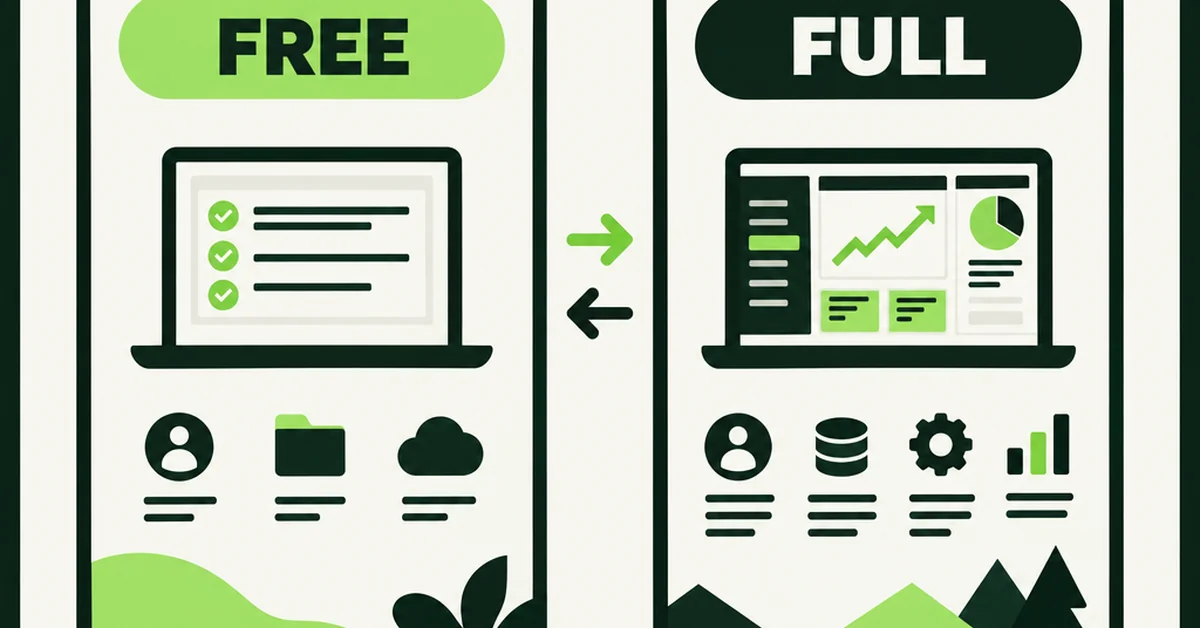
Shopify Store Migration Apps Compared in 2026: Free App vs LitExtension, Cart2Cart, Matrixify, Migratify
Shopify store migration apps compared in 2026: free Store Migration vs LitExtension, Cart2Cart, Matrixify, and Migratify. Pick by what each actually moves.
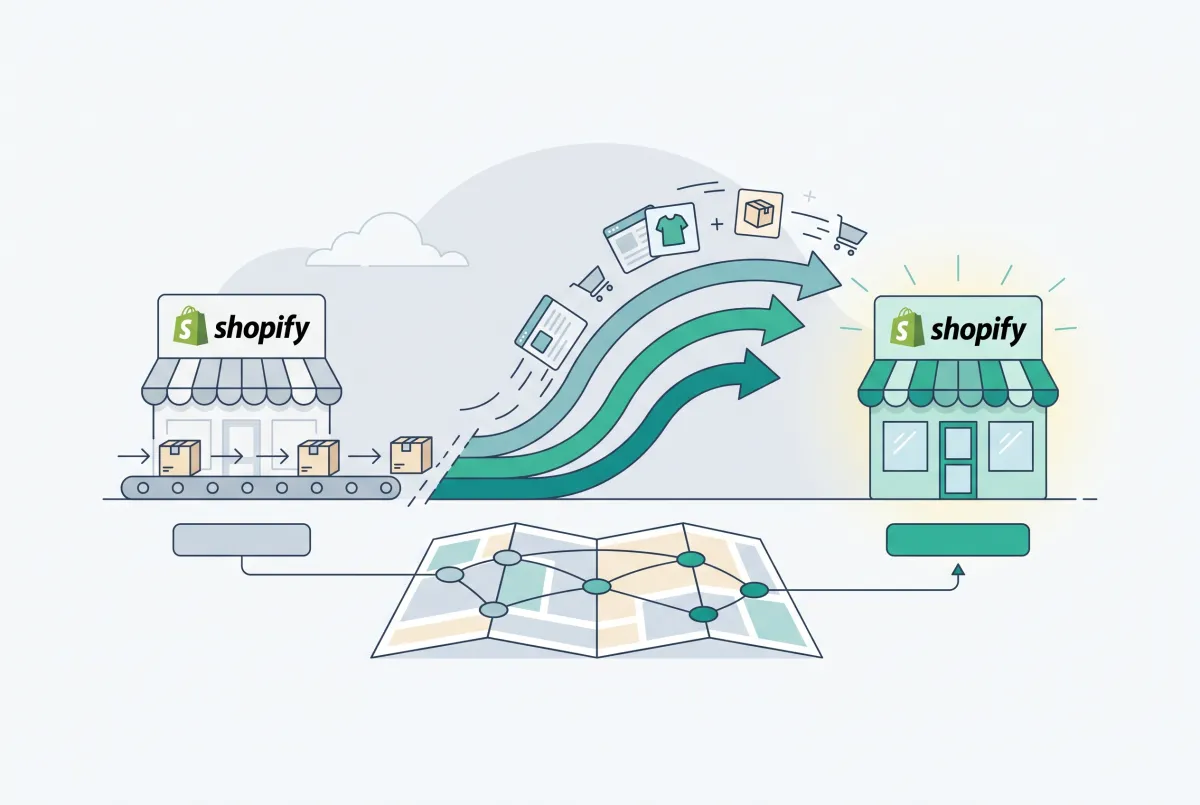
Migration traffic drops start with missed URLs. Learn how to set up 301 redirects after a Shopify migration, from redirect mapping to bulk CSV uploads.

Shopify Migration Checklist: Everything to Move Before You Switch Platforms
Use this complete Shopify migration checklist to move products, customers, orders, SEO data, and apps without losing sales when you switch platforms today.