
How to Schedule Bulk Price Changes on Shopify (3 Methods That Actually Work)
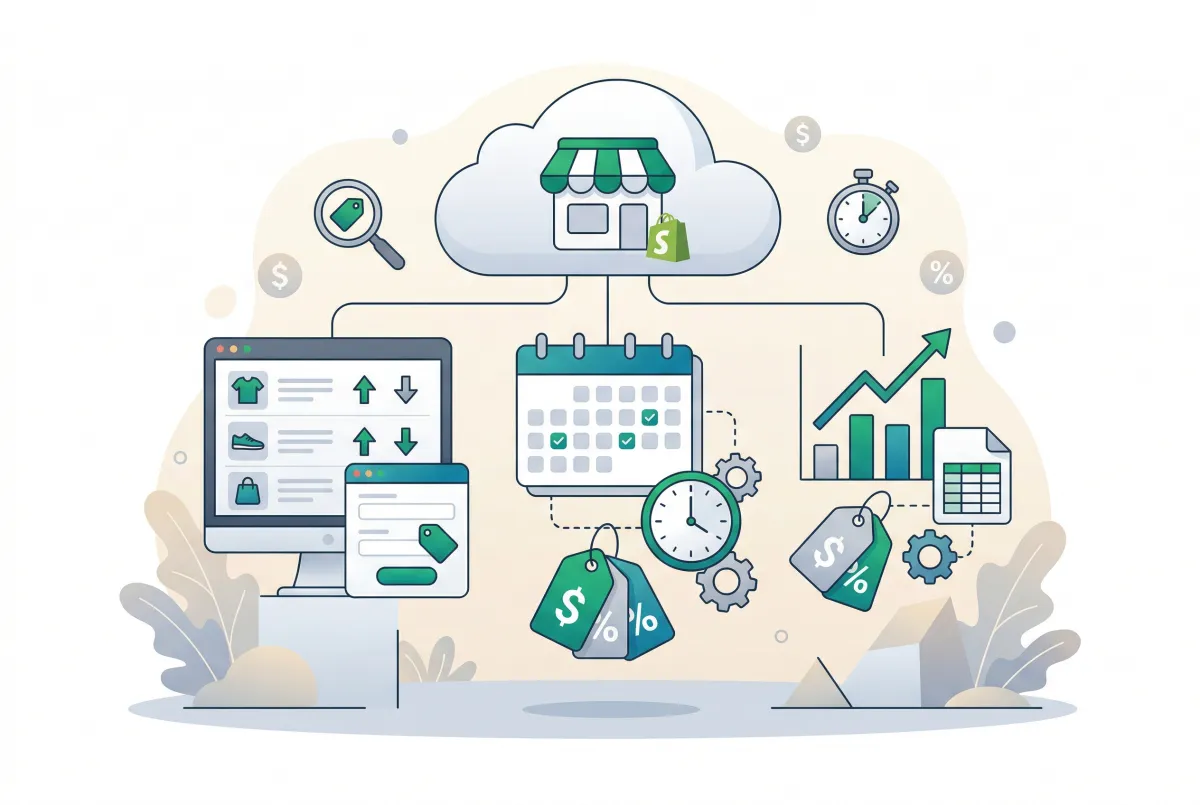
If you've ever stayed up until midnight manually changing prices for a flash sale, you already know why merchants want to schedule bulk price changes on Shopify. The platform processes $11.5 billion in BFCM sales each year, yet it still doesn't offer a native way to schedule price updates in advance. That gap forces store owners into workarounds, third-party apps, or CSV gymnastics just to run a timed promotion without losing sleep.
This guide covers three proven methods for scheduling bulk price changes, from free built-in tools to dedicated apps, plus how to handle rollbacks, avoid costly mistakes, and make sure your compare-at prices actually trigger Shopify's "Sale" badge.
Why Doesn't Shopify Let You Schedule Price Changes Natively?
Shopify separates "discounts" from "prices" at an architectural level, and that distinction is the core reason scheduled price changes don't exist out of the box. You can schedule automatic discounts (percentage off, fixed amount, buy-X-get-Y) through the Discounts section, but those don't modify the actual product price or compare-at price fields that control how your storefront displays sale badges.
The practical consequence: if you want a product's listed price to drop from $89 to $59 at exactly 9 AM on Black Friday, Shopify's native discount system won't do it. It can apply a code or automatic discount at checkout, but your product page still shows $89 unless you manually edit the price field. For merchants running margin-conscious sales, this creates a real display problem. Customers see the original price, feel no urgency, and bounce.
Shopify Flow (available on Shopify Plus) does allow some automation, but it requires technical setup and doesn't include a visual preview of changes before they go live. For the majority of merchants on Basic, Shopify, or Advanced plans, the options are more limited.
What Can You Do With Shopify's Built-In Bulk Price Editor?
Shopify's native bulk editor lets you select multiple products and edit their price fields in a spreadsheet-style interface directly inside the admin. It's genuinely useful for quick, one-time updates on small catalogs. You can filter by collection, product type, vendor, or tag, then change prices, compare-at prices, and other fields in a single session.
The problem is scale. The bulk editor loads every product and variant into your browser's memory simultaneously. A store with 200 products averaging 10 variants each creates roughly 2,000 editable rows, and browsers frequently freeze or crash under that load. For stores with larger catalogs, the native editor becomes unreliable.
Here's what the bulk editor can do well:
- Edit prices, compare-at prices, cost per item, and SKUs across multiple products at once
- Filter products by collection, vendor, tag, or product type before editing
- Update up to a few dozen products in a single batch without issues
And here's what it can't do:
- Schedule changes for a future date and time
- Automatically revert prices after a sale ends
- Preview the full scope of changes before applying them
- Handle catalogs with hundreds or thousands of products reliably
Here's my honest take: Shopify's native bulk editor isn't really a bulk editor. It's a spreadsheet that breaks at scale. For any store with more than 200 products and more than one sale event per year, the native admin is a liability, not a feature. Any merchant still doing BFCM price changes manually at 11:45 PM is leaving both money and sanity on the table.
If your catalog is small and you only run occasional sales, the built-in tool works fine. For anything beyond that, you'll want one of the next two methods. Check our complete guide to bulk product editing for a deeper walkthrough of the native editor's capabilities.
How Do You Schedule Bulk Price Changes Using a CSV File?
CSV import is the free, manual method for scheduling bulk price changes on Shopify. You export your product catalog, modify prices in a spreadsheet, and re-import the file at the exact moment you want the new prices to go live. It's not truly "scheduled," but it gives you full control over every price field without any app.
The process works in four steps:
Step 1: Export Your Products
Go to Products in your Shopify admin, select the products you want to update, and click Export. Choose "Selected products" and "Plain CSV file." This gives you a spreadsheet with every variant, including the "Variant Price" and "Variant Compare At Price" columns you'll need to edit.
Step 2: Prepare Two CSV Files
This is the part most guides skip. You need two files: one with your sale prices and one with your original prices for rollback. Duplicate your exported CSV immediately.
In the first copy, update the "Variant Price" column to your sale prices and set the "Variant Compare At Price" column to the original prices (this is what triggers the "Sale" badge on your storefront). In the second copy, keep the original prices intact so you can restore them when the sale ends. For Shopify's sale badge to display correctly, the compare-at price must be higher than the current price. If you only change the price without setting compare-at, customers won't see any visual indicator that an item is on sale.
Step 3: Import at the Right Time
Navigate to Products, then Import, and upload your sale-price CSV. Select "Overwrite existing products that have the same handle." The import runs in the background, and Shopify sends you an email when it finishes. For a catalog of 500 products, expect it to take 5 to 15 minutes depending on variant count.
Here's the timing catch: you need to be awake and at your computer when you want the sale to start. If your sale kicks off at midnight, you're setting an alarm. If you need a detailed walkthrough, our CSV import guide covers the entire process, including common error codes.
Step 4: Roll Back After the Sale
When the sale ends, import your second CSV with your original prices. Clear the "Variant Compare At Price" column entirely by leaving cells blank, which removes the sale badge from your storefront. Then verify a handful of products manually after import to confirm prices reverted correctly.
The CSV method is free and reliable, but it doesn't scale well for stores running frequent promotions. If you sell across multiple currencies through Shopify Markets, be aware that importing base-currency prices can override any market-specific price adjustments you've set. Always check your international prices after a CSV import.
Which Apps Let You Schedule Bulk Price Changes on Shopify?
Dedicated apps are the most reliable way to schedule bulk price changes because they handle timing, rollback, and preview automatically. Several apps in the Shopify ecosystem solve this problem, each with different strengths.
The feature that separates good pricing apps from mediocre ones is automatic rollback. Time-limited flash sales consistently outperform ongoing discount programs because urgency drives action. But if your rollback fails or runs late, you're selling at sale prices long after the promotion should have ended, and that eats directly into margins.
Here's what to look for in a scheduling app:
- Preview before apply: See every price change across your catalog before anything goes live
- Scheduled start and end times: Set both the sale start and the automatic revert
- Compare-at price handling: The app should set compare-at prices simultaneously, not just change the sale price
- Activity log: A record of every change made, with old and new values, so you can audit after the fact
- Filtering and segmentation: The ability to target products by tag, collection, vendor, or product type
Edify is one option that checks these boxes. It supports scheduled edits with auto-revert, lets you preview all changes before applying them, and logs every edit with one-click undo if something goes wrong. It also handles bulk editing beyond just prices (descriptions, tags, collections), which is useful if you're updating product copy alongside a sale.
Other well-known options include Matrixify (formerly Excelify), which is powerful for large-scale imports and exports with scheduling capabilities, and Shopify Flow for Plus merchants who want event-driven automation. The right choice depends on your catalog size, how often you run promotions, and whether you need features beyond price scheduling.
How Do You Set Up an Automatic Price Rollback After a Sale Ends?
An automatic price rollback restores your original prices at a scheduled time without any manual intervention. This is the feature that prevents the most common post-sale disaster: forgetting to revert prices and selling at discounted rates for days (or weeks) after a promotion ends.
If you're using a dedicated app, setup is straightforward. Create your price change task, set the start date and time, then set the end date and time. The app stores your original prices and restores them when the end time arrives. With Edify, for example, every edit is logged with old and new values, so you can also manually undo any task with one click if the automatic rollback needs to be triggered early.
For the CSV method, rollback is entirely manual. You import your original-price CSV file when the sale ends, which means someone needs to be at the keyboard at the right moment. The risk is human error: importing the wrong file, forgetting to clear compare-at prices, or simply oversleeping.
There are a few things that can go wrong with rollbacks, and knowing about them in advance saves headaches:
- Timing and time zones: Most scheduling apps default to UTC. If your customers are primarily in EST and you schedule a rollback for "midnight," make sure you know which midnight. A 5-hour gap between UTC and EST means your sale could end at 7 PM or 5 AM depending on configuration.
- Large catalog processing time: Rolling back 5,000+ variants doesn't happen instantly. Depending on the tool, it could take 10 to 30 minutes. Plan your rollback time with a buffer so prices revert before the sale officially ends.
- Verification after rollback: Always spot-check 10 to 20 products across different collections after a rollback completes. Look at both the price and compare-at price fields. A partial rollback (where some products revert and others don't) is worse than no rollback at all because it creates inconsistent pricing across your store.
A smart approach: run a test rollback on a small batch of products a few days before your actual sale. This confirms your process works end-to-end without risking your entire catalog during a live event.
What Are the Biggest Mistakes Merchants Make When Bulk Editing Prices?
The most expensive mistake is forgetting to set compare-at prices alongside the sale price. If you drop a product from $99 to $69 but leave the compare-at field empty, Shopify won't display the "Sale" badge or the crossed-out original price. Your customers see $69 and have no idea it was ever $99. You're giving away margin with zero urgency benefit.
Discount psychology research confirms that 62% of shoppers will deliberately delay a purchase until they receive a discount, making the visual display of a discount critical for conversions. If your sale looks identical to your regular pricing, you lose the psychological trigger that drives impulse purchases.
Other common mistakes include:
- Not backing up original prices: Before any bulk edit, export your current catalog. If you skip this step and your rollback fails, you'll be reconstructing prices from memory or old invoices.
- Editing in the wrong currency: Shopify Markets lets you set region-specific prices. A bulk change to your base currency can wipe out market-level overrides you've carefully configured. Always verify your international pricing after a bulk update.
- Ignoring variant-level pricing: Some merchants update the product price but forget that Shopify actually uses variant prices at checkout. If your product has a size "Large" variant priced $10 higher than the base, a flat percentage discount applied only to the product price won't touch that variant.
- Running bulk edits during peak traffic: Price changes don't happen atomically. While a bulk update is processing, some products show new prices and others show old prices. Schedule your changes during low-traffic hours, or use an app that applies all changes simultaneously.
- No post-edit audit: Always check your storefront after a bulk edit. Open a few product pages, add items to cart, and verify the checkout price matches what you intended.
If you're building a pricing strategy from scratch, get your regular pricing right first. Scheduled sales work best when they're the exception, not the rule. Constant discounting trains customers to never buy at full price.
When Should You Actually Use Scheduled Bulk Price Changes?
Scheduled price changes make the most sense for time-bound events with a clear start and end date. Think BFCM, holiday sales, seasonal clearance, product launches, and flash sales. During BFCM 2024, peak Shopify sales hit $4.6 million per minute and more than 67,000 merchants had their highest-selling day ever. That kind of volume demands price automation, not manual updates.
Use scheduled bulk price changes when:
- You're changing the actual product price, not just offering a checkout discount. This matters for display purposes: sale badges, crossed-out prices, and Google Shopping feeds all pull from the price and compare-at price fields.
- You need precise timing. If your email campaign says "Sale starts at 8 AM," your prices need to reflect that at 8 AM, not whenever you get around to clicking "save."
- You're running coordinated promotions across multiple sales channels. Price changes sync to all channels (online store, POS, wholesale); automatic discounts sometimes don't.
- You sell internationally. According to Bain & Company research cited by Priceva, industry frontrunners are almost twice as likely to employ dynamic pricing, and bulk price changes give you control over how your catalog appears in each market.
Don't use scheduled price changes for ongoing loyalty discounts, customer-segment pricing, or promotions that should only appear at checkout. Shopify's native automatic discounts handle those cases better because they don't modify your base pricing.
The smartest merchants treat scheduled price changes as one tool in a larger catalog management system. They use tags and collections to segment products into promotional groups (e.g., "bfcm-2026," "spring-clearance"), which makes it fast to select the right products when building a bulk edit. If you're still organizing your store, our guide to essential Shopify apps for new stores covers the tools that make catalog management easier from day one.
The real question isn't whether you need to schedule bulk price changes. If you run more than two sales per year and carry more than 50 products, you do. The question is which method fits your workflow: the free-but-manual CSV approach, or an app that handles scheduling, preview, and rollback for you. Pick the one that lets you launch your next sale without setting an alarm for midnight.
Related Articles
Shopify Bulk Product Editing: The Complete Guide to Updating Your Catalog Fast
Master Shopify bulk product editing with the native editor, CSV imports, and third-party apps. Update prices, tags, and descriptions across your catalog fast.

Best Shopify Bulk Product Editor Apps Compared (2026)
Compare Shopify bulk product editor apps by undo depth, backup windows, 2026 pricing, scheduling, and catalog size so you pick a safe fit for your store.

Shopify Pricing Strategies: How to Price Products for Maximum Profit
Stop leaving money on the table. Learn Shopify pricing strategies that actually work, with real cost formulas, psychology tactics, and testing methods.
How to Run a Shopify Sale Without Destroying Your Margins
Learn how to run a Shopify sale that drives revenue without crushing profit margins. Strategy, math, and tools every store owner needs before discounting.
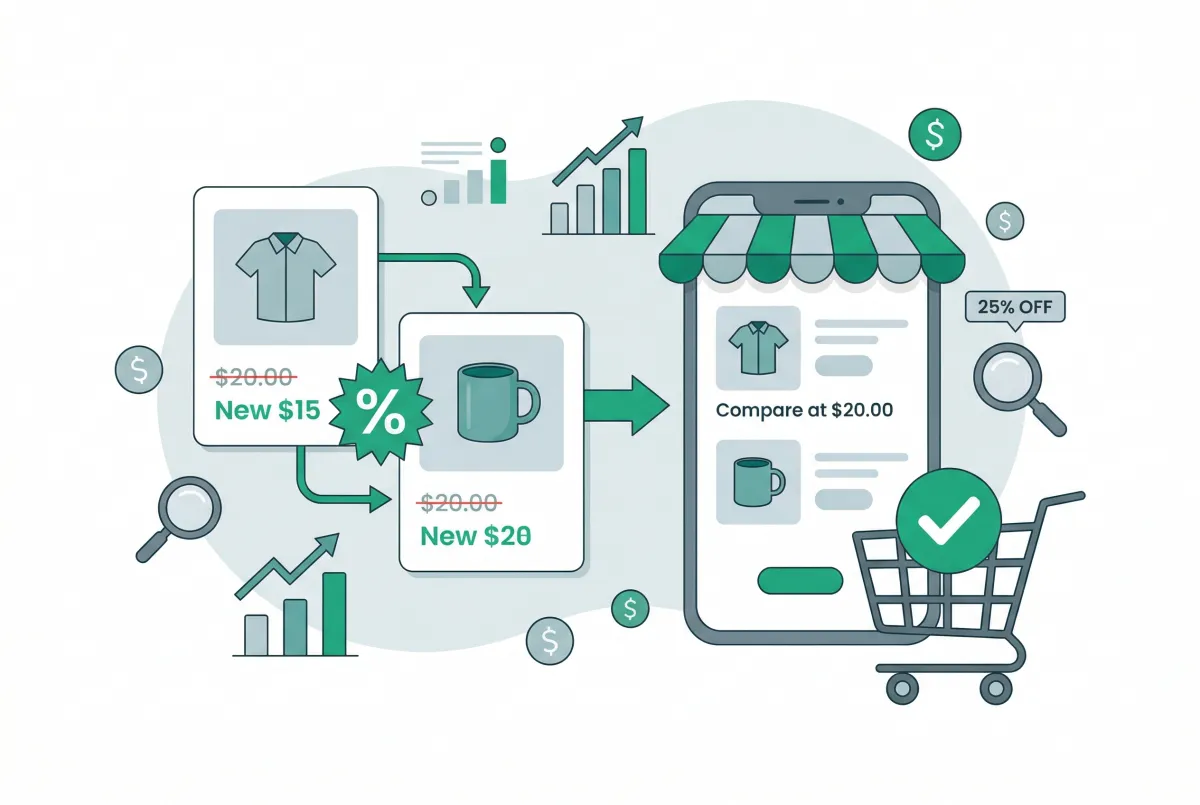
Compare-at Pricing on Shopify: How to Show Discounts That Actually Convert
Learn how compare-at pricing on Shopify works, how to set it up correctly, and the strategies that turn strikethrough pricing into real conversions.

Shopify Theme Detector: Find Out What Theme Any Store Is Using (Instantly and Free)
Use GoTinker's free Shopify theme detector to instantly find what theme any store is using. Paste a URL and get the answer in seconds. No login needed.