
Shopify Theme Detector: Find Out What Theme Any Store Is Using (Instantly and Free)
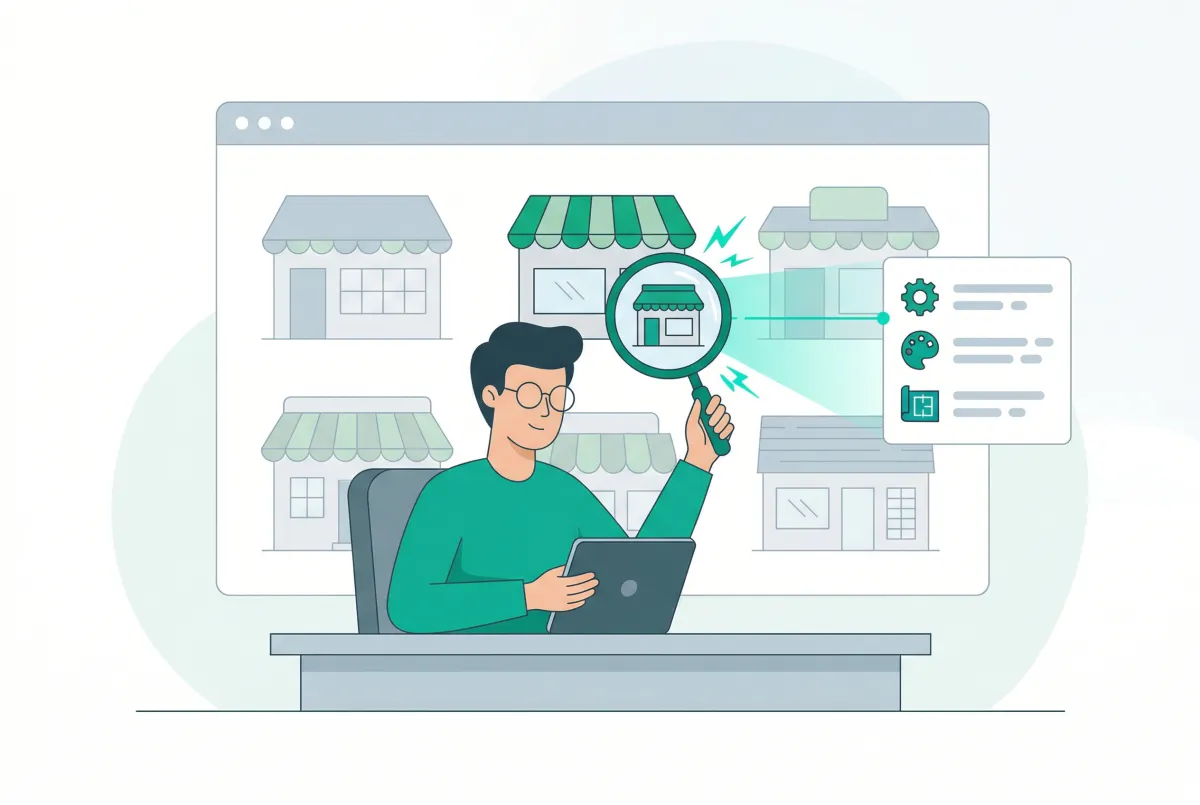
You found a Shopify store with the perfect layout, and now you want to know what theme they're running. A Shopify theme detector answers that question in seconds. Paste a store URL into the tool, and it reads the theme metadata that Shopify embeds in every storefront's source code. No guessing, no account required, no cost.
With over 5.54 million active Shopify stores worldwide and 268 official themes in the Theme Store, the odds of spotting a design you admire are high. But identifying that theme manually? That's where most people get stuck. This guide walks you through how the tool works, what the results actually mean, and what to do once you've identified a competitor's theme.
What Is a Shopify Theme Detector and How Does It Work?
A Shopify theme detector is a free online tool that identifies the exact theme a Shopify store is using. It works by reading a JavaScript object called Shopify.theme that Shopify automatically embeds in every storefront's HTML source code.
Every Shopify store, whether it runs a free theme or a $350 premium one, includes this metadata. The detector fetches the page, extracts the theme name and ID from that object, then matches it against a database of known themes. If the theme is an official Theme Store listing, you'll get a direct link to it. If it's a custom build, you'll see the store owner's internal theme name instead.
This is different from just "inspecting" a site visually. Two stores can use the same theme and look completely different because of custom sections, colors, fonts, and apps layered on top. The detector cuts through all that and tells you the foundation underneath.
How Do You Use GoTinker's Free Shopify Theme Detector?
You visit the GoTinker Shopify theme detector, paste the store's URL, and click "Detect Theme." The result appears within seconds, showing the theme name and a link to its Theme Store listing (if applicable).
There's no sign-up, no email gate, and no limit on how many stores you can check. Here's the full process:
- Copy the URL of any Shopify store you want to investigate.
- Go to the theme detector tool.
- Paste the URL and hit "Detect Theme."
- Review the result: you'll see the theme name, and for official themes, a clickable link to the Shopify Theme Store listing.
If the tool returns a theme name you don't recognize, it likely means the store is using a custom or third-party theme that isn't listed in Shopify's official Theme Store. This doesn't mean the result is wrong. It means the merchant either hired a developer to build something from scratch or is using a theme from a marketplace outside Shopify's ecosystem.
If you're still in the early stages of setting up your Shopify store, running a few competitor URLs through the detector before choosing your own theme can save you hours of browsing the Theme Store blindly.
Why Do Shopify Merchants Actually Look Up Competitor Themes?
Merchants look up competitor themes to understand what's working in their niche and to make faster, more informed decisions about their own store design. It's competitive intelligence, not copying.
Think about it practically. If three of your top five competitors all run the same theme, that's a signal. It could mean that theme handles their product type well, performs reliably on mobile, or offers specific features (like mega menus or quick-add) that their customers expect.
Here's what smart merchants actually learn from theme detection:
- Feature gaps: Your competitor's theme might natively support product filtering, color swatches, or sticky carts that yours doesn't.
- Speed benchmarks: You can run their URL through Google PageSpeed after identifying the theme. If they're scoring 85+ on mobile and you're stuck at 45, the theme might be the bottleneck.
- Price reality checks: That beautiful storefront you admired might be built on Dawn, a free theme. Knowing this prevents you from spending $350 on a premium theme you don't actually need.
If you're migrating to Shopify from another platform, theme detection is especially useful. You can study stores in your category that already have an established presence and use their theme choices as a shortlist.
What Can You Learn From a Store's Theme Beyond Just the Name?
The theme name is just the starting point. Once you know what theme a competitor uses, you can research its full feature set, performance profile, pricing, and update history on the Shopify Theme Store.
Every official theme listing includes a live demo, a feature list, support details, and reviews from other merchants. That means you can go deeper than the surface-level look of your competitor's store and evaluate whether the theme actually fits your needs.
Here's what to investigate after detection:
- Performance scores: Top Shopify themes achieve Core Web Vitals pass rates of 85 to 90%, while poorly optimized themes can fall as low as 27% passing all vitals combined. Run the competitor's URL through PageSpeed Insights for real-world numbers.
- Mobile readiness: With 70% of Shopify orders placed from smartphones, you need to know how the theme performs on small screens, not just desktop.
- Built-in features vs. apps: Some themes include advanced product filtering, quick view, and promotional banners natively. Others require apps for every extra feature, which adds cost and can slow your store down.
- Customization depth: Check how many sections and blocks the theme supports. A theme with 20+ configurable sections gives you design flexibility without touching code.
Understanding a theme's impact on your product page SEO matters just as much as its visual design. Clean markup, proper heading structure, and fast load times all start with your theme.
What Are the 3 Manual Methods If a Tool Can't Detect the Theme?
If a detection tool returns "Unknown" or fails entirely, you can still identify most Shopify themes manually using the browser you already have open. These methods work on any Shopify store that hasn't gone fully headless.
Here are the three fallback approaches:
Method 1: View Page Source
Right-click anywhere on the store and select "View Page Source." Press Ctrl+F (or Cmd+F on Mac) and search for Shopify.theme. You'll find a snippet that includes the theme name and ID. This is the same data automated detectors pull, just accessed manually.
Method 2: Check the CSS and JS File Paths
In the page source, look for references to theme asset files. Paths like /assets/theme.css or /assets/theme.js sometimes include the theme name in their filenames or nearby comments. This is less reliable than Method 1 but can work when the Shopify.theme object has been modified.
Method 3: Use Browser Developer Tools
Open your browser's developer tools (F12), go to the Console tab, and type Shopify.theme then press Enter. The console outputs the theme object directly, showing the name, ID, and role. It's the fastest manual method. You skip the raw HTML entirely and get structured data in two clicks.
One important note: these methods won't work on headless Shopify stores. If a store uses a custom frontend framework (like Hydrogen or a Next.js build) connected to Shopify's Storefront API, the standard Shopify.theme object won't exist on the page. In those cases, you're not looking at a "theme" at all. You're looking at a fully custom frontend application.
What Should You Do After You Identify the Theme You Want?
Don't buy the theme immediately. Instead, take 30 minutes to evaluate whether it actually fits your store's needs, product catalog, and growth plans. Identifying the theme is research; choosing to use it requires validation.
Follow this process:
- Preview the theme demo: Every theme in the Shopify Theme Store has a live demo. Click through the product pages, collection pages, and cart. Test it on your phone.
- Check the price and what's included: Paid themes in the Shopify Theme Store range from $200 to $350, with a few premium options at $400. Make sure support and updates are included.
- Compare alternatives: If you found a paid theme, check whether a free theme offers similar features. Dawn powers 16.65% of the 835,889 stores analyzed in one dataset, making it the most popular theme. It's free and fast. Many stores that look premium are built on Dawn with smart customization. For a side-by-side breakdown, read our Shopify themes comparison of Studio vs Impact vs Dawn vs Sense.
- Run a speed test: Before committing, run the theme demo URL through Google PageSpeed Insights. If the demo itself scores below 60 on mobile, expect worse performance once you add products, apps, and custom code.
- Read merchant reviews: Sort reviews by most recent. Older reviews may reference bugs that have been fixed, or they may highlight recurring issues the developer hasn't addressed.
Here's my honest take: most Shopify merchants obsess over which theme looks best, but the right question is which theme is fastest. Dawn is free, used by 16% of stores, and scores 85+ on mobile PageSpeed by default. Meanwhile, some visually impressive paid themes at $350 score below 40 on mobile and quietly bleed conversions every single day. A Shopify theme detector is most valuable not for copying competitors, but for discovering that your biggest rival is winning on a free theme you already have access to.
Once you've chosen a theme, you'll want to pair it with the right apps to fill in any feature gaps. A lean theme plus well-chosen apps almost always outperforms a bloated theme that tries to do everything natively.
Why Does Your Theme Choice Actually Matter for Sales and SEO?
Your theme directly affects your store's load speed, Core Web Vitals scores, and mobile usability, all of which Google uses as ranking signals. A slow theme doesn't just frustrate visitors; it buries your store in search results.
The data backs this up. A 1-second delay in page load time reduces ecommerce conversions by up to 7%, and a 0.1-second improvement can increase retail conversions by 8.4% according to a Deloitte and Google study. That's not a rounding error. For a store doing $10,000 a day, a 7% drop means over $250,000 in lost revenue per year.
About 56.3% of Shopify stores use free themes, while 25.7% use premium themes priced between $180 and $380 (based on analysis of 10,847 stores). The price tag doesn't correlate with performance as reliably as you'd expect. Some free themes outperform expensive ones on every metric that matters.
Here's how your theme choice shows up in real business outcomes:
- SEO rankings: Google's Core Web Vitals are a confirmed ranking factor. If your theme fails these benchmarks, your competitors with faster themes get an edge in organic search. Combine a fast theme with solid product page SEO practices and you're building on a strong foundation.
- Conversion rates: Speed affects trust. Slow-loading product pages make shoppers second-guess your legitimacy. Fast pages keep them in the buying flow. Product reviews also play a big role in conversions, but they can't compensate for a theme that takes 6 seconds to load.
- Mobile experience: With 70% of Shopify orders coming from phones, your theme's mobile performance isn't optional. Pinch-to-zoom layouts, tiny tap targets, and slow mobile rendering will cost you sales every day.
- App compatibility: Older or poorly coded themes can conflict with popular Shopify apps, causing layout breaks or JavaScript errors. Modern Online Store 2.0 themes (like Dawn, Sense, and Impact) are built to work with app blocks, which means cleaner integration and less custom code.
If you're planning to import products from another platform as part of your store setup, apps like Migratify can pull in your catalog from over 100 platforms. But even a perfect product import won't save a store built on a theme that chokes under load. Pick your theme first, then build everything else on top of it.
Related Articles
How to Choose a Shopify Theme in 2026 (Speed, Apps, and Conversion Checklist)
How to choose a Shopify theme in 2026: follow this speed, apps, and conversion checklist so you shortlist demos, audit apps, and protect mobile sales.
Shopify Themes Comparison: Studio vs Impact vs Dawn vs Sense (Which One Fits Your Store?)
Shopify themes studio impact dawn sense comparison: real-world speed data, features, pricing, and which theme fits your store in 2026.
The Only Shopify Apps You Need When Setting Up a New Store in 2026
Looking for the right apps for setting up a new Shopify store? These four handle product migration, bulk editing, reviews, and custom options so you launch ready.
Tinker by Shopify (2026): How to Use the Free AI Video Generator and Photo Tools
Tinker by Shopify is a free AI app for product videos and photos. Learn what its video tools make, the usage limits, and how to add clips to your store.
How to Set Up a Shopify Store in a Day Using AI (Step-by-Step Guide for 2026)
Set up a Shopify store in a day with the help of AI. Here is the exact playbook for design, listings, SEO, and marketing, done by tonight.
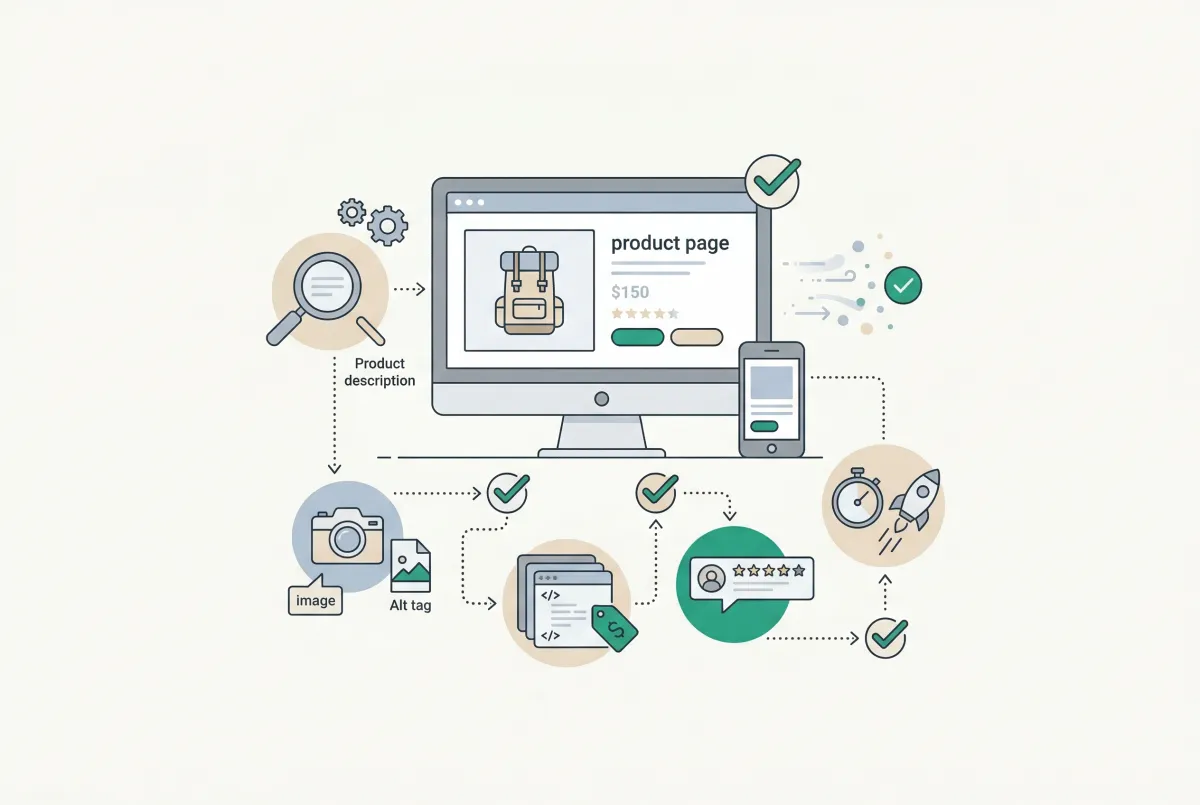
Most Shopify product pages are missing at least three core SEO elements. This 2026 checklist covers title tags, schema markup, images, and more.