
How to Migrate to Shopify: The Complete Step-by-Step Guide for Online Stores

The decision to migrate to Shopify is one of the biggest moves an online store owner can make. With Shopify now powering 30% of the US ecommerce market, the platform has become the default choice for merchants who want reliability, speed, and a massive app ecosystem. But migration itself? That's where things get messy.
A botched migration can tank your search rankings, lose customer data, and leave you scrambling to fix broken product pages for weeks. This guide walks you through the entire process, from choosing a migration method to testing your new store before launch, so you avoid the mistakes that trip up most merchants.
Why Are So Many Store Owners Migrating to Shopify Right Now?
Store owners are switching because their current platforms can't keep up with how fast ecommerce is moving. A 2024 commercetools report found that only 14% of businesses are satisfied with their existing ecommerce platform, and 77% plan to migrate within the next year.
The numbers backing up the switch are hard to ignore. That same report showed 90% of businesses that changed platforms reported sales and revenue improvements, with 30% seeing sales jump by more than 30%. On Shopify's side, the platform processed $292.28 billion in gross merchandise volume in 2024, a 24% year-over-year increase.
Most merchants making the move come from WooCommerce, Magento, BigCommerce, or Squarespace. The common complaints are the same: slow page loads, expensive hosting, clunky admin interfaces, and plugins that break after every update. Shopify eliminates most of these headaches by handling hosting, security, and updates for you.
Here's my honest take on this. The "should I migrate to Shopify" question is already answered for most store owners. The real question is whether you can commit to the 6 weeks of focused work it takes to do it right.
The merchants who regret their migration almost always rushed it. The ones who never migrate are often paying twice as much to run a slower, harder-to-manage store. There is no neutral option here: staying on a platform you've outgrown has a cost too, it just doesn't show up as a line item.
What Data Can You Actually Transfer When You Migrate to Shopify?
You can transfer most of your store's core data, but not everything moves over cleanly. Products, customers, orders, blog posts, and basic page content all come across in a standard migration. The tricky parts are reviews, custom fields (metafields), and platform-specific features that don't have a direct Shopify equivalent.
Here's what typically transfers well and what needs extra attention.
Data That Transfers Smoothly
- Products: titles, descriptions, prices, images, variants, SKUs, weights, and inventory counts
- Customers: names, emails, addresses, and order history (passwords cannot transfer, so customers will need to reset them)
- Orders: historical order data for reference (these become read-only in Shopify)
- Blog posts and pages: content and basic formatting
- Collections: product categories mapped to Shopify collections
Data That Requires Extra Work
- Product reviews: These don't transfer through standard migration tools. You'll need a dedicated app like WiseReviews to import photo and video reviews from platforms like Amazon, Etsy, or your previous store. Don't skip this step. Reviews are a major conversion driver, and product reviews directly increase Shopify conversion rates.
- Custom fields and metafields: WooCommerce custom fields, Magento attributes, and similar data need manual mapping to Shopify metafields
- Gift cards with balances: Active gift card balances rarely transfer automatically
- Discount codes: These usually need to be recreated manually in Shopify
WooCommerce-to-Shopify Quirks
WooCommerce migrations have their own set of surprises. Variable products in WooCommerce don't always map cleanly to Shopify's variant system, especially if you have more than 3 option types per product. WooCommerce's category hierarchy (parent/child) flattens in Shopify because Shopify collections don't support nesting in the same way. And if you relied on ACF (Advanced Custom Fields) for product data, all that content needs manual migration to Shopify metafields.
WooCommerce also stores product images differently. Featured images, gallery images, and variation images each need separate handling during export. If you skip the variation images, you'll end up with products that show the right options but display the wrong photos.
Which Migration Method Is Right for Your Store: CSV, App, or Agency?
Your best migration method depends on your store size, technical comfort level, and budget. Small stores with under 500 products can usually handle CSV imports. Mid-sized stores benefit from migration apps. Large or complex stores often need professional help.
Here's how the three main approaches compare.
CSV Import (DIY)
Shopify accepts CSV files for products, customers, and some other data types. You export from your current platform, reformat the CSV to match Shopify's required column headers, and upload through the admin. It's free but time-consuming, and formatting errors can cause failed imports or corrupted data.
Best for: Stores with fewer than 500 products and simple variants. Cost: free. Timeline: 1 to 3 weeks of your time.
Migration App
Apps like Migratify connect to over 100 platforms and pull your product data directly into Shopify. Migratify's AI-powered editing feature lets you clean up titles, descriptions, and tags during the import process, which saves a significant amount of post-migration cleanup. Plans start at $14/month for unlimited migrations.
Other popular migration tools include Matrixify (formerly Excelify), which handles bulk data imports and exports with spreadsheet-level control, and LitExtension for automated platform-to-platform transfers.
Best for: Stores with 500 to 10,000 products and moderate complexity. Cost: $14 to $200+ depending on the app and data volume. Timeline: 2 to 4 weeks.
Agency or Expert
A Shopify Partner agency handles everything from data migration to theme customization to SEO preservation. You get a project manager, QA testing, and someone to blame if things go wrong.
Best for: Stores with 10,000+ products, heavy customization, or complex integrations. Cost: $2,000 to $30,000+. Timeline: 2 to 4 months.
How Do You Protect Your SEO Rankings During a Shopify Migration?
You protect your SEO by setting up proper 301 redirects, preserving your URL structure as much as possible, and keeping your title tags and meta descriptions intact. According to Shopify's own SEO migration guide, most well-executed migrations see traffic declines of 10% or less, with full recovery in 1 to 3 months for smaller sites.
Skip the redirect step, though, and you could lose 30% or more of your organic traffic. Some poorly executed migrations never fully recover.
The SEO Migration Checklist
- Crawl your current site first. Use Screaming Frog or Ahrefs to export every URL, page title, meta description, and H1 tag. This becomes your reference file.
- Map old URLs to new URLs. Shopify has a specific URL structure (/products/, /collections/, /pages/). Create a spreadsheet mapping every old URL to its new Shopify equivalent.
- Set up 301 redirects. In Shopify admin, go to Online Store > Navigation > URL Redirects. Upload your redirect file. Every old URL that changes needs a redirect.
- Preserve title tags and meta descriptions. Don't let Shopify auto-generate these. Manually set them to match your existing tags, or improve them if they were already weak.
- Submit your new sitemap. After launch, submit your updated sitemap.xml to Google Search Console. Monitor indexing for at least 4 weeks.
- Fix internal links. Any internal links pointing to old URLs need updating. Redirects help, but direct links are always better for SEO.
One thing most guides skip: monitor your Google Search Console for crawl errors daily during the first two weeks after migration. Catching a broken redirect on day 2 is fixable. Catching it on day 30 means lost rankings you might not get back.
What Are the Exact Steps to Migrate Your Store to Shopify?
The migration process breaks into five phases: preparation, data export, data import, design and configuration, and testing. Rushing any phase creates problems that compound later. Here's the full walkthrough.
Phase 1: Preparation (Week 1)
- Sign up for a Shopify free trial or development store
- Audit your current store data: how many products, customers, orders, and pages do you have?
- Clean your product catalog before migration, not after. Remove discontinued items, fix typos, standardize naming conventions
- Choose your migration method (CSV, app, or agency)
- Document your current integrations: payment gateways, shipping providers, email marketing tools, analytics
Phase 2: Data Export (Week 2)
- Export products, customers, orders, and content from your current platform
- Back up everything. Keep copies of all exported files in a separate location
- Export your product images at full resolution (don't rely on pulling them from live URLs during import)
- If using a migration app, connect it to your source platform and run a test import with 10 to 20 products first
Phase 3: Data Import (Weeks 2-3)
- Import products first, then customers, then orders
- Verify variant mapping after import. Check that sizes, colors, and other options transferred correctly
- If your store uses custom product options beyond Shopify's standard variants, set those up with a dedicated app
- Import reviews using a reviews importer
- Check for duplicate SKUs, which happen when the same product imports twice or variant SKUs conflict
Phase 4: Design and Configuration (Weeks 3-5)
- Choose and customize your Shopify theme
- Set up payment gateways, shipping zones, and tax settings
- Install essential apps (email marketing, analytics, reviews)
- Recreate discount codes and gift cards
- Set up your domain and SSL certificate
- Create 301 redirects for every changed URL
Phase 5: Testing and Launch (Week 5-6)
- Run through every test in the next section
- Soft launch to a small group first if possible
- Switch DNS to point your domain to Shopify
- Monitor everything closely for 48 hours post-launch
Post-Migration Catalog Hygiene
After your data is in Shopify, expect to spend time cleaning up. Common issues include duplicate SKUs from overlapping imports, missing variant images (especially for color swatches), broken metafields that didn't map correctly, and collections with wrongly assigned products. Use Shopify's bulk product editing tools to fix catalog issues quickly instead of editing products one by one.
Your Rollback Plan
Nobody talks about rollback planning, and that's a mistake. Before you switch your domain to Shopify, have a contingency plan ready.
- Keep your old store running (even in maintenance mode) for at least 30 days after migration
- Maintain a full backup of your old store's database and files
- Document the DNS changes you made so you can reverse them quickly
- Set a clear "go/no-go" deadline: if critical issues aren't resolved within 48 hours of launch, revert to your old store
- Notify your payment processor that you might need to switch back temporarily
Customer Communication Strategy
Your customers should never be surprised by a migration. Send a pre-migration email 1 to 2 weeks before launch explaining that you're upgrading your store, that their account information is safe, and that they'll need to reset their password on the new site.
On launch day, send a follow-up email with the new site URL and a small discount code as a thank-you for their patience. If anything breaks during the transition, send an honest status update rather than going silent.
What Should You Test Before Going Live on Shopify?
You should test every single customer-facing function before pointing your domain to Shopify. A broken checkout discovered after launch costs you real sales. A broken checkout caught during testing? That costs you nothing but time.
Here's the testing checklist that catches 95% of post-migration issues.
Product and Catalog Tests
- Spot-check 10% of products for correct titles, descriptions, prices, and images
- Verify that all product variants display correctly and have the right prices
- Confirm inventory counts match your records
- Test product search to make sure items are findable
- Check that collections contain the right products
Checkout and Payment Tests
- Place test orders using Shopify's Bogus Gateway
- Test every payment method you accept (credit card, PayPal, Shop Pay)
- Verify tax calculations for your selling regions
- Test shipping rate calculations with different cart sizes and destinations
- Confirm order confirmation emails send correctly
SEO and Technical Tests
- Test 20 to 30 of your highest-traffic old URLs to confirm redirects work
- Verify your sitemap.xml is accessible and accurate
- Check page load speeds with Google PageSpeed Insights
- Confirm Google Analytics and any tracking pixels are firing
- Test your site on mobile (over 70% of Shopify traffic is mobile)
Customer Account Tests
- Test the password reset flow (remember, old passwords don't migrate)
- Verify customer order history is visible in their accounts
- Test the account creation process for new customers
How Long Does a Shopify Migration Take, and What Does It Cost?
According to Ecommerce Pro's migration timeline analysis, most Shopify migrations take around 3 months from start to finish. Simpler stores with fewer products can move considerably faster, while heavily customized stores with complex integrations may need even longer. The timeline depends more on your decision-making speed and data quality than on the actual technical work involved.
Here's a realistic breakdown by migration method.
CSV/DIY Migration: 2 to 6 weeks for stores with under 500 products. Cost is free (your time only), plus Shopify's monthly plan starting at $29/month for the Basic tier.
Migration App: 3 to 8 weeks for stores with 500 to 10,000 products. App costs range from $14 to $200+ depending on data volume. You'll also spend 15 to 30 hours on configuration, testing, and cleanup.
Agency Migration: 2 to 4 months for complex stores. Professional services typically cost $2,000 to $30,000+, with enterprise migrations running higher. This includes project management, custom development, and QA testing.
The hidden cost most merchants miss is post-migration cleanup. Budget an extra 1 to 2 weeks for fixing variant images, correcting collection assignments, updating internal links, and resolving the small data issues that only show up once real customers start using the store.
Replatforming pays off, though. That commercetools study found 94% of businesses reported significantly improved site performance after switching platforms. The merchants who have the smoothest migrations are the ones who cleaned up their data before starting, chose the right migration method for their store size, and gave themselves enough time to test properly. Migration is not a weekend project. Treat it like the business-critical operation it is, and your new Shopify store will outperform the old one from day one.

Migratify: Copy Products + AI
SponsoredProduct import made easier! Effortlessly migrate products from 100+ platforms.
Related Articles

Shopify Migration Checklist: Everything to Move Before You Switch Platforms
Use this complete Shopify migration checklist to move products, customers, orders, SEO data, and apps without losing sales when you switch platforms today.

Shopify Migration Timeline: How Long Does It Actually Take (And How to Speed It Up)
Wondering how long a move takes? See a realistic Shopify migration timeline by store size, the biggest causes of delay, and how to launch weeks faster.
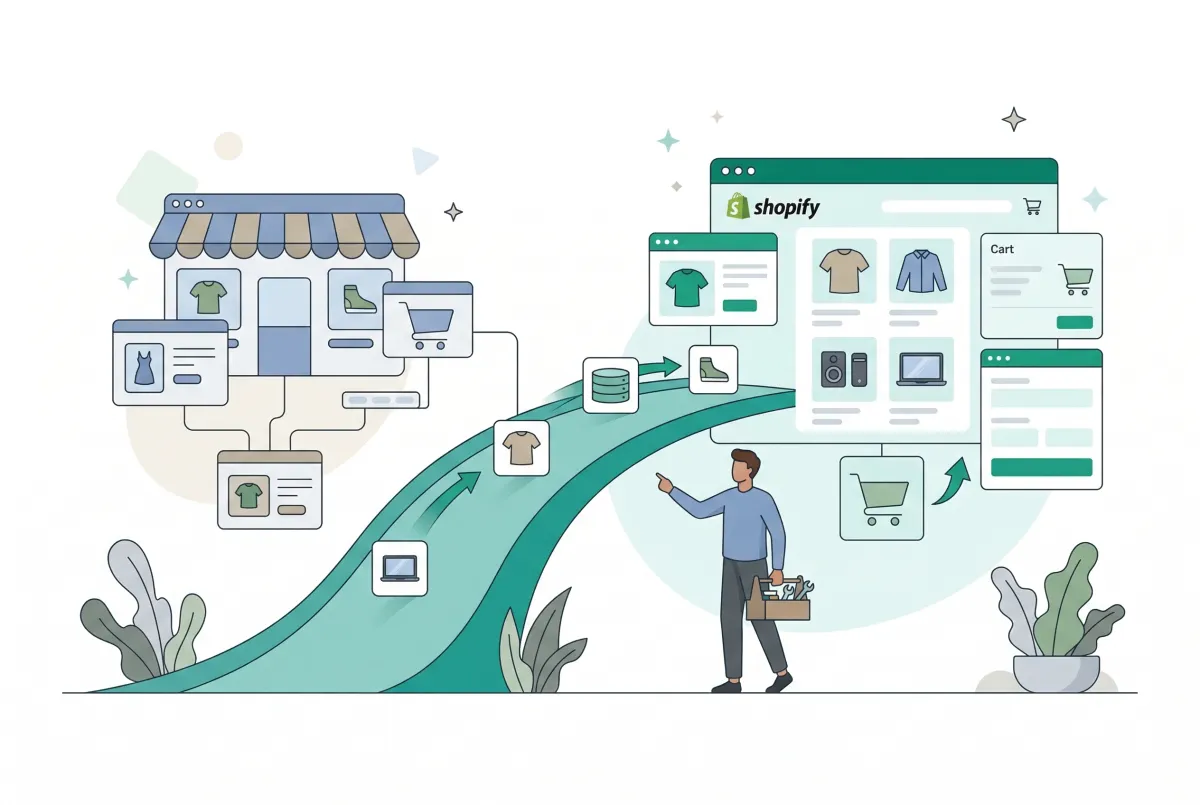
Shopify Migration Service: How to Choose the Right One (And Avoid Costly Mistakes)
A Shopify migration service can save your store or sink it. Learn about real costs, SEO risks, hidden fees, and exactly how to pick the right partner.
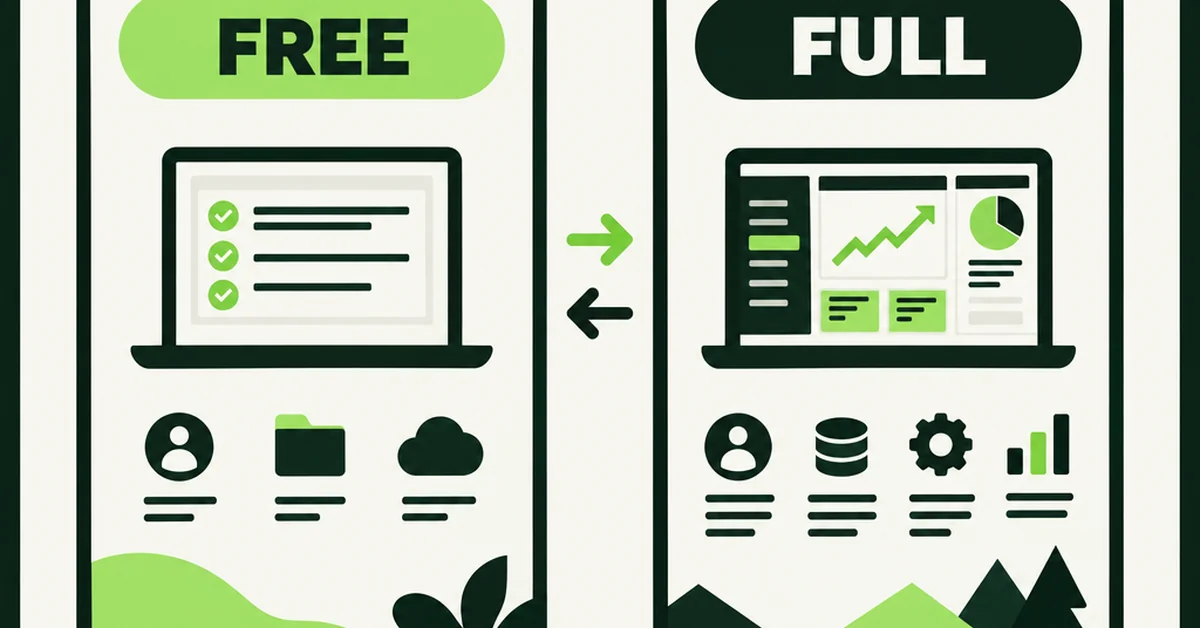
Shopify Store Migration Apps Compared in 2026: Free App vs LitExtension, Cart2Cart, Matrixify, Migratify
Shopify store migration apps compared in 2026: free Store Migration vs LitExtension, Cart2Cart, Matrixify, and Migratify. Pick by what each actually moves.
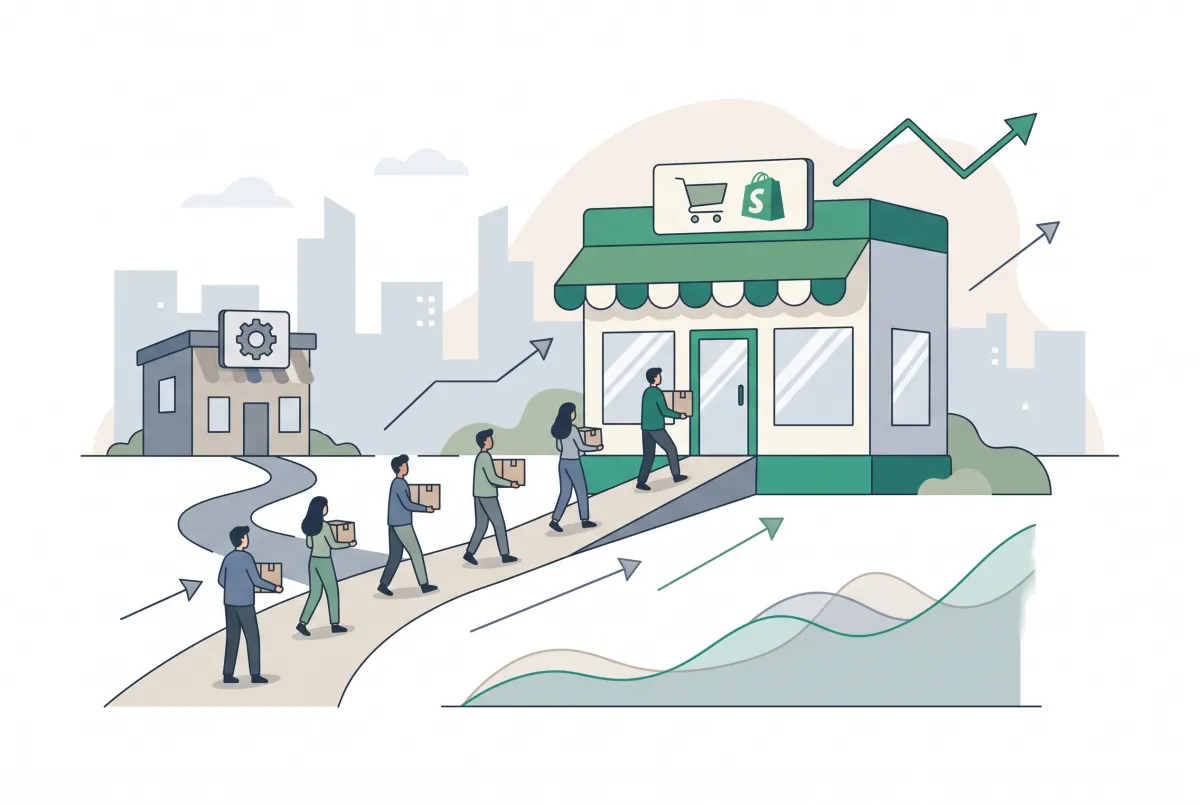
How to Prevent SEO Traffic Loss Migrating to Shopify
Moving to Shopify? Learn how to prevent SEO traffic loss migrating to Shopify with a 301 redirect, sitemap, and Search Console checklist that protects rankings.
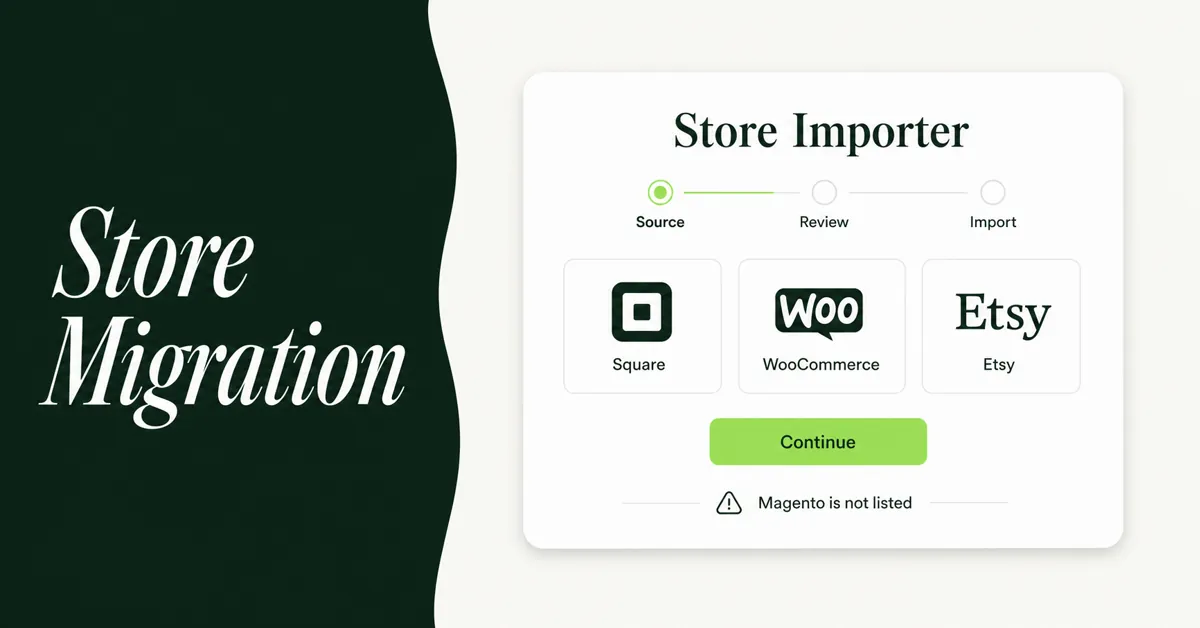
Shopify Store Migration App: What It Does Not Move in 2026
The Shopify Store Migration app imports products and customers only. See what it does not move in 2026, plus how to run the official importer correctly.