
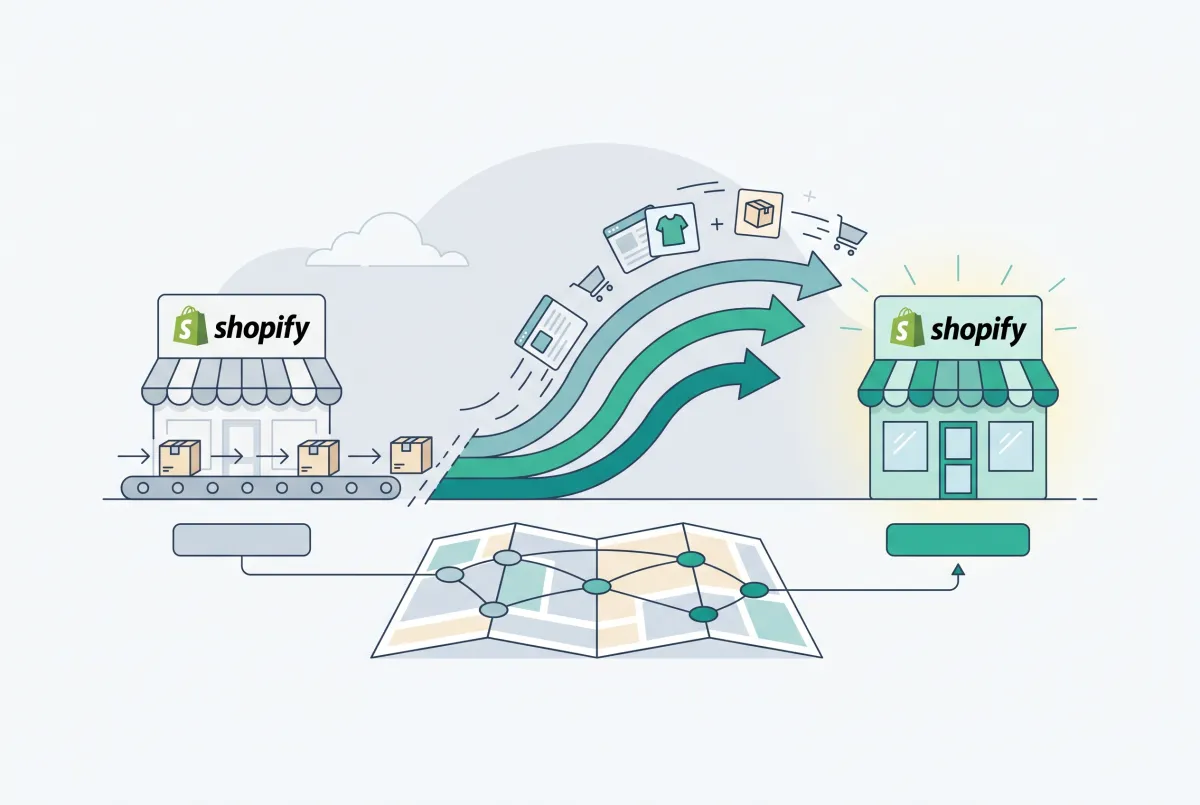
Setting up 301 redirects after a Shopify migration is the one task that decides whether your new store keeps its rankings or spends the next year clawing them back. Do it properly and organic traffic barely flinches. Do it badly and years of accumulated link equity can vanish inside 48 hours.
The data on this is genuinely grim. An analysis of 892 domain migrations found the average time to recover pre-migration organic traffic was 523 days, with 17% of sites never recovering at all, even after 1,000 days of monitoring. The same research found only 10% of website migrations actually improve SEO performance.
What separates the fast recoveries from the disasters isn't the platform. It's redirect execution. The sites in that study that bounced back in 19 to 23 days had exhaustive 1:1 redirect coverage and no chains deeper than a single hop.
This guide walks through the whole process: pulling a complete URL inventory off your old platform, building a redirect map, loading it into Shopify manually and in bulk, working around Shopify's reserved-path restrictions, and monitoring for 404s once you're live. If you're still in the planning phase, pair this with our Shopify migration checklist and our guide to preventing SEO traffic loss when migrating to Shopify.
Why Do You Need 301 Redirects After a Shopify Migration?
Because Shopify's URL structure almost certainly doesn't match your old platform's, every indexed page you don't redirect turns into a 404. A 301 redirect tells Google the page moved permanently and passes ranking signals to the new URL, while a 404 tells Google the page is simply gone.
Look at how differently the major platforms build product URLs. WooCommerce typically serves /product/blue-widget/ or a category-nested variant. Magento often uses /blue-widget.html with an optional category prefix. Wix uses /product-page/blue-widget. Shopify uses /products/blue-widget, and that path is not configurable.
So even in the best case, where your product handles transfer perfectly, every single product URL changes. Multiply that across products, collections, blog posts, CMS pages, and image or PDF assets, and a 2,000-product store easily has 5,000 indexed URLs that need mapping.
The cost of skipping this is measurable. An August 2026 Optimum7 analysis of 4,000 AI-generated answers about migration risk concluded that poorly executed ecommerce migrations cost merchants 20% to 40% of organic traffic and take 6 to 12 months to recover, with incomplete 301 redirect implementation named as the leading cause.
One documented case makes it concrete. A merchant moved 2,400 product pages from WordPress to Shopify, and a misconfigured redirect app left 70% of redirects returning 404s. Traffic fell 63% overnight. It took 11 days to fix every redirect and four months to fully recover. The specific oversight was redirecting HTML pages while forgetting linked resources: images, PDFs, and downloadable files.
One more thing worth settling early. Always use 301, never 302. A 302 tells Google the move is temporary, so it keeps the old URL indexed and doesn't consolidate signals. Shopify's native redirect tool creates 301s by default, so you don't have to choose, but any app or DNS-level rule you add should be checked.
How Do You Build a Redirect Map From Your Old Platform to Shopify?
Start by exporting a complete inventory of every indexed URL on your old site, from at least three independent sources, before you touch Shopify. Then match each old URL to exactly one new Shopify URL in a spreadsheet. This is the step most guides skip, and it's where merchants lose the most rankings.
Three sources, because no single source is complete. Your sitemap misses orphaned pages. Your crawl misses pages with no internal links. Your Search Console data misses pages that never ranked but still have backlinks. Pull all three and deduplicate.
Source 1: Your old sitemap.xml
Visit your old domain's sitemap while the site is still live. WordPress and WooCommerce stores running Yoast usually serve it at /sitemap_index.xml. Magento typically uses /sitemap.xml or /pub/sitemap.xml. Copy every URL into a spreadsheet. Do this before DNS changes, because once the old site is gone, so is the sitemap.
Source 2: A full crawl of the old site
Run Screaming Frog SEO Spider against your old domain. The free version crawls up to 500 URLs, which covers small stores; larger catalogs need the paid licence. Export the Internal HTML report, and separately export images and PDFs. Those asset URLs are exactly what sank the case study above.
Source 3: Google Search Console on the old property
Open the old domain's Search Console property and export the Performance report at page level, set to the maximum 16-month window, sorted by clicks. Then export the Pages report under Indexing to catch URLs Google knows about that never got traffic. This is your priority list: any URL with clicks or impressions must have a redirect, no exceptions.
If you have a backlink tool, add a fourth pass and export your top linked pages. Some of your most valuable old URLs get zero organic clicks and still carry serious authority.
Building the actual map
Dump everything into one spreadsheet with these columns: old URL, new Shopify URL, page type (product, collection, blog, page, asset), last-12-month clicks, referring domains, and status. Sort by clicks descending. Work top down, so if you run out of time before launch you've protected the pages that actually matter.
Your mapping approach depends heavily on where you're migrating from, and the handle transformation rules differ per platform:
- WooCommerce: product slugs usually carry over cleanly, so /product/blue-widget/ becomes /products/blue-widget. Watch for trailing slashes and category-nested permalinks like /shop/widgets/blue-widget/. Our WooCommerce to Shopify migration guide covers how slugs behave during product transfer.
- Magento: URL keys often include the .html suffix and sometimes a store-view prefix. Every one needs stripping and remapping. See our Magento to Shopify migration guide for how URL keys export.
- Wix: the /product-page/ and /post/ prefixes are Wix-specific and have no Shopify equivalent, so every URL changes shape. Our Wix to Shopify migration guide gets into the quirks.
- Marketplaces like Etsy or Amazon: you can't create server-side redirects on a marketplace listing at all, so the tactics are completely different. We covered those in how to redirect Etsy traffic to Shopify.
Fewer renamed handles means fewer redirects to build. If your product import creates messy or duplicated handles, you inherit a bigger redirect map. A migration app like Migratify pulls products from WooCommerce, BigCommerce, Amazon, Etsy, and 100+ other platforms with titles, prices, images, and variants intact, which keeps handles predictable instead of leaving you with orphaned URLs to reverse-engineer later. It has a free plan, so it's worth testing on a handful of products before committing to a full import.
How Do You Create a 301 Redirect in Shopify (Manual Method)?
From your Shopify admin, go to Content > Menus, click View URL Redirects, then click Create URL redirect. Enter the old path in Redirect from, the new path in Redirect to, and click Save redirect. Redirects start working immediately.
A few formatting rules that trip people up:
- Use relative paths, not full URLs. Enter /product/blue-widget, not https://oldstore.com/product/blue-widget.
- To redirect to your home page, enter a single forward slash in the destination field.
- Query strings and trailing slashes are treated as distinct paths. If Google indexed both variants, map both.
Here's the gotcha nobody warns you about until it bites. Shopify only honors a redirect when the source URL is actually broken. If the Redirect from path still resolves to a live page on your store, the redirect silently does nothing. So if you created a page at /pages/shipping and later want to redirect it, you have to delete or rename that page first.
The manual method is fine for edge cases: a handful of high-traffic legacy pages, a renamed collection, a discontinued product. It is not how you handle 3,000 product URLs.
How Do You Bulk Upload 301 Redirects to Shopify Using a CSV File?
Shopify's URL Redirects page has an Import button that accepts a CSV with two columns: Redirect from and Redirect to. Each row is one 1:1 mapping, both values written as relative paths without your domain.
The workflow looks like this:
- Open the URL Redirects page and download Shopify's sample CSV template. Use the official template rather than typing headers yourself, because header validation is strict and a mismatched header fails the whole import.
- Paste your mapped old paths into the Redirect from column and the corresponding Shopify paths into Redirect to.
- Strip your domain from every value. Leave /product/blue-widget, not the absolute URL.
- Save as CSV UTF-8. Spreadsheet apps love re-encoding files, and non-UTF-8 encoding mangles accented characters in slugs.
- Test with 10 rows first. Import a small slice, click through those redirects in an incognito window, and confirm they land where you expect. Only then import the rest.
- Split large files into batches. Multiple imports of a few thousand rows are far easier to debug than one enormous file that half-fails.
After each import, spot-check at least 20 random redirects manually. Shopify will happily accept a syntactically valid row that points to a URL which doesn't exist, giving you a clean 301 straight into a 404.
If you want a proper round-trip workflow, Matrixify can export your existing Shopify redirects to Excel or CSV, which makes auditing and re-importing corrections much less painful than working blind in the admin UI.
Now the opinion. Shopify's native redirect tool is genuinely fine for a small store with 50 URLs. But if you migrated a WooCommerce or Magento catalog with thousands of product and category URLs and you're entering them one at a time, or even wrestling the plain CSV importer without first checking whether you need pattern-based rules, you will burn an entire weekend building a map that a dedicated migration tool could generate and validate in an afternoon.
"Just use the built-in tool, it's free" is the expensive option once you count your hours plus the traffic bleeding out while you're still pasting URLs three weeks post-launch. Our roundup of the best Shopify migration apps compares the tools that handle bulk redirect generation and validation.
What URLs Can't Be Redirected in Shopify (Reserved Paths and Limits)?
Shopify blocks redirects from a set of reserved system paths, and its native tool supports no wildcards or regex whatsoever. Merchants usually discover both facts halfway through a failed bulk import, which is exactly the wrong time.
You cannot create redirects from these fixed paths: /products, /collections, and /collections/all. You also cannot redirect any URL beginning with these prefixes:
- /apps
- /application
- /cart
- /carts
- /orders
- /services
- /shop
That /shop restriction is the one that catches WooCommerce migrations, because /shop/ is WooCommerce's default catalog path and often has real backlinks pointing at it. Plan an alternative, such as a theme-level or DNS-level rule, before launch rather than discovering it during import.
The wildcard limitation is bigger. Shopify's native tool doesn't recognize regex or asterisk wildcards, so you cannot write a single rule like /old-category/* to move an entire group of URLs. Every URL needs its own row. If your old platform had a nested category structure with thousands of paths sharing a prefix, that's thousands of individual rows, and a third-party app such as Ablestar Link Manager becomes the practical answer rather than a nice-to-have.
On volume, you have plenty of headroom. Standard Shopify plans support up to 100,000 URL redirects, and Shopify Plus supports up to 20,000,000. Almost no small or mid-size merchant will approach the standard limit, so treat the ceiling as a non-issue and focus on coverage instead.
How Do You Handle Collection and Category URL Structure Changes During Redirect Mapping?
Map old categories to the closest matching Shopify collection, and where you've consolidated several old categories into one, point all of them at that single collection. Never dump orphaned category URLs on your home page, because Google frequently treats a mass home-page redirect as a soft 404 and drops the old URL's signals anyway.
Category consolidation is unavoidable for most migrations. Shopify has no native nested subcollections, so a Magento or WooCommerce tree like /apparel/mens/shirts/oxford has to flatten into something like /collections/mens-oxford-shirts. Four levels collapse into one.
Handle it in tiers:
- Direct match: the old category has an obvious Shopify equivalent. Straight 1:1 redirect.
- Many-to-one: several old subcategories merged into one collection. Redirect all of them to that collection. This is legitimate consolidation, not a soft 404, because the destination genuinely covers the same products.
- Truly orphaned: the old category has no equivalent because you discontinued the range. Redirect to the nearest parent collection, never the home page. A shopper who clicked a "Vintage Denim" link should land on Denim, not on your logo.
Two more traps. Old filtered or tag-based category URLs, such as /shirts?color=blue, often got indexed on legacy platforms; check Search Console for any with impressions and redirect those to the closest Shopify collection or filtered URL. And paginated category URLs like /shirts/page/3 should redirect to page one of the equivalent collection, not to a page-three URL that may not exist.
Once your collections are live, they need their own optimization pass. Redirects preserve authority, but they don't write titles or intro copy. Our guide to Shopify collection page SEO covers what to do with those pages after the redirects land.
What's the Difference Between a 301 Redirect and a Canonical Tag on Shopify?
A 301 removes the old URL and sends both users and crawlers to the new one. A canonical tag leaves both URLs accessible but tells Google which version to index. Use a 301 when the old URL should stop existing, and a canonical when two URLs must both stay reachable but only one should rank.
Shopify already applies canonicals for you in one important case. When a shopper reaches a product through a collection, the URL becomes /collections/summer/products/blue-widget, and Shopify automatically outputs a canonical pointing to the clean /products/blue-widget. Both URLs work. Only the clean one gets indexed.
This matters for migration mapping in a specific way: always map old product URLs to the clean /products/ path, never to a collection-nested variant. If you redirect to /collections/summer/products/blue-widget, you've created a pointless extra step where the redirect lands on a URL that then canonicalizes elsewhere. It's not a redirect chain technically, but it muddies the signal for no benefit.
Don't try to redirect the collection-nested product URLs themselves, either. They're not broken, they resolve fine, and Shopify's canonical is already doing the job. Attempting redirects there means fighting the platform's own duplicate-content handling, which we broke down in our guide to finding and fixing Shopify duplicate content.
How Do You Audit Redirect Chains, Loops, and 404s After Launch?
Re-crawl your complete list of old URLs with Screaming Frog in list mode within 24 hours of launch, and check the Redirect Chains report for anything with more than one hop. Then run a structured Search Console monitoring cadence for at least three months, because the first crawl doesn't surface everything.
Where migration redirect chains come from
Chains during a migration are rarely random. They come from three predictable places:
- Stacked legacy redirects. Your old CMS already had internal redirects from previous site changes. Old URL A redirected to old URL B, and you only mapped B. Now A goes to B, B goes to Shopify, and that's two hops.
- App plus native layering. You installed a redirect app during migration, then also added native redirects for the same paths. The app fires first, hands off to the native rule, and every affected URL runs two hops.
- Protocol and host hops. An old http://www URL redirecting to https://www and then to the Shopify path is three hops before anyone sees a page.
Google's own guidance is to point redirects straight at the final destination rather than chaining them, and the 892-migration analysis found the fastest recoveries had no chain deeper than a single hop. The fix is always the same: rewrite the first redirect to point directly at the final URL, then delete the intermediates.
Loops are simpler and more urgent. They usually happen when a product returns under a slightly different handle and you redirect the new handle back to the old one that redirects forward again. Any URL returning a "too many redirects" browser error is a loop. Delete one side of it immediately.
A week-by-week 404 monitoring plan
- Days 1 to 7: Re-crawl your full old-URL list daily. Every row should return a single 301 to a live 200. Check Search Console's Page indexing report daily for "Not found (404)" entries. Use the URL Inspection tool on your top 10 revenue pages to confirm Google sees the redirect.
- Weeks 2 to 4: Drop to twice weekly. Watch the "Page with redirect" count climb and the 404 count fall. Any URL with old impressions still 404ing gets fixed same day.
- Months 2 to 3: Weekly checks. By now Google should have recrawled most of your old URLs. Compare the Performance report against your pre-migration 16-month export to spot pages that lost visibility.
- Months 4 to 12: Monthly. You're now hunting long-tail URLs Google crawls infrequently, plus 404s generated by external sites still linking to old paths.
If your migration also changed domains, submit the move through Google Search Console's Change of Address tool. Both properties must be verified in the same account, and Google validates a sample of your redirects before confirming the move. It only applies to host changes, so a platform move on the same domain doesn't need it.
Redirect QA is one piece of post-launch cleanup. Product data usually needs a pass too, which we covered in cleaning up product data after a Shopify migration.
How Long Should You Keep Your Shopify Redirects Active?
Keep them for at least one year, and honestly, keep them forever. Google's John Mueller has said redirects should stay in place for at least a year and ideally longer, because it can take six months to a year for Google to fully process a site move.
The reasoning is practical. If a redirect disappears before Google has recrawled the old URL enough times, the permanent move never fully registers. And external sites, old newsletters, printed materials, and bookmarks keep sending people to old URLs long after Google has moved on.
Google's Change of Address documentation sets 180 days as a floor for domain moves, and recommends keeping redirects longer if you still see traffic arriving through them. Given that Shopify's standard plan holds 100,000 redirects and they cost you nothing to keep, deleting them is a decision with all downside and no upside.
Two practical habits. First, export your redirect list to CSV and store it outside Shopify, so if anyone ever wipes the list you can restore it in minutes. Second, set a calendar reminder at the 12-month mark to check Search Console for old URLs still receiving impressions.
If they are, the redirects stay. If nothing has touched them in a year, you can prune, but there's rarely a good reason to bother.
Redirects aren't glamorous work. They are, however, the difference between a migration that recovers in three weeks and one that joins the 17% that never recover at all. Build the map before you cut over, test in batches, audit for chains in the first 24 hours, and then leave them alone.

Migratify: Copy Products + AI
SponsoredProduct import made easier! Effortlessly migrate products from 100+ platforms.
Related Articles

How to Prevent SEO Traffic Loss Migrating to Shopify
Moving to Shopify? Learn how to prevent SEO traffic loss migrating to Shopify with a 301 redirect, sitemap, and Search Console checklist that protects rankings.

How to Migrate to Shopify: The Complete Step-by-Step Guide for Online Stores
Planning to migrate to Shopify? Avoid data loss, broken SEO rankings, and costly downtime with this complete step-by-step migration guide for merchants.

How to Redirect Etsy Traffic to Shopify Without Losing SEO Rankings
Moving off Etsy? Learn how to redirect Etsy traffic to Shopify without losing your SEO rankings using 301 redirects, backlink recovery, and smart timing.

Shopify Migration Checklist: Everything to Move Before You Switch Platforms
Use this complete Shopify migration checklist to move products, customers, orders, SEO data, and apps without losing sales when you switch platforms today.

Magento to Shopify Migration: The Complete Step-by-Step Guide for 2026
A Magento to Shopify migration for 2026: compare tools, map configurables to variants, import reviews via CSV, reset passwords, and upload 301 redirects.
Shopify Store Migration App: What It Does Not Move in 2026
The Shopify Store Migration app imports products and customers only. See what it does not move in 2026, plus how to run the official importer correctly.