
Wix to Shopify Migration: How to Move Products, Pages, and SEO
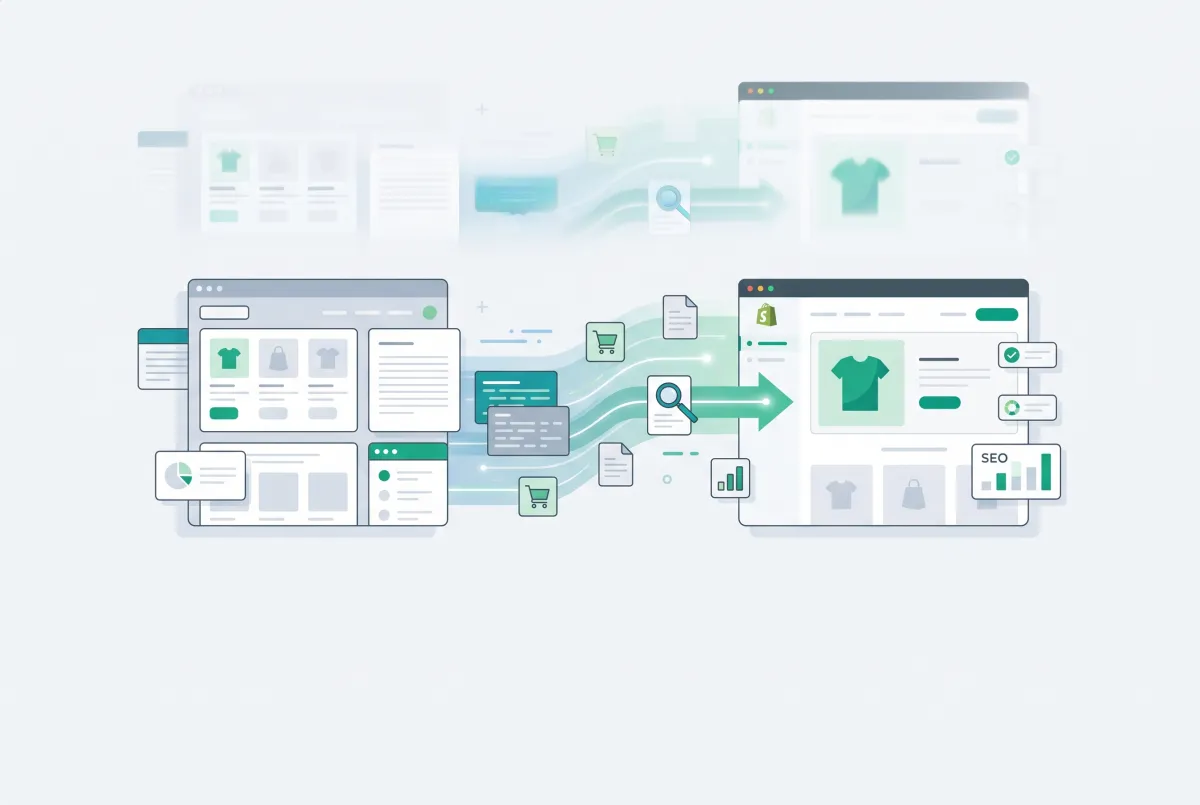
A Wix to Shopify migration looks simple on paper. Export a CSV, import a CSV, point the domain, done. Then you open Google Search Console three weeks later and your best-selling product page returns a 404, your blog has vanished, and four years of customer reviews are still sitting on a platform you stopped paying for.
Wix and Shopify disagree about almost everything structurally: column names, URL prefixes, what counts as a variant, and what you're allowed to take with you when you leave. Shopify has been absorbing merchants quickly, growing ecommerce site origins 11.7% year over year between May 2025 and May 2026, the fastest of any major platform (Wix eCommerce grew 8.4% over the same period). A lot of those new stores came from Wix. A lot of them arrived with broken data and flat traffic graphs.
This is the platform-specific companion to our complete step-by-step guide to migrating to Shopify. Everything below is Wix-specific: the real column mappings, the exact URL patterns you need to redirect, and the data Wix flatly refuses to hand over.
What Can You Actually Export from Wix, and What Gets Left Behind?
Wix gives you native CSV exports for two things that matter to a store migration: products and orders. Everything else, meaning blog posts, static pages, product reviews, customer passwords, and your URL history, either has no export button at all or comes out in a shape Shopify's importer can't read.
That gap is why Wix migrations go sideways. Merchants budget a weekend for the CSV work, then discover in week three that they're hand-rebuilding 60 blog posts and a Contact page with a form that no longer exists.
Here's the honest inventory before you start:
- Products: exportable to CSV, but capped at 5,000 rows per file. Digital products aren't supported by the export at all.
- Orders: exportable to CSV from the Orders tab, but Shopify has no native order importer, so the file on its own gets you nowhere.
- Contacts and customers: exportable, though passwords never come with them. Every single customer has to reset.
- Blog posts: no native export. Wix Blog gives you an RSS feed and nothing else.
- Static pages (About, FAQ, Contact, policy pages): no export whatsoever. You copy, paste, or rebuild.
- Reviews: hard blocked. Wix states plainly that "it's not possible to export reviews from Wix Reviews".
- Your indexed URL list and existing redirects: no export. You have to crawl your own live site to build one.
Wix isn't a small platform, either. It powers over 3 million online stores generating more than $12.4 billion in annual sales, which means a lot of merchants are hitting these same walls every month with very little written down about how to get around them.
Work through our Shopify migration checklist before you touch a single CSV. The single most useful thing you can do in the first hour is crawl your live Wix site and save the full URL list. Once you cancel Wix, that list is gone and you cannot get it back.
How Do You Export Products from Wix Without Breaking the Shopify Import?
Export from the Wix dashboard under Products, using More Actions then Export, and expect to do it more than once if you sell more than 5,000 rows worth of items. Then remap the column headers, because Wix and Shopify use almost entirely different names for the same fields and Shopify's importer will silently ignore anything it doesn't recognize.
The 5,000-row cap is per file, not per product, and rows include variants. A 900-product catalog with five variants each blows past the limit easily. You'll export in filtered batches (by category, usually) and merge the files by hand in a spreadsheet, which is exactly as fun as it sounds.
The Wix to Shopify Column Mapping
Shopify's own Wix migration documentation publishes the field mapping, and almost nobody reads it. Here's what maps to what:
handleIDmaps to Handlenamemaps to Titledescriptionmaps to Body (HTML)brandmaps to Vendorvisiblemaps to Publishedskumaps to Variant SKUpricemaps to Variant Pricecostmaps to Cost per iteminventorymaps to Variant Inventory Qtyweightmaps to Variant Grams (and Wix stores this in kilograms, so multiply by 1,000)productOptionName1throughproductOptionName3map to Option1 Name through Option3 NameproductOptionDescription1throughproductOptionDescription3map to Option1 Value through Option3 Value
Three things will bite you here.
First, the weight conversion. Nobody notices until shipping rates come out wrong at checkout and a customer pays $3 to ship a 12kg item.
Second, the option ceiling. Shopify's docs are explicit that each product can have up to three options, so if you run a Wix product with four or more option sets, those extra options do not import. You either restructure the product or use an options app like Optionize to rebuild the ones Shopify's native variant system can't hold.
Third, and this catches nearly everyone: Wix has been changing its export format. Newer Wix exports use a mandatory fieldType column where every row is marked PRODUCT, VARIANT, or MEDIA, with images living in a media column and descriptions in plainDescription. Shopify's documented mapping still references the older header names. Open your actual export, read the header row, and map from what's in front of you rather than from any guide, including this one.
Images are the other quiet failure. Wix exports image URLs pointing at the Wix CDN, and Shopify fetches those files during import. Keep your Wix site live and public until every image has finished processing in Shopify. Kill the Wix plan too early and you'll import 400 products with 400 empty image slots.
The row cap, the header mismatch, and the image re-hosting are all the same problem wearing different hats: Wix's export was never designed to leave Wix. If you'd rather not hand-map columns at all, an importer like Migratify pulls products from Wix and 100+ other platforms straight into Shopify from a URL, handling the field translation and pulling images across in the process. For merchants with a few hundred SKUs, that removes the single most error-prone step of the whole job.
Whichever route you take, import into a development or password-protected store first and check ten products by hand before running the full file. Our guide on importing products to Shopify from a CSV without errors covers the specific error messages Shopify throws and what each one actually means.
Why Won't Wix Export Your Blog Posts and Static Pages, and How Do You Move Them Anyway?
Wix has no blog or page export function, full stop. Shopify's official Wix migration guide contains no guidance on moving them either, because there's no supported path to document. You move this content manually, or with a bulk import tool, and either way you start by building a complete list of what exists.
Use your Wix Blog RSS feed as the source of truth for post titles and URLs. It sits at yourdomain.com/blog-feed.xml on most Wix sites. One catch: Wix confirms the RSS feed only displays up to 20 of the most recent posts. If you've published more than 20, the feed alone will quietly under-report your archive, so cross-check it against a full site crawl.
What Breaks in the Copy-Paste
Pasting Wix content into Shopify's editor drags along artifacts that will hurt you later. Watch for these specifically:
- Embedded Wix widgets: contact forms, booking calendars, Wix galleries, and any Velo-powered element. None of them survive. Every one needs a Shopify equivalent or an app.
- Inline styling and class attributes: Wix's editor wraps text in markup tied to Wix's own CSS. Paste it into Shopify and you get inconsistent fonts and broken spacing. Paste as plain text and rebuild the formatting.
- Images: they'll still point at Wix's CDN after a paste. Download and re-upload every one to Shopify Files, or they'll 404 the day you cancel your Wix plan.
- Internal links: every link in a post still points at a Wix URL. Rewrite them to Shopify paths as you go rather than trusting redirects to catch them forever.
Preserving Author, Date, and Featured Image
Shopify's blog articles support an author name, a published date you can backdate, and a featured image. Use all three. Backdating matters more than people expect, because publish dates appear in search results and a blog where every post is dated the same Tuesday looks abandoned and spammy.
If you're moving more than about 15 posts, do it in bulk. Matrixify imports pages, blogs, and redirects into Shopify from a spreadsheet, which means you can assemble a single file with title, handle, body HTML, author, and publish date, then load the whole archive at once. Building that spreadsheet still takes an afternoon, but it beats 60 rounds of copy, paste, reformat.
For static pages, be ruthless. Your About, FAQ, Contact, shipping policy, and returns policy pages need to exist on day one because they carry both trust signals and internal link equity. Everything else (that 2021 landing page for a campaign that ended, the duplicate Contact page nobody links to) can stay behind. Fewer, better pages is a fine outcome from a migration.
How Different Are Wix and Shopify URL Structures (and Why It Matters for SEO)?
They're structurally incompatible, and Shopify's structure is not negotiable. Shopify hardcodes its route prefixes, so every product, collection, page, and article sits under a fixed path that you cannot rename, while Wix lets you customize or even strip its prefixes in SEO settings. That means practically every indexed URL on your Wix site is about to change.
Here's the side-by-side you need before writing a single redirect:
- Wix
/product-page/[slug]maps to Shopify/products/[handle] - Wix
/category/[slug]maps to Shopify/collections/[handle] - Wix
/post/[slug]or/blog/[category]/[slug]maps to Shopify/blogs/[blog-handle]/[article-handle] - Wix
/about,/faq,/contactmap to Shopify/pages/about,/pages/faq,/pages/contact - Wix
/shopmaps to Shopify/collections/all - Wix
/blogmaps to Shopify/blogs/[blog-handle]
Wix's default product prefix really is product-page, confirmed in Wix's own SEO documentation, and category pages default to /category/[slug]. Shopify's own names for those fixed paths are enumerated in its Liquid routes reference.
Notice the two nastiest lines in that list. Your Wix static pages sit at the site root (/about) while Shopify buries them under /pages/. And Wix blog posts often live one level deep while Shopify always uses two levels, blog handle plus article handle. Those two patterns alone account for a large share of post-migration 404s, because merchants remember to redirect products and forget everything else.
One more trap: if you previously customized your Wix URL structure, Wix set up automatic redirects on its side. Those redirects die with your Wix plan. Your live crawl needs to capture the URLs Google actually has indexed today, which may include old pre-customization paths still sitting in the index.
How Do You Build a 301 Redirect Map That Actually Protects Your Rankings?
You build it from a full crawl of the live Wix site plus an export of indexed URLs from Google Search Console, then you map every single URL to its closest Shopify equivalent one at a time. Google's migration guidance is direct about this: create a one-to-one redirect map covering every indexed URL, and never send everything to your homepage, because a blanket homepage redirect "collapses topical signals into a single page" instead of preserving what each URL earned.
The payoff for doing this properly is measurable. A clean, well-mapped move typically loses 10 to 30 percent of organic traffic in the first month and returns to baseline within one to three months. A sloppy one loses 30 to 50 percent or more, and documented cases have taken 12 to 18 months to recover, with some sites never fully returning.
Here's my hot take, and I'll defend it. Everyone treats the CSV export and import as the hard part of a Wix to Shopify migration. It isn't.
The real failure point is the redirect map, because Wix hands you zero tools to generate a full URL inventory before you leave. You can migrate your catalog perfectly, get every variant and price and image dead right, then skip the redirect map built from a real crawl of the live site. You'll keep all your products while losing all your rankings.
That's the worse outcome by a distance. Traffic pays the bills. Product data doesn't.
The Actual Process
- Crawl the live Wix site with Screaming Frog, Sitebulb, or any crawler that exports a URL list. Do this while Wix is still running. There is no second chance.
- Export indexed URLs from Google Search Console using the Pages report. The crawl finds what's linked; Search Console finds what Google actually knows about, including orphaned pages.
- Pull your top-traffic URLs from Search Console and any backlink tool. These get mapped first and checked twice.
- Deduplicate and map in a spreadsheet: old URL in one column, new Shopify URL in the next. Every row gets a real destination or an intentional 410.
- Import into Shopify from your admin under Content, then Menus, then URL redirects, then Import. Shopify provides a downloadable sample redirect CSV template to match the required format.
- Test before the domain switches. Every redirect you add is inert until the domain points at Shopify, so validate the map against your myshopify URL first.
Shopify caps this, so check your numbers early. You can create a maximum of 100,000 URL redirects, or 20,000,000 on the Plus plan. Most stores never come close.
The bigger constraint is shape, not volume. Shopify's redirect tool takes one "redirect from" path and one "redirect to" path, with no pattern matching offered anywhere in the interface. Every URL needs its own row, which is exactly why the spreadsheet approach matters.
Leave the redirects in place. The same Google guidance recommends keeping them live for a minimum of 180 days, and notes there's no penalty for keeping them forever. There's no reason to ever delete them.
For the deeper mechanics of protecting rankings through a platform change, including canonical handling and what to do when a page has no equivalent, read how to prevent SEO traffic loss when migrating to Shopify. The redirect-mapping logic is close to identical if you're coming off a marketplace instead, which we broke down in our guide to redirecting Etsy traffic to Shopify without losing rankings.
What Data Does a Wix to Shopify Migration Leave Behind: Reviews, Customers, and Order History?
Reviews are a hard platform block, and orders and customers are merely tedious. That distinction matters more than any generic migration advice will tell you, because one of them is a wall and the other two are just work you have to schedule.
Reviews: A Hard Block
Wix Reviews has no export function. Wix says so directly on its own support site: "Currently, it's not possible to export reviews from Wix Reviews". Shopify's migration guide echoes it, confirming you can't export or migrate reviews from Wix directly. It's listed as an open feature request, which is Wix-speak for "someday, maybe."
Your options are all imperfect. If you used a third-party review app on Wix instead of the native one, check whether that app has its own export. If you used native Wix Reviews, you're screenshotting and re-entering the reviews that matter most, or emailing past customers and asking them to leave a fresh review on Shopify (which honestly produces better-quality, more recent social proof anyway). If you also sell on marketplaces, a tool like WiseReviews can import photo and video reviews from Etsy, Amazon, eBay, and AliExpress into Shopify to help rebuild the star ratings on your key products faster.
Orders: Exportable, But Not Importable
Wix will happily export your orders to CSV from the Orders tab. Shopify has no native order import. So the file is real, the data is complete, and there's still no supported way to load it into Shopify without help.
Shopify's Wix migration documentation confirms order history requires third-party apps. Matrixify handles order import directly, and dedicated migration services will do it for you.
Ask yourself first whether you need it. Many merchants import the last 12 months for customer service and warranty lookups, leave the rest archived in a spreadsheet, and lose nothing. Full historical order import is often a large invoice for data nobody opens.
Customers: Everything Except Passwords
Customer records import cleanly via Shopify's customer CSV, which wants first name, last name, email, address fields, phone, and country ISO codes. Passwords never transfer, from any platform, for good security reasons. Every customer resets on first login.
Plan the communication. Send an account activation email that explains the move before someone hits a login wall mid-checkout and abandons the cart.
If any of this sounds like more spreadsheet work than you want to own, comparing tools first is cheaper than fixing a bad import later. We tested and ranked the best Shopify migration apps on exactly these criteria: what they actually move, what they quietly skip, and what they cost.
How Do You Verify the Migration Worked After You Go Live?
Crawl your old URL list against the live Shopify site and confirm every single one returns a 301 to a real 200-status page, not a 404 and not a redirect chain. Then check your product data for import damage, confirm canonical tags, resubmit your sitemap, and watch Search Console for a solid month. Launch day is the start of the verification window, not the end of the project.
Work through this in order:
- Re-crawl the old URL list. Feed your pre-migration crawl export into your crawler in list mode against the live site. Every 404 in that report is a page currently bleeding rankings. Fix them the same day.
- Hunt redirect chains. Old URL to another old URL to the new URL wastes crawl budget and dilutes signals. Point every redirect straight at its final destination.
- Confirm canonical tags. Shopify serves products at both
/products/[handle]and/collections/[collection]/products/[handle], which creates duplicate paths by default. Verify the canonical resolves to the clean product URL. Our guide on finding and fixing Shopify duplicate content covers where this leaks. - Audit the imported catalog. Sort by price to catch decimal errors, filter for zero inventory, check weights (that kilograms-to-grams conversion again), and look for duplicate handles from a multi-file import. Our walkthrough on cleaning up product data after a Shopify migration lists the exact filters to run.
- Spot-check images. Confirm images are hosted on Shopify's CDN and not still pointing at Wix. Search your product export for any remaining Wix domain in image fields.
- Submit the sitemap. Shopify generates
sitemap.xmlautomatically. Submit it in Google Search Console the day the domain switches, and keep the old property verified so you can watch the old URLs get processed. - Monitor for two to four weeks. Watch the Pages report for a rising count of "Not found (404)" errors and check Crawl Stats for response-code spikes. A short dip in impressions is normal. A climbing 404 count is your redirect map telling you it has holes.
Set a calendar reminder for day 7, day 30, and day 90. Comparing those three snapshots tells you whether you're on the healthy recovery curve or the bad one, and day 30 is early enough to fix redirect gaps before they harden into lost rankings.
The order of operations that actually works is simple: crawl the Wix site before you cancel anything, map the URLs before you migrate the products, and migrate the products before you touch the domain. Merchants who reverse that order end up trying to reconstruct a URL list from a site that no longer exists, and that's the one mistake in a Wix migration you genuinely cannot undo.

Migratify: Copy Products + AI
SponsoredProduct import made easier! Effortlessly migrate products from 100+ platforms.
Related Articles

How to Migrate to Shopify: The Complete Step-by-Step Guide for Online Stores
Planning to migrate to Shopify? Avoid data loss, broken SEO rankings, and costly downtime with this complete step-by-step migration guide for merchants.

Squarespace to Shopify Migration: Step-by-Step for 2026
Planning a Squarespace to Shopify migration in 2026? See what the CSV export silently drops, how to map 301 redirects, and a full step-by-step checklist.
Migration traffic drops start with missed URLs. Learn how to set up 301 redirects after a Shopify migration, from redirect mapping to bulk CSV uploads.

Shopify Migration Checklist: Everything to Move Before You Switch Platforms
Use this complete Shopify migration checklist to move products, customers, orders, SEO data, and apps without losing sales when you switch platforms today.

Shopify Store Migration Apps Compared in 2026: Free App vs LitExtension, Cart2Cart, Matrixify, Migratify
Shopify store migration apps compared in 2026: free Store Migration vs LitExtension, Cart2Cart, Matrixify, and Migratify. Pick by what each actually moves.
Shopify Store Migration App: What It Does Not Move in 2026
The Shopify Store Migration app imports products and customers only. See what it does not move in 2026, plus how to run the official importer correctly.