
How to Use AI to Run a Shopify Store in 2026 (Copy, Photos, and Admin)
If you need to know how to use AI to run a Shopify store in 2026, start with the live catalog, not a new business plan. AI did not change what you sell, who you sell to, or which orders you should refund. It changed which 30-minute admin jobs you should stop doing by hand.
Those jobs are product descriptions, product photos, and admin busywork: titles, tags, CSV rows, and email drafts. Shopify Magic, ChatGPT, Sidekick, Tinker, and a back-office teammate are methods for those jobs. None of them is the store.
This guide is for a store that already exists. If you still need a launch-day sprint, use our playbook for how to set up a Shopify store in a day using AI. This URL is the weekly work after you click the password page off.
Shopify's Q4 2025 Survey of Store Owners found that 75% of store owners already use AI tools, and content generation was the most common use at 69%. ChatGPT led tool usage at 67%. The merchants who get value from that stack are the ones who pick one repeating job, generate a draft, then review it before customers see it.
How to Use AI to Run a Shopify Store After Launch?
You use AI on three repeating ops jobs: copy, photos, and admin busywork. You keep the judgment calls, the policy, and the Save button.
Do not rebuild the shop around a chatbot. Do not install a pile of "AI" apps on Monday. Pick the job that ate your last Tuesday afternoon and give that job a first-draft tool.
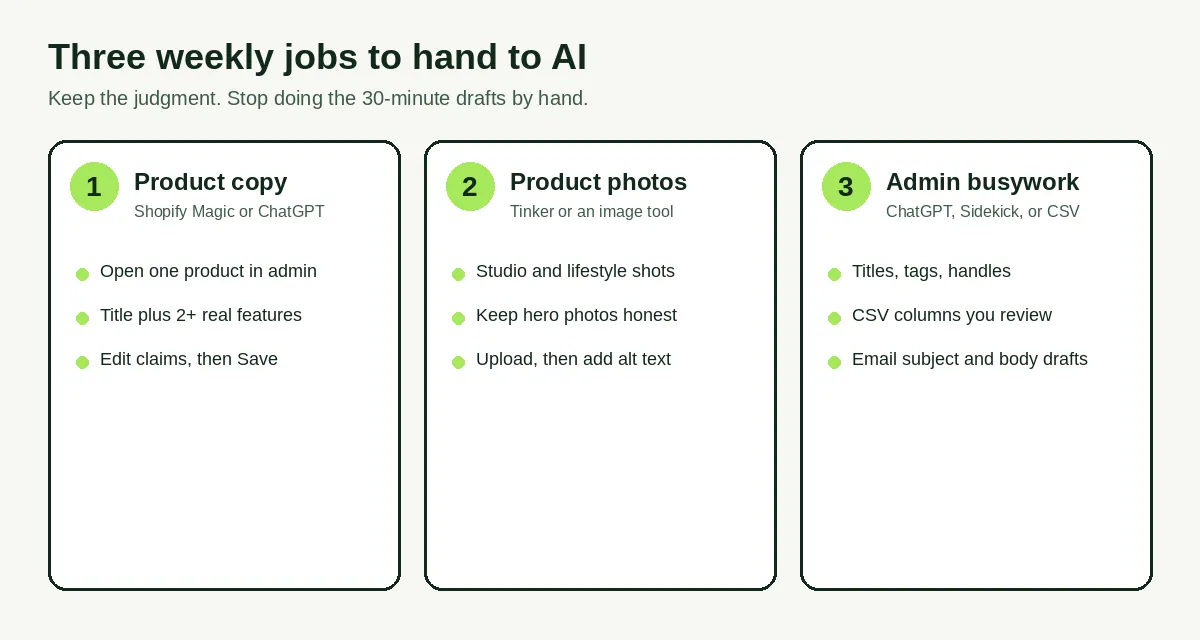
A practical weekly loop looks like this:
- List the SKUs, collections, or emails that actually moved this week.
- Generate first drafts for copy, photos, or metadata only for those rows.
- Edit facts, tone, and claims against the real product.
- Save in Shopify, or import a CSV you already previewed.
That is the whole method. The rest of this page is how to run each job without inventing features the tools do not have.
How Do You Write Product Descriptions With Shopify Magic or ChatGPT?
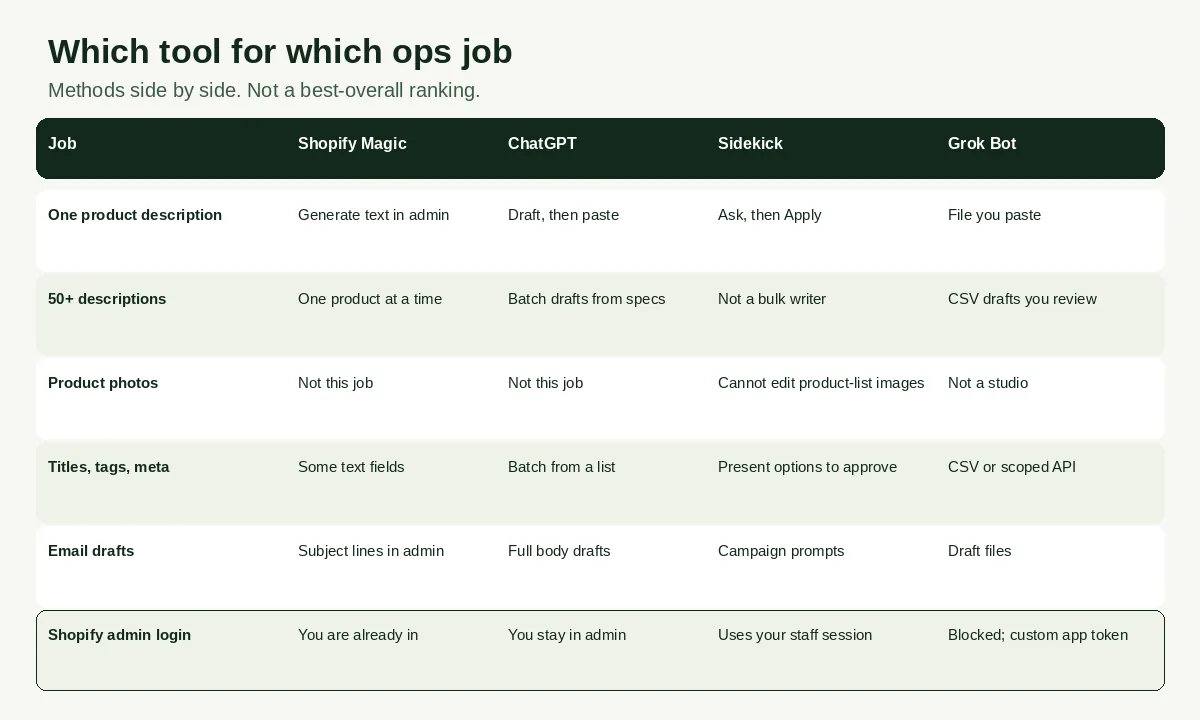
Use Shopify Magic when you are already on a product page and need one description. Use ChatGPT when you have a list of specs and need a batch of drafts you will paste or import.
Shopify's help for automatically generating product descriptions is the source for Magic. Magic takes details you provide, such as a product title and keywords, and returns a suggestion in the description field. It is not a bulk catalog writer. You still open one product at a time.
Shopify Magic, one product at a time
From Shopify admin, go to Products, then open the product. In the description box, click the Generate text icon in the toolbar. Enter a prompt, submit it, then edit and Save. Published products show the new description right away.
Shopify's own minimum is a product title plus at least two product features or keyword items. Add more and the suggestion gets less generic. Useful prompt ingredients:
- Product type, if the title is a brand name that does not say what it is.
- Who it is for (young parents, trail runners, eco-conscious buyers).
- Materials, fit, burn time, wattage, or intended use you can prove.
- Brand words you actually use, so the draft keeps them.
- Variant options such as size and color, if those are real.
Write the prompt in the language you want on the storefront. Shopify says automatic product description generation is available in all languages Shopify supports, and the output matches the prompt language.
Never publish the first pass. Magic can write a confident sentence about a fabric, a scent, or a care step you never confirmed. Delete anything you would not put on a hangtag.
For the quality bar after you generate, use our guide on Shopify product descriptions that rank and convert. Magic gets you a draft. That guide is what the draft has to survive.
ChatGPT when you need more than one listing
ChatGPT is the batch method. Shopify's same 2025 store-owner survey put ChatGPT at 67% of AI tool usage, four times higher than other named tools. Use it when you have 20 SKUs with a spec sheet and you refuse to click Generate text 20 times.
Export or paste a table: handle, title, material, size, who it is for, three true features, claims to avoid. Ask for a description, a meta title under 60 characters, and a meta description under 155 characters per row. Ask it to leave a blank rather than invent a spec.
A prompt that works:
Write a 90-word product description for this SKU. Audience: shoppers who already know the category. Use only the specs in the table. Calm tone. No medical claims. No "best ever" language. If a spec is missing, write [MISSING] instead of guessing.
Then you still paste, or you load a CSV and review five rows in admin before the rest go live. For in-admin mass edits after the drafts exist, a bulk editor is faster than clicking into every product. See our complete guide to Shopify bulk product editing.
Sidekick can also draft copy. Shopify's Sidekick page lists a /product-description prompt, and you Apply generated content after you review it. Treat Sidekick as an in-admin assistant for the product in front of you, not as a 400-SKU writer. Official help is clear that Sidekick presents options for you to approve and does not change the store until you do.
How Do You Generate Product Photos With AI Without a Studio Day?
Use AI for catalog fillers, lifestyle variants, and social crops. Keep at least one honest photo of the real SKU, and never let generated color, labels, or scale disagree with what you ship.
This is not a Tinker app roundup. If you want the 100-plus tool list, read our Shopify Tinker app guide. Here, photos are one weekly ops job: you need extra angles this week, and you should not book a studio for a restock of the same mug.
A store-ops photo workflow:
- Shoot or keep one real photo that shows color, size, and any label text you must honor.
- Generate studio and lifestyle variants from that reference. Tinker organizes tools by outcome (studio shot, lifestyle scene) so you are not writing a prompt from scratch.
- Reject anything that changes the silhouette, the label, or the material.
- Upload to the product, then write alt text that names the actual product, not "AI lifestyle image."
Shopify Help for Sidekick is explicit: Sidekick cannot make edits to images within a store theme or your product list. Do not ask Sidekick to retouch the catalog. Use it to ask where a photo should live, then do the upload yourself.
Where AI photos fail for SMB catalogs:
- Jewelry, glass, and anything with fine texture. Shadows lie.
- Packaging with legal text. Generated labels invent ingredients.
- Sized apparel. If the photo implies a drape you do not sell, returns follow.
Pair the new files with on-page SEO fields. Alt text, filenames, and the image order on the product page still matter. Our Shopify product page SEO checklist for 2026 is the field list to fill after the JPEGs land.
How Do You Clear Shopify Admin Busywork With AI?
You hand AI the 30-minute jobs that start from a list: titles, tags, handles, CSV cleanup, and email drafts. You keep refunds, theme code, bulk deletes, and anything that spends money.
Shopify's store-owner survey put content generation first. The next pile of work is the metadata around that content. A merchant with 80 SKUs can lose a morning to tags that do not match collections, titles that truncate in search, and a welcome email that still says "Dear customer."
Titles, tags, and meta fields
Paste a two-column list (current title, target keyword) into ChatGPT and ask for a new title under 70 characters, three tags from a controlled list you supply, and a meta description. Give it the allowed tags. If you let it invent tags, you will create "summer", "Summer", and "summertime" as three collections' worth of mess.
Sidekick can help inside admin. Shopify documents that you chat from Home or any admin page, on desktop, the Shopify app, or tablet, by text or voice. It uses the page you are on as context. It cannot talk to your customers, cannot share other merchants' data, and cannot change the store without your approval. Open it from admin and ask for options you will click Apply on.
A Sidekick prompt that stays inside documented behavior: "Draft three title options for this product that include the product type. Do not change the price. I will pick one." Then you Apply or you type it yourself.
For Maggy London, Shopify reports that Sidekick cut weekly reporting from three to four hours down to 30 minutes, more than 80%. That is a reporting job, not a catalog rewrite. Steal the pattern: ask for a summary you can check, not a silent edit across 400 products.
CSV drafts you preview
CSV work is where ChatGPT earns the afternoon. Give it column headers from a Shopify product export, plus the rows that are wrong. Ask it to fill only the empty cells you name: tags, SEO title, SEO description, alt text. Tell it not to touch price, inventory, or vendor.
Then open five products in admin and compare. If those five match, import or bulk-edit the rest. If they do not, the model guessed. Fix the prompt, do not "just run it."
Email subject lines and body drafts
Shopify Magic can suggest email subject lines and other short store text as part of its automatic text generation. Use that when you are already in the email editor. Use ChatGPT when you need a three-email sequence from a brief: welcome, shipping delay, restock. You still paste into Shopify Email and send a test to yourself.
Do not put customer names, addresses, or ticket threads into the prompt. Summarize the situation ("order delayed 4 days, offer 10% on next order") without the PII.
When Should a Back-Office Teammate Handle Files Instead of Admin Chat?
Use a back-office teammate when the job is files, research, or a scoped Admin API token, not a storefront chat. Do not try to sign it into Shopify admin from its own browser.
Grok Bot is one option in that category: named AI teammates with their own computer, a browser, and a filesystem. You message them from desktop or iOS. As of 2 September 2026 the live page lists Cursor Pro at $20 per month, SuperGrok at $30 per month, and Cursor Teams at $40 per seat per month, billed monthly, with Grok Bot included on eligible Cursor, SuperGrok, or Teams plans. Recheck before you pay. It is not Shopify Magic, not Sidekick, and not a Shopify App Store app.
Shopify's bot protection currently blocks that computer from the admin login page. Cursor staff confirmed the block on the Grok Bot browser blocked from Shopify login thread (23 to 24 August 2026) and told merchants to skip the login: create a custom app, grant only the Admin API scopes the job needs, install it, and give the bot the access token so it never hits the login page.
Until you have that token, the teammate is still useful. It can draft copy, clean a CSV, and research public competitors, then leave files for you to paste. After a token exists, start with a read-only job (list 20 titles and handles) and compare the file to admin. Do not give it refund, theme, or delete scopes on day one.
If you want selling automation and agent patterns in general, that is a different URL: AI agents for Shopify and smart automation. This page stays on copy, photos, and the admin jobs around a live catalog.
If the job is classify-and-route (inbox buckets, refund triage, review quality flags) rather than draft copy, use the Jev AI Shopify back-office guide instead of a generative model.
How Do You Keep AI Copy and Photos From Going Live Wrong?
You run a short review before Save, and you never paste passwords, 2FA codes, or customer addresses into a chat. AI is a first draft. You are still the merchant of record.
Shopify's own AI guide says to check incorrect prices, unsourced claims, policy language, generic copy, and sensitive data in prompts. NIST calls invented facts confabulation. Your return policy does not care what the model "thought."
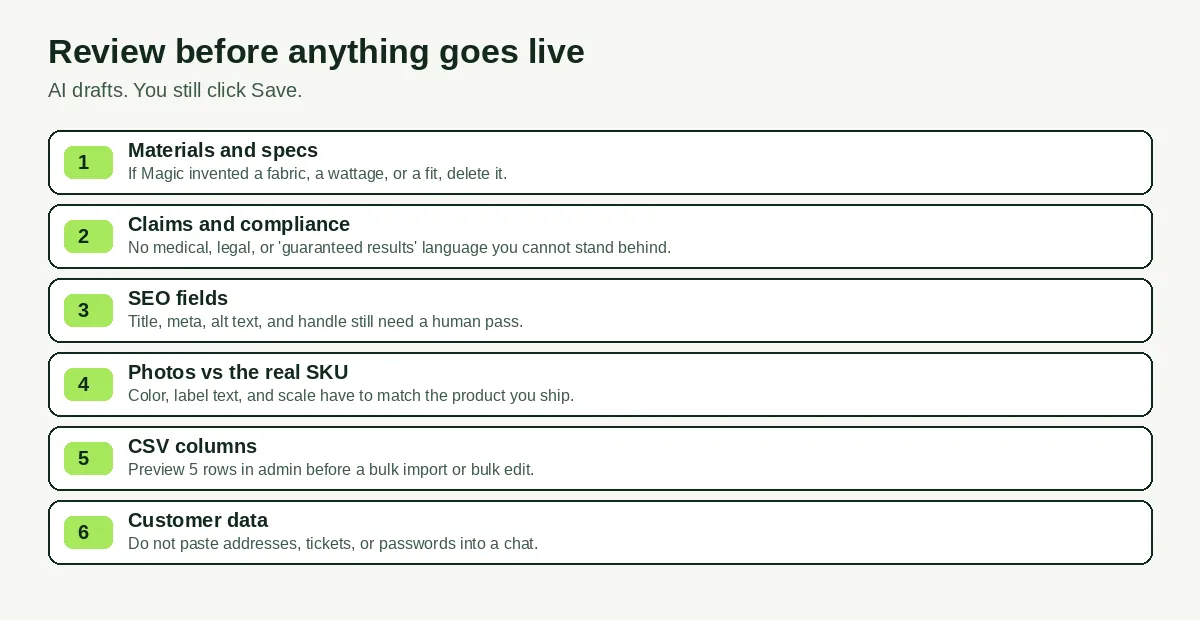
Use this pass on every batch:
- Materials and specs. If Magic or ChatGPT invented a fabric, a wattage, or a fit, delete it.
- Claims. No medical, legal, or guaranteed-results language you cannot stand behind.
- SEO fields. Title, meta, alt text, and handle still need a human pass.
- Photos vs the real SKU. Color, label text, and scale have to match what you ship.
- CSV columns. Preview five rows in admin before a bulk import or bulk edit.
- Customer data. Do not paste addresses, tickets, or passwords into any chat, including Sidekick follow-ups you would not want in a transcript.
Sidekick on a phone is the Shopify app, not the admin in a mobile browser. Shopify Help says Sidekick is not currently available when you use the Shopify admin in a mobile browser. If you are reviewing drafts on a phone, open the app or wait until you are at a desktop.
Staff permissions still apply. Shopify's Sidekick FAQ says every staff member uses Sidekick based on their admin permissions. A part-time VA should not get a token or a Sidekick session that can publish products if you would not hand them the same click in admin.
AI did not change the business. It changed which 30-minute admin jobs you should stop doing by hand. Generate the draft. Edit the facts. You still click Save.
Start this week with 10 products, not the whole catalog. Magic or ChatGPT for the descriptions, one honest photo plus AI extras, then a ChatGPT pass on titles and tags. When those 10 look like your brand, repeat. That is how you use AI to run a Shopify store without turning the shop into a content mill.
Related Articles

Shopify Canvas Explained: What Merchants Get From Sidekick's New Design Surface (2026)
Shopify Canvas explained for SMB merchants: what Sidekick's new design surface is, how it differs from the theme editor, and careful 2026 adoption tips.
How to Set Up a Shopify Store in a Day Using AI (Step-by-Step Guide for 2026)
Set up a Shopify store in a day with the help of AI. Here is the exact playbook for design, listings, SEO, and marketing, done by tonight.
Tinker by Shopify (2026): How to Use the Free AI Video Generator and Photo Tools
Tinker by Shopify is a free AI app for product videos and photos. Learn what its video tools make, the usage limits, and how to add clips to your store.
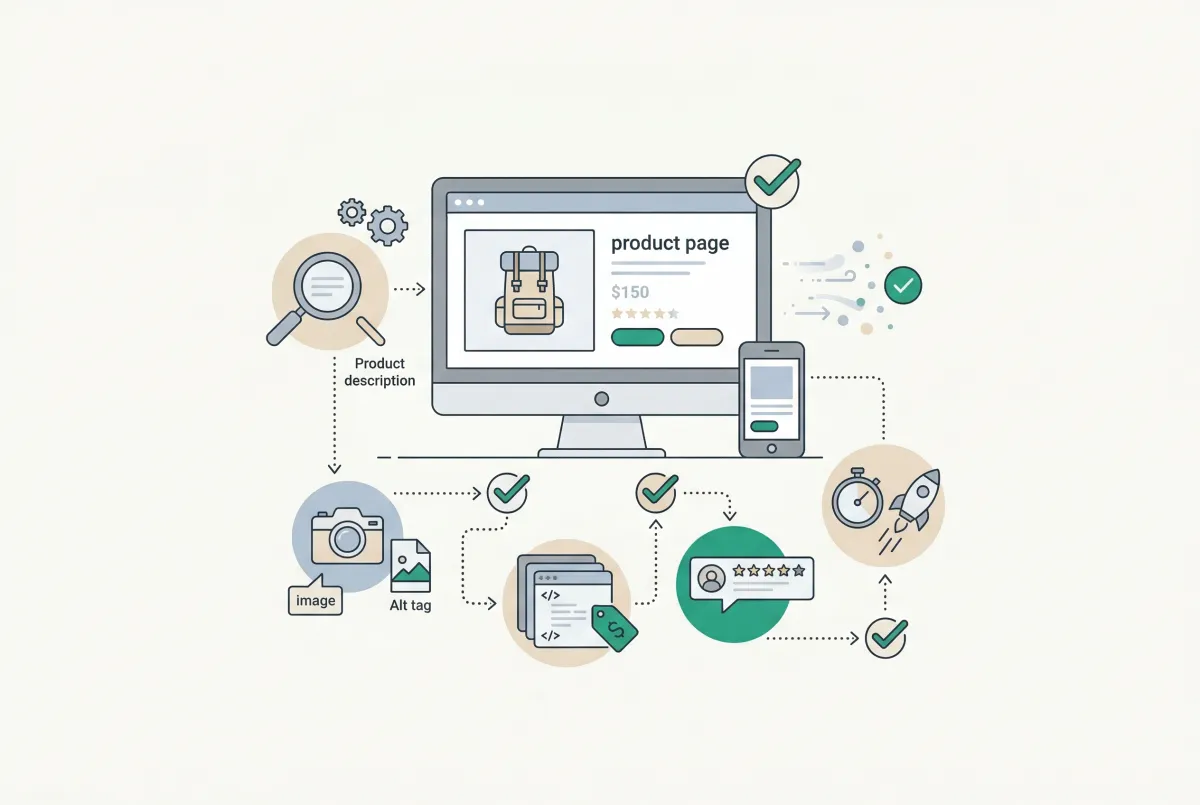
Most Shopify product pages are missing at least three core SEO elements. This 2026 checklist covers title tags, schema markup, images, and more.
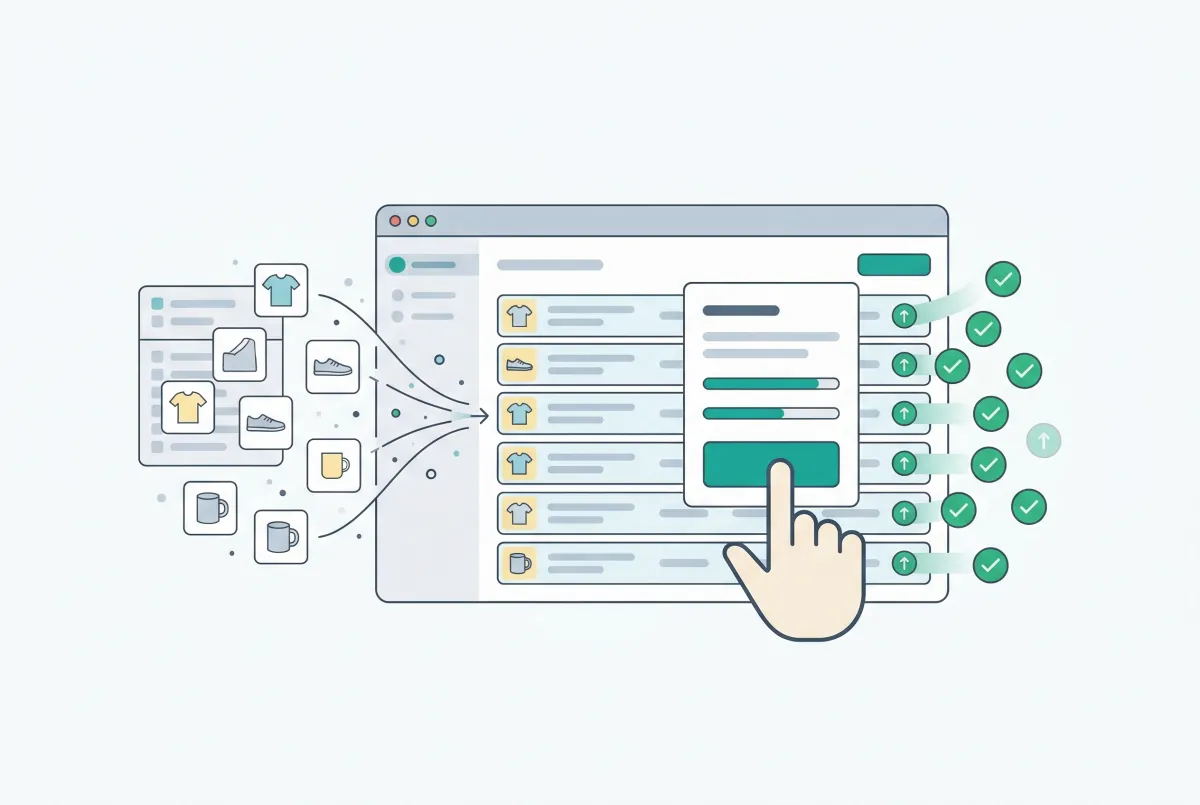
Shopify Bulk Product Editing: The Complete Guide to Updating Your Catalog Fast
Master Shopify bulk product editing with the native editor, CSV imports, and third-party apps. Update prices, tags, and descriptions across your catalog fast.

Etsy vs Shopify in 2026: Fees, Traffic, and When to Move
Compare Etsy vs Shopify in 2026: current fees, who actually sends you traffic, and when handmade sellers should stay on Etsy, add Shopify, or fully move.