
How to Use Perplexity with Shopify (Back-Office Guide for 2026)
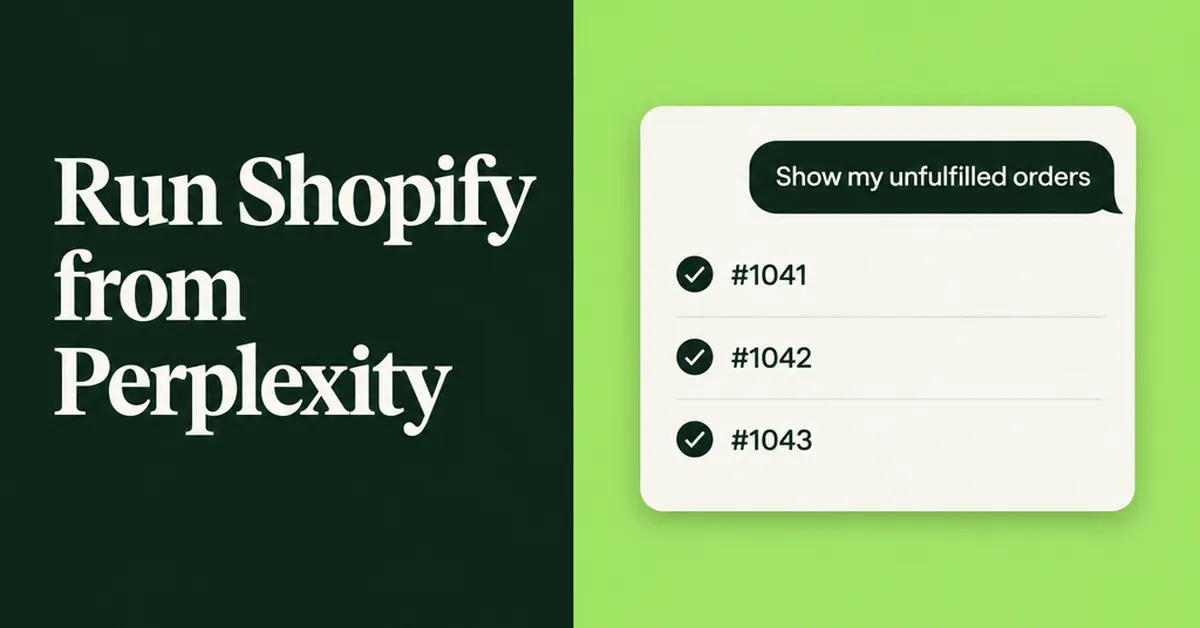
You can now use Perplexity with Shopify to run parts of your back office from a chat window: pull last week's orders, check stock, build a collection, or draft a discount code without opening your admin. Shopify ships an official connector for Perplexity that works on a store you already own, and it has firm rules about what it can read, what it can change, and what stays locked. This guide walks through setup, the safest access level, prompts that work, and the limits most setup guides skip.
If you already tried another assistant, the flow will feel familiar. We covered similar setups in our Jev AI back-office guide and our Grok Bot store ops guide. Perplexity is different in one useful way: it is an answer engine that cites web sources in real time, so it is at its best when a store question needs outside context too.
What does the Shopify connector for Perplexity actually do?
The Shopify connector for Perplexity lets you manage an existing store from inside Perplexity, covering products, collections, inventory, orders, customers, discounts, and analytics. It does not create new stores, and some areas are read-only by design.
According to Shopify's help page for the connector, it exposes 24 named actions. Each action name shows in your chat while it runs, so you can see exactly what Perplexity is doing. Here is how the main areas break down:
- Products: create a product with variants, options, and inventory tracking; update titles, descriptions, status, images, variant prices, or SKUs; set up to 50 products at a time to active, draft, or archived.
- Collections: create manual or smart collections, update rules and sort order, and add products to an existing collection.
- Inventory: check stock for every variant across locations and set a quantity at one location with a reason such as received, correction, or damaged.
- Orders: read-only. List recent orders up to 50 at a time, or open one order for line items, shipping address, and tracking.
- Customers: read-only. Look up customers by name, email, location, or tag, with order count and total spend.
- Discounts: create percentage-off codes for the whole store, specific products, or a collection.
- Analytics: answer sales, product, customer, and fulfillment questions by running ShopifyQL queries. Read-only.
Pages, blogs, navigation menus, metafields, markets, and translations have no dedicated action. The connector reaches them through the Shopify Admin API instead, using actions like graphql_query and graphql_mutation, and it asks you to confirm before it changes anything there.
How do you connect Perplexity to your Shopify store?
You install the connector from Perplexity, not from the Shopify App Store, then approve its access inside your Shopify admin. Shopify recommends doing setup in a desktop browser, since mobile availability depends on Perplexity.
- Pick the account that will connect. The connector acts through a Shopify user, so it can never do more than that user is allowed to do. If you have staff accounts, decide which one should own this connection before you start.
- Open the Shopify connector in Perplexity. Go to the connectors area in your Perplexity settings and add Shopify. Which Perplexity plans include which connectors is set by Perplexity, so check your plan there if Shopify does not appear.
- Sign in to your store. Perplexity hands you off to Shopify, where you log in and land on an install page.
- Review the access request. This is the second confirmation. Read what the connector asks for before you accept, because it is hard to walk back later (more on that below).
- Run a test prompt. Ask "Which Shopify store are you connected to?" A correct store name means you are ready.
Shopify's authorization guide says this two-step flow is the same across its ChatGPT, Claude, Perplexity, and Muse integrations. It also warns against creating your own API access token or a homemade integration to connect an AI tool. Use the official connector.
Which access level should you approve?
Approve only the access you are comfortable with, and decline the request if it is broader than you want. Then use the connection for reporting first and save write tasks for once you trust the answers.
Shopify splits access into two layers. Data access is what you approve on the install page: some access is read-only, and some includes write access. If Perplexity later asks for a higher level, Shopify asks you to authorize the increase. User permissions are the limits on the Shopify account doing the connecting. A staff member who cannot edit products cannot hand Perplexity the power to edit products, no matter what the install page says.
Three rules from Shopify are worth knowing before you click accept:
- You cannot lower access later. To reduce a connector's access, you have to uninstall it from your Shopify admin and install it again.
- Your data leaves Shopify. Once you authorize sharing, the selected data goes to Perplexity and falls under Perplexity's terms and privacy policy, not Shopify's.
- Compliance stays with you. Shopify's considerations page points to Section 9.9 of its Terms of Service: you are responsible for what you share, including your duties under privacy laws such as GDPR and CCPA.
That last point matters if you plan to pull customer lists into a chat. Customer data in the connector is read-only, but reading it still means copying it to a third party.
Which back-office jobs is Perplexity with Shopify good at?
It is strongest at quick questions about sales, orders, and stock, plus small catalog changes you can describe in one sentence. Keep each request to one task, and say "Shopify" in the prompt so Perplexity uses your store data instead of answering from the web.
That second tip comes straight from Shopify. Perplexity answers from the sources you point it to, so a prompt like "what's my best seller" can drift into general web advice unless you name your store. Here are prompts that map cleanly to the connector's actions:
Reporting prompts
- "In Shopify, show me total sales for the last 30 days, broken down by product."
- "What's my Shopify average order value this month compared to last month?"
- "How many new versus returning customers did my Shopify store get this month?"
- "List my unfulfilled Shopify orders from this week."
Shopify notes that short, specific analytics questions work best. A prompt that stacks three comparisons and two filters can fail or return something hard to read, so ask a follow-up instead.
Catalog and stock prompts
- "Add a Vanilla Bean Candle to Shopify for $24.95 as a draft." The connector writes a description if you do not give one.
- "How many Vanilla Bean Candles are left?" followed by "Set it to 40, reason: received."
- "Make a Holiday Gifts collection in Shopify with my three bestsellers."
- "Set every product in the Summer collection to draft." This uses the batch status action, capped at 50 products.
The inventory flow has a nice safety feature. The connector reads the current count before it changes anything, so if the number moved after it looked (say an order came in), the update stops instead of overwriting.
Research prompts that mix store data and the web
This is where Perplexity earns its place next to other assistants. Its core product answers questions with sources it cites from across the web, so try a two-part request: pull a product's current price from Shopify, then ask how similar products are priced elsewhere. If the answer blurs the two, split it into two prompts. Treat the web half as a starting point and click the citations before you change a price.
Hot take: Use Perplexity as your store analyst, not your store clerk. It returns text only, it cannot touch orders, and big batches can stop halfway. Where it beats the others is the "why" question that needs your numbers and the outside world in one answer. Give the bulk edits to your admin or a dedicated app.
For catalog-wide edits, a spreadsheet-style tool is still faster and easier to undo. Our bulk product editor comparison and bulk editing guide cover those options.
What can't the Perplexity connector do in your store?
It cannot move money, change paid orders, edit customer records, touch your live theme, or change core settings. Some of these blocks hold even when you approve write access.
Shopify lists the following limits for connected AI tools, including Perplexity:
- No refunds or order changes: it cannot issue refunds, cancel or capture orders, mark orders as paid, process returns, or create and adjust gift cards. These are blocked even with write access.
- No live theme edits: it can edit an unpublished theme, but it cannot edit, publish, or delete your live one. Duplicate your theme, let the tool edit the copy, then publish it yourself.
- No settings changes: plan, payments, taxes, and domains stay in your admin.
- Limited discounts: it creates percentage-off codes only. It cannot change existing codes or create fixed-amount discounts.
- Read-only orders and customers: to edit, refund, or cancel an order, or edit a customer record, use your Shopify admin.
- Batches can stop partway: items change one at a time, so a large batch may not finish. Check the result and complete it in your admin.
- Text-only answers: Perplexity returns your store data as text, not the storefront previews, tables, and charts that Shopify's ChatGPT plugin and Claude connector display.
- Existing stores only: you cannot generate a storefront preview or claim a new store from Perplexity.
- One store at a time: you can switch stores, but start a new conversation afterward. An older thread can keep using the store you left.
None of these are dealbreakers for reporting and light catalog work. They do mean the connector does not replace your admin, and Shopify says plainly that it does not replace Sidekick either.
How does Perplexity compare with ChatGPT, Claude, and Sidekick for store ops?
Perplexity covers the same core store actions as the other official connectors but shows results as plain text and cannot start a new store. Sidekick lives inside your admin, while Perplexity, ChatGPT, and Claude work from outside it.
- Sidekick: Shopify's built-in assistant in the admin, with no extra install or third-party connector to approve. See our Sidekick Canvas explainer for its newer design surface.
- ChatGPT and Claude: Shopify's integrations show previews, tables, and charts, and can build a storefront preview for someone starting from scratch.
- Perplexity: text-only results on an existing store, with web research built into the same chat.
Perplexity has also been pushing into agent work. In February 2026, TechCrunch reported that Perplexity Computer coordinates 19 AI models to run multi-step workflows and launched on the $200 per month Max tier. If you already pay for Perplexity for research, adding Shopify to it is the cheap test. If you do not, Sidekick is already sitting in your admin to try first. For a wider view of where each tool fits, read how to use AI to run a Shopify store.
Is the Shopify connector the same as Perplexity Shopping?
No. The connector is a back-office tool that lets you manage your own store, while Perplexity Shopping is how shoppers discover products inside Perplexity's answers. Connecting one does not switch on the other.
Discovery runs through a different path. Per Shopify's Perplexity Shopping guide, Shopify Catalog syndicates your product data, Agentic Storefronts make listings discoverable in Perplexity results, and Perplexity also runs a free Merchant Program. Checkout happens through PayPal's Instant Buy, so those orders are managed in PayPal rather than in your Shopify admin. That is worth knowing before you ask the connector about "all my orders," since it reads Shopify orders only.
The discovery side is growing fast. The same Shopify guide cites Adobe Analytics data showing traffic to US retail sites from AI sources grew 693% during the 2025 holiday season, and a follow-up Adobe report found AI-referred shoppers were 33% less likely to bounce and converted 31% more. If you want that side of the picture, our guide to getting discovered through ChatGPT with Agentic Storefronts covers the setup.
How do you keep a connected AI tool from breaking your store?
Treat every write action like a change a new staff member made: start small, check the result in your admin, and keep a way back. Shopify is clear that actions taken by connected tools are not reviewed by Shopify, and you are responsible for any incorrect change.
- Read before you write. Run a few days of reporting prompts before you ask for any change.
- Draft first. Ask for new products as drafts, then review and publish them yourself.
- Check counts before setting them. Ask for current stock first, then the change.
- Keep batches small. Ten products at a time is easier to check than 50.
- Review Admin API changes. Pages and menus built through
graphql_mutationvary more in quality, so open them in your admin before you rely on them. - Know the off switch. Once you uninstall the integration from your Shopify admin, Perplexity can no longer read or edit your store data.
If you later want repeatable workflows rather than one-off prompts, our store ops automation guide shows how to structure them.
What should a small store set up in the first week?
Connect, stick to read-only prompts for five days, and then try one narrow write task. That gives you a fair test without risking your catalog.
- Day 1: Connect from a desktop browser and confirm the store name.
- Day 2: Ask for 30-day sales by product and compare it with your Analytics page.
- Day 3: Pull unfulfilled orders and spot-check three against the admin.
- Day 4: Ask for stock levels on your top five products.
- Day 5: Try one research prompt that mixes a product's price with web comparisons, and click every citation.
- Day 6: If the answers held up, try one write task: create one draft product or one percentage-off code.
- Day 7: Decide whether Perplexity earns a spot in your routine next to Sidekick, or whether to uninstall.
Most stores will land on a split: Sidekick for in-admin edits, a bulk editor for catalog-wide changes, and Perplexity for questions that need both your numbers and outside sources.
Related Articles
How to Use Grok Bot with Shopify (Back-Office Guide for 2026)
How to use Grok Bot with Shopify for store ops: research, copy, and CSVs first, then a custom app token. Skip the admin login; use a scoped API token.
How to Use Jev AI with Shopify (Back-Office Guide for 2026)
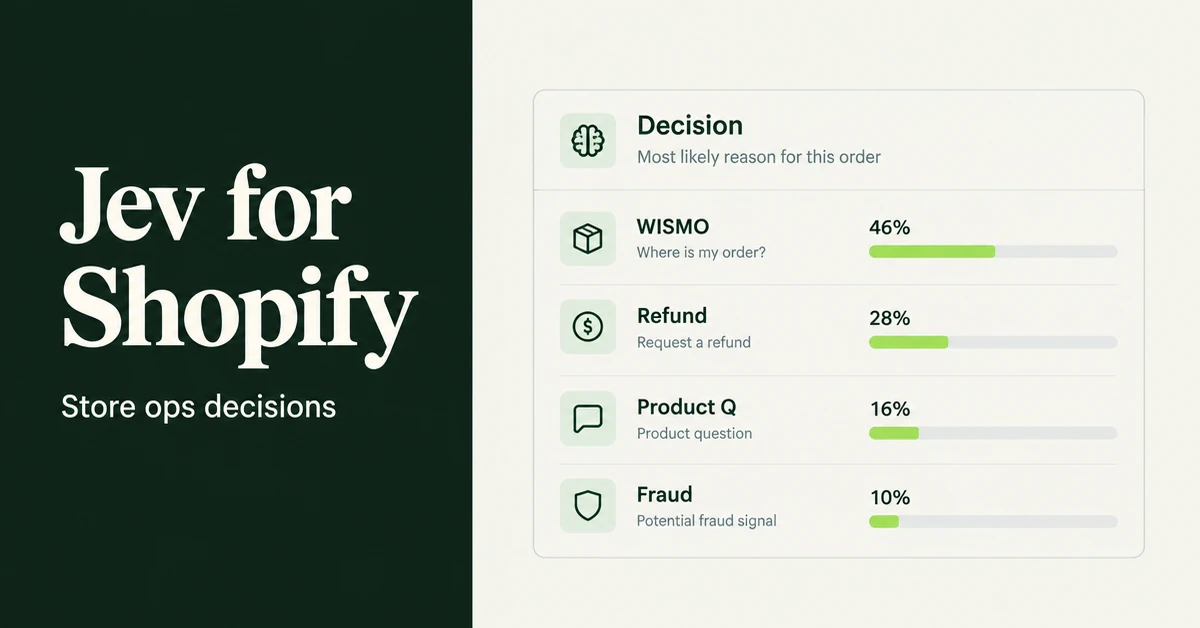
How to use Jev AI with Shopify for store ops: route tickets, triage refunds, score review quality, and guardrail LLM agents with calibrated probabilities.

How to Use AI to Run a Shopify Store in 2026 (Copy, Photos, and Admin)
How to use AI to run a Shopify store after launch: write copy, generate product photos, then stop doing titles, tags, CSVs, and email drafts yourself.

How to Automate Shopify Store Ops Workflows with OpenAI Dots (2026 Guide)
Automate Shopify store ops workflows with OpenAI Dots in 2026: plugins, Slack/Teams digests, approvals, and honest limits versus Sidekick and Catalog.

Shopify Canvas Explained: What Merchants Get From Sidekick's New Design Surface (2026)
Shopify Canvas explained for SMB merchants: what Sidekick's new design surface is, how it differs from the theme editor, and careful 2026 adoption tips.

How to Get Discovered by OpenAI Dots with Shopify (Agentic Storefronts Guide for 2026)
How to get discovered by OpenAI Dots with Shopify in 2026: ChatGPT Catalog discovery, WebMCP browser checkout, Agentic toggles, and Catalog mapping tips.