
If you need to know how to use Grok Bot with Shopify in 2026, treat it as a named back-office coworker on a cloud computer, not as a storefront chatbot and not as a Shopify app. Grok Bot is the SpaceXAI (xAI) product for AI teammates that keep a browser, filesystem, and terminal. It is not consumer Grok on grok.com or X, and it is not Shopify Magic or Sidekick.
The obvious first move, signing the Bot into Shopify admin from its own browser, currently fails. Shopify's bot protection blocks that login. The path that works is: jobs that do not need admin, then a custom app plus Admin API credentials in a secret field, then a scheduled routine only after the path is proven. This is a practical how-to for an SMB owner who wants help with research, copy, CSVs, and scoped catalog work, not a sales post about live chat.
What is Grok Bot, and how is it different from Grok, Magic, or Sidekick?
Grok Bot is a roster of named AI teammates that run on a persistent cloud computer. Consumer Grok is a chatbot. Shopify Magic and Sidekick are Shopify's own in-admin helpers, tied to the store session you already opened.
xAI's Grok Bot overview is the product definition to trust. Bots sign into tools, finish work in those tools, and come back when something needs your approval. You message a Bot from desktop or iOS. Get-started docs also list Windows. The Grok Bot FAQ says Linux desktop, Android, and iPad were not supported at initial launch.
What makes it different from a chat window:
- Each Bot runs on a persistent cloud VM with a browser, filesystem, and terminal. Work lands in real files and real APIs, not as a draft you have to copy somewhere else.
- You create a Bot, message it, and grant access. There is no workflow builder required to start.
- You can ask a Bot to follow along once through a multi-step path. It can save that path as a skill and rerun it as a routine on a schedule or on demand.
- All of your Bots share one account-scoped computer. Files, browser sessions, and logins are account-level. Each Bot gets its own screen, not its own security boundary.
That last point is the one merchants skip. A Shopify token you place on the computer is available to every Bot on the account. Do not invent a "Shopify Bot" and a "Finance Bot" and assume they cannot see each other. They share the machine.
Shopify Magic lives inside product and email fields in admin. Shopify Sidekick is the in-admin commerce assistant. You open it from admin, it uses the logged-in staff member's permissions, and it presents changes for review. Grok Bot is a different category. It does not live on the storefront, and it does not replace Inbox, Sidekick, or Magic.
Grok Bot launched in early beta on 11 August 2026. SpaceXAI's 26 August 2026 plans post says it is included with SuperGrok, SuperGrok Plus, SuperGrok Heavy, Cursor Pro, Cursor Pro+, Cursor Ultra, and Cursor Teams Standard and Premium, with Grok Bot usage separate from Grok and Cursor plan usage. As of 1 September 2026 the live Grok Bot page shows Cursor Pro at $20 per month, SuperGrok at $30 per month, and Cursor Teams at $40 per seat per month, billed monthly. Eligible Cursor, SuperGrok, or Teams plans include Grok Bot. Recheck before you pay.
How do you use Grok Bot with Shopify without logging into admin?
You start with jobs that never touch Shopify admin: research, copy, competitor checks, and CSV files you paste yourself. Grok Bot does not need a store login to be useful this week, and the blocked admin page does not cancel those jobs.
This is method 1, and it is the right first week. The Bot can use the public web and your files. You stay the person who clicks Save in Shopify. If you are still launching the shop, keep Grok Bot in draft mode and use a focused setup sprint such as how to set up a Shopify store in a day using AI.
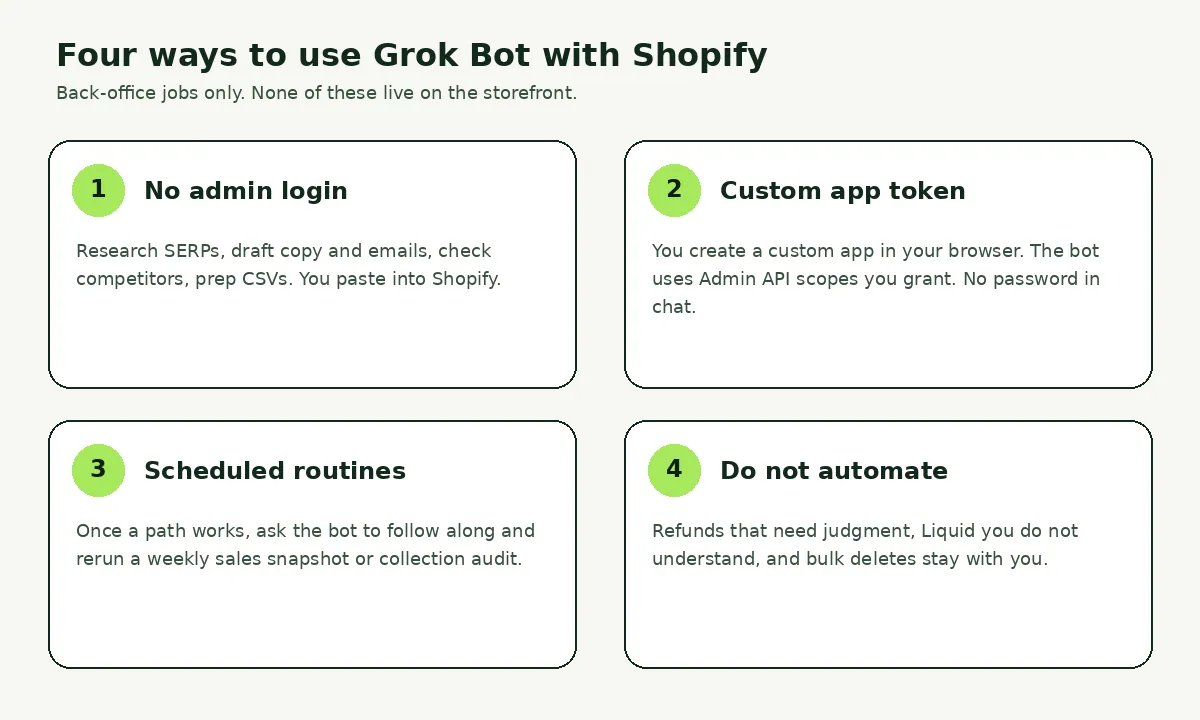
Give it public jobs that end as files you review:
- SERP notes for a product or collection, with title ideas you can drop into your Shopify product page SEO checklist.
- First-draft product copy, meta titles, and emails. You then edit against the real SKU. Our guide on product descriptions that rank and convert is the bar the draft has to clear.
- Competitor checks on public storefronts: price bands, shipping promises, collection structure.
- CSV prep: column mapping, duplicate titles, missing handles, before you import. Follow a real import path such as how to import products to Shopify from a CSV file. A bulk editor still wins for in-admin mass edits. See our complete guide to Shopify bulk product editing.
Write the request like a handoff. Official docs want an outcome, sources, constraints, a deliverable, and a review point. Example: "Research these 12 SKUs. Draft meta titles and a CSV of missing alt text. Do not contact anyone. Do not log into Shopify. Leave the files in /workspace."
This URL is narrower than our piece on AI agents for Shopify and smart automation. That article covers selling and automation in general. This one is Grok Bot next to Shopify admin and ops, not a widget on the product page.
For structured ticket routing, refund triage, and agent guardrails that return calibrated probabilities instead of chat text, see how to use Jev AI with Shopify for store ops. If you want an answer engine with web citations on the same connector pattern, read how to use Perplexity with Shopify.
How do you connect Grok Bot to Shopify with a custom app and Admin API?
You skip the Shopify login page and authenticate with a custom app that you create in your own browser. Cursor staff have said Shopify's bot protection is blocking sign-in from the agent computer's browser, and that the reliable unblock is the Admin API, not a CAPTCHA retry.
The report landed on the Cursor forum as Grok Bot browser blocked from Shopify login on 23 August 2026. On 24 August, staff confirmed they are tracking the block and told merchants to create a custom app, grant the Admin API scopes the job needs, install it, and give the Bot the resulting access token so it never hits the login page.
Never paste your Shopify password or a 2FA code into Grok Bot chat. Official Grok Bot security docs say passwords, passkeys, two-factor codes, and CAPTCHAs should be a computer takeover, or a secure secret request that is masked and kept out of the transcript. For Shopify admin, the takeover still does not get you in. The login itself is the blocked surface. So you create the app on your computer, then hand over a credential, not a password.
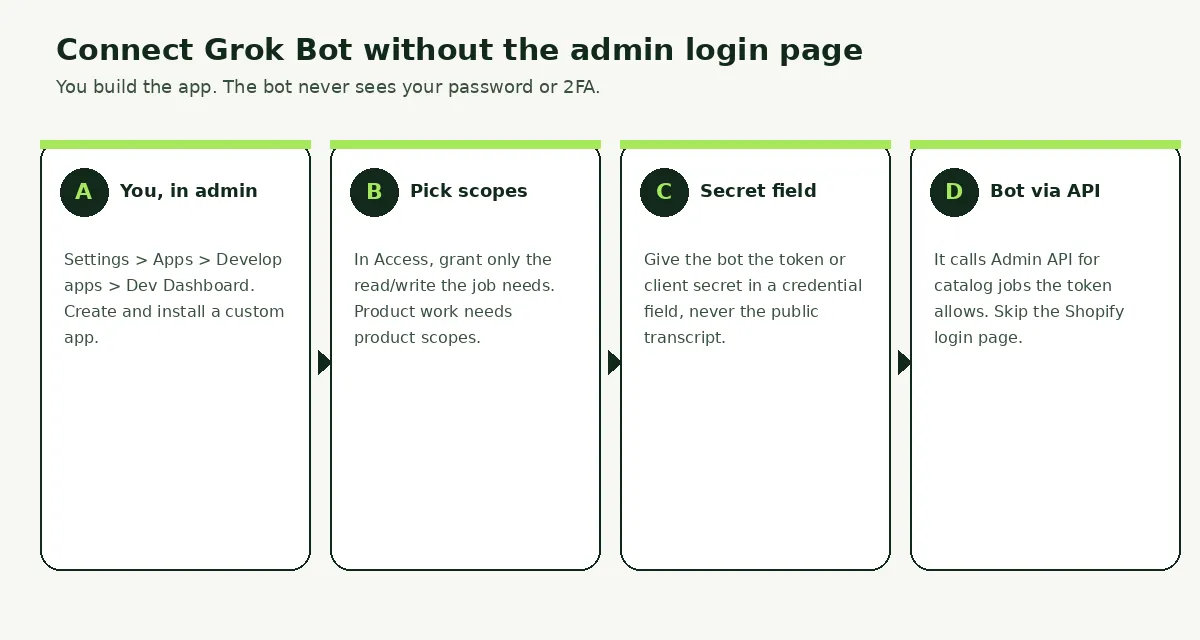
Shopify's 2026 docs matter here. You can no longer create new admin-created custom apps that mint a static token in admin. Existing ones keep working. New apps go through the Dev Dashboard or Shopify CLI. Shopify's walkthrough to create apps using the Dev Dashboard is the path for a new store-ops app:
- On your own computer, open the Dev Dashboard. Stay on Apps, then select Create app, then Start from Dev Dashboard, name the app, and create it.
- Open the Versions tab. Your app needs at least one version before it can be installed. If the app is not embedded in admin, Shopify says you can use the default app URL https://shopify.dev/apps/default-app-home.
- Select a Webhooks API version (typically the newest). Enter or select only the scopes this job needs, then Release. Do not dump every Admin API scope "so it can figure it out."
- From the app, select Home in the left panel, scroll down, select Install app, pick the store, and install.
- Open Settings in the Dev Dashboard and copy the Client ID and Client secret. Put the secret in Grok Bot's credential or secret field, never in the public transcript.
You will not see a forever token sitting in Shopify admin for a new Dev Dashboard app. For a server-side app acting on stores in your own organization, Shopify's client credentials grant is the documented exchange: the app POSTs its client ID and secret to Shopify's token endpoint with grant_type set to client_credentials. The response includes an access_token. Shopify documents expires_in as 86399 seconds (24 hours). Tell the Bot to cache and refresh that token. Do not send the Client ID straight to GraphQL. Shopify's own troubleshooting says that produces an invalid token error.
The grant only works when the app and the store sit in the same Shopify organization in the Dev Dashboard. If they do not, Shopify returns a shop_not_permitted error. If you already have a legacy custom app created in admin before 1 January 2026, the Admin API access token is shown only once under Apps, then Develop apps, then API credentials. Put that token in the Bot's secret field. Do not delete the legacy app if you still need it. Shopify says you cannot create a new admin-created custom app to replace one you deleted. See generate access tokens for admin-created custom apps.
Do not invent a giant scope list in this article or in the Bot's prompt. Open Shopify's Admin API access scopes page and grant the matching read or write for the resource the job actually uses. Shopify's own product examples use names such as read_products. Inventory work uses inventory scopes. Customer work uses customer scopes, and access to protected customer data can require extra approval. Start with the smallest set that can do the job. Add more only after a dry run on a product you can afford to break.
A first API job that is easy to verify: "List the first 20 product titles and handles, write them to a CSV in /workspace, and do not write anything back." You compare that CSV to admin. Only then allow a write, on one test product, with you watching. Tell the Bot every Admin API request must send the token in the X-Shopify-Access-Token header, which is how Shopify documents GraphQL Admin API calls.
How do you turn a working Shopify path into a scheduled routine?
You run the job twice as a one-off, save the method as a skill, then create a routine only after retries and failure cases are defined. Grok Bot docs treat a skill as how to do the task, and a routine as when one Bot should run it.
Do not schedule the first attempt at a bulk write. Official skills and routines guidance is: start with a one-time task, make it reliable, save the method, and only then automate. A test run performs real work. It can call connected tools. Use safe inputs and keep writes behind approval.
Shopify-shaped routines that earn the schedule: a weekly catalog snapshot written to /workspace with no writes; a collection audit based on tags you already use; inventory exceptions listed for you to reorder; an order digest of counts by fulfillment status, not customer addresses in chat.
Ask the owning Bot in plain language. Include the schedule, time zone, input source, expected result, approval boundary, and what to do when Shopify data is missing. Example: "Every weekday at 8:00 AM Asia/Manila, run the catalog-audit skill. Write a CSV to /workspace/reports. Do not update products. If the token refresh fails, report the failure instead of using yesterday's file."
Then manage it like a hire. Open the Bot, choose View conversation details, then Routines. You can enable, pause, test, edit, or delete. Official docs say a Bot can own up to 50 routines, and the app keeps the 20 most recent run records for each. Deleting a routine has no undo. Background routines can run while your laptop is closed. If Teach a task is available, you can demonstrate a browser workflow once (up to ten minutes). Do not teach a Shopify login. Teach a file-and-API path you already run, and keep secrets out of the recording.
Which Shopify jobs should stay in the admin instead of Grok Bot?
Anything that spends money, deletes data, changes the live theme, or needs a policy call should stay in Shopify admin with you at the keyboard. Grok Bot can draft and fetch. You still decide refunds, Liquid, and deletes.
This is method 4, and it is the line you draw on day one. If you would not give that permission to a new part-time VA, do not put it on the Bot's token. You can always add a scope later. You cannot un-send a delete.
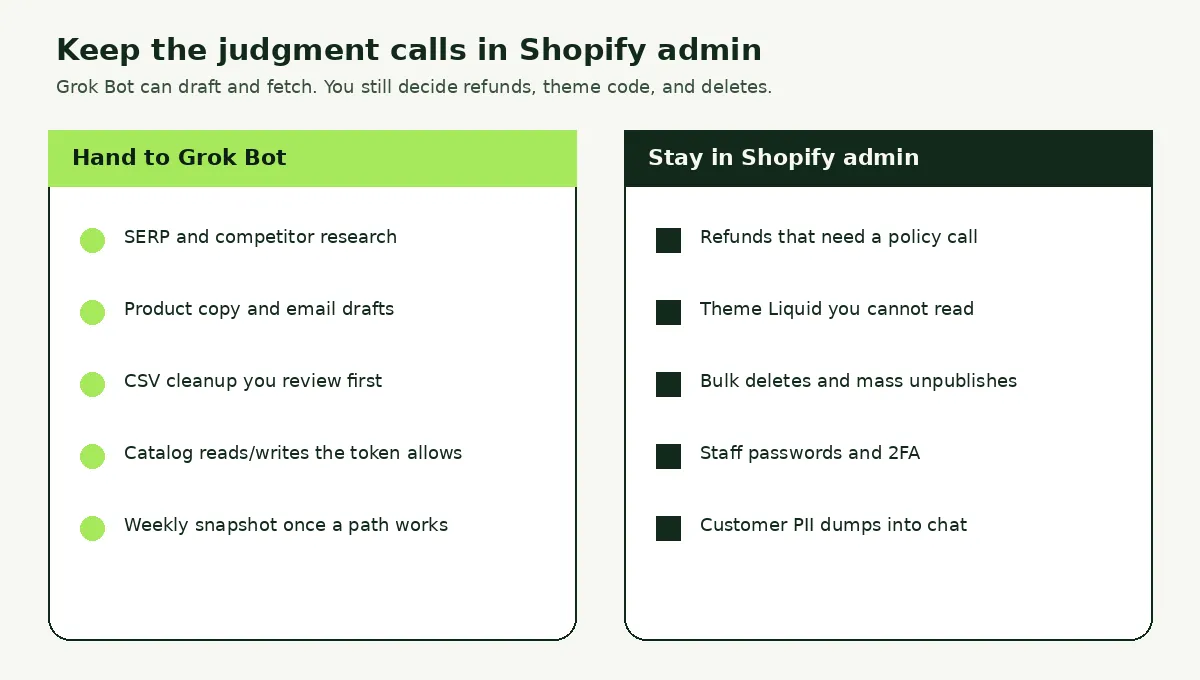
Keep these in admin, with a human click:
- Refunds, partial refunds, and "make an exception" discounts. A Bot can draft the note. Your policy still needs a person.
- Theme Liquid, checkout settings, and any code you cannot read line by line.
- Bulk deletes, mass unpublish, and "remove this whole vendor." One bad filter is a catalog hole.
- Staff invites, 2FA, bank details, and payout changes.
- Pasting full customer records, order dumps, or tickets with street addresses into a chat every Bot on the account can reach.
Put the boundary in the Bot's description and in every task:
- Read from the Admin API. Write only after I approve the exact product IDs, fields, and new values.
- Never publish a product, delete a product, change a live price, or issue a refund without an explicit Allow once.
- Never paste passwords, 2FA codes, or session cookies into chat. If Shopify admin login is blocked, stop and use the custom app credential.
- Keep durable files in /workspace. Treat installed packages and temp directories as replaceable.
Then use Grok Bot's own controls. On desktop, Allow once continues a proposed action and Deny blocks it. Always allow can save a matching rule. On iPhone the labels are Approve once and Deny. Auto-review, when available, lives under Settings, then General, then Auto-review. Require Approval always wins over Always Allow if both match. Write narrow rules. Avoid "allow everything in the browser."
Two more boundaries people miss. First, the shared computer: a token file or .env on the machine is available to every Bot on the account. Do not use separate Bots as a security boundary. Deleting a Bot does not wipe the shared computer. Second, the local computer is separate. Execution on Local Computer defaults to asking every time. Leave it off unless the Bot has a specific reason to touch files on the desk in front of you. Start on a development store if you can. Watch the Agent Computer preview. If a site presents a CAPTCHA, take over. Do not ask the Bot to bypass it.
Grok Bot is a back-office coworker, not a Shopify app. The admin login block is expected. Use a custom app token. Do not put it on the storefront.
Treat it like a VA with a laptop in the cloud: useful for research, drafts, CSVs, and scoped API chores. Create the Bot with one job in the name. "Catalog auditor" beats "Shopify everything." Give it the custom app credential, a development store if you have one, and a first task that ends in a file. When that file looks right, turn the path into a routine.
Related Articles
How to Use Perplexity with Shopify (Back-Office Guide for 2026)
Use Perplexity with Shopify in 2026: connect the official connector, pick safe access, run sales and stock prompts, and see what it still can't change.

How to Automate Shopify Store Ops Workflows with OpenAI Dots (2026 Guide)
Automate Shopify store ops workflows with OpenAI Dots in 2026: plugins, Slack/Teams digests, approvals, and honest limits versus Sidekick and Catalog.

How to Get Discovered by OpenAI Dots with Shopify (Agentic Storefronts Guide for 2026)
How to get discovered by OpenAI Dots with Shopify in 2026: ChatGPT Catalog discovery, WebMCP browser checkout, Agentic toggles, and Catalog mapping tips.
How to Sell on Meta Muse with Shopify (Agentic Storefronts Guide for 2026)
How to sell on Meta Muse with Shopify in 2026: Catalog discovery, Meta direct checkout for US/CA/MX buyers, Agentic toggles, policies, and mapping tips.
How to Use Jev AI with Shopify (Back-Office Guide for 2026)
How to use Jev AI with Shopify for store ops: route tickets, triage refunds, score review quality, and guardrail LLM agents with calibrated probabilities.
How to Migrate Magento Attributes to Shopify Metafields (3 Methods)
Migrate Magento attributes to Shopify metafields in 2026: Admin definitions, CSV/Matrixify columns, or app mapping. Collapse Magento attribute sets first.