
How to Build a Shopify Store That Handles 10x More Traffic (Without Crashing)
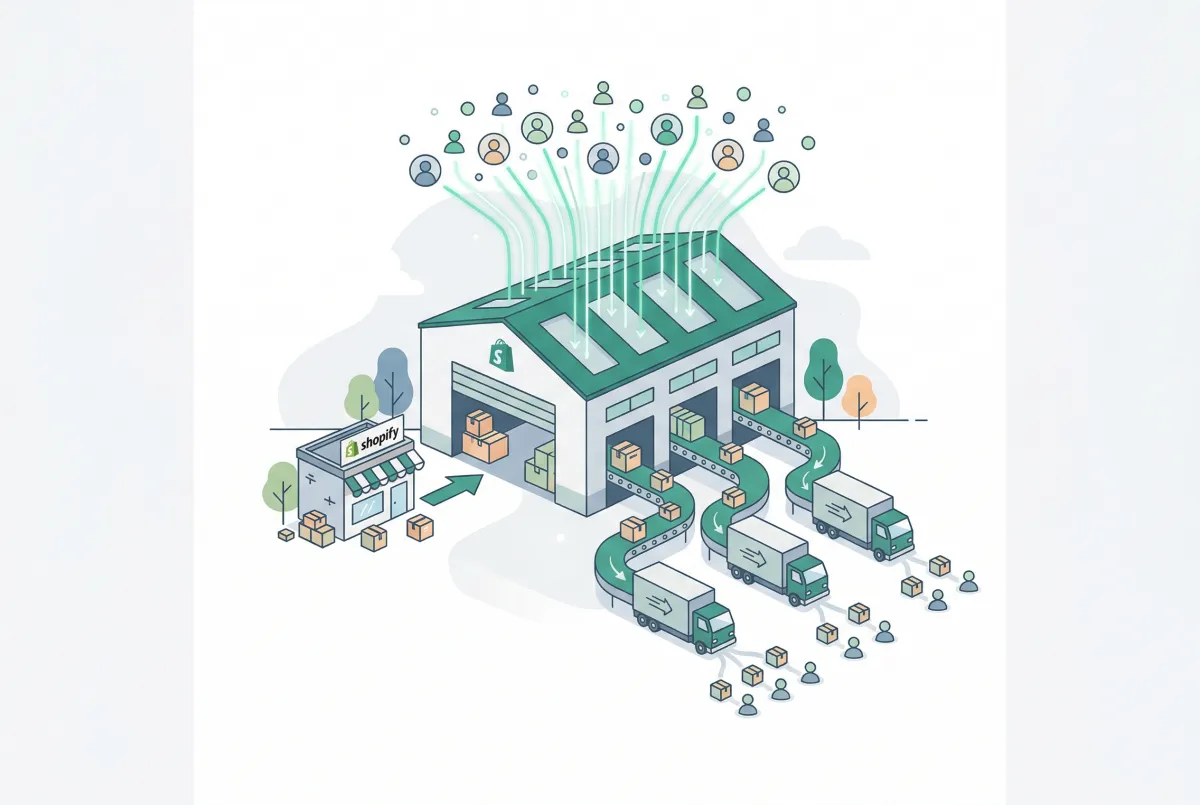
If you've ever watched your Shopify store slow to a crawl during a flash sale or product launch, you already know the sinking feeling. Learning how to build a Shopify store that handles 10x more traffic isn't about switching hosts or buying expensive infrastructure. It's about understanding where your store actually breaks and fixing those weak points before the traffic arrives.
This guide walks you through everything: from diagnosing performance killers to building a pre-event checklist that works whether you're on Basic Shopify or Shopify Plus.
Why Does Your Shopify Store Struggle to Handle 10x More Traffic?
Your store struggles because third-party apps, unoptimized images, and external API calls create bottlenecks that Shopify's infrastructure can't compensate for. The platform itself handles massive scale, but your storefront is only as fast as its slowest component.
Think of it this way. Shopify gives you a highway with unlimited lanes. But if your store is loading a review widget, a loyalty popup, a shipping calculator, and a chat bubble on every single page, you've parked four slow trucks in the fast lane.
Most merchants confuse "driving traffic" with "handling traffic." They spend months on Facebook ads and influencer campaigns, then panic when 5,000 visitors arrive simultaneously and the site takes 8 seconds to load. The issue isn't that Shopify can't handle the visitors. It's that the store wasn't optimized to serve pages quickly under load.
A 2025 study of 1,000 Shopify stores paints a clear picture: only 48% met all Core Web Vitals thresholds on mobile. More than half of merchants are leaving performance (and revenue) on the table before a single traffic spike even happens.
And that's under normal conditions. Once traffic multiplies by 5x or 10x, every millisecond of inefficiency compounds. A page that loads in 3 seconds at normal traffic might take 7 seconds when your CDN and third-party endpoints are all handling peak demand simultaneously.
How Does Shopify's Infrastructure Actually Handle High Traffic?
Shopify's infrastructure is built to absorb enormous traffic without intervention from merchants. During BFCM 2024, Shopify's edge network peaked at 284 million requests per minute, processing $4.6 million in sales per minute at its highest point. Over 67,000 merchants experienced their highest-selling day ever during that weekend.
That kind of scale isn't something you need to worry about replicating. Shopify runs on a globally distributed CDN, auto-scales server resources, and manages SSL, DDoS protection, and load balancing behind the scenes. According to Shopify's own analysis of nearly 200,000 websites using Google's Core Web Vitals API, Shopify stores render up to 2.4x faster (and 1.8x faster on average) than stores on competing platforms.
So if the infrastructure is this solid, why do stores still crash or slow down? Because the infrastructure handles Shopify's code. It doesn't control what third-party apps, custom scripts, and unoptimized assets do on top of it.
Your theme's Liquid code runs on Shopify's servers. But the JavaScript from your review app, your upsell popup, and your analytics tracker runs in the customer's browser, and it all competes for the same resources. You don't need to "upgrade your server." You need to clean up what's running on top of it.
What Are the Biggest Performance Killers on a Shopify Store?
The biggest performance killers are excessive apps, unoptimized images, and third-party scripts that make external API calls on every page load. These three issues account for the vast majority of slow Shopify stores.
App Bloat
The average Shopify store runs 6 to 10 apps that collectively add 2 to 3 seconds to page load time. A single poorly coded app can add 500 milliseconds to a full second on its own.
And here's the part most merchants miss: uninstalling an app doesn't always remove its code. Many apps inject JavaScript and CSS into your theme that stays behind like digital graffiti.
The worst offenders tend to be review widgets that load all reviews on page load instead of on scroll, live chat apps that initialize heavy JavaScript bundles, shipping calculators that ping external APIs for every page view, and loyalty or rewards apps that track user activity across every page. If you're picking essential apps for your Shopify store, choose ones that load asynchronously and don't inject scripts on pages where they aren't needed.
Unoptimized Images
Product images are often the heaviest assets on a Shopify store. WebP images are 25 to 35% smaller than equivalent JPEGs, and lazy loading is commonly associated with 50 to 60% improvements in initial page load times for image-heavy stores. Yet plenty of merchants still upload 3000x3000 pixel PNGs straight from their camera or supplier.
Shopify does serve images through its CDN and supports WebP automatically in most modern themes. But if your original uploads are 5MB each, even compressed versions will be larger than they should be. Resize before uploading, and aim for images no wider than 2048 pixels for product photos.
Third-Party Script Overload
Every external script (Google Analytics, Facebook Pixel, TikTok Pixel, Hotjar, Klaviyo tracking) adds a network request. Most of these scripts also load their own dependencies. During a traffic spike, these external services can slow down or become unresponsive, and your store waits for them.
This is the hidden failure mode that nobody talks about: it's not your store that crashes, it's a third-party service timing out and taking your page load time from 2 seconds to 12. Shipping rate calculators are particularly vulnerable because they fire during checkout, exactly when speed matters most.
Inventory and Payment Sync Failures
Another underexplored failure point is real-time inventory sync. If you're selling across multiple channels (Shopify, Amazon, a retail POS), your inventory sync app is making API calls to keep stock levels accurate. Under 10x traffic, the sync can lag or fail entirely, leading to oversells that damage customer trust.
Payment gateway timeouts follow a similar pattern. Your primary gateway might handle the load, but if you're using a secondary gateway as fallback or for specific payment methods, it might not have the same capacity. Test both during your preparation phase.
How Do You Optimize Your Shopify Store's Speed Before a Traffic Surge?
Start with an app audit, then move to images, then tackle scripts. This order gives you the biggest speed gains for the least effort. Begin this process at least two weeks before any planned traffic event.
Run a Ruthless App Audit
Open your Shopify admin, go to Settings, then Apps and sales channels. For every installed app, ask: Is it active and being used? Does it inject scripts on the storefront? Can its function be replaced by a native Shopify feature or a lighter alternative?
Here's my hot take: the merchant who removes five mediocre apps the week before a big sale will outperform the merchant who spent three months optimizing their theme code. Shopify's infrastructure isn't your problem. Your apps are. The real culprit when a store slows to a crawl during a traffic spike is usually a third-party review widget, a poorly coded loyalty app, or a shipping calculator making external API calls on every page load.
After uninstalling apps, check your theme code for leftover snippets. Go to Online Store, then Themes, then Edit Code, and search for the app's name or domain in your theme files. This cleanup step alone can sometimes shave 500 milliseconds off your page load time.
Optimize Your Images
Use WebP format wherever possible. Compress images before uploading (tools like TinyPNG or Squoosh work well). Enable lazy loading in your theme settings so that images below the fold don't load until customers scroll to them.
For your product pages specifically, keep hero images under 200KB. This single change often cuts Largest Contentful Paint (LCP) by a full second, which is the Core Web Vital metric where most Shopify stores fail.
According to the same study, the median LCP across Shopify stores is 2.26 seconds, right on the edge of the 2.5-second threshold. Trimming your hero image from 400KB to 150KB could be the difference between passing and failing.
Minimize and Defer Third-Party Scripts
Move non-essential scripts to load after the page is interactive. If you're using Google Tag Manager, configure tags to fire on "Window Loaded" instead of "Page View" for anything that isn't critical to analytics. Consider removing tracking pixels for platforms where you're not actively running ads.
A practical approach: count your external scripts. If you have more than five third-party scripts loading on every page, you're likely adding over a second to your load time. Pages loading in under 2 seconds have a 9% bounce rate, while pages taking 5 seconds have a 38% bounce rate.
Evaluate Your Theme
Not all Shopify themes perform equally. Dawn (Shopify's reference theme) is built for speed, while heavy multipurpose themes with dozens of sections and animations will always be slower.
If you're on a bloated theme, you don't necessarily need to switch, but disable sections and features you aren't using. Every unused carousel, parallax effect, or mega menu adds weight. If you're comparing themes for performance, the Shopify themes comparison guide breaks down how popular options stack up on speed and flexibility.
How Should You Prepare Your Store's Operations for a Major Traffic Event?
Operational readiness goes beyond page speed. You need to prepare inventory, checkout flow, fulfillment capacity, and customer service before traffic hits. A fast store that runs out of stock in the first hour has a speed problem of a different kind.
Inventory and Catalog Prep
Make sure your inventory counts are accurate across all locations. Nothing kills conversion during a traffic surge faster than overselling products you can't fulfill. If you're managing inventory across multiple locations, double-check that stock levels sync properly before the event.
For stores with large catalogs, updating prices and product details in bulk before a sale is its own challenge. You might need to adjust prices on hundreds or thousands of products for a flash sale, then revert everything when the sale ends. Tools like Edify handle this with bulk editing, scheduling, and one-click undo, so you're not manually fixing 500 prices at midnight.
Checkout Optimization
On standard Shopify plans, your checkout customization options are limited, but there's still work to do. Make sure you've enabled Shopify Payments (or your primary gateway) as the default, and remove unnecessary checkout fields. Every additional field or redirect adds friction that becomes magnified when thousands of people are trying to buy simultaneously.
Enable accelerated checkout options like Shop Pay, Apple Pay, and Google Pay. These skip the form-fill entirely for returning customers, which reduces checkout time and decreases the chance of timeout errors during peak traffic.
If you've been refining your pricing strategy, lock it in well before the traffic event. Changing prices mid-surge creates cache invalidation issues and can cause display inconsistencies where some customers see the old price and others see the new one.
Fulfillment and Communication
Pre-write your order confirmation and shipping notification emails. If your fulfillment partner needs a heads-up about volume, give it to them. Set realistic shipping expectations on your product pages and checkout.
Consider temporarily increasing your customer service capacity. Even a simple FAQ page update addressing common questions (shipping times, return policies, order tracking) can meaningfully reduce inbound support volume during high-traffic periods.
Pre-Event Checklist for Non-Plus Merchants
Here's a practical checklist that works even on Basic Shopify:
- Uninstall or disable unused apps (at least one week before)
- Check theme code for orphaned app scripts
- Compress and lazy-load all product images
- Test page speed with Google PageSpeed Insights and aim for LCP under 2.5 seconds
- Verify inventory counts at all locations
- Pre-stage any bulk product or price changes for your sale
- Enable Shop Pay and accelerated checkout methods
- Remove unnecessary checkout form fields
- Pre-write and test all automated email flows
- Brief your fulfillment partner on expected volume
- Update FAQ and shipping policy pages
- Set up a simple status banner for real-time communication if something goes wrong
When Does It Make Sense to Upgrade to Shopify Plus for Scale?
Shopify Plus makes sense when you're consistently processing over $500,000 per month in revenue, need checkout customization through Checkout Extensibility, or require dedicated support during high-traffic events. For occasional traffic spikes, standard Shopify plans handle the load just fine.
The biggest misconception is that you need Plus to handle high traffic. You don't. Shopify's infrastructure scales the same way across all plans. What Plus gives you is more control over the checkout experience, higher API rate limits for custom integrations, access to Shopify Flow for automation, and a dedicated launch manager for major events.
If your store does $100,000 per month and spikes to $300,000 during a sale, you probably don't need Plus. But if your checkout conversion rate is suffering because you can't customize the checkout flow, or if your third-party integrations are hitting API rate limits during peaks, that's when the upgrade conversation becomes real.
There's also a middle ground worth considering. Shopify's Advanced plan ($399/month) gives you better reporting, lower transaction fees, and higher API limits compared to Basic and standard Shopify. For many growing merchants, Advanced covers the gap without the jump to Plus pricing.
One underrated benefit of Plus is Shopify Flow, which lets you automate responses to traffic events. You can set up flows that automatically hide sold-out products, tag high-value orders for priority fulfillment, or trigger restock notifications. If you're handling BFCM-level volume on a standard plan, you'll be doing all of that manually.
How Do You Test and Stress-Check Your Shopify Store Before Going Live?
Test your store by simulating real user behavior at scale, monitoring third-party dependencies, and running through the complete purchase flow multiple times. Don't wait until the traffic arrives to discover that your cart breaks at step three.
Speed Testing Tools
Run your store through these tools at minimum:
- Google PageSpeed Insights gives you Core Web Vitals data from real users (if your site has enough traffic) and lab data from Lighthouse. Focus on LCP and INP scores on mobile.
- Shopify's built-in speed report (Online Store, then Themes, then speed report) shows how your store compares to similar Shopify stores. Look for any app flagged as adding more than 200ms.
- GTmetrix provides waterfall charts that show exactly which resources take the longest to load. This is where you'll catch that one app script adding 800ms to every page.
Remember the stakes: a 0.1-second improvement in mobile site speed increases retail conversions by 8.4% and leads 9.1% more shoppers to add items to their cart. Speed isn't a vanity metric.
Simulating Traffic
You can't truly load-test Shopify's servers (they handle that), but you can stress-test the components you control. Use tools like Google Lighthouse CI to run repeated tests and catch performance regressions. Open your store in Chrome DevTools with network throttling set to "Slow 3G" to experience what your mobile customers see during congested network conditions.
Pay special attention to pages with dynamic content: collection pages with filtering, product pages with variant selectors, and the cart page. These tend to degrade most under load because they involve the most JavaScript execution.
Test Your Third-Party Integrations
This is the step everyone skips. Go through a complete purchase on your store and note every point where an external service is involved: payment gateway processing, shipping rate calculation, tax calculation, email trigger, inventory sync.
For each integration, ask what happens if this service is slow or down. Does the checkout hang, show an error, or have a fallback? If your shipping calculator times out, can customers still complete their order with a flat-rate option?
If you've set up automation tools that trigger on order events, make sure they can handle burst activity. An automation that works at 10 orders per hour might queue up and cause significant delays at 200 orders per hour.
The 72-Hour Rule
Stop making changes to your store at least 72 hours before a planned traffic event. No theme updates, no new app installs, no code changes. This gives you time to catch any issues from your last round of changes and ensures your store's cache is fully warmed.
The worst thing you can do is push a "quick fix" an hour before a big launch and introduce a bug that breaks the cart for everyone. As mobile page load time increases from 1 to 5 seconds, bounce probability increases by 90%. Every optimization you make before the traffic hits directly protects your conversion rate during the event.
The merchants who take preparation seriously are the ones who turn traffic spikes into record-breaking sales days. Those 67,000+ Shopify merchants who hit their all-time highs during BFCM 2024 didn't get lucky. They got ready.
Related Articles

Shopify Themes Comparison: Studio vs Impact vs Dawn vs Sense (Which One Fits Your Store?)
Shopify themes studio impact dawn sense comparison: real-world speed data, features, pricing, and which theme fits your store in 2026.
How to Manage Shopify Inventory Across Multiple Locations (The Complete Guide)
Learn how to set up and manage Shopify inventory across multiple locations, from order routing rules to stock transfers and preventing costly stockouts.

How AI Chat Handles BFCM Traffic Spikes for Shopify Stores Without Hiring Seasonal Staff
BFCM traffic can spike 5-10x overnight. See how AI chat handles Shopify Black Friday and Cyber Monday support without adding any seasonal support staff.
The Only Shopify Apps You Need When Setting Up a New Store in 2026
Looking for the right apps for setting up a new Shopify store? These four handle product migration, bulk editing, reviews, and custom options so you launch ready.
How to Set Up a Shopify Store in a Day Using AI (Step-by-Step Guide for 2026)
Set up a Shopify store in a day with the help of AI. Here is the exact playbook for design, listings, SEO, and marketing, done by tonight.
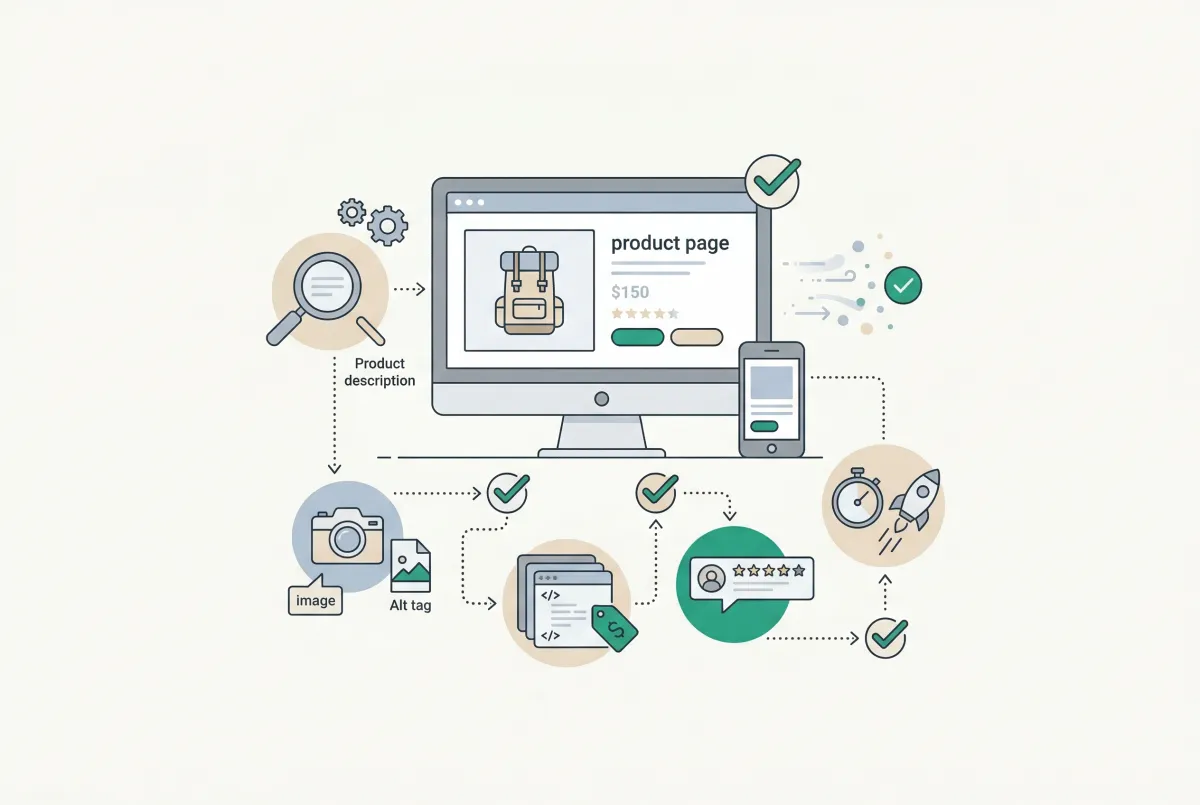
Most Shopify product pages are missing at least three core SEO elements. This 2026 checklist covers title tags, schema markup, images, and more.