
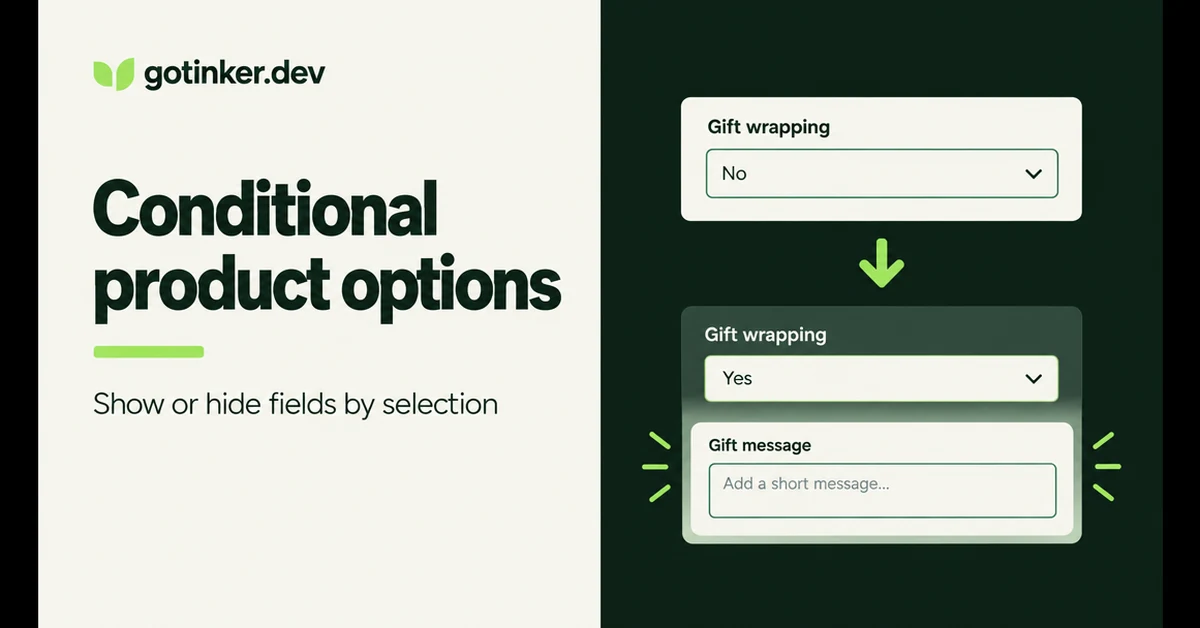
Shopify conditional product options let a product page show or hide fields based on what a shopper already selected. Native Shopify cannot do that for custom options: you get three variant axes and a flat matrix of combinations, with no built-in way to reveal an engraving box only after someone ticks "Add engraving." This guide explains what conditional options are, when to use them instead of more variants, and how to set them up with theme workarounds or a product options app such as Optionize.
What are Shopify conditional product options?
Shopify conditional product options are rules that show or hide a product-page field when another option matches a value you define. The shopper still configures one product; the form simply changes with their answers so they only see what applies.
A classic pattern is gift wrapping. The page starts with a "Gift wrapping?" checkbox. When the shopper selects Yes, a "Gift message" text area appears. When they select No, the message field stays hidden. Other common pairs include engraving Yes/No → engraving text, "Custom print" → file upload, and "Pendant shape" → a second dropdown of styles that only make sense for that shape.
These rules sit on top of custom product options that sit outside Shopify's native inventory variants. They collect personalization and configuration details as line item data, rather than creating a new SKU for every possible answer. That is why conditional logic shows up in options apps more often than in the Products editor: the admin was never designed for if-then fields.
- Trigger option: the field the shopper answers first (checkbox, dropdown, radio, switch).
- Dependent option: the field that appears or disappears based on that answer.
- Action: Show when conditions match, or Hide when conditions match.
- Match mode: Any condition (OR) or All conditions (AND) when you stack rules.
Why doesn't Shopify support conditional options natively?
Shopify does not support conditional show/hide for product options because native options exist only to generate variants. Each product can have up to three options, and every combination becomes a variant, with a hard ceiling of 2,048 variants per product. There is no admin control for "if Material is Leather, hide Color value Neon."
Shopify's own help docs frame the three-option and 2,048-variant ceilings as the platform limits. If you need more than three options, or open-ended inputs such as text and file uploads, the recommended path is a third-party app or theme code that captures line item properties. The October 15, 2025 variant limit raise helped large size and color matrices. It did not add conditional display for app-style fields.
Themes sometimes hide unavailable variant values with JavaScript when a combination is sold out or was never created. That is useful, but it is not the same job as conditional product options. Variant scripts react to the flat matrix Shopify already stores. Conditional options decide which personalization fields even belong on the page. For the full list of native gaps (text, uploads, per-option prices, and more), see our breakdown of Shopify product options limitations.
Conditional logic is not a luxury feature for big brands. It is how you stop showing every field to every shopper, which is the real conversion tax of "more options."
When should you use conditional logic vs more variants?
Use more variants when the choice maps to physical stock, price, or fulfillment SKUs you track in Shopify. Use conditional logic when the choice is information or a made-to-order attribute that should only appear after a prior answer.
Keep Size and Color as native variants if you actually warehouse those combinations. Reach for conditional options when you need engraving text, gift messages, file uploads, or a second question that only matters for one path. Splitting one product into five listings just to fake dependent fields usually hurts SEO and inventory clarity more than it helps.
Choice research backs the "show less at first" instinct. In Iyengar and Lepper's well-known jam study, a display of 24 flavors attracted more browsers (about 60% stopped) than a display of 6 (about 40%), yet purchase rates flipped: roughly 30% bought after the limited display versus about 3% after the extensive one (Journal of Personality and Social Psychology, 2000). Conditional rules give you the marketing benefit of variety without dumping every field on the first paint of the product page.
- Prefer variants when: the choice changes inventory, barcode, or shipping weight.
- Prefer conditional options when: the choice is text, a file, a date, or a follow-up that only applies sometimes.
- Prefer separate products when: two paths are so different that shared media and SEO titles fight each other.
How do you set up conditional product options on Shopify?
You set up conditional product options by choosing one of three paths: theme JavaScript for simple variant-value hiding, separate products for incompatible catalogs, or a product options app with a conditional logic builder for personalization fields. Most merchants who need text, uploads, or gift add-ons land on the third path.
Method 1: Theme JavaScript for unavailable variant values
Some themes already hide or disable option values that have no matching in-stock variant. If your problem is "Leather + Neon never existed," improve that theme script or hire a developer to filter the matrix. This path stays inside Shopify's variant system. It does not create engraving boxes or file uploads.
Method 2: Split products when paths are truly different
If "Custom engraved" and "Ready to ship" share almost nothing (different photos, lead times, and return policies), two products can be clearer than one overloaded form. Link them with buttons or Combined Listings. Do not use this as a default workaround for every dependent field, or you will recreate the catalog bloat described in our product option apps comparison.
Method 3: Options app with conditional logic (Optionize walkthrough)
An options app is the practical path when shoppers must type, upload, or answer follow-ups. Optionize ships conditional logic on Pro. Setup still depends on the app embed being enabled in the theme editor (Optionize setup guide). Free includes unlimited options and all 21 option types; Pro adds conditional logic, add-on prices, product linking, translations, import/export, and bulk price adjustments for $9.99 per month with a 7-day trial, or $89.99 per year (about 25% off; no trial on yearly).
- Install Optionize and open Option sets.
- Create an option set (for example, "Gift options") and add the trigger option first, such as a Switch or Checkbox labeled "Gift wrapping."
- Add the dependent option next, such as a Text area labeled "Gift message." Keep both options in the same option set.
- Select the dependent option and turn on Enable conditional logic.
- Choose Show (or Hide) when conditions are met.
- Add a condition that points at the trigger option. Operators include is equal to, is not equal to, contains, does not contain, is greater than, and is less than (Optionize conditional logic docs).
- If you stack several conditions, pick Any (OR) or All (AND).
- Save the option set, assign it to products, and confirm the Optionize app embed is on under Online Store → Themes → Customize → App embeds.
You can chain rules: option C can depend on option B, which depends on option A. Keep the chain readable. Three levels is usually plenty for a product page.
Example rule
Show "Gift message"
when "Gift wrapping" is equal to "Yes"
Match mode: All (single condition)
How do you test conditional rules before go-live?
You test conditional rules by walking every branch on the live storefront (or a password-bypassed preview), then confirming the cart, checkout, and order admin all show the values you expect. A rule that looks fine in the builder but fails on mobile is still a failed launch.
- Preview in the app, then open the assigned product on the storefront in a private window.
- Toggle the trigger both ways. Confirm the dependent field appears and disappears without a full page reload glitch.
- Try the happy path and the skip path. Add to cart with the dependent field filled, then again with the trigger set so the field stays hidden.
- Check cart and checkout line properties. Hidden fields should not leave stale values stuck on the line item.
- Place a test order and open it in Shopify admin. Fulfillment staff need to see the message, font, or file without opening a separate spreadsheet.
- Repeat on a phone. Conditional UIs that push Add to cart below the fold on small screens still lose sales even when the logic is correct. Pair this with solid product page SEO and page-speed hygiene so the extra scripts do not erase the conversion win.
What mistakes break conditional options on Shopify?
Most broken setups come from Required options that stay hidden, conditions that point at a different option set, exact-match typos, or testing only in the app preview. Fix those four before you blame the theme.
- Required + hidden: Optionize docs warn that a required option that is hidden while still empty can block add to cart. Give conditionally shown fields a default, or leave them optional until the path that needs them is selected (conditional logic tips).
- Wrong option set: Conditions must reference options in the same set. Split sets cannot see each other.
- Exact string mismatches: "Yes" is not "yes " with a trailing space. Prefer contains when labels might vary slightly, or copy the value from the option editor.
- App embed off: No embed means no options on the page, so no conditions fire. Re-check App embeds after every theme switch.
- Too many visible fields at once: Baymard's cart abandonment research puts the average abandonment rate near 70.22%, and 17% of shoppers report abandoning because checkout felt too long or complicated. Product pages that dump eight personalization fields before the first decision create the same friction earlier in the funnel.
How do conditional options affect conversion and AOV?
Conditional options help conversion when they reduce irrelevant decisions, and they help average order value when the revealed path carries a paid add-on. Showing every upsell at once usually does the opposite.
Shopify's product customization guide cites Qualtrics research that 64% of consumers say they have a genuine appetite for brands that tailor the experience. Medallia's retail and hospitality study found 61% of consumers are willing to spend more for personalized experiences, while only about a quarter of recent retail interactions felt highly personalized. Conditional fields are one of the few product-page tools that deliver personalization without forcing every visitor through the same long form.
There is also a documented rebuild case on Shopify's own blog: Arctic Grey's CustomLids.com customizer work was associated with a 120% increase in conversion rate and a 119% increase in total orders. Your mileage will differ, but the pattern is consistent: clearer configuration paths convert better than a wall of fields.
For AOV, attach price only to the path that earns it. Reveal "Rush production (+$15)" after the shopper chooses a made-to-order finish, not beside Size. Pair conditional logic with add-on prices or linked products when the extra charge maps to real work. Keep free informational fields optional so they never block checkout.
If you are still choosing an app, start from the job (conditional show/hide plus the option types you need), then see where options sit in a lean launch stack in the Shopify apps you need when setting up a new store. Conditional logic alone should not force you into the most expensive configurator on the App Store.
Conditional product options turn a crowded personalization form into a short conversation. Native Shopify still stops at three variant options and a flat matrix, so show/hide rules belong in theme scripts for unavailable variants or in an options app for real follow-up fields. Build the trigger first, keep dependents in the same option set, test every branch on mobile, and treat Required + hidden as a launch-blocking bug. Done that way, Shopify conditional product options earn their place: fewer abandoned configurations, cleaner orders, and room to charge for the paths that actually cost you money.

Optionize Product Options
SponsoredUnlimited product options for your store. Easy, powerful customization.
Related Articles
How to Add Custom Product Options to Your Shopify Store (Without Breaking Inventory)
Learn how to add custom product options to your Shopify store using native settings, apps, or line item properties, plus what the 2,048 variant limit means.

Shopify Product Options Limitations: What Merchants Can't Do Natively (And How to Fix It)
Shopify product options limitations block text inputs, file uploads, and conditional logic natively. Here is every restriction explained and how to fix it.

Best Shopify Product Option Apps Compared (2026): 8 Tools Tested
We tested the best Shopify product option apps of 2026 on pricing, features, and inventory syncing so you can pick the right one for your growing store.
The Only Shopify Apps You Need When Setting Up a New Store in 2026
Looking for the right apps for setting up a new Shopify store? These four handle product migration, bulk editing, reviews, and custom options so you launch ready.
Most Shopify product pages are missing at least three core SEO elements. This 2026 checklist covers title tags, schema markup, images, and more.

Learn to write Shopify product descriptions that rank on Google and convert shoppers into buyers. Includes SEO tips, copywriting frameworks, and examples.