
How to Create a Shopify FAQ Page Customers Actually Use (2026)
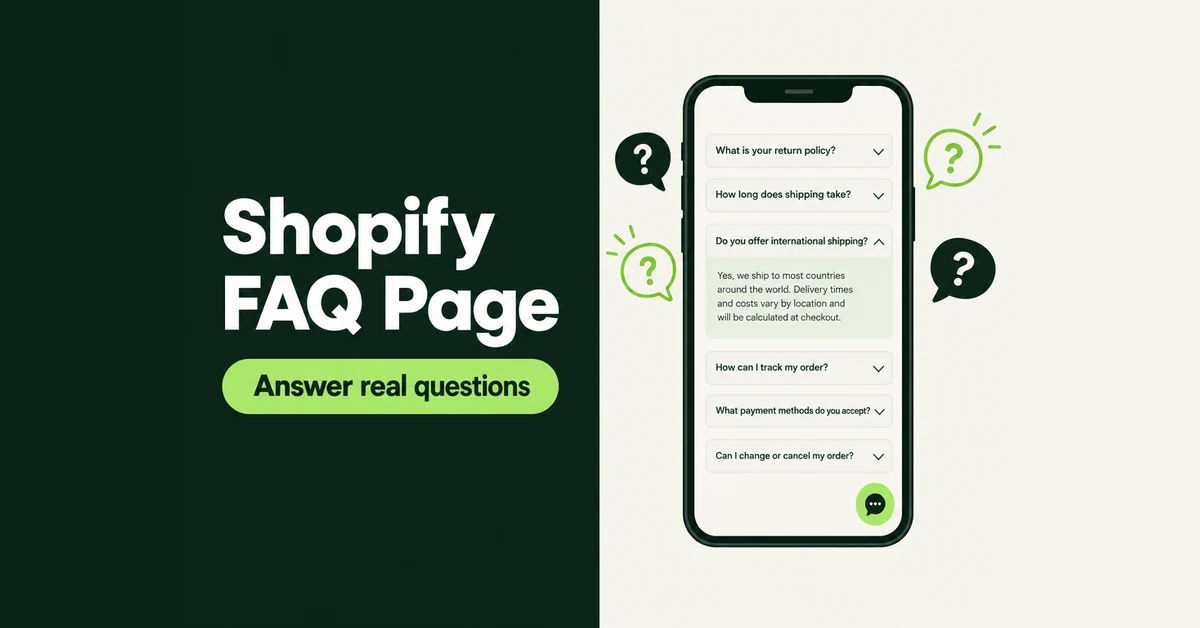
A Shopify FAQ page takes about ten minutes to build and months to get right. The page itself is simple: Shopify gives you everything you need to publish one without an app. The hard part is choosing the questions, keeping the answers short and current, and making sure the same answers show up wherever shoppers ask, including your chat widget and the AI shopping agents that now read your store data. This guide covers all of it, step by step, for 2026.
We will start with what belongs on the page, then show where to find the questions your customers are really asking, how to build the page natively, and how to reuse the answers in other places without rewriting them.
What Should a Shopify FAQ Page Include in 2026?
Your FAQ page should answer the 10 to 20 questions that block a purchase or create a support message, starting with shipping costs, delivery times, and returns. Anything that does not stop someone from buying or make them contact you can go somewhere else.
Baymard Institute's checkout research shows why those topics come first. Among US shoppers who abandoned a cart for a reason other than just browsing, 40% left because extra costs were too high, 20% because delivery was too slow, and 13% because the returns policy was not satisfactory. Every one of those is a question a clear FAQ answer can settle before checkout.
Group the questions into four or five categories so shoppers can scan instead of scroll:
- Shipping and delivery: costs, delivery times by region, international shipping, carriers
- Returns and exchanges: return window, who pays return shipping, how refunds are issued
- Orders: how to track an order, how to change or cancel one, what happens with a failed payment
- Products: sizing, materials, care, compatibility, warranty
- Payments and discounts: accepted payment methods, discount stacking, gift cards
Write each question the way a customer would type it, not the way your policy page is titled. "Can I return a sale item?" beats "Returns Policy, Section 3." Keep answers to two or three sentences, link to the full policy when the detail matters, and lead with the answer itself: "Yes, within 30 days" before the conditions.
Where Do You Find the Questions Customers Actually Ask?
Pull them from places where customers already asked: your support inbox, your store's search data, and any chat or AI tool that logs unanswered questions. Guessing is how FAQ pages end up full of questions nobody has.
This matters because self-service usually fails on content, not design. In a Gartner survey of 5,728 customers, only 14% of customer service issues were fully resolved in self-service, and the most common reason for failure, in 43% of cases, was that customers could not find content relevant to their issue. A nice accordion does not fix missing answers.
Work through these sources and tally repeat questions in a simple spreadsheet:
- Your support inbox. Search the last 90 days of email and chat for repeated questions. Count them. The top 10 by volume are your first draft.
- Searches with no results. The Shopify Search & Discovery app includes a Searches with no results report covering the last 30 days, with longer ranges under Analytics, then Reports. Shoppers searching "returns" or "shipping to Canada" and getting nothing are telling you what is missing.
- AI query logs. If you use the Shopify Knowledge Base app, its FAQ query log and Top unanswered questions section show what AI shopping agents were asked about your store.
- Chat transcripts. Chat logs are the closest thing to customers thinking out loud. Our guide to reading chatbot logs for demand signals shows how to tag them quickly.
- Product reviews and returns notes. "Runs small" in three reviews is an FAQ waiting to be written.
How Do You Create a Shopify FAQ Page Without an App?
Create a regular page in your admin, then either type the questions into the page editor or assign a dedicated page template with a collapsible content section. Both are free and built into Shopify.
Method 1: A simple text page
Best for: stores with fewer than 15 questions that want something live today.
- From your Shopify admin, go to Online Store, then Pages, and click Add page.
- Title it "FAQ" or "Frequently Asked Questions."
- In the Content section, format each question as a heading and put the answer in a normal paragraph below it, so readers and search engines can tell them apart.
- In the Visibility section, keep Visible selected, then click Save.
- Edit the search engine listing to set a clear page title and meta description.
Method 2: A collapsible FAQ template
Best for: stores with 15 or more questions, or anyone who wants an accordion layout without installing anything.
- From your Shopify admin, go to Online Store, find your live theme, and click Edit theme.
- Open the page selector at the top (it starts on Home page), choose Pages, then Create template. Name it "faq" and base it on your default page template.
- Add your theme's collapsible section. In Dawn it is called Collapsible content, a section Shopify added in Dawn 3.0.0 and described as ideal for building an FAQ page. Other themes may call it accordion or collapsible rows.
- Add one row per question, with the question as the heading and the answer as the content. Save.
- Back in Online Store, then Pages, open your FAQ page, choose the new template from the Theme template menu in the Online store section, and save.
Use a separate template rather than editing the default page template. Shopify's template documentation notes that changes to a template apply to every page using it, so editing the default would put your FAQ rows on your About page too. If you are mid-way through a theme change, our comparison of Shopify Horizon vs Dawn in 2026 explains why section names and block options differ between themes.
Finally, make the page findable. Go to Content, then Menus, open your footer or main menu, click Add menu item, pick Pages, select your FAQ page, and save. Most stores put it in the footer under a "Help" heading and link to it from the contact page as well.
How Do You Add FAQs to Shopify Product Pages?
Use product-level FAQs for questions that differ by product, such as sizing, compatibility, or care, and keep store-wide policy questions on the main FAQ page. Copying your shipping FAQ onto every product page adds clutter without adding answers.
The cleanest native setup uses a metafield and a collapsible row:
- Create a product metafield definition, for example "Sizing notes," under Settings, then Metafields and metaobjects, then Products.
- Fill in the value on each product that needs it.
- In the theme editor, open your product template, add a collapsible row block, and use the connect dynamic source icon to link the row's content to your metafield. This works only if your theme supports metafields, so check your theme documentation if you do not see the icon.
Every product then shows its own answer under the same heading. For more on structuring product pages so these answers help rather than bury your description, see our Shopify product page SEO checklist. If fit and sizing questions are driving returns, our guide on reducing Shopify returns before the order ships goes deeper.
Does FAQ Schema Still Help in 2026?
Not for rich results. Google stopped showing FAQ rich results in Search on May 7, 2026, and its Search Central changelog records that it removed the FAQ rich result documentation in June 2026.
That is worth knowing because plenty of guides, and some FAQ apps, still sell FAQ schema as a way to get expandable questions under your Google listing. That feature is gone. If your theme or an app already outputs valid FAQPage markup that matches the questions on the page, you can leave it. Just do not install an app or pay a developer for it expecting extra space in search results.
Here is the hot take: the FAQ page that ranks and converts in 2026 is the one with better questions, not better markup. Merchants who spent an afternoon on schema would have done more for their store by answering the three questions sitting unanswered in their inbox. Put your effort into the visible answers, link each one to the next step (a policy, a size guide, a tracking page), and let the page earn traffic on its content.
How Do AI Shopping Agents Use Your Store FAQs?
AI shopping agents answer buyer questions about your store from your store data, and Shopify's Knowledge Base app is where you review and correct what they say. Treat it as a second home for your most important FAQ answers.
Shoppers increasingly start outside your site. A Gartner survey of 5,801 customers found that 51% of customer service journeys now begin on third-party platforms such as Google, YouTube, and ChatGPT, while only 22% of customers start, stay, and resolve their issue entirely in a company's own channels. If an AI agent gives a shopper the wrong return window, your FAQ page never gets a chance.
According to Shopify's Help Center, the Shopify Knowledge Base app works like this:
- It generates FAQs automatically from your store settings, such as shipping countries, return rules, and customer account options.
- You can add your own FAQs, with Shopify recommending a brief one to two sentence answer.
- Its FAQ query log and Top unanswered questions section show what agents were asked and could not answer.
- Custom FAQs are saved as metaobjects, which you can edit under Content, then Metaobjects.
- The same FAQ cannot be stored in multiple languages within one store, so multi-language stores need separate FAQ sets.
The practical move: copy your top 10 FAQ answers into the Knowledge Base app in their shortest form, then check the unanswered questions each week. If you are working on discovery through ChatGPT, our guide to getting discovered by OpenAI Dots through Shopify Agentic Storefronts covers the catalog side of the same shift.
How Do You Turn FAQ Answers Into Instant Chat Replies?
Feed the same answers into your chat tool so shoppers get them the moment they ask, without opening a separate page. A chat assistant that reads your FAQ answers your most common questions at 2 a.m. the same way your best support person would at 2 p.m.
Shoppers now expect that. Zendesk's CX Trends 2026 research, based on a survey of 6,182 consumers, found that 74% of consumers now expect 24/7 service because of AI.
Look for a chat tool that can learn your FAQ instead of making you retype it, lets you lock exact answers for sensitive questions, and shows you what it could not answer. RagChat is one example built around that loop. It learns your products, policies, and collections automatically, and on the Standard plan you can add your published FAQ page as a knowledge source. Its Q&A overrides let you write the exact answer to a specific question, and that answer always wins over a generated one, which is what you want for return windows and shipping costs. Each pair has a Show in widget toggle that features it in the widget's Help tab, a searchable FAQ shoppers can browse without typing a question. A Gaps tab then lists questions the AI could not answer confidently, grouped together with how often each was asked, so your next FAQ entries come from real conversations. The Free plan includes unlimited AI replies and order tracking in chat, which also takes care of the most common question of all. Our post on cutting where-is-my-order tickets with chat covers that one in detail.
Whatever tool you use, run a quick test before trusting it: ask it your top five FAQ questions in a private window and compare its answers word for word with your page. If you are setting chat up for the first time, our live chat and AI support setup checklist walks through the basics.
How Do You Keep FAQ Answers From Going Stale?
Make your FAQ page the single source of truth, review it on a fixed schedule, and update every copy of an answer the same day a policy changes. Stale FAQs are worse than missing ones, because a wrong answer gets screenshotted.
Use this routine:
- Weekly, 15 minutes: check your inbox, the Knowledge Base unanswered questions, and your chat tool's unanswered list. Add any question that came up three or more times.
- When a policy changes: update the FAQ page first, then the Knowledge Base app entry, then any chat overrides. Tools that index a page once, rather than reading it live, need a manual re-sync after you edit it. RagChat, for example, indexes added pages when you add them and asks you to click Re-sync now after edits.
- Before peak season: confirm holiday shipping cutoffs, extended return windows, and gift card rules. Delete anything tied to a promotion that has ended.
- Quarterly: remove questions nobody asks anymore. A shorter page with current answers beats a long page with old ones.
Track the result by counting repeat questions each month. If "Do you ship to Canada?" drops from 20 messages to 4 after you add a clear answer, the page is working. If it does not drop, the answer is either hard to find or not clear enough. Move it higher, reword it, or link to it from the cart.
Build your Shopify FAQ page once, write it from real questions, and treat it as the master copy for your chat and AI agents. That is the version that actually saves you time.

RagChat: AI Chatbot & Livechat
SponsoredAI chat that answers from your real products. Unlimited AI replies on the free plan.
Related Articles

What Your Shopify Chatbot Logs Reveal About Product Demand (And How to Use That Data)
Your Shopify chatbot logs are a market research goldmine. Learn how to read chat transcripts for real product demand signals and smarter roadmap calls.

How to Set Up Live Chat and AI Customer Support for a New Shopify Store (2026 Checklist)
Learn how to set up live chat and AI customer support for a new Shopify store, step by step, with the best AI app to automate support around the clock.

WISMO tickets can eat up to 50% of a growing Shopify store's support inbox. See how AI chat connected to real order data auto-answers them 24/7, for free.
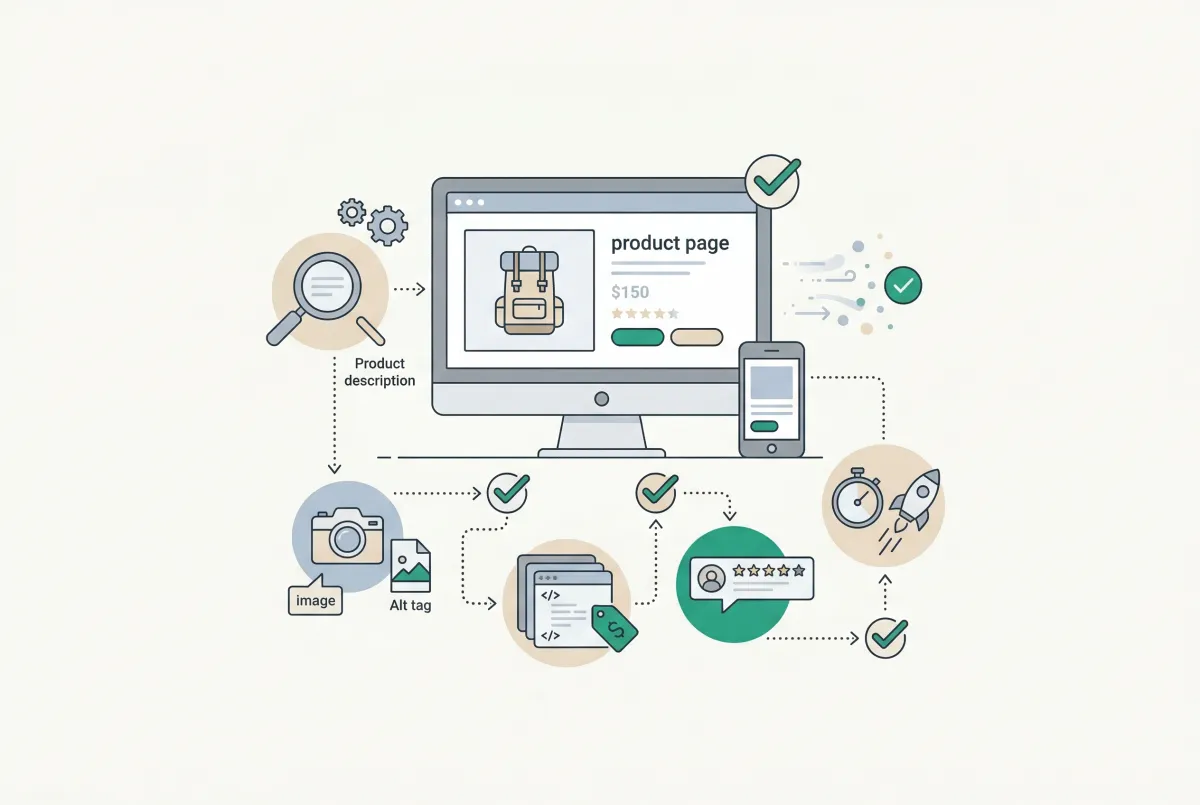
Most Shopify product pages are missing at least three core SEO elements. This 2026 checklist covers title tags, schema markup, images, and more.

How to Get Discovered by OpenAI Dots with Shopify (Agentic Storefronts Guide for 2026)
How to get discovered by OpenAI Dots with Shopify in 2026: ChatGPT Catalog discovery, WebMCP browser checkout, Agentic toggles, and Catalog mapping tips.

Sizing, fit, and spec questions no one answered drive most returns. Learn how to reduce Shopify product returns with AI chat before an order ever ships.