
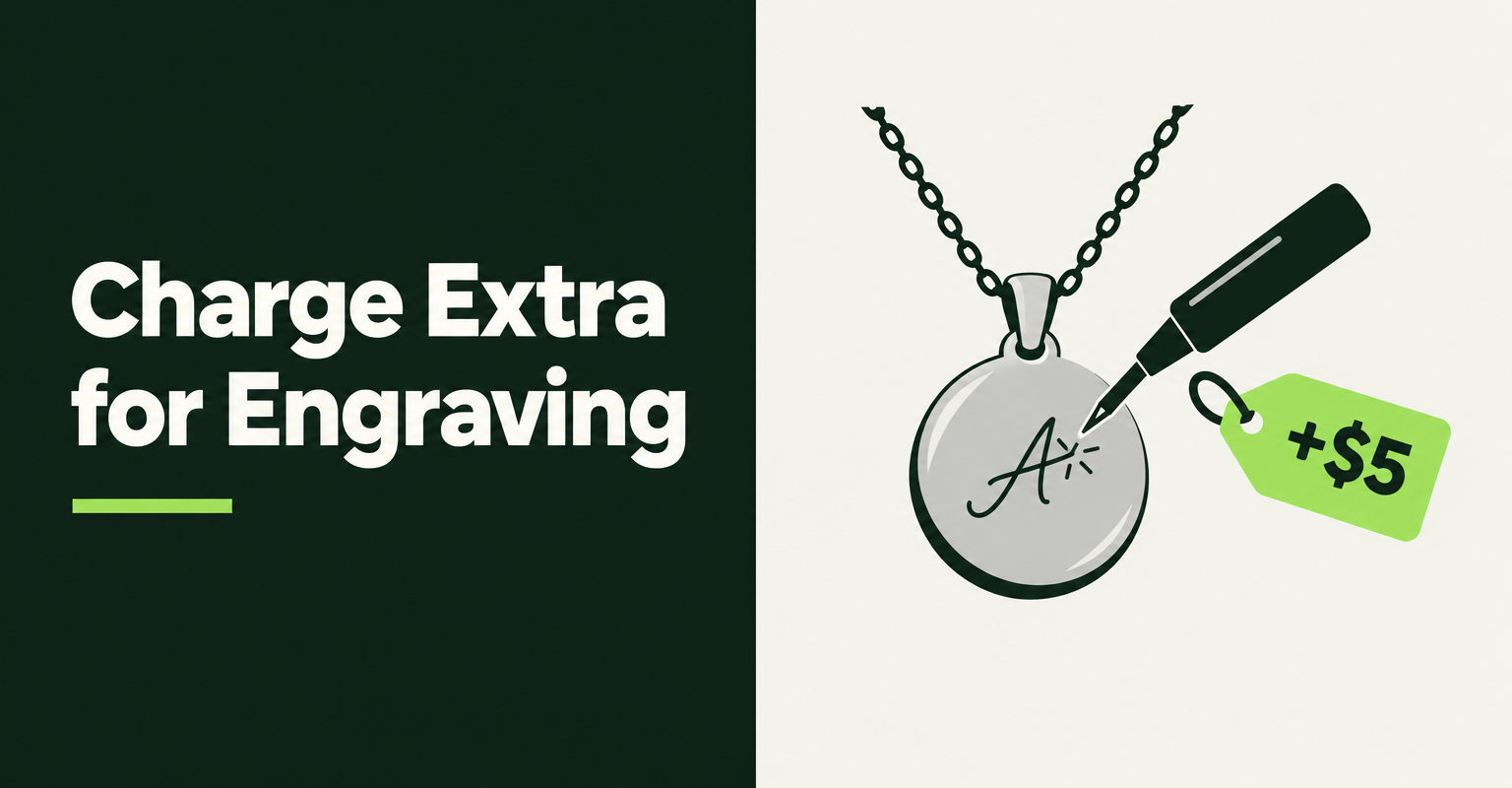
You can charge extra for engraving on Shopify in four ways: a variant, a separate fee product, line item properties plus your own code, or a product options app. Shopify has no built-in "add $5 if the customer picks engraving" field, so each route trades setup time against how clean the price looks to the shopper. I checked the rules and app prices below on Nov 3, 2026.
Can you charge extra for engraving on Shopify without an app?
Yes, but only for the price. Native Shopify can add a fee through a variant or a separate fee product, and it can capture the engraving text through line item properties, but it cannot do both in one tidy field.
That split is why most guides disagree. The price side and the text side are two separate jobs, and the four methods below solve them differently. If you want the wider picture of what Shopify's options cannot do, see our guide to Shopify product options limitations.
How do variants add an engraving charge?
Add an option such as "Engraving" with the values "None" and "Engraved", then set a higher price on every Engraved variant. Shopify sets price, SKU and inventory per variant, so the surcharge lives in the variant price.
This works well for one fixed finish, like "Gold plating +$15". It breaks down fast for free text. A variant cannot hold a customer's name, and every extra option multiplies your variants, up to the limits in Shopify's help center: three options and 2,048 variants per product. Engraved and plain versions also keep separate stock counts, which is either what you want or a headache.
- Best for: a fixed, countable upgrade with no custom wording.
- Watch out for: a variant pair per size or color, and split inventory.
Can a separate fee product add the engraving charge?
Yes. Create a hidden "Engraving fee" product at the price you want, and have the shopper add it next to the main item. It needs no app.
The catch is that the shopper has to add two things, and nothing forces them to match. A customer can buy the fee without the item, or the item without the fee, and your staff end up reconciling orders by hand. Nothing on the product page ties the fee product to the main item unless you build that link yourself. Use this for a store that sells a handful of engraved items and checks every order manually.
Do line item properties change the price?
No. Line item properties only attach information, not money. Shopify describes them as a name and value pair added to a line item, captured from a custom input inside the product form.
That makes them the right tool for the engraving text itself (for example "Engraving: Happy Birthday") and the wrong tool for the fee. Shopify also notes that a property name starting with an underscore is hidden from customers at checkout, which is useful for internal fields. To charge for the engraving, pair the text field with a variant or fee product, or let an app do both. Our guide to adding custom product options without breaking inventory covers the code route in more detail.
Hot take: Show the engraving fee before the shopper clicks Add to cart. A surcharge that only appears at checkout feels like a trick, and I would take a lower fee that shoppers see early over a higher one they discover late.
How does an options app add the engraving charge at checkout?
An options app puts the text box and the price on the same product page, and updates the displayed price as the shopper picks the paid value. Several apps do this, and the entry price is similar across them. Prices below come from the live App Store listings, checked Nov 3, 2026.
- Optionize: Free plan has options but locks the add-on price field. Pro is $9.99 per month with a 7-day trial, or $89.99 per year, and adds add-on prices, per its plans page. The listing shows 4.5 stars from 97 reviews.
- Globo Product Options: the Premium plan, listed at $9.90 per month before local conversion, includes "Price Add-ons (Charge extra fees)". The listing shows 4.9 stars from 5,242 reviews.
- Easify Custom Product Options: the Pro plan lists "Add-on Products & Prices for upsells", roughly $10 per month at the listing's exchange rate. It shows 4.9 stars from 3,214 reviews.
- MW: Product Engraving: an engraving-only app. Its Pro plan, about $5 per month at the listing's exchange rate, adds engraving prices, and the listing shows no reviews yet.
Pick by fit, not by rank. If engraving is the only customization you sell, a narrow app is simple. If you also need file uploads or show/hide fields, a broader options app saves a second install, and our product option apps comparison goes further on that. For hiding the text box until the shopper picks "Engraved", see how to set up conditional product options.
Which traps can break an engraving surcharge?
Four traps catch most stores: sale discounts that shave the fee, bundles that drop it, accelerated checkout buttons that skip the engraving fields, and tax settings you never reviewed. I am using Optionize's documentation here because it describes these behaviors in detail; other apps differ, so test yours.
- Discounts reduce the fee. Optionize attaches add-ons to the main product as a bundle, so a Shopify discount on the product is spread across the add-ons too, and Shopify offers no way to exempt part of a bundle, per its discounts help article. Raise the fee during a sale, or exclude those products from the discount. Planning Black Friday? Add this to your Black Friday checklist.
- Bundles drop paid add-ons. Per the add-on price docs, a paid Optionize add-on cannot add its charge to a product made with the Shopify Bundles app. The text is saved, but the fee is not added.
- Buy it now is hidden. On products with an option set, Optionize hides Buy it now and accelerated checkout buttons on the product page, because they would skip the option fields, per its checkout article.
- Tax and shipping follow a setting. Tax on paid add-ons follows the "Add-on products require shipping" setting. Keep it on for physical goods, and run a test order to confirm tax matches the main product.
Margins matter here too. A fee that looks generous can vanish after a discount and payment fees, so read how to run a Shopify sale without destroying your margins before you set it.
Which method fits your store?
Match the method to how much custom wording and volume you handle. A fixed upgrade fits a variant, a tiny catalog fits a fee product, and anything with typed text at volume fits an app.
- Fixed finish, no text: variants.
- A few engraved items, manual checks: a separate fee product.
- Typed text and a dev on call: line item properties plus a variant.
- Typed text, many products, or Markets: an options app, after a test order.
Whatever you pick, place one test order with the longest engraving you allow, and check the cart, checkout, order page and packing slip. Shopify's default packing slip does not print line item properties, per Optionize's packing slip article, so check that one too.

Optionize Product Options
SponsoredUnlimited product options for your store. Easy, powerful customization.
Related Articles
Shopify Product Options Limitations: What Merchants Can't Do Natively (And How to Fix It)
Shopify product options limitations block text inputs, file uploads, and conditional logic natively. Here is every restriction explained and how to fix it.
How to Add Custom Product Options to Your Shopify Store (Without Breaking Inventory)
Learn how to add custom product options to your Shopify store using native settings, apps, or line item properties, plus what the 2,048 variant limit means.
Best Shopify Product Option Apps Compared (2026): 8 Tools Tested
We tested the best Shopify product option apps of 2026 on pricing, features, and inventory syncing so you can pick the right one for your growing store.
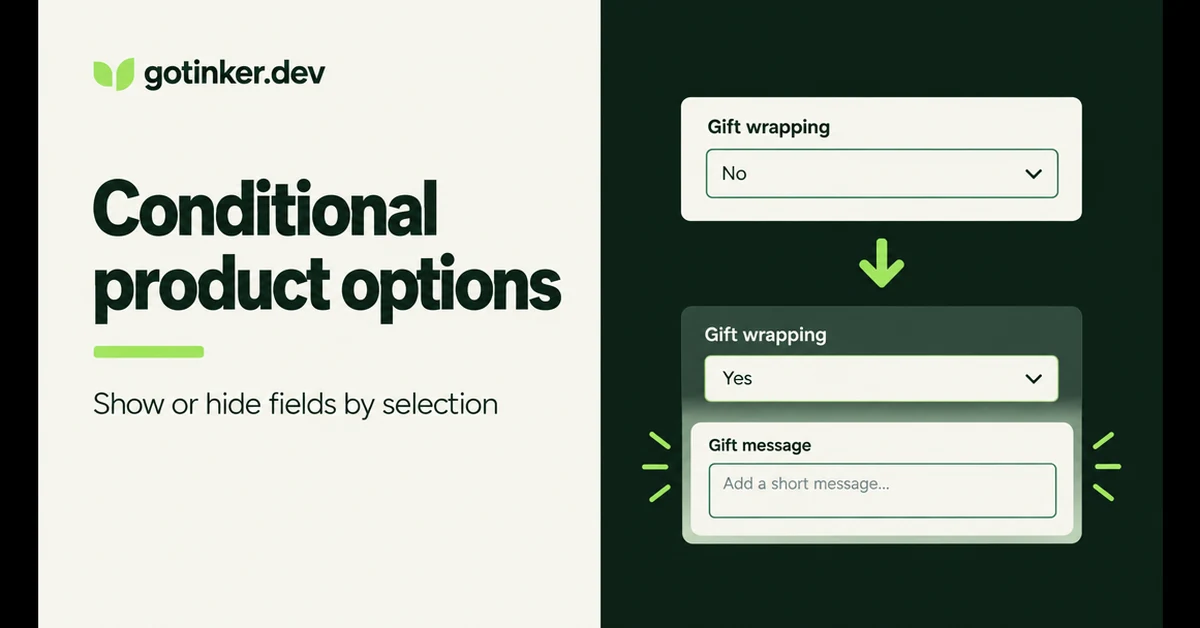
How to Set Up Conditional Product Options on Shopify (2026)
Show or hide Shopify product options based on what shoppers pick. Native variants cannot do this; here is how conditional logic works and how to set it up.
Shopify Black Friday checklist for 2026: schedule sale prices, set compare-at fields correctly, add review proof, and test checkout before November 27.
How to Run a Shopify Sale Without Destroying Your Margins
Learn how to run a Shopify sale that drives revenue without crushing profit margins. Strategy, math, and tools every store owner needs before discounting.