
Shopify Black Friday Checklist 2026: Prices, Proof and Checkout Tests
This Shopify Black Friday checklist covers the store-side work that decides whether your sale runs cleanly: prices that start and end on time, sale pricing that shows correctly, product pages that carry proof, and a checkout you have tested. Black Friday is November 27, 2026, which gives you about four weeks.
Most Black Friday guides spend their words on ads and email. This one stays inside the catalog, because that is where small mistakes turn into wrong prices, missing sale badges, and discounts that never end.
What belongs on a Shopify Black Friday checklist, and when is the deadline?
Four jobs decide a clean sale: scheduled prices, correct sale pricing, product pages with proof, and a tested checkout. The calendar is fixed: Thanksgiving is November 26, Black Friday is November 27, and Cyber Monday is November 30, so plan to freeze catalog edits by Friday, November 20.
Here is a five week plan you can copy and adjust:
- Week of October 26: Pick the products and the offer for each one. Write down the start time, end time, and original price of every sale item.
- Week of November 2: Build the price changes and schedule them. Preview the result on a few products before you apply it to the whole catalog.
- Week of November 9: Fix product pages: reviews, photos, variants, and shipping and returns text. Remove apps you will not use during the sale.
- Week of November 16: Test checkout on phone and desktop, check speed on your top pages, then freeze edits by Friday.
- Week of November 23: Change nothing unless something breaks. Keep a rollback ready.
The November 20 freeze is a rule of thumb, not a Shopify deadline. Its job is to leave a full week for retesting: any price, theme, or app change made after it needs another round of checks, and the last week is when you will have the least time for them.
Which products should you put on sale, and how deep should the discount go?
Start from margin, not from the headline percentage. A sale price has to cover product cost, shipping, and payment fees, and still leave something over.
Here is an illustration with made-up numbers. A product sells for $40 and costs you $18 to buy, $6 to ship, and about $1.50 in fees, which leaves $14.50. At 25% off the price is $30 and the margin shrinks to $4.50. At 40% off the price is $24 and the same product loses $1.50 on every order. Run this sum for your own best sellers before you pick a percentage.
A practical pattern is to put the deepest discount on a few anchor products and keep modest offers elsewhere. Our guide on running a Shopify sale without destroying your margins goes deeper on the math.
What did Black Friday and Cyber Monday look like for Shopify merchants last year?
Shopify reported $14.6 billion in sales over the 2025 Black Friday to Cyber Monday weekend, up 27% from 2024, with more than 81 million customers and a peak of $5.1 million per minute at 12:01 pm EST on Black Friday (Shopify press release, December 2, 2025). Those numbers describe the whole platform, not your store, but they show where the pressure lands.
The peak came at midday on Black Friday, not at midnight. A price that is not live and tested by then is a lost sale. Shopify also says its figures are unaudited and approximate, and that its methodology changed, so year over year comparisons are not exact.
How do you set Black Friday prices so they start and end on their own?
Use a Shopify discount with start and end dates when a discount fits the offer, or change Price and Compare-at price in bulk and schedule the revert. Pick by how many products you are changing and how costly a mistake would be.
Option 1: Discounts with active dates
Shopify discounts have an Active dates section where you set a start date and, optionally, an end date, as Shopify's free shipping discount page describes. Choose the same day for both and the discount runs for one day. With no end date it does not expire. That makes it the safest fit for one-off offers such as free shipping or a storewide percentage.
The catch is display. Shopify says crossed-out savings from a discount on product and collection pages need a third-party discount app or a custom build, although the savings do show at checkout (Shopify sale pricing guide).
Option 2: Compare-at prices edited by hand or by CSV
A sale price is two fields: the original price in Compare-at price and the new price in Price. Shopify lets you bulk edit both, but its sale pricing guide describes no scheduling, so you have to change them back yourself after Cyber Monday. That works for a small sale. For the full list of methods, see our guide to scheduling bulk price changes on Shopify.
Option 3: A bulk editor app that schedules and reverts
Scheduling apps run the change and the revert for you. Edify is one: on its Pro plan, at $9.99 a month with a 14-day free trial, you can schedule an edit and tick auto-revert so prices return to their previous values when the sale ends. Its Free plan allows 10 edits a month and up to 200 products per task, without scheduling (Edify App Store listing, checked October 28, 2026).
Edify is a young listing, rated 4.0 from 3 reviews on that date, so test it on one product before you trust it with the catalog. Scheduled times follow the timezone in its settings, so check that before you schedule anything. Our bulk editor app comparison lines up the alternatives.
A common sale task chains two actions: decrease Price by a percentage, then round to an ending such as .99. Order matters. Edify's docs show a $25.00 price dropping 10% to $22.50 and then rounding to $22.99, while rounding first and then discounting gives $23.39 (Edify help center). Whatever tool you use, preview one product and read the final number before you run the whole catalog.
A rule of thumb for choosing: with a few dozen sale products, a written checklist and manual edits are fine. With hundreds of SKUs, a scheduled task with a preview removes the midnight revert chore. Whatever you pick, know how you would undo it. Our guide to undoing a bulk edit in Shopify covers the options with and without an app.
Hot take: Plan how a sale ends before you plan how it starts. The risky part of a price sale is rarely the discount itself. It is the revert nobody planned, so the best discount is the one you can undo in one step.
How do you show sale prices so they display correctly and stay honest?
Enter the original price in Compare-at price, the sale price in Price, and make sure compare-at is the higher number. Then make sure the original price was a real selling price, not one invented for the sale.
Shopify's sale pricing guide lists several traps worth checking before November 27:
- Empty is not zero. A compare-at price of $0.00 is not the same as an empty field. Clear the field to remove a compare-at price.
- Keep variants consistent. If variants have inconsistent compare-at prices, the collection page will not show the product as on sale, even if individual variants are.
- Checkout shows one price. Both amounts can appear on product and collection pages, but only the sale price shows at checkout.
- Markets can override you. Fixed prices in catalogs override the prices and compare-at prices you set in the admin, and sale prices for international markets must be imported by CSV.
- AI channels decide for themselves. On channels that use Shopify Catalog, such as ChatGPT and Microsoft Copilot, each channel decides whether to show the list price next to the current price, and your theme does not control it.
Turn that list into a test before you schedule anything. Pick three sale products: one with variants at different compare-at prices, one sold in an international market, and one that shows on a collection page. Confirm how each looks on a phone as well as on a desktop.
On honesty, the US Federal Trade Commission's pricing guides say a former price used for comparison should be the actual, bona fide price offered to the public on a regular basis for a reasonably substantial period of time (16 CFR Part 233). A price that is not bona fide but fictitious makes the claimed bargain false, so do not raise prices in October just to cut them in November. Rules differ by country and this is not legal advice, so check the rules where you sell. Our guide to compare-at pricing on Shopify covers the display side.
What should a product page show before Black Friday traffic arrives?
Each sale product page should show proof that other people bought it, accurate options, and clear shipping and returns text. Of the three, reviews are the one you cannot fix in the last week.
If you are moving reviews from a marketplace or an old app, check the caps before you import. Review apps limit reviews and request emails differently. WiseReviews lists a Free plan at $0 with up to 100 reviews and 10 monthly review request emails, and a Standard plan at $9.95 a month for up to 50,000 reviews and 5,000 monthly emails (WiseReviews App Store listing, checked October 28, 2026). Our review app comparison shows how other apps price the same limits.
Then walk each sale page the way a buyer would:
- Variants and options: Every sale variant is available, and names match the products in your price tasks.
- Photos: The main image shows the item that is actually on sale, not last season's version.
- Shipping and returns: Holiday cutoff dates are on the product page and in the cart, and they match your real carrier schedule.
- Review requests: They are set to send after delivery, so orders placed on Black Friday do not ask for a review before the box arrives.
How do you test checkout and page speed before the rush?
Place test orders on a phone and a desktop with every discount code, and measure your top pages against Google's good LCP target of 2.5 seconds at the 75th percentile (web.dev). Finish both before your November 20 freeze.
Shopify's Help Center explains Shopify Payments test mode, and it also says you should not activate test mode on a store that is in production (Shopify Help Center). So test where it is safe: use a duplicate or development store for the flows, and on the live store place one low-priced real order and refund it.
- Apply every Black Friday code and automatic discount to a cart and read the totals line by line.
- Check each shipping rate and each market you sell in.
- Try both a returning customer login and a guest checkout.
- Load product, collection, and cart pages on a slow mobile connection.
- Disable apps you will not use during the sale. Fewer apps means fewer things that can break at peak.
What should you do during Black Friday weekend and the week after?
Watch the first hours, change nothing unless something breaks, and end every sale on schedule. Shopify's 2025 data shows demand peaking at 12:01 pm EST on Black Friday, so check prices and checkout well before then.
- Friday morning: Spot check five sale products at their sale prices, and place one cart through checkout to confirm the totals.
- Keep a rollback ready: Know exactly how you would revert prices in one step. If your revert is manual, write the steps down now. If it is scheduled, confirm the revert time and its timezone.
- After Cyber Monday: Confirm the original prices are back and that no compare-at prices are still set on products that are no longer on sale.
- The week after: Ask buyers for reviews once their orders arrive. Our review request email checklist covers timing and copy.
The aim is a quiet weekend. If your prices, proof, and checkout were settled by November 20, the weekend is about watching numbers, not fixing the store.
Related Articles

How to Schedule Bulk Price Changes on Shopify (3 Methods That Actually Work)
Three methods to schedule bulk price changes on Shopify: native bulk editor, CSV import, and dedicated apps. Stop updating prices one by one at midnight.
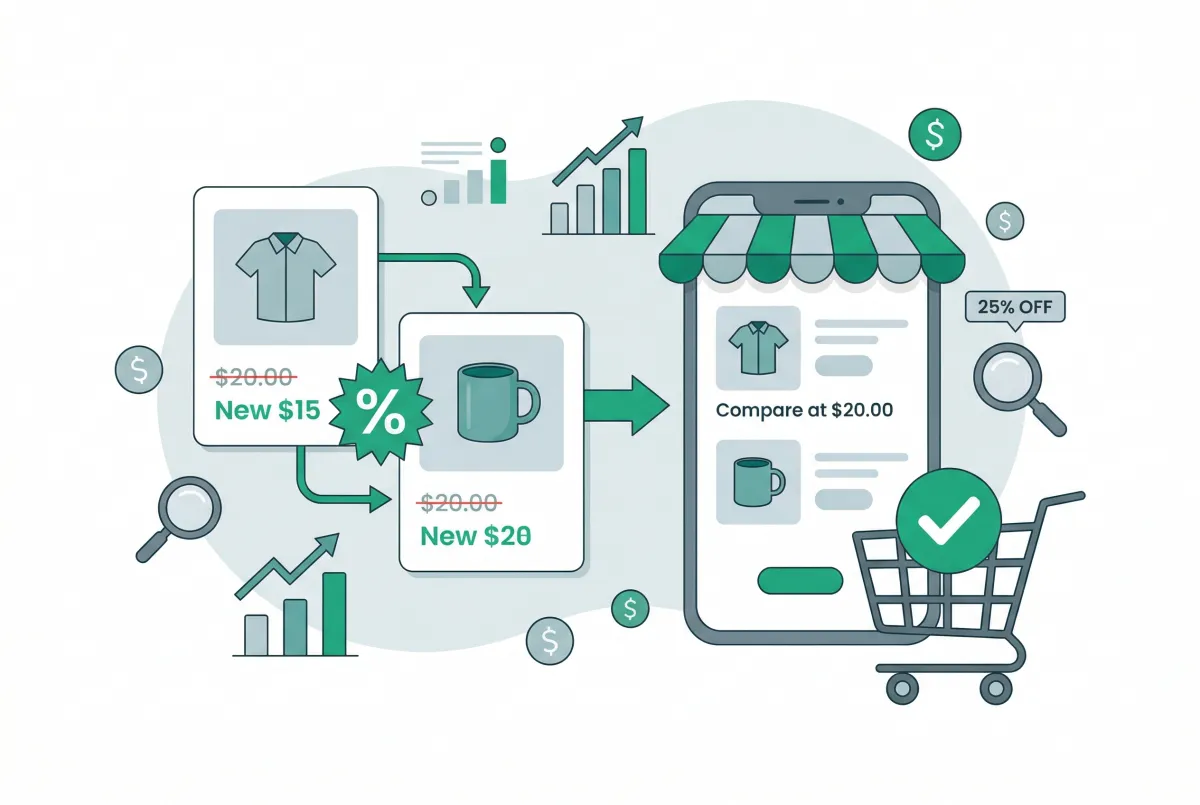
Compare-at Pricing on Shopify: How to Show Discounts That Actually Convert
Learn how compare-at pricing on Shopify works, how to set it up correctly, and the strategies that turn strikethrough pricing into real conversions.

How to Run a Shopify Sale Without Destroying Your Margins
Learn how to run a Shopify sale that drives revenue without crushing profit margins. Strategy, math, and tools every store owner needs before discounting.

Best Shopify Bulk Product Editor App in 2026: 4 Compared on Undo and Price
Which Shopify bulk product editor app fits your store in 2026? Matrixify, Ablestar, Hextom, and QuickEdit compared on undo, backups, pricing, and limits.
How to Undo a Bulk Edit in Shopify (2026 Recovery Guide)
Undo a bulk edit in Shopify with CSV restore or an app that logged before-values. Revert safely and prevent the next catalog mishap. Keep a CSV backup.

Use this Shopify review request email checklist to pick send timing, write copy that gets replies, and stay inside FTC rules on review incentives in 2026.