
How to Add a File Upload to Shopify Product Pages (3 Methods for 2026)
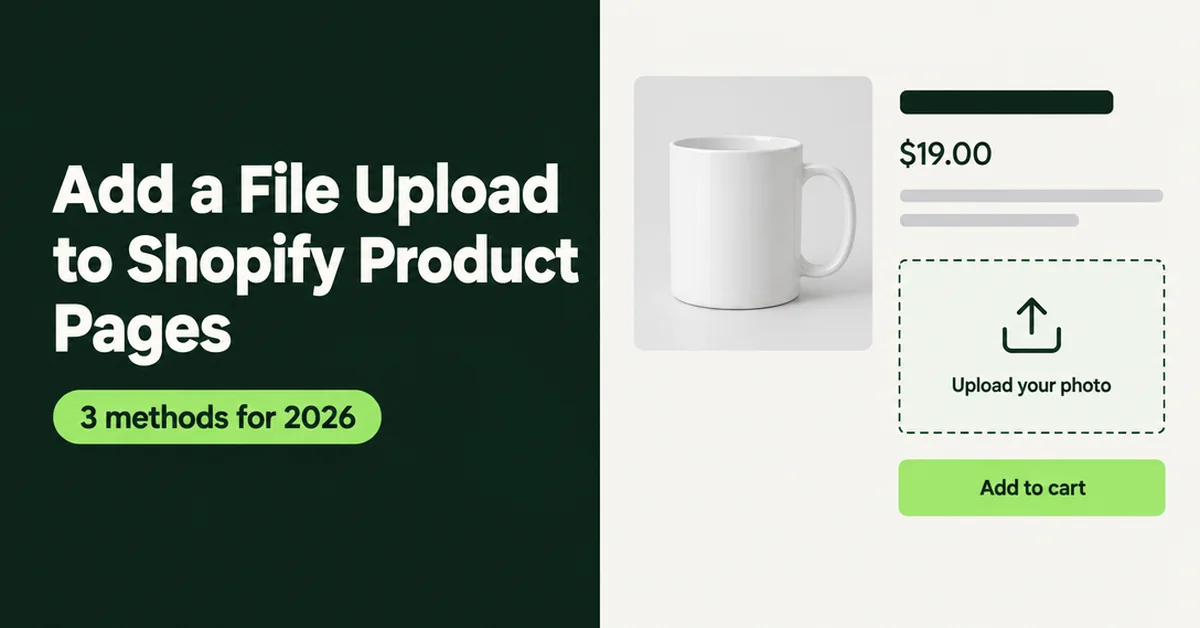
If you sell custom prints, engraved gifts, or anything made from a customer's photo or logo, you need the file before you can make the order. You can add a file upload to Shopify product pages three ways: a line item property in your theme code, the file upload field in a product options app, or a dedicated upload app built for large print files. This guide walks through each method, where the file shows up on the order, and the mistakes that quietly break uploads.
Shopify's own theme docs list file uploads as a standard use for line item properties on the product form, next to monogram and engraving text. So the platform supports the idea. What it does not give you is a no-code upload field in the admin, which is why most stores end up choosing between a few lines of Liquid and an app.
Why Do Shopify Stores Need a File Upload on the Product Page?
You need it because the file is part of the order, and collecting it later costs you time and sales. When the upload happens on the product page, the file arrives attached to the right line item, before payment, with no follow-up email.
Demand for this kind of product is real. In a 2025 Fablely survey of 300 U.S. shoppers, 87% said they would pay more for a product that feels personal or emotionally meaningful, and 63% said the most special personalization includes real faces and likeness. Real faces means photo uploads.
Common products that depend on a customer file:
- Custom portraits, pet illustrations, and photo canvases
- Embroidered or printed logos on apparel and team uniforms
- Photo mugs, phone cases, puzzles, and blankets
- Engraved jewelry or cutting boards made from a drawing or handwriting sample
- Business signage, stickers, and labels from the customer's artwork
But a premium is not automatic. In an Ipsos survey reported by MarketingCharts, only 16% of U.S. adults put customized or personalized product options in their top three upgrades worth paying extra for. Shoppers pay for personalization when it is easy and when they can see what they are getting. A clunky upload step works against both.
Hot take: asking customers to email their file after checkout is not a free workaround. It is the most expensive one. You pay for it in mismatched orders, files sent to the wrong inbox, orders stuck waiting on a reply, and refunds when the deadline passes. If a product cannot be made without a file, the file belongs on the product page.
Can Shopify Do File Uploads Without an App?
Yes, with theme code. Any input inside the product form named properties[Your Label] is saved with the cart line and the order, and that includes an input of type file.
The catch is that you are now maintaining code. Shopify's Liquid reference explains how properties are captured, but the upload itself only works if your theme's add-to-cart script sends the file correctly. Shopify's Dawn theme added proper support in pull request #745 by switching to FormData, because the older approach replaced the file with a useless string like C:\fakepath\filename.png. Third-party themes and custom AJAX carts do not always follow that fix.
So the honest answer: no app is possible, but you own the testing, the theme updates, and the support tickets when it breaks.
How Do You Add a File Upload to Shopify Product Pages With Theme Code?
Add a file input to the product form with a properties[...] name, then place an order to confirm the file arrives. Expect 30 to 60 minutes if you are comfortable in the theme editor.
Method 1: Line item property in your theme
- In your Shopify admin, go to Online Store, then Themes. Duplicate your live theme first so you have a clean backup.
- On the duplicate, click Customize and open a product template. Many Online Store 2.0 themes let you add a Custom Liquid block inside the product information section.
- Add a labeled file input, for example
<input type="file" name="properties[Your photo]" accept=".jpg,.jpeg,.png,.pdf">. If the block sits outside the form, add aformattribute that matches your product form's id, such asform="product-form-{{ section.id }}"in Dawn-based themes. - Add a short label and help text above the input so shoppers know which file types and sizes you accept.
- Preview the theme, add the product to the cart with a test image, and check that the cart shows the property.
- Place a test order (a 100% discount code or your payment provider's test mode works) and open it in the admin. You should see the property with a link to the file. If you see only a file name or a fakepath string, your theme's cart script is not sending the file.
What this method does well: it is free and adds nothing to your app stack. What it does poorly: no file preview, no size check before upload, no progress state, and the required attribute may be skipped when the theme submits through AJAX. Our guide to adding custom product options to your Shopify store covers how line item properties fit next to normal variants.
Use theme code when you sell one or two upload products, have a developer on hand, and can retest after every theme update.
How Do You Add a File Upload Field With a Product Options App?
Install a product options app, add a File upload option to an option set, and assign it to the products that need it. No theme code, and the file link lands on the order automatically.
This is the path most stores should take when the upload sits next to other personalization, such as engraving text, a color swatch, or a paid gift box. Shopify's native options stop at three option names and cannot collect text or files, which we break down in Shopify product options limitations.
Method 2: File upload option in Optionize
Optionize is one example. Its File upload type is one of 21 option types, and all 21 are on the Free plan. Per the Optionize file upload docs, setup looks like this:
- In the app, go to Option sets and open the set you want, or create a new one and choose which products it applies to.
- Click Add option and pick File upload from the Select an option modal.
- Give it an Option name and an Option label. The label is what shoppers see, so make it specific: "Upload your photo" beats "File". The option name is what you see on the order.
- Turn on Required if the product cannot be made without the file.
- Use Help text to say what you need, for example "JPG or PNG, at least 1000px wide".
- Click Save, then check the product page.
On the storefront, Add to cart stays blocked until the upload finishes, so nobody checks out with a half-sent file. If an upload fails, the shopper sees an error and can pick another file.
Know the limits before you promise anything to customers:
- 5 MB per file, and each File upload option takes one file. Need a front and back design? Add two upload options.
- Images are resized to 1000 pixels wide if they are larger. PNGs stay PNG with transparency; other image formats become JPEG.
- SVG, HTML, and other browser-executable types are blocked. Ask for PDF or PNG when you need vector artwork. PDFs upload as-is.
That 1000px resize is fine for engraving references, mug photos, embroidery logos, and proofs. It is not print resolution for a large canvas. If you print posters or banners from the customer's file, ask for a PDF in the help text or use Method 3. To show the upload only after a shopper ticks "Add my own design," pair it with conditional product options, which is a Pro feature in Optionize ($9.99 per month).
If you are still comparing tools, our product option apps comparison covers file uploads, pricing, and limits across eight apps.
When Should You Use a Dedicated File Upload App Instead?
Use a dedicated upload app when files are large, print-ready, or the product itself is the upload. Print shops, photo books, and large-format printing usually fit here.
Method 3: A standalone file upload app
Upload-focused apps add things options apps usually skip: bigger files, cropping, cloud imports, and print templates. Uploadly, for example, lists a Free plan with 20 uploads linked to orders and 60 days of storage, and a $17.99 per month plan with files up to 500 MB and 90 days of storage.
Read the storage line on any plan you pick. A file that expires after 60 or 90 days is a problem for reorders and warranty claims. Download customer files into your own storage when you fulfill, whatever app you use. Also confirm how the app hands you the file: a link on the order line is easier to work with than a separate email or a dashboard you have to search.
The tradeoff is stack weight. If the same product also needs engraving text, swatches, or paid add-ons, running a separate upload app next to an options app means two widgets to style and two apps to troubleshoot.
Which File Upload Method Fits Your Store?
Pick by file size and how much personalization sits around the upload. Most small stores land on Method 2.
Start from the file you actually need to make the product. A laser engraver working from a logo needs something very different from a printer making a 24-inch canvas. Then count the other choices on the page. One upload alone can live in theme code; an upload plus text plus swatches is an options app job.
- Theme code (Method 1): one or two products, small images, a developer who will retest after theme updates.
- Product options app (Method 2): uploads alongside text, swatches, or add-on pricing, files under 5 MB, no code.
- Dedicated upload app (Method 3): print-ready files, very large uploads, cropping, or photo-product templates.
Whichever you choose, keep the field easy to finish. Baymard puts the average documented cart abandonment rate at 70.22%, and among U.S. shoppers who abandoned for reasons other than just browsing, 17% said the website had errors or crashed. A broken upload is exactly that kind of error.
How Do You Find and Use Uploaded Files After the Order Comes In?
Open the order in your Shopify admin and look at the line item properties under the product. The upload shows as a link you can click to view or download the file.
Three habits keep fulfillment clean:
- Print the file link on the packing slip. Shopify's default packing slip does not print line item properties. Optionize documents a short packing slip template edit that prints each option, skipping hidden properties that start with an underscore.
- Save files by order number. Download each file into a folder named after the order so reorders and remakes take seconds.
- Check the file before production. If it is blurry, wrong, or the wrong size, email the customer before you print, not after.
Do not send uploads to the product's own media. Customer files are order data, not product photos, and they should not end up on your storefront.
What File Upload Mistakes Cost Shopify Stores Orders?
Most upload problems come from unclear instructions and untested themes, not from the upload tool. Fix these before you promote a custom product.
- No file type guidance. Say "JPG, PNG, or PDF" right under the field. Shoppers should not learn your rules from an error message.
- Promising print resolution you will not receive. If your tool resizes images, do not promise poster-quality prints from phone photos.
- Making the upload required on products that do not need it. A required field on a plain product blocks the sale. Use conditional logic or a separate template.
- Testing only on desktop. Customers often upload straight from their phone's camera roll. Test the picker on iOS and Android, not just a laptop.
- Ignoring privacy. Customer photos and logos are personal data. Say in your privacy policy that you collect uploaded files, how long you keep them, and delete them once the order and any remake window are done.
- Skipping the test order. The cart can show a file name while the order holds nothing usable. Only a real test order proves the link works.
Once uploads work, write product pages that explain the personalization clearly. Our Shopify product page SEO checklist covers titles, descriptions, and image alt text for custom products.
The short version: theme code is free but fragile, an options app is the simplest path when uploads sit next to other personalization, and a dedicated upload app earns its cost when the file is the product. Pick one, run a test order, and stop collecting files by email.

Optionize Product Options
SponsoredUnlimited product options for your store. Easy, powerful customization.
Related Articles
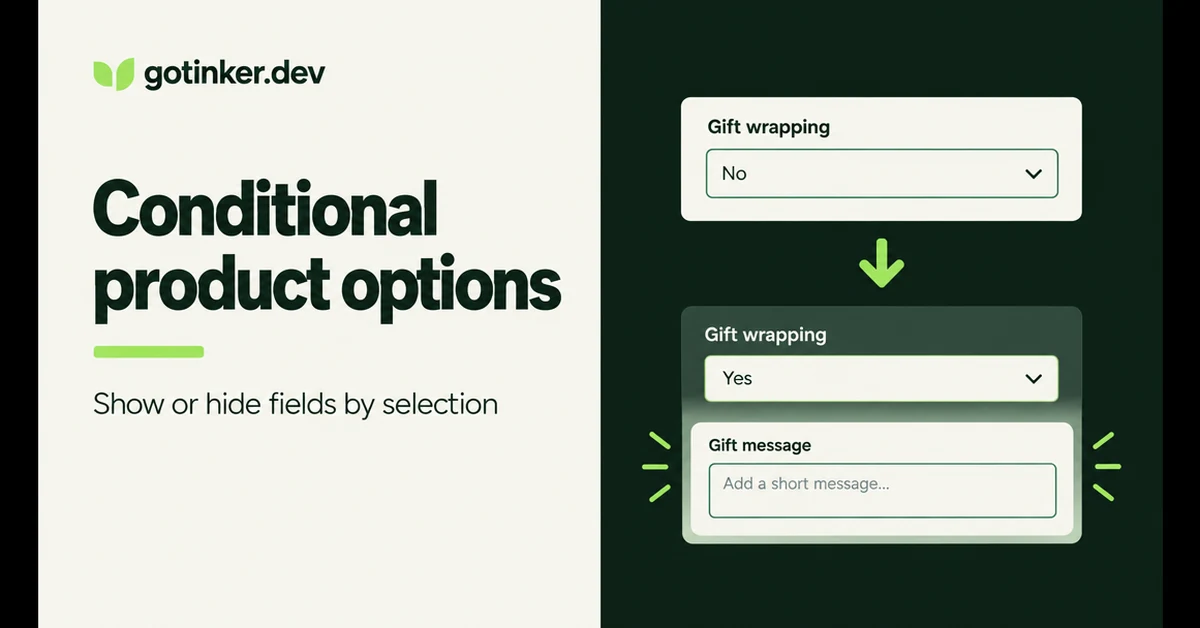
How to Set Up Conditional Product Options on Shopify (2026)
Show or hide Shopify product options based on what shoppers pick. Native variants cannot do this; here is how conditional logic works and how to set it up.
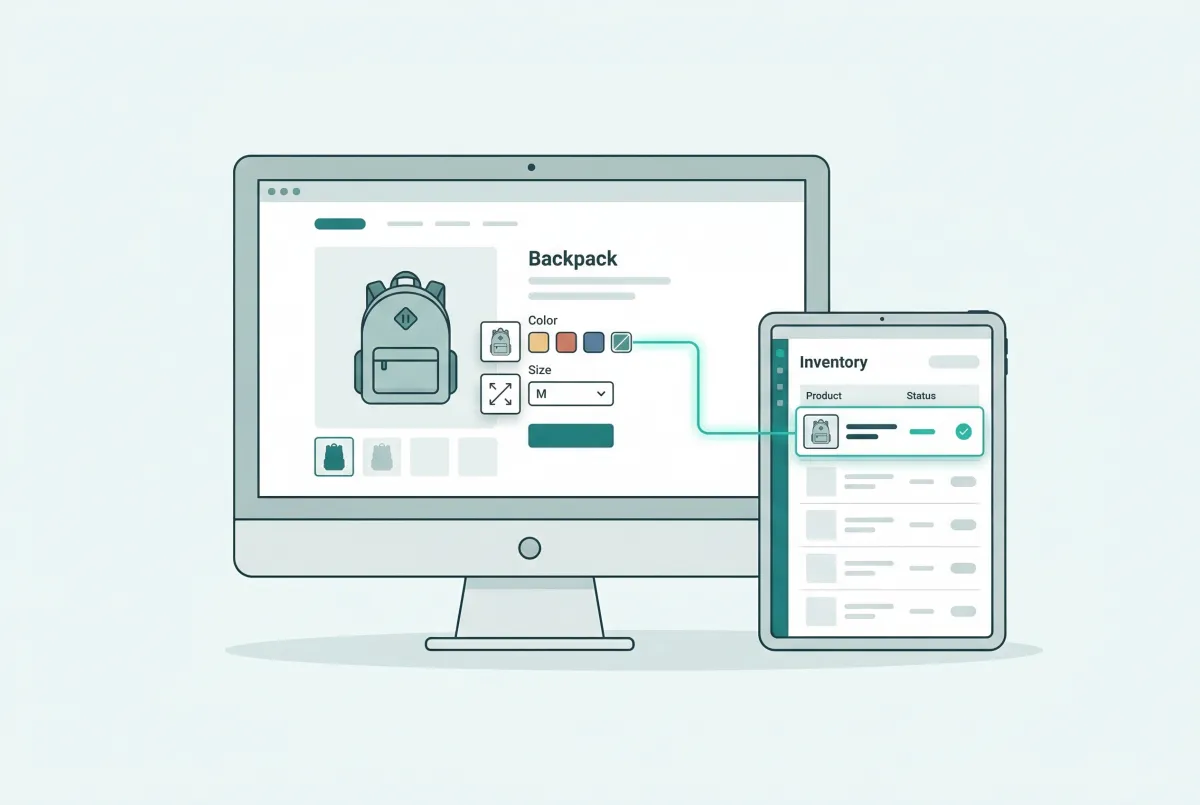
How to Add Custom Product Options to Your Shopify Store (Without Breaking Inventory)
Learn how to add custom product options to your Shopify store using native settings, apps, or line item properties, plus what the 2,048 variant limit means.
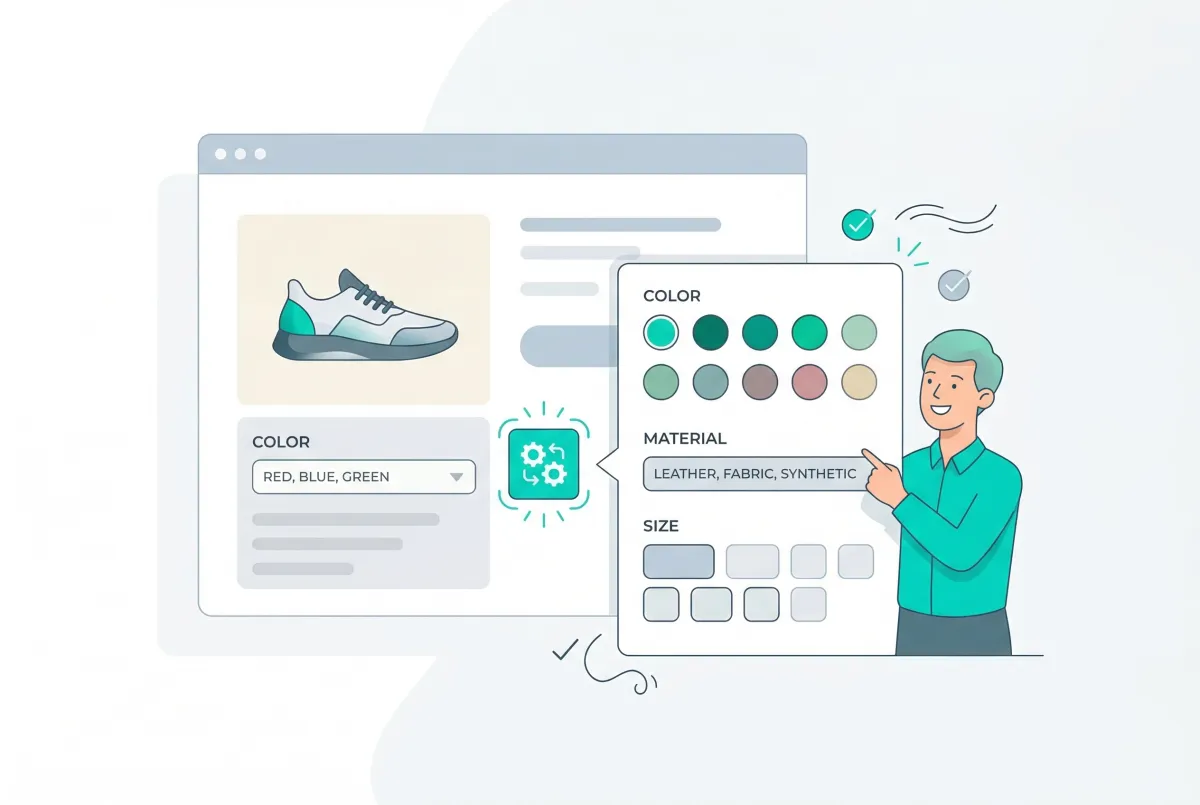
Shopify Product Options Limitations: What Merchants Can't Do Natively (And How to Fix It)
Shopify product options limitations block text inputs, file uploads, and conditional logic natively. Here is every restriction explained and how to fix it.

Best Shopify Product Option Apps Compared (2026): 8 Tools Tested
We tested the best Shopify product option apps of 2026 on pricing, features, and inventory syncing so you can pick the right one for your growing store.
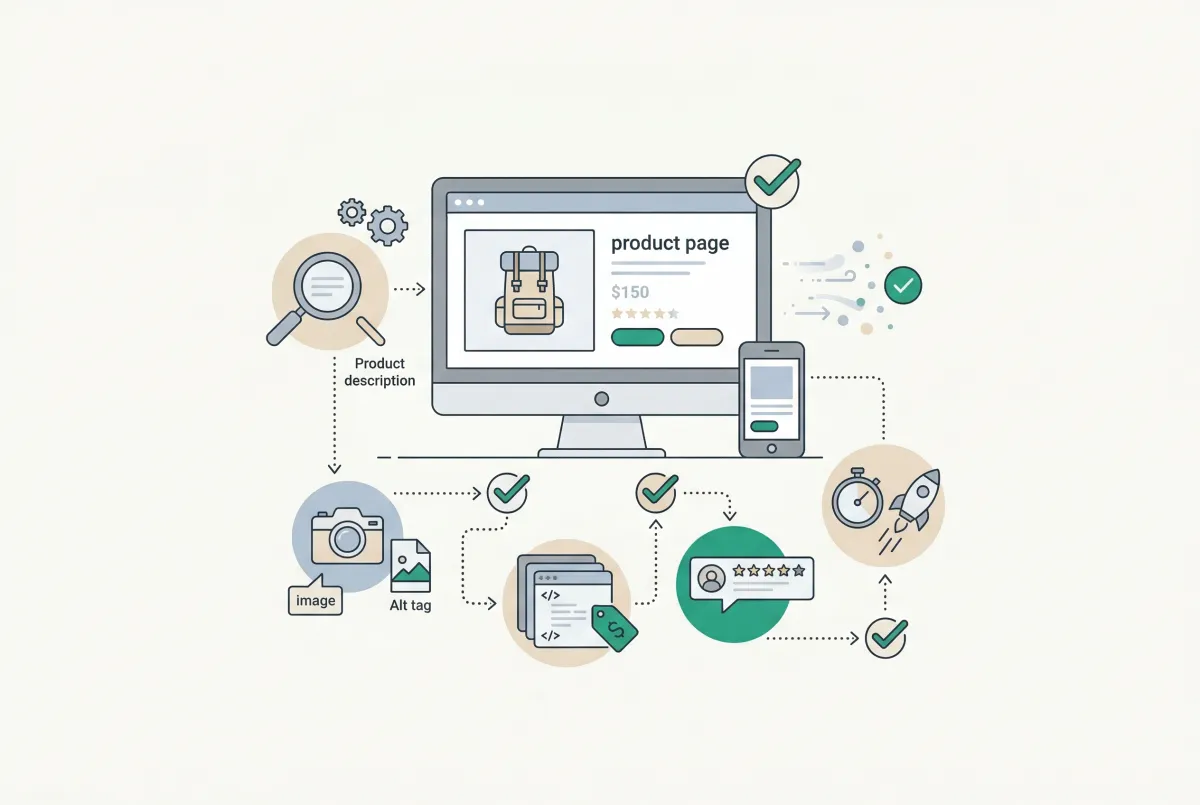
Most Shopify product pages are missing at least three core SEO elements. This 2026 checklist covers title tags, schema markup, images, and more.

Shopify Horizon vs Dawn in 2026: Should You Switch Themes?
Shopify Horizon vs Dawn in 2026: compare blocks, features, speed, and store counts, then use our checklist to decide whether to switch or stay on Dawn.