
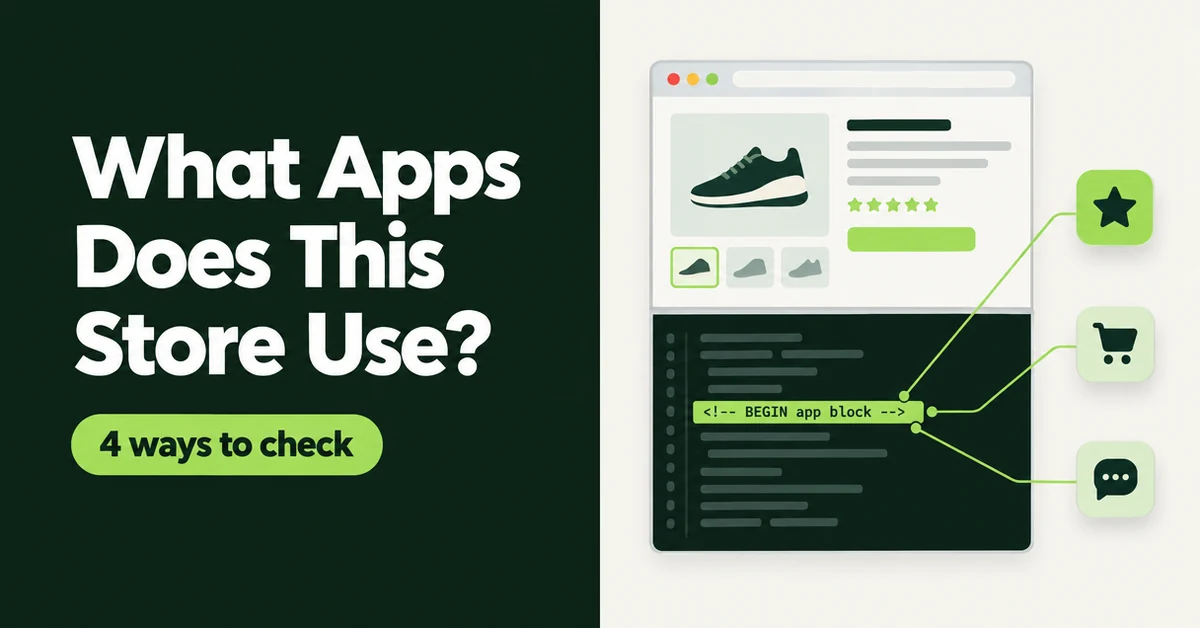
You spot a competitor with a slick review carousel, a free-shipping bar that updates as you shop, and a bundle offer on every product page, and you want to know what powers it. This guide shows how to find out what apps a Shopify store uses in 2026 with four methods, from a two-minute source check to a free online detector, and where each one stops working.
One warning before you start. No method sees every app. You only see apps that leave something on the storefront, so treat every result as evidence, not a full inventory. If you also want the theme behind a store, our guide to finding out which theme any Shopify store uses covers that side.
Can You Really See What Apps a Shopify Store Uses?
Yes, partly. Any app that puts a widget, script, or block on the storefront leaves a trace in the public page code, and you can read that code without any access to the store's admin.
That covers a lot of ground. Reviews, upsells, bundles, chat, popups, loyalty widgets, and consent banners all have to load in the shopper's browser, so they show up. What you can't see are apps that only work in the admin, such as inventory sync, accounting, and order routing. With over 16,000 apps in the Shopify App Store, a store can easily run several of those invisible ones alongside the visible stack.
First, confirm the store actually runs on Shopify. Open the page source and search for cdn.shopify.com and Shopify.theme. If both appear, the methods below apply. If cdn.shopify.com appears but Shopify.theme doesn't, you may be looking at a headless store, which uses a custom front end and Shopify for checkout. When we checked Gymshark's homepage on October 23, 2026, it ran on a Next.js front end and showed no Shopify theme or app block markers at all.
Method 1: How Do You Check a Store's Page Source for Apps?
Best for: a free, accurate check on one or two stores, with nothing to install.
Open the store, press Ctrl+U (Cmd+Option+U on a Mac) to view the source, and search for BEGIN app block: shopify://apps/. Each match names an app. The word straight after shopify://apps/ is the app's handle, for example shopify://apps/okendo/blocks/... for the Okendo reviews app.
These comments come from theme app extensions, the system Shopify built so apps can add blocks and embeds to a theme without merchants editing theme code. Then run three more searches:
- cdn.shopify.com/extensions/: files served from an app extension. The second folder in the path usually carries the extension's name, such as a consent or upsell tool.
- /apps/, /a/, /community/ or /tools/ on the store's own domain: these are app proxy paths, where an app serves pages on the store's own domain. Merchants can rename these paths, so read the full URL rather than relying on the prefix alone.
- Script hosts that aren't Shopify: domains such as a reviews, email, or chat vendor. Search the domain name to find the company and its listing.
Here is what that looked like in practice. On October 23, 2026, we searched four big-brand homepages for app block comments. Colourpop showed 12 apps, Allbirds 5, Brooklinen 3, and headless Gymshark none. Brooklinen also loaded files from an AppLovin extension folder that had no app block comment, which is why the extensions search is worth the extra ten seconds.
Outdated advice to skip: many older guides tell you to hunt for "script tags" as the main clue. On current themes, that's backwards. Shopify's docs say an app that integrates with a theme and is listed in the App Store must use theme app extensions instead of script tags, which only work on vintage themes. Start with app block comments, then look at scripts.
One more catch: the handle isn't always the App Store address. When we tried apps.shopify.com/ plus the handle for seven apps we found, only three loaded a listing. Search the App Store for the handle's words instead of guessing the URL.
Method 2: How Do You Find Apps That Only Load on Product and Cart Pages?
Best for: upsell, bundle, size chart, and shipping apps that never touch the homepage.
Check a product page and the cart, not just the homepage. Many apps load only where they do their job, so a homepage-only check misses the bundle widget sitting on every product page.
- Open a best-selling product page, then repeat Method 1 on its source.
- Open your browser's DevTools (F12), go to the Network tab, filter by JS, and reload the page. Sort by domain and note anything that isn't the store or Shopify.
- Add something to the cart and repeat on the cart page. Free-shipping bars, cart upsells, and gift-with-purchase tools often appear only here.
- Accept the cookie banner and reload. In regions where shoppers must consent to tracking, Shopify runs app pixels only after consent is given, and many other scripts wait for it too.
Write down what you find per page type. "Reviews on product pages, upsell in the cart" tells you far more about how a store sells than a flat list of names.
Method 3: Are Browser Extensions Worth It for Spotting Shopify Apps?
Best for: anyone browsing lots of stores who wants an answer on every page without copying URLs.
Yes, if you research stores often. A detector extension reads the page you're on and matches it against its own database of app fingerprints, so you get a list with one click.
The catch is that every extension matches against its own database, and those databases differ widely in size. The popular ones publish counts ranging from several hundred apps to a few thousand. So two extensions can disagree on the same store, and a newer or smaller app may not be in any database yet. Popular Shopify-focused options include Koala Inspector and Stackpeek, and both run in Chrome.
Two habits keep extensions useful:
- Check the permissions before you install. A detector needs to read the pages you visit. Be wary of one that asks for more, and remove any you stop using.
- Spot-check by hand. When an extension result drives a buying decision, confirm the app block comment in the source yourself.
Method 4: How Does an Online Shopify App Detector Work?
Best for: a quick check from any device, including a phone, with no install and no login.
An online Shopify app detector fetches a store's public page, scans the HTML for app markers, and lists what it finds. You paste a URL, wait a few seconds, and get names you can look up.
Our free Shopify app detector for checking a store's apps works this way. It scans the store's homepage for the shopify://apps/ markers from Method 1 and links each app to an App Store search, since handles don't always match listing URLs. It's honest about its limits: it reads the homepage only, so an app block placed only on product or cart pages won't show, and a result of zero apps means no storefront extensions on the homepage, not a store with no apps.
Other detectors fetch more pages or match more script hosts, so they can find apps ours misses, and they can also report matches that are leftovers. Use any detector as a fast first pass, then confirm the apps that matter with Methods 1 and 2.
Which Method Should You Use to Check a Store's Apps?
Use an online detector or extension for a fast first pass, then confirm anything that matters by hand. The quick tools save time, but the source check and a product-page pass are what you trust when money is on the line.
- Checking one competitor out of curiosity: an online detector is enough. It takes seconds and needs nothing installed.
- Deciding whether to buy an app because a rival uses it: run the detector, then confirm the app block comment in the source (Method 1) and look for the widget on the page where it should appear.
- Researching a whole niche: install one extension, browse ten stores, and log results in a spreadsheet with a column per page type. Keep it simple: store, page, app, and the job the app does.
- Auditing a client or your own store: skip the guesswork and read the Apps page in the admin, then use Methods 1 and 2 to see which installed apps actually load on the storefront.
Budget about two to three minutes per store for a manual check of the homepage, one product page, and the cart. That's slow for fifty stores and perfectly fine for the five that matter most.
What Can't Any Shopify App Detector See?
No tool can see apps that never load on the storefront. That includes the back office, most of checkout, and anything a store hides behind a custom front end.
- Admin-only apps. Inventory, accounting, ERP, fulfillment, and bulk editing tools run in the admin and leave no public trace.
- Checkout apps. Checkout customizations now run as blocks and pixels inside Shopify's own checkout. Older guides say to read the scripts on the Thank you page, but the additional scripts box became view-only on August 28, 2025, and non-Plus stores had to move to the new Thank you and Order status pages by August 26, 2026.
- App pixels. Shopify loads app pixels in a sandbox that runs in a web worker, so a tracking app may never appear as a normal script tag in the page source.
- Headless and password-protected stores. A custom front end can hide every theme marker, and a password-protected storefront shows only its password page.
- Uninstalled apps that left code behind. Shopify warns that some apps add theme code that isn't automatically removed when you uninstall. One stray script is a clue, not proof the app is still running.
A good rule: an app block comment plus a visible widget means the app is very likely live. A lone script with no widget means "check again on another page."
What Should You Do With a Competitor's App List?
Look for jobs, not names. The useful question is what a store does for shoppers that yours doesn't, and which app does that job.
Here's the hot take: copying a competitor's app stack is the worst way to use an app detector. Big brands run apps for reasons you can't see, such as a retail integration, an agency's habits, or a contract nobody cancelled. Install their twelve apps and you get their script weight without their traffic. The only finding worth acting on is a job their storefront does that yours doesn't.
- Check five to ten stores in your niche, including two that are a step ahead of you, not only the giants.
- Group results by job: reviews, upsell, bundles, chat, loyalty, subscriptions. Note which page each one appears on.
- Flag jobs that appear on three or more stores and are missing from yours. Those are your shortlist.
- Compare apps for that job yourself. If reviews come up, our Shopify review app comparison is a better starting point than one competitor's choice, and if you already run a review app, read how to switch review apps without losing star ratings before you change.
- Check speed before and after. Every storefront app adds code, and our theme speed and app checklist shows how to test pages before you commit.
Then audit your own store the same way. In your admin, go to Settings > Apps to see installed apps, and open the Uninstalled tab to spot old ones that may have left code in your theme. If you're starting from scratch, our list of the only Shopify apps a new store needs is a leaner baseline than any competitor's stack.
Finding out what apps a Shopify store uses takes minutes once you know where to look: app block comments in the source, a second pass on product and cart pages, and a detector to speed things up. Just remember that every method sees the storefront, not the store. Use the list to find missing jobs, not to clone someone else's bill.
Related Articles
Shopify Theme Detector: Find Out What Theme Any Store Is Using (Instantly and Free)
Use GoTinker's free Shopify theme detector to instantly find what theme any store is using. Paste a URL and get the answer in seconds. No login needed.
The Only Shopify Apps You Need When Setting Up a New Store in 2026
Looking for the right apps for setting up a new Shopify store? These four handle product migration, bulk editing, reviews, and custom options so you launch ready.
How to Choose a Shopify Theme in 2026 (Speed, Apps, and Conversion Checklist)
How to choose a Shopify theme in 2026: follow this speed, apps, and conversion checklist so you shortlist demos, audit apps, and protect mobile sales.
Finding the best Shopify review apps? We compare Judge.me, Loox, Yotpo, Okendo, and Stamped on actual pricing, page speed, features, and hidden costs.
Shopify Replatforming Apps: The Stack to Install After You Switch (2026)
Shopify replatforming apps cover data, SEO redirects, reviews, channels, and checkout. Follow this 2026 merchant stack checklist after you switch stores.
Switch Shopify review apps without losing star ratings or photos. Export CSV, map handles, test-import, then cut over widgets and schema in one clean pass.