
How to Duplicate a Shopify Store in 2026 (Complete Clone Checklist)
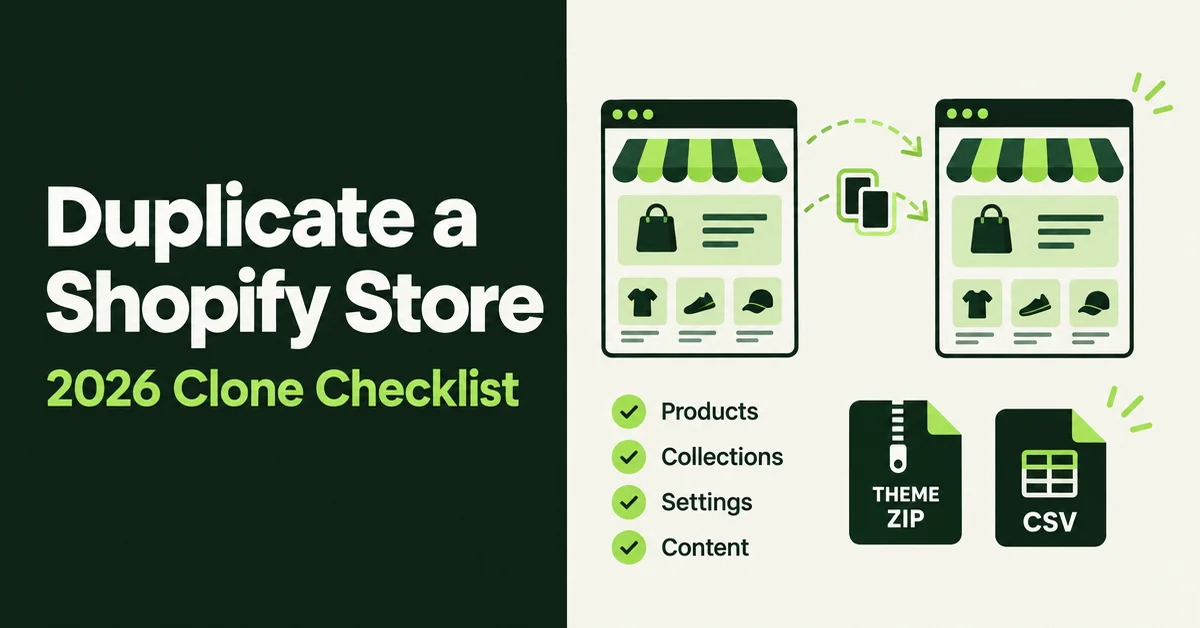
Shopify does not offer a one-click button to duplicate a Shopify store. You create a second store, copy the pieces that travel (theme files, products, customers), then rebuild everything that does not: apps, shipping, taxes, payments, menus, and most SEO settings. Shopify's own Backups and duplication help page is clear about that order of work.
Merchants still need the clone for real jobs: a regional storefront, a wholesale front, a redesign staging site, or a clean split after a partnership ends. This guide is the full-store checklist. If you only need the catalog, use our narrower walkthrough on how to migrate products from one Shopify store to another instead of treating every copy as a replatform.
Can You Duplicate a Shopify Store in One Click?
No. Shopify has no admin control that clones an entire live store into a second store with theme, products, customers, orders, apps, and settings intact. What exists is a documented backup-and-rebuild path: download the theme, export CSVs, import what CSV supports, then reconfigure the rest by hand.
Third-party "duplicate store" apps can speed product, page, or metafield copies. They still leave passwords, payment providers, many app configs, and traffic analytics behind. Treat every "clone in minutes" pitch as a product-and-content accelerator plus a checklist you still finish.
Hot take: Shopify never shipped a true Duplicate Store button because a store is mostly settings, apps, and passwords, not a ZIP file. Anyone selling a one-click full clone is selling a catalog copy plus homework.
What Copies When You Clone a Shopify Store (and What Stays Behind)?
Theme code, product rows, and customer profiles can move with official tools. Orders, discount codes, issued gift cards, saved custom reports, and visitor traffic data do not travel through Shopify admin CSV, per Shopify's duplication guide.
Usually transferable with official tools
- Theme files (download ZIP, then upload to the destination)
- Products via Products export/import CSV (images arrive as URLs Shopify re-downloads)
- Customers via Customers export/import CSV
- Collections if you add a Collection column to the product CSV, or rebuild them manually
- Pages and blog posts via copy-paste or a content-capable migration app
Stays behind or needs another path
- Customer passwords (Shopify cannot import password hashes)
- Historical orders through admin CSV (apps or the Admin API only)
- Discount codes and issued gift cards
- Apps and their configurations (reinstall and reconnect)
- Shipping zones, tax rules, checkout settings, and payment providers
- Visitor analytics tied to the old
.myshopify.comdomain - Paid Theme Store licenses (a theme is licensed to the store that bought it)
That skip list is why Shopify's free Store Migration app is the wrong mental model here. Both stores are already on Shopify. The official skip table still helps you budget leftovers; see what the Shopify Store Migration app does not move for the products-and-customers-only reality on cross-platform moves.
How Do You Set Up the Destination Store Before You Copy Anything?
Create the destination store first, match the plan, and leave password protection on until QA finishes. Do not point your live domain early.
- Create the new store from your Shopify account and confirm you can log in as owner on both stores.
- Put the destination on the same subscription plan as the source when you need matching features (Shopify's duplication steps call this out).
- Leave the storefront password-protected. You want a private sandbox, not a half-built public site.
- Freeze catalog edits on the source once exports start, or you will miss products created mid-copy.
- Decide the job: full cutover (source retires) vs parallel stores (both stay live). That choice drives inventory sync and redirects later.
For a longer platform-agnostic punch list, keep our Shopify migration checklist open in a second tab. Most clone failures are skipped settings, not failed CSVs.
How Do You Copy a Shopify Theme to Another Store?
Download the theme ZIP from the source store, then upload it on the destination. The ZIP is theme code only. It does not include products, collections, menus, pages, blog posts, or files from Content > Files, per Shopify's theme download help.
- On the source store, go to Online Store > Themes.
- Open the actions menu for the live (or draft) theme and choose Download theme file.
- Wait for the email with the
.zipattached to the staff account email. - On the destination store, open Themes, choose upload, and add the ZIP.
- Publish only after products and navigation exist, or the theme will render empty sections.
Paid Theme Store themes are licensed to the store that purchased them. An unlicensed copy on the new store will not get theme updates or designer support. For a free theme, you can also add the same theme fresh from the Theme Store and reapply settings manually when the ZIP path is blocked.
Theme editor customizations that live in theme settings travel with the ZIP for many themes, but app blocks that depend on apps you have not reinstalled will look broken until those apps return.
How Do You Move Products When Duplicating a Shopify Store?
Use Shopify's product CSV for a free, auditable copy, or a URL importer when the source storefront is public and you want a preview before create. Import products before customers and before any historical orders so line items can attach later.
Method A: Native product CSV (free)
- On the source, open Products > Export. Choose the set you need and a CSV format for spreadsheets.
- Keep the source storefront and product URLs publicly reachable. Shopify stores image URLs in the CSV and downloads them during import.
- On the destination, open Products > Import, upload the file, preview rows, and prefer unpublished or draft for the first pass.
- Spot-check at least 20 products: variants, prices, SKUs, and every image on the samples.
Method B: URL importer for a public Shopify catalog
Migratify can paste a product URL, a collection URL, or a store homepage and import products into the destination. Official docs state a single Shopify-store import is capped at 10,000 products, Free allows up to 5 products total (not monthly), Standard is $14/month with unlimited imports, and Plus is $29/month for heavy Magic Edit use. Migratify imports product content only: titles, descriptions, images, variants, prices, SKUs, tags (up to 30), vendor, and product type. It does not import customers, orders, reviews, gift cards, or store settings. Collections are not recreated as objects, though you can send imports into one existing manual collection.
Method C: Spreadsheet apps for metafields
When native CSV drops metafields or location inventory you need, use a Matrixify-style export/import between both stores. That path costs more and assumes you will open a sheet. It is the right tool when fidelity beats speed.
For column-level CSV traps and overwrite-by-handle behavior, use how to import products to Shopify from a CSV without errors. After any large copy, clean duplicates and broken variants with product data cleanup after a Shopify migration.
How Do You Export Customers (and Why Passwords Never Transfer)?
Export customers from the source admin, import the CSV on the destination, then plan activation emails. Passwords never transfer because Shopify does not accept imported password hashes.
- On the source, go to Customers > Export.
- Choose current page, selected customers, or all customers. Exports over 50 customers are emailed; smaller ones download in-browser, per Shopify customer import/export help.
- Import on the destination under Customers after products are in place.
- Send account invites or password-reset messages in batches. A silent cutover creates a week of "my login broke" tickets.
Marketing consent, tags, and addresses can come across when the CSV includes them. Total spent and order history do not rebuild from a customer CSV alone. If order history matters for support or accounting, budget a third-party order importer or Partner after products and customers exist. Shopify's migrate guide still wants that order: products, then customers, then historical orders.
How Do You Recreate Pages, Blogs, Menus, and Apps?
Copy content pages and posts manually or with a content-capable app, rebuild menus from scratch, then reinstall apps one by one. None of these ride along inside a theme ZIP.
- Pages and blogs: Shopify's duplication steps list copy-paste as the official optional path. For dozens of posts, a Matrixify-style content sheet or a dedicated duplication app is faster than browser tabs.
- Menus: Recreate header, footer, and secondary menus after products and collections exist so links resolve.
- Apps: Reinstall from the App Store on the destination. Expect to reconnect API keys, review widgets, subscription logic, and pixel apps. App data rarely clones cleanly even when an app markets "multi-store."
- Files: Re-upload brand assets from Content > Files when theme sections reference files that were not in the ZIP.
If you are comparing tools that move broader entity sets (orders, blogs, redirects), use our 2026 Shopify store migration apps comparison. Pick the tool for the leftover object, not a second product importer you do not need.
What Settings Must You Rebuild by Hand Before Go-Live?
Taxes, shipping, checkout, and payments are manual every time. So are markets, locations, notification templates, and staff permissions. Shopify lists those settings as reconfigure-by-hand steps in the official duplicate-store flow.
- Add locations and inventory truth. A one-time product copy will drift the moment either store sells stock if both stay live.
- Rebuild shipping zones and rates. Carrier-calculated rates need dimensions and origin addresses again.
- Configure taxes for every market you sell into.
- Connect Shopify Payments or your gateway, then place successful and failed test orders.
- Review checkout options, customer accounts, and policy pages at checkout.
- Update notification templates so emails show the new store name and domain.
- Invite staff with least-privilege permissions. Do not reuse owner credentials for daily ops.
Only after those pass should you remove password protection. A pretty theme with a broken checkout is not a duplicate. It is a demo.
When Do You Need 301 Redirects Between Two Shopify Stores?
You need redirects when the destination replaces the source on the same public domain (or you are retiring indexed URLs). You usually do not need them when both brand stores stay live on separate domains.
Shopify product URLs follow /products/{handle}. Matching handles across stores makes cutover simpler: old paths can 301 to the same path once DNS points at the new store. Mismatched handles need a spreadsheet of old URL to new URL before launch.
Build redirects only after handles are locked. Importing redirects against handles you later rename creates a second cleanup job. Step-by-step mapping lives in how to set up 301 redirects after a Shopify migration.
What Should You Check Before You Point the Domain?
Run a fixed QA pass, then move DNS. Pointing the domain is the last step, not the first.
- Twenty product samples across simple and variant-heavy items look correct on the storefront, not only in admin.
- Images loaded. Blank galleries usually mean the source URLs died mid-import.
- Collections and menus resolve without 404s inside the passworded store.
- Checkout, tax, and shipping quotes match expectations on real test orders.
- Apps that affect cart or checkout are installed and configured.
- Customer invite plan is ready if accounts matter on day one.
- Redirect map is imported if this is a cutover, not a parallel brand.
- Google Search Console and analytics properties are ready for the destination domain.
When both stores will keep selling the same physical inventory, decide sync before ads. Separate stock pools are safer than hoping a sync app has zero lag. When the source will retire, keep it live until images finish importing and DNS propagates, then archive.
Bottom line: duplicating a Shopify store is a sequenced rebuild. Theme ZIP, product CSV or URL import, customer CSV, content, apps, then settings. Skip the fantasy of one click, follow Shopify's own order, and the new storefront earns the domain move.

Migratify: Copy Products + AI
SponsoredProduct import made easier! Effortlessly migrate products from 100+ platforms.
Related Articles
How to Migrate Products from One Shopify Store to Another (4 Methods, 2026)
Migrate products from one Shopify store to another in 2026 with CSV, a URL importer, Matrixify, or a sync app. See what moves, what breaks, and the cost.
Best Shopify Store Migration App in 2026: 5 Options Compared
Pick the right Shopify store migration app in 2026. Shopify's free Store Migration app vs LitExtension, Cart2Cart, Matrixify, and Migratify, by what moves.
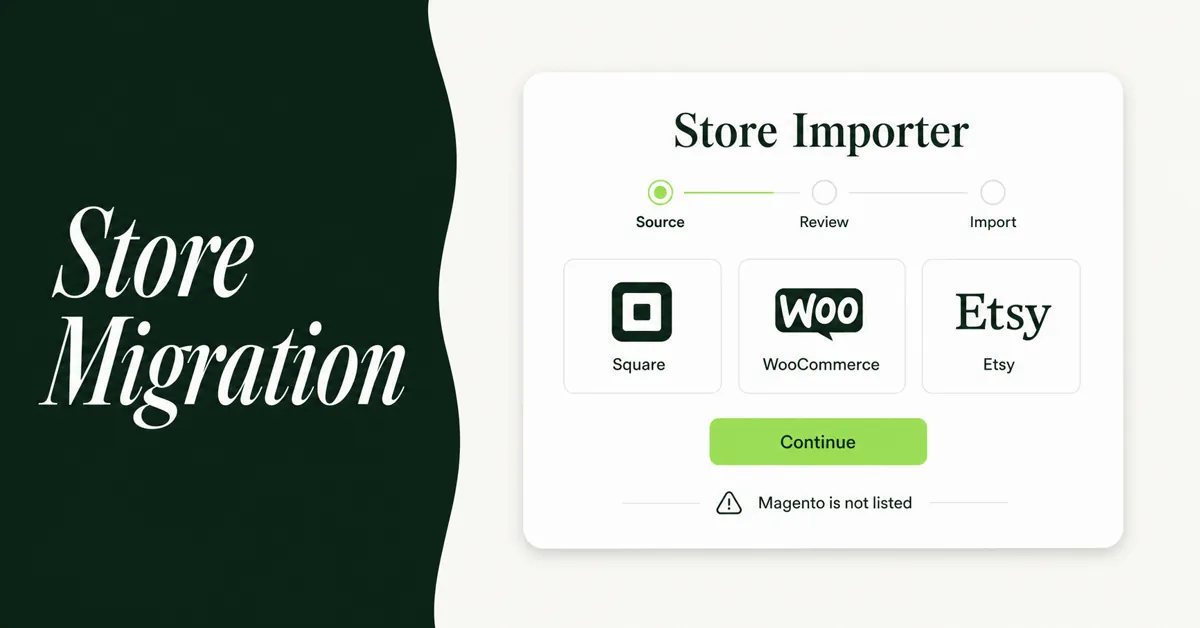
Shopify Store Migration App: What It Does Not Move in 2026
The Shopify Store Migration app imports products and customers only. See what it does not move in 2026, plus how to run the official importer correctly.
Migration traffic drops start with missed URLs. Learn how to set up 301 redirects after a Shopify migration, from redirect mapping to bulk CSV uploads.
How to Clean Up Product Data After a Shopify Migration (Duplicates, Variants, Tags, and More)
Duplicate products, broken variants, orphaned metafields? Here's how to clean up product data after a Shopify migration, fast and without wrecking SEO.

Shopify Migration Checklist: Everything to Move Before You Switch Platforms
Use this complete Shopify migration checklist to move products, customers, orders, SEO data, and apps without losing sales when you switch platforms today.