
How to Import Products from PrestaShop to Shopify (3 Methods That Work)
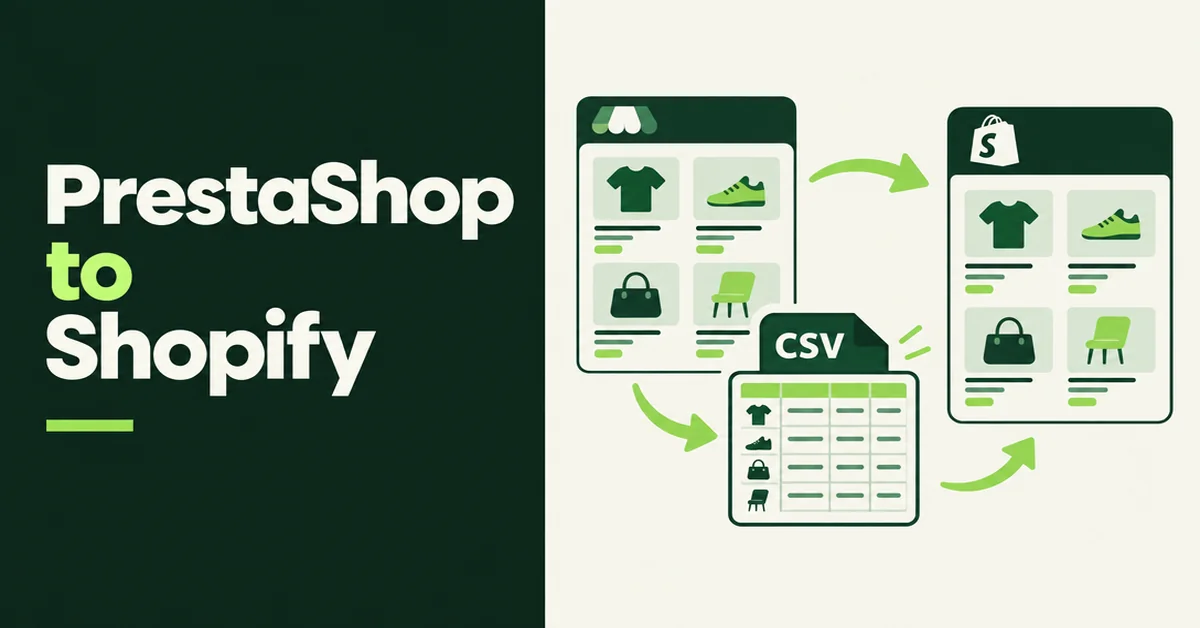
If your catalog already lives on PrestaShop and you are opening a Shopify store, the hard part is not finding products. It is rebuilding titles, combinations, and images without breaking variants. You can import products from PrestaShop to Shopify with a remapped CSV upload, a public product URL importer, or careful manual rebuilds. This guide walks through all three so you can pick the path that matches your catalog size and how much cleanup you are willing to do.
PrestaShop reports more than 230,000 stores worldwide generating €22 billion in GMV, with deep roots in Europe and Latin America. Third-party trackers still count roughly 148,000 live PrestaShop stores as of 2026 Q3, which is why so many merchants treat PrestaShop as the current storefront and Shopify as the next operating system. Owning a Shopify storefront means you stop maintaining PHP modules for every payment and shipping tweak. If you are also planning a WooCommerce to Shopify product transfer or an Amazon product catalog move, the same discipline applies: import the product shell first, then rewrite for Google.
Why Do PrestaShop Merchants Move Product Catalogs to Shopify?
Most PrestaShop merchants open Shopify to reduce hosting and module overhead, get predictable SaaS ops, and plug into Shopify's app ecosystem. They are rarely deleting the PrestaShop store on day one.
Running both during a transition is normal. PrestaShop keeps the SEO equity you already earned while Shopify becomes the place you send paid traffic, email, and new markets. A clean Shopify catalog lets you use Markets, native checkout, and apps without another PHP upgrade weekend.
There is also a practical ops reason. PrestaShop combinations, features, and multistore setups rarely map one-to-one onto Shopify products. Importing the catalog shell saves hours. Restructuring options and metafields is still your job.
Another quiet reason is staffing. Open-source stores often depend on one agency or one developer who knows the theme. Shopify shifts day-to-day catalog work toward merchants and operators who can edit products without a deploy.
Hot take: full-store migration apps sell peace of mind. The merchants who keep rankings treat a remapped product CSV plus a separate 301 redirect plan as the real source of truth, then use automation only where the spreadsheet would waste a week.
Can You Export a Product CSV Directly From PrestaShop?
Yes. PrestaShop's back office can export product data as CSV. That file is not Shopify-ready. You still need remapping before Products > Import will accept it cleanly.
In most PrestaShop versions you export from Catalog > Products (gear icon > Export) or from Advanced Parameters import/export tools. The export typically includes names, descriptions, prices, quantities, images, categories, features, and combination rows. PrestaShop often defaults to a semicolon delimiter, while Shopify expects a comma-separated product CSV with its own headers.
That gap is why a raw PrestaShop export uploaded straight into Shopify creates duplicate products or broken variants. Shopify groups variants with a shared Handle. PrestaShop combination rows share a parent name but do not include a Shopify Handle. Without grouping, each combination becomes its own product. If you already live in spreadsheets, our walkthrough on importing products to Shopify from a CSV without errors covers the failure modes before you hit Upload.
Also set expectations early: product import tools move catalog data. They do not move customers, orders, or reviews. Treat products and everything else as separate migrations with separate tools, not one checkbox.
How Do You Import Products From PrestaShop to Shopify Using a Remapped CSV?
CSV is the right method when you need bulk control, custom metafields, or a catalog too large to click through page by page. You export from PrestaShop, rebuild a Shopify product CSV, then upload it from Products > Import.
Shopify's official docs are clear on the hard limits: your product CSV cannot exceed 15 MB, and for new products the Title column is required (Handle is also required when you add variants). Image URLs must be publicly reachable over HTTPS. Keep every variant row for a product under the same Handle, or Shopify will split the family. You can add up to 250 images per product through the CSV image fields when those URLs are public.
Suggested workflow:
- Export products from PrestaShop and open the file in Google Sheets or LibreOffice (preserve UTF-8).
- Convert semicolon delimiters to commas if needed, without breaking commas inside HTML descriptions.
- Open Shopify's sample product CSV and copy only the headers you need.
- Generate a Handle per parent product, then place every combination row under that Handle with Option1 Name/Value, Option2, Option3 as needed.
- Map columns: Title, Body (HTML), Vendor (often manufacturer), Type, Tags (from categories), Variant SKU (reference), Variant Price, Image Src, Variant Grams.
- Convert PrestaShop weights from kilograms to grams (multiply by 1,000). Shopify's weight column expects grams as an integer.
- Strip PrestaShop-only module HTML, voucher blocks, and broken relative image paths. Prefer absolute HTTPS image URLs.
- Upload under Products > Import, review the preview, then import.
CSV imports cannot be canceled once they start, and Shopify does not keep a friendly import history for rollback. Test five combination-heavy SKUs first. If the file is over 15 MB, split it and keep parent/variant/image rows together by Handle.
One more CSV trap: sorting the file in Excel can reorder rows and break which image belongs to which variant. If you need to filter, re-sort back into Handle groups before upload. When an option value changes on an existing product during CSV update, Shopify can recreate variants and break apps that stored the old variant IDs. Prefer creating new products cleanly, then editing in admin for small fixes.
How Do You Import PrestaShop Products With a Public URL Importer App?
URL import is the fastest path when you only need a subset of live product pages and those pages are publicly reachable. Paste a product URL, preview the listing, then push it into Shopify as a draft or active product.
Migratify is built for product URL and storefront imports into Shopify. Per Migratify's URL import docs, named sources include any Shopify store, Amazon, Etsy, Lazada, Daraz, BigCommerce, plus many other public websites. PrestaShop is not listed by name. If your PrestaShop product pages are public (no captcha wall, no login gate), treat them as a public website URL and test one product before you commit the catalog.
Here is the practical sequence with Migratify:
- Install the app from the Shopify App Store and open the Import page.
- Paste a direct PrestaShop product URL (not a category page, search result, cart, or checkout link). Use the + button for several URLs if you are batching.
- Confirm the product preview, then set import options (draft vs active, collection, Magic Edit, price multiplier).
- Start migration and wait for the job to finish. Only one import runs at a time.
- Confirm the product in Shopify before you publish, especially combinations mapped into options.
Plan limits matter if you are testing. Migratify's Free plan allows up to 5 products in total (not per month). Standard is $14/month with unlimited imports, and Plus is $29/month for heavier Magic Edit usage. Migratify also requires a paid Shopify plan; stores still on Shopify's trial need to upgrade before importing.
What usually comes across on a successful public URL import: title, description, images (with variant images when the source provides them), options, price and compare-at price, SKU and barcode, tags (up to 30 per product), vendor, and product type. Videos on the source page are not imported, and Migratify does not import customers, orders, or reviews.
If the URL fails validation, or the page is behind a captcha/login, do not force URL paste. Use the remapped CSV path for owned PrestaShop catalogs, or try Migratify's Chrome extension flow only when the product page can be opened and captured in desktop Chrome. We compared broader tool choices in our roundup of the best Shopify store migration apps.
When Does Manual Copy Make More Sense Than an Importer?
Manual copy is slower, but it wins when you only need a handful of hero SKUs rewritten for SEO. Paste nothing wholesale. Rebuild the page as a Shopify product.
Use manual entry when:
- You are launching with fewer than about 20 SKUs and every page needs unique copy.
- The PrestaShop listing is thin, module-generated, or written in a language you will not sell in.
- Combinations use more than three attribute groups and need a deliberate split into separate products or metafields.
- You care more about Google ranking than speed of catalog transfer.
Manual does not mean starting from a blank page with no research. Keep the PrestaShop listing open, reuse accurate specs, download your own product photos, and write a 300 to 600 word description aimed at search queries PrestaShop never ranked for outside its own domain.
A hybrid works well for mid-size catalogs: CSV-import or URL-import everything as drafts, then manually rewrite the top 10% of SKUs by revenue before you publish them. Leave the long tail as drafts until you have time, or until paid ads need those URLs live.
What Product Data Usually Transfers, and What Does Not?
Expect the product shell to move. Do not expect PrestaShop-only modules or non-product data to follow.
Usually transfers with a careful CSV remap or a successful URL import: title, description HTML, image set, option/combination values (within Shopify limits), prices, SKUs/barcodes when present, vendor/manufacturer, type, and a limited tag set.
Often needs hand work: SEO title and meta description, collection membership, inventory by location, weight/shipping profiles, features mapped into metafields, customer-group prices, and product packs/bundles.
Does not transfer via Migratify: customers, orders, reviews, gift cards, store settings, and source-page videos. Collections are not imported as objects either, though you can drop imported products into one existing manual collection during import settings.
Shopify raised the per-product variant ceiling to 2,048 variants for all merchants on October 15, 2025, but you still only get three option names per product. If a PrestaShop product uses four or more attribute groups, split the product or demote extra attributes to metafields before you publish.
Also remember that Migratify imports products only. If your migration brief still lists customers or order history, use Shopify's native customer CSV tools or a dedicated full-store migration service for those pieces. Do not expect a product importer to become a platform clone. For marketplace-shaped catalogs, the same three-method pattern shows up in our guide on importing products from Shopee to Shopify.
What Should You Clean Up After a PrestaShop to Shopify Product Import?
Publish nothing until you finish a cleanup pass. Platform imports create drafts that look finished and still convert poorly.
Run this checklist on a sample of imported products:
- Handles: Replace auto-generated or numeric PrestaShop leftovers with clean, readable slugs.
- Combinations: Confirm option names (Size, Color, Material) and that variants did not explode into duplicate products.
- Pricing and tax: PrestaShop often stores tax-excluded prices. Confirm the price Shopify displays matches how you intend to sell.
- Images: Fix broken relative paths, set alt text, and attach the right image to each variant.
- Copy: Remove module boilerplate and rewrite for Google and your brand voice.
- Inventory: Turn on tracking only when your numbers are real; do not invent stock from a stale export.
- Redirects: Map old PrestaShop URLs to new Shopify product URLs before you cut traffic over.
- Mobile PDP: Spot-check the first screen on a phone. Long pasted HTML often looks fine on desktop and broken on mobile.
For a deeper cleanup playbook covering duplicates, tags, and broken variants, use how to clean up product data after a Shopify migration. If you also need redirects after cutover, follow how to set up 301 redirects after a Shopify migration.
Should You Keep PrestaShop Live After You Launch Shopify?
Yes, for most catalogs that already rank. Shutting PrestaShop off on launch day usually cuts organic revenue before Shopify SEO and ads catch up.
Run both channels with clear rules:
- Keep PrestaShop serving existing organic URLs until redirects are verified.
- Send owned traffic (email, social, brand search) to Shopify.
- Sync inventory carefully so one channel cannot oversell the shared pool.
- Differentiate Shopify copy so Google has a reason to rank your new domain pages instead of thin mirrors.
When the Shopify store converts paid and organic traffic on its own, you can retire PrestaShop hosting. Until then, treat PrestaShop as the legacy storefront and Shopify as the brand home.
If your next move is another platform catalog, the same three-method pattern applies. Use CSV when you own the export, use a public URL importer when pages are openly reachable, and rewrite hero products by hand when SEO matters more than speed. For same-platform copies, see how to migrate products from one Shopify store to another. For Lazada-style marketplace imports, see how to import products from Lazada to Shopify.

Migratify: Copy Products + AI
SponsoredProduct import made easier! Effortlessly migrate products from 100+ platforms.
Related Articles

How to Import Products from Shopee to Shopify (3 Methods That Work)
Import products from Shopee to Shopify with 3 methods that work: Chrome extension apps, CSV bulk upload, or manual. Preserve titles, images, variants.

How to Import Products from Lazada to Shopify (3 Methods That Work)
Import products from Lazada to Shopify with 3 methods that work: URL import apps, CSV bulk upload, or manual copy. Preserve titles, images, and variants.
Amazon to Shopify Migration: How to Move Your Product Catalog (Without Losing Data)
Planning an Amazon to Shopify migration? Learn how to export listings, map ASINs to SKUs, and move variants, images, and FBA inventory without data loss.

How to Import Products to Shopify from a CSV File (Without Errors)
Learn how to import products to Shopify from a CSV file without errors. Covers formatting, variants, images, and detailed fixes for every common issue.

WooCommerce to Shopify Migration: Step-by-Step Product Transfer Guide
Planning a WooCommerce to Shopify migration? This step-by-step guide covers product transfer, CSV cleanup, SEO protection, and avoiding data loss.
How to Migrate Products from One Shopify Store to Another (3 Methods That Work)
Migrate products from one Shopify store to another with CSV, a URL importer, or a bulk spreadsheet. Keep images intact and know what will not transfer.