
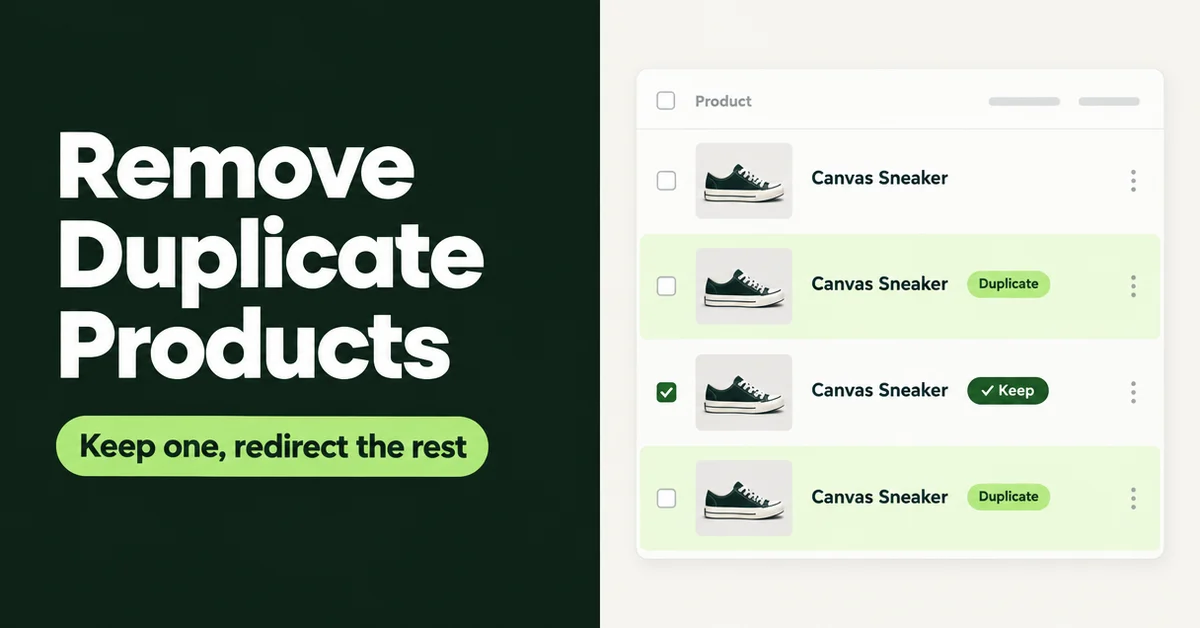
Duplicate products hide in plain sight. Two listings with the same title, two variants sharing one SKU, a product URL ending in "-1" that nobody remembers creating. This guide shows how to find and remove duplicate products in Shopify in 2026 without losing the reviews, order history, and search rankings attached to them.
You'll get three ways to find duplicates (pick the one that fits your catalog size), a simple rule for choosing which copy to keep, a safe removal order, and the habits that stop duplicates coming back. If you just finished moving platforms, our post-migration product data cleanup guide covers the wider cleanup. This post goes deep on duplicates in any store, new or old.
Why Does Shopify End Up With Duplicate Products?
Shopify ends up with a duplicate whenever something creates a new product instead of updating an existing one. The usual culprits are an import or app sync that ran twice, a CSV file whose handles don't match your store, and the Duplicate product button used as a shortcut for a new color or size.
The CSV part is widely misunderstood. Shopify's product import matches rows to existing products by handle. According to Shopify's import documentation, if you leave Overwrite products with matching handles unchecked, rows whose handle already exists are ignored, not copied. CSV duplicates come from rows whose handle differs from the live product, such as a supplier sheet or an export from another platform that builds handles its own way.
Handles ending in "-1" or "-2" have a different origin. When a product is created without a handle, Shopify builds one from the title, and if that handle is already taken it adds a suffix to make it unique. So a second "Linen Shirt" created by an app, an importer, or by hand becomes linen-shirt-1. Treat that suffix as a lead, not proof. It can also belong to a genuinely different product that happens to share a name.
The most common sources:
- Re-run imports and double syncs: an importer run again on the same source, or two apps creating products from the same supplier or marketplace.
- Mismatched CSV handles: a file built outside Shopify, where "linen-shirt-white" in the file meets "white-linen-shirt" in your store.
- Duplicate used as a shortcut: copying a product to make a new color. Shopify's own help says that if you only want to add an option such as color or size, you should add a variant instead of duplicating the product.
- Forgotten drafts: test products and half-finished drafts that later got a live twin.
Duplicates cost more than tidiness. Google says some duplicate content is normal and not a violation of its spam policies, but it clusters near-identical pages and picks one as the canonical, which may not be the one you want. Shoppers see two prices or two review counts, and your stock splits across two records. One product reachable at several URLs is a separate problem, covered in our Shopify duplicate content guide. And if you want to copy products to a second store on purpose, that's a different job too: see our Shopify store clone checklist.
How Do You Find Duplicate Products in Shopify?
Match on SKU first, then barcode, then title, and treat handles ending in -1 or -2 as leads to check. Pick one of the three methods below based on how many products you have.
Shopify's main built-in safeguard is a SKU warning. The admin shows a warning when a SKU is already in use, but you can ignore it, and products imported without SKUs never trigger it. So you need to look.
Method 1: Search and sort in the Shopify admin
Best for: catalogs under a few hundred products, or checking a single suspect.
- Go to Products, click the sort icon, and sort by product title A-Z so near-identical names sit next to each other.
- Type a suspect SKU into the admin search. SKUs are case-sensitive, so "ABC123" and "abc123" count as different codes.
- Open each suspect and scroll to the search engine listing section to see its URL handle. An identical title plus a handle ending in -1 is a strong lead.
- Check the Draft and Archived tabs as well. An old draft is a common twin.
Method 2: Export a CSV and flag repeats in a spreadsheet
Best for: a few hundred to several thousand products, and anyone who wants a written record of what was found.
- In Products, click Export, choose All products, and pick the CSV for Excel, Numbers, or another spreadsheet program. Shopify emails you the file for an all-products export.
- Open it in Google Sheets or Excel. Next to the SKU column, add a helper column with =COUNTIF(F:F,F2)>1, changing F to your SKU column. TRUE means that SKU appears more than once.
- Repeat the helper column for barcode, then title. Title matches catch duplicates that have no SKUs. Barcode matches catch retail products imported twice.
- Filter the helper columns to TRUE and note the handles involved. The same SKU under two different handles is a cross-product duplicate. The same SKU on two variants of one product is a variant mistake to fix on that product.
Use this file to find duplicates, not to fix them. Shopify warns that sorting a product CSV in a spreadsheet can disassociate variants and image URLs, and that importing a sorted file can overwrite your products with bad data that can't be recovered. Filter instead of sorting, and never re-import this copy.
Method 3: Use a duplicate-finder or bulk-editing app
Best for: large catalogs, repeat cleanups after regular imports, or stores with no time for spreadsheets.
Several apps in the Shopify App Store are built for this one job and group products that share a title, SKU, or barcode so you can review each match. Whatever you pick, choose one that shows you the matches before it changes anything and lets you archive rather than delete. Before any bulk action, read our guide to undoing a bulk edit in Shopify, because no app can bring back a product that has been deleted.
Which Duplicate Product Should You Keep?
Keep the copy with the longest history: the one that has taken orders, holds reviews, and has been live and linked the longest. That is usually the older URL, even when the newer copy has better photos or a cleaner description.
Here's the opinion most cleanup guides skip: don't keep the better-looking listing, keep the older URL. Copying a description, images, tags, and metafields onto another product takes minutes. A URL's search history, backlinks, and review count don't move on their own, and a redirect only sends visitors onward.
For each duplicate pair, answer four questions:
- Which one appears on past orders and in your sales reports?
- Which one holds the reviews, and how many?
- Which one is used in collections, menus, ads, email flows, and product feeds?
- Which one has the clean handle, without a -1 on the end?
Not sure which copy came first? Sort the product list by Created, Oldest first. The older record is usually the one with the history.
If neither copy has orders, reviews, or links, keep the one with the clean handle and the most complete data. You can then skip most of the steps below and archive the other.
How Do You Remove Duplicate Products in Shopify Without Losing Reviews or Rankings?
To remove duplicate products in Shopify safely, copy anything useful onto the keeper, move the reviews, archive the duplicate, confirm its URL no longer loads, and then add a redirect. Delete only after a quiet waiting period.
- Copy the good data across. Images, description lines, tags, metafields, collection memberships, and any variant the keeper lacks. If you sell on other sales channels, confirm the keeper is published there too.
- Move the reviews first. Review apps attach reviews to products in their own way, so check how yours handles a product that disappears. In Wise Reviews, filter the Reviews page by the duplicate product, select its reviews, and use Assign to products in the ... menu to put them on the keeper. If a product gets deleted first, Wise Reviews unpublishes reviews whose only product was deleted and labels them Deleted product, so you can still reassign them. Changing apps at the same time? Our guide to switching review apps without losing star ratings covers the export side.
- Archive the duplicate. Select the duplicates on the Products page and archive them with a bulk action. Archived products move to the Archived tab, and unarchiving one sets it back to Draft.
- Confirm the old URL no longer loads. Open the duplicate's product URL in a private browser window. Shopify only lets a redirect work from a broken URL, one that shows Page not found. If the page still loads, the redirect won't fire.
- Add the redirect. Go to Content > Menus > View URL Redirects > Create URL redirect. Put the old path (for example /products/linen-shirt-1) in Redirect from and the keeper's path in Redirect to. For dozens at once, import a redirect CSV from the same screen. Stores can hold up to 100,000 URL redirects, or 20,000,000 on Plus. Our 301 redirect guide walks through the CSV format.
- Update everything that pointed at the duplicate. Menus, ads, email flows, social posts, and product feeds should all point at the keeper's URL directly, not through the redirect.
- Delete after a waiting period. Leave the archived copies for a few weeks. If no orders, support questions, or broken links turn up, delete them in a batch.
Should You Archive or Delete Duplicate Products?
Archive first and delete later. Archiving hides a product while keeping it restorable, but deleting is permanent: Shopify says deleted products can't be restored.
Deleting a product also removes its variants, its inventory items, and any media no other product uses, according to Shopify's developer documentation. Your past sales are safe. Completed orders and refunds that included the product aren't affected, and the product details on those orders are kept for your records.
Two cases where deleting straight away is fine:
- A test product that never sold and was never shared.
- A copy created minutes ago by a bad import, with no orders, reviews, or links yet.
One limit to know: a CSV file can't delete products. Shopify's import page points you to bulk actions on the Products page instead. Before any large delete, export a CSV of exactly the products you're about to remove. It's the only backup you'll have if you need to rebuild one.
What If Your Duplicate Products Are Really Variants?
If your "duplicates" are the same item in different colors or sizes, merge them into one product with variants instead of deleting all but one. Shopify allows up to 2,048 variants and three options per product, so most catalogs fit comfortably.
- Pick the keeper with the rule above: oldest URL, most orders, most reviews.
- Add the missing option values to it, for example Color: Sage, then fill in each new variant's price, SKU, barcode, and inventory.
- Clear the SKU from the separate product before you reuse it on the new variant, so the two records don't share one code.
- Move each separate product's reviews onto the keeper, archive the separate products, and redirect every old URL to the keeper.
Check two things afterward. The new variants are new records with new variant IDs, and Shopify notes that changed variant IDs can break third-party tools that depend on them, so recheck feeds and subscription apps. And if a product passes 100 variants, Shopify says some themes, apps, and sales channels might not support that many, so preview the product page before you publish.
How Do You Stop Duplicate Products From Coming Back?
Fix the process that created them. Most repeat duplicates trace back to one importer, one sync, or one habit, so a cleanup without a process change just resets the clock.
- Update with matching handles. When a CSV is meant to update products, start from a fresh Shopify export so the handles match, and tick Overwrite products with matching handles. Blank cells in included columns overwrite your values with blanks, so remove columns you don't mean to change. Our guide to importing products from a CSV without errors covers the file format.
- One source, one sync. Don't let two apps create products from the same supplier or marketplace. Before re-running any import, check what already landed from the last one.
- Import as drafts. Bring new batches in as drafts and review them before they go live, so a double run gets caught in the Draft tab instead of on your storefront.
- Treat the SKU warning as a stop sign. Shopify's help says each product and variant should have its own SKU. Give everything a SKU so the warning can do its job.
- Add variants, not copies. A new color or size goes on the existing product.
- Use Flow as a backup only. Shopify Flow has a Product deleted trigger and a Create redirect URL action, but the trigger only passes the deleted product's ID, not its old handle, so building the right Redirect from path automatically is unreliable. Keep making your redirects by hand.
- Audit on a schedule. Rerun Method 2 once a month and after every large import. Ten minutes with COUNTIF is cheaper than a month of split reviews and confused shoppers.
Duplicate products are a process problem wearing a data costume. Find them by SKU, keep the oldest URL, move the reviews, archive before you delete, and redirect every old link. Then fix the import or sync that made them, so next month's audit comes back clean.

WiseReviews ‑ Reviews Importer
SponsoredImport Photo & Video Reviews from your favorite e-commerce platforms easily!
Related Articles

How to Clean Up Product Data After a Shopify Migration (Duplicates, Variants, Tags, and More)
Duplicate products, broken variants, orphaned metafields? Here's how to clean up product data after a Shopify migration, fast and without wrecking SEO.
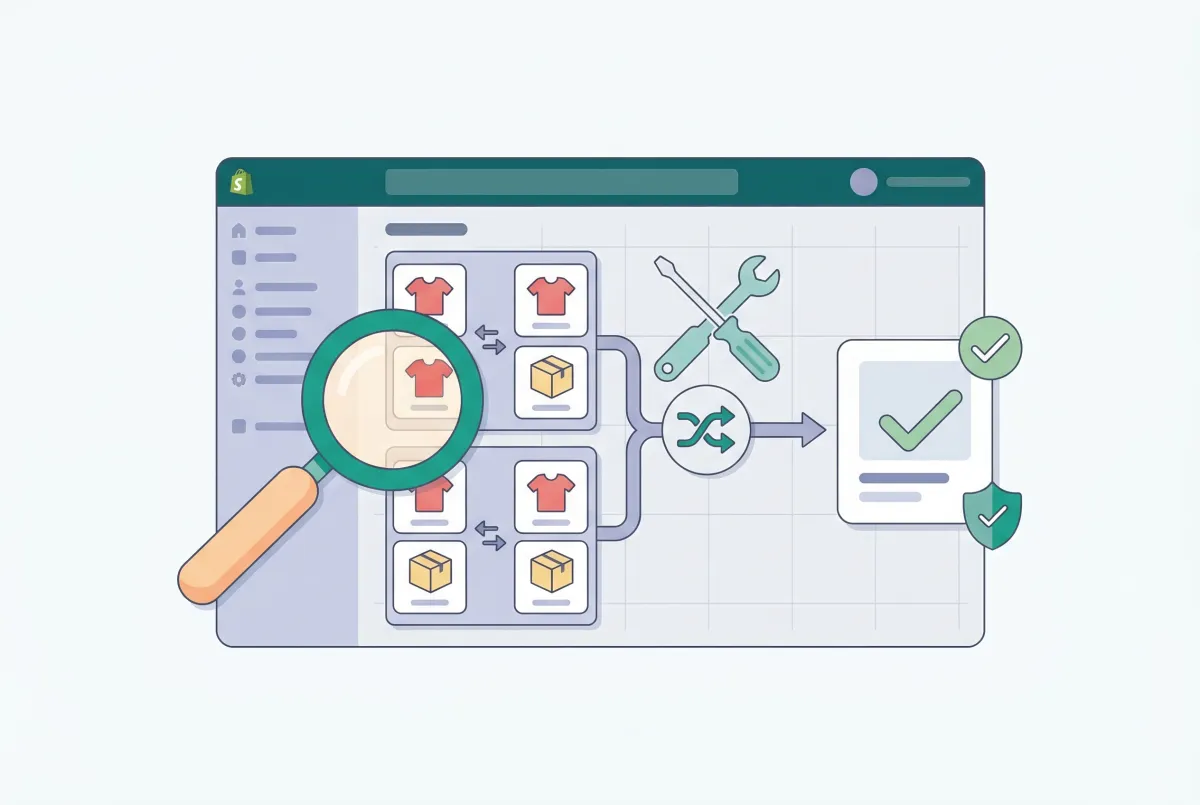
Learn how to find and fix the most common Shopify duplicate content problems, from collection URLs to tag pages, variants, and pagination. Rank higher.

How to Import Products to Shopify from a CSV File (Without Errors)
Learn how to import products to Shopify from a CSV file without errors. Covers formatting, variants, images, and detailed fixes for every common issue.

Migration traffic drops start with missed URLs. Learn how to set up 301 redirects after a Shopify migration, from redirect mapping to bulk CSV uploads.
How to Undo a Bulk Edit in Shopify (2026 Recovery Guide)
Undo a bulk edit in Shopify with CSV restore or an app that logged before-values. Revert safely and prevent the next catalog mishap. Keep a CSV backup.

Switch Shopify review apps without losing star ratings or photos. Export CSV, map handles, test-import, then cut over widgets and schema in one clean pass.