
How to Bulk Edit Tags in Shopify: Add, Remove and Rename (2026)
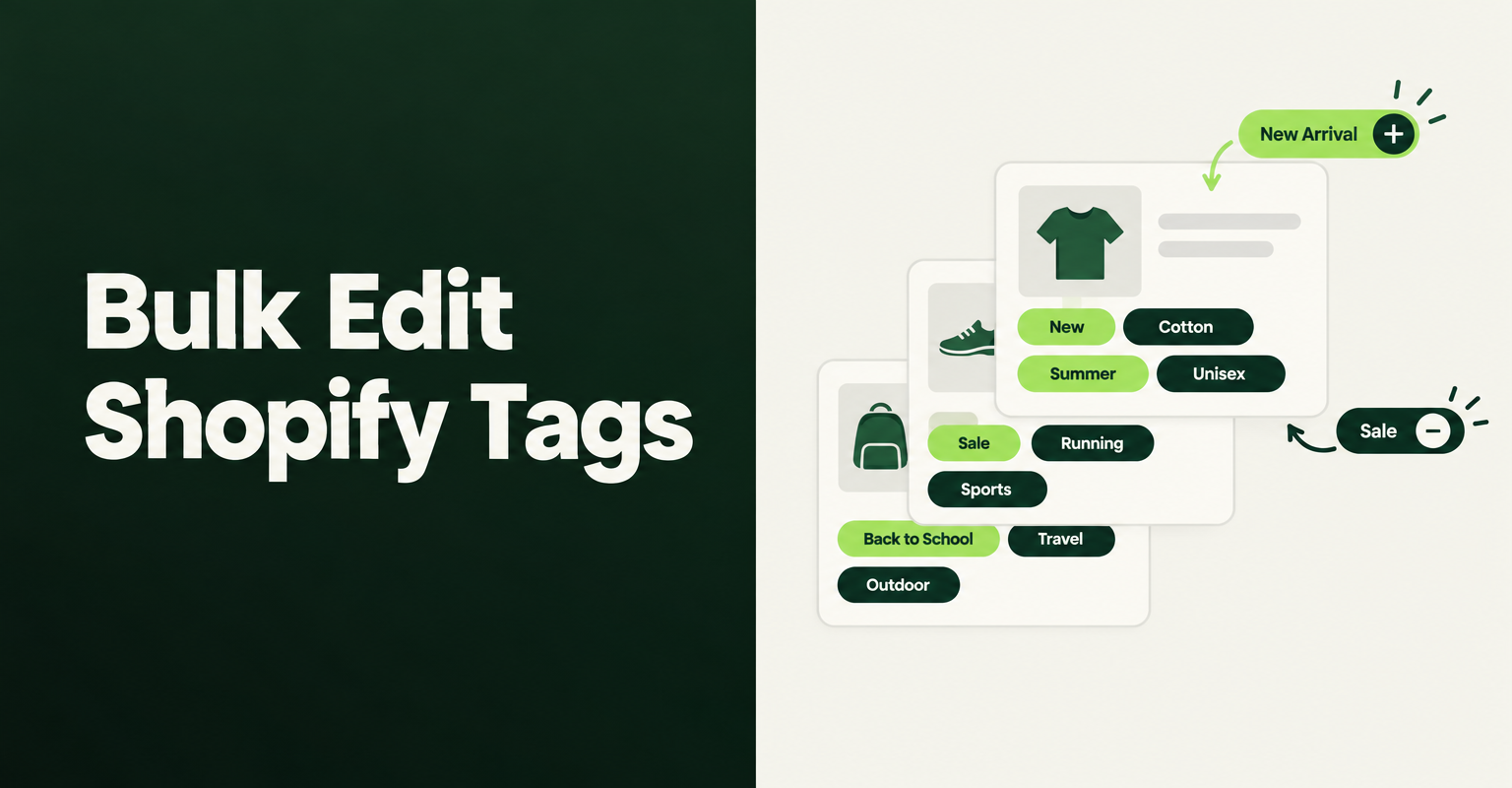
You can bulk edit tags in Shopify four ways: the admin's built-in Add tags and Remove tags actions, a product CSV import, a Shopify Flow workflow, or a bulk editor app. The admin is fine for adding or removing one tag on a list of products. Renaming a tag, cleaning up typos, or tagging thousands of products on a rule needs one of the other three, and each has a trap that can wipe tags you meant to keep.
This guide covers which method fits which job, the exact limits Shopify sets, and the mistakes that quietly empty collections and filters. Facts were checked on November 20, 2026.
What are the limits on Shopify product tags?
Each product can carry up to 250 tags, and each product tag can be up to 255 characters long, according to Shopify's tag documentation. Stores on Plus can have unlimited tags on products, but Shopify notes that only 250 tags display when bulk editing tags.
Three more rules matter before any bulk job:
- Case: Shopify's tag help says tags are not case sensitive, so Approved and approved are the same tag. The Flow Add product tags action says the opposite for its own field: "Tags are case sensitive." Pick one spelling and stick to it.
- Where tags are used: tags filter the Products list in the admin and can be selection criteria for automated collections. Changing a tag can change what a collection contains.
- Missing tags: the admin product search and tag filters can't find products that have no tags, per the same help page. To find untagged products you need an export or an app.
How do you bulk add or remove tags in the Shopify admin?
Select the products on the Products page, open the bulk actions menu, click Add tags or Remove tags, pick the tags, and click Save. That is the whole flow, and it needs no app.
- In the Shopify admin, go to Products.
- Filter the list first, for example by vendor, product type, or an existing tag, so the selection is exactly the products you want.
- Tick the products. Use the select-all option if the filter already narrows the list correctly.
- Open the bulk actions menu and choose Add tags or Remove tags.
- Pick or type the tags and click Save.
What the admin can't do: rename a tag in place, find and replace part of a tag, or undo the change as one action. If you add the wrong tag to 400 products, you remove it the same way you added it. If you remove a tag by mistake, you need to know which products had it, which the admin no longer shows you. Our guide to undoing a bulk edit in Shopify covers that recovery in more detail.
Can you bulk edit tags in Shopify with a CSV file?
Yes, but a CSV import replaces the whole Tags cell, it does not add to it. When you import with Overwrite products with matching handles, the values in the CSV overwrite the matching columns, and a blank non-required column overwrites the existing value as blank, per Shopify's CSV guide.
So the safe CSV workflow is export, edit, re-import:
- Export the products you want to change, with all their current columns.
- Edit the Tags column. Separate tags in the same cell with commas, and keep every tag you want the product to keep.
- Delete columns you are not changing only if you understand what Shopify does with a missing column. Leaving them in with their exported values is safer than leaving them blank.
- Import with overwrite on. Without overwrite, products whose handle already exists are ignored, so nothing changes.
The trap is a sheet built from scratch with only Handle and a new tag. With overwrite on, each product ends up with that one tag. Our CSV product import guide covers the other columns that bite in the same way.
How do you tag products automatically with Shopify Flow?
Shopify Flow has Add product tags and Remove product tags actions, so a workflow can tag a product when something happens to it. Flow is a free app on the Basic, Grow, Advanced, and Plus plans.
Flow is the right tool for ongoing rules rather than one-off cleanups. The Add product tags action works with triggers such as Product added to store, Product status updated, Inventory quantity changed, Variant out of stock, and Variant back in stock. A common setup tags a product out-of-stock when a variant sells out and removes the tag when it comes back, so an automated collection or a filter updates on its own.
Two cautions from Flow's own documentation. First, the action treats tags as case sensitive, so Sale and sale in a workflow are not interchangeable. Second, Flow lists a common issue where it reports a tag as added but the tag is missing in the admin, because another app or admin user overwrote the tags right after Flow ran. If two apps both write tags on the same event, test them together.
Which apps can bulk edit tags in Shopify?
Spreadsheet tools and general bulk editors handle tags well, while most dedicated tag apps are new and unreviewed. Here is how the options compare on tag jobs, checked November 20, 2026. None of them is the right pick for every store.
- Matrixify imports a Tags Command column with three values: MERGE adds tags and ignores ones that already exist, DELETE removes the listed tags, and REPLACE swaps all existing tags for the ones in the file. If no command is set, it assumes MERGE, per the Matrixify product documentation. That default removes the CSV overwrite trap above. Pricing is a free Demo plan limited to 10 products per job, then $20, $50, or $200 every 30 days.
- Edify (Bulk Product Editor) has four tag operations: Add tags, Remove tags, Set tags, and Find and replace inside tags, which is how you rename a tag or fix a typo across products. Find and replace removes a tag left empty and merges tags that become duplicates, per its tag docs. Each task can be reverted from History. The Free plan allows 10 edits a month and 200 products per task. Pro is $9.99 every 30 days with a 14-day trial. The App Store listing shows 4.0 from 3 reviews and a launch date of March 13, 2026, so it has a short track record.
- Dedicated tag apps such as TagHorizon (launched October 12, 2026, no reviews yet) and Upatra: Bulk and Auto Tag (free, launched June 3, 2026, no reviews yet) focus only on tags. Test any of them on a few products before you trust it with a catalog.
For a wider comparison on price and undo, see our roundup of Shopify bulk product editor apps.
How do you rename a tag across all products in Shopify?
Shopify has no rename button for product tags, so a rename is two steps: add the new tag to every product that has the old one, then remove the old tag. Doing it in that order means no product is ever left without either tag.
- On the Products page, filter by the old tag, for example wintr.
- Select all matching products and use Add tags to add winter.
- Check any automated collection that uses the old tag and change its condition to the new one.
- Filter by the old tag again, select all, and use Remove tags.
Apps shorten this. Edify's Find and replace and Matrixify's DELETE plus MERGE rows both do it in one job. Either way, step 3 is the one people skip.
Hot take: Treat tags as store infrastructure, not labels. A tag rename on a busy catalog can empty an automated collection, break a storefront filter, and stop a Flow workflow, all without a single error message. Rename on a weekday morning, not the night before a sale.
What breaks when you bulk edit tags the wrong way?
Most tag disasters come from replacing tags when you meant to add them. The four that show up most:
- Replace instead of add. A CSV import with overwrite, Matrixify's REPLACE, or Edify's Set tags all remove every tag not in your list. Use add or merge unless you truly want a clean slate.
- Empty automated collections. Collections built on a tag condition update when the tag changes. A typo fix that removes the old tag before the collection rule is updated takes those products out of the collection. Our collection page SEO guide explains why an emptied collection page is worse than it looks.
- Case drift. Shopify's admin treats Sale and sale as one tag, but Flow's action treats them as different. Mixed casing in workflows leads to tags that never get removed.
- No record of the old tags. Before any job that removes or replaces tags, export the products first. That export is your undo if the tool has none.
If tags are one of several fields you are cleaning after a replatform, our guide to cleaning up product data after a migration covers the rest of the list. For structured data that tags handle badly, such as material or care instructions, bulk editing metafields is usually the better home.
Which method should you use to bulk edit tags in Shopify?
Use the admin for one tag on a filtered list, Flow for rules that should keep running, and a CSV or app for renames and large cleanups. A short decision list:
- Add or remove one tag on under a few hundred products: the admin bulk action.
- Tag products on an event, such as sold out or newly added: Shopify Flow.
- Rename a tag or fix a typo everywhere: an app with find and replace, or the two-step add then remove in the admin.
- Thousands of products with different tags each: a spreadsheet tool. Matrixify's MERGE default is safer than Shopify's native CSV for this.
- You want a one-click undo: an app that logs old values, or an export taken before you start.
For the bigger picture on catalog-wide edits, start with our Shopify bulk product editing guide.
Related Articles

Shopify Bulk Product Editing: The Complete Guide to Updating Your Catalog Fast
Master Shopify bulk product editing with the native editor, CSV imports, and third-party apps. Update prices, tags, and descriptions across your catalog fast.

Best Shopify Bulk Product Editor App in 2026: 5 Compared on Undo and Price
Which Shopify bulk product editor app fits your store in 2026? Matrixify, Ablestar, Hextom, QuickEdit and Edify compared on undo, price, and task limits.
How to Undo a Bulk Edit in Shopify (2026 Recovery Guide)
Undo a bulk edit in Shopify with CSV restore or an app that logged before-values. Revert safely and prevent the next catalog mishap. Keep a CSV backup.

How to Import Products to Shopify from a CSV File (2026): Columns, Errors and Fixes
Import products to Shopify from a CSV file without errors: current column names, the overwrite rule, variant rows, and a fix for each common import error.

How to Clean Up Product Data After a Shopify Migration (Duplicates, Variants, Tags, and More)
Duplicate products, broken variants, orphaned metafields? Here's how to clean up product data after a Shopify migration, fast and without wrecking SEO.
How to Bulk Edit Metafields in Shopify: Bulk Editor, CSV and Apps (2026)
Bulk edit metafields in Shopify with the admin bulk editor, a product CSV, or an app. Variant rules, type limits, app prices, and how to undo a bad edit.