
How to Bulk Edit Metafields in Shopify: Bulk Editor, CSV and Apps (2026)
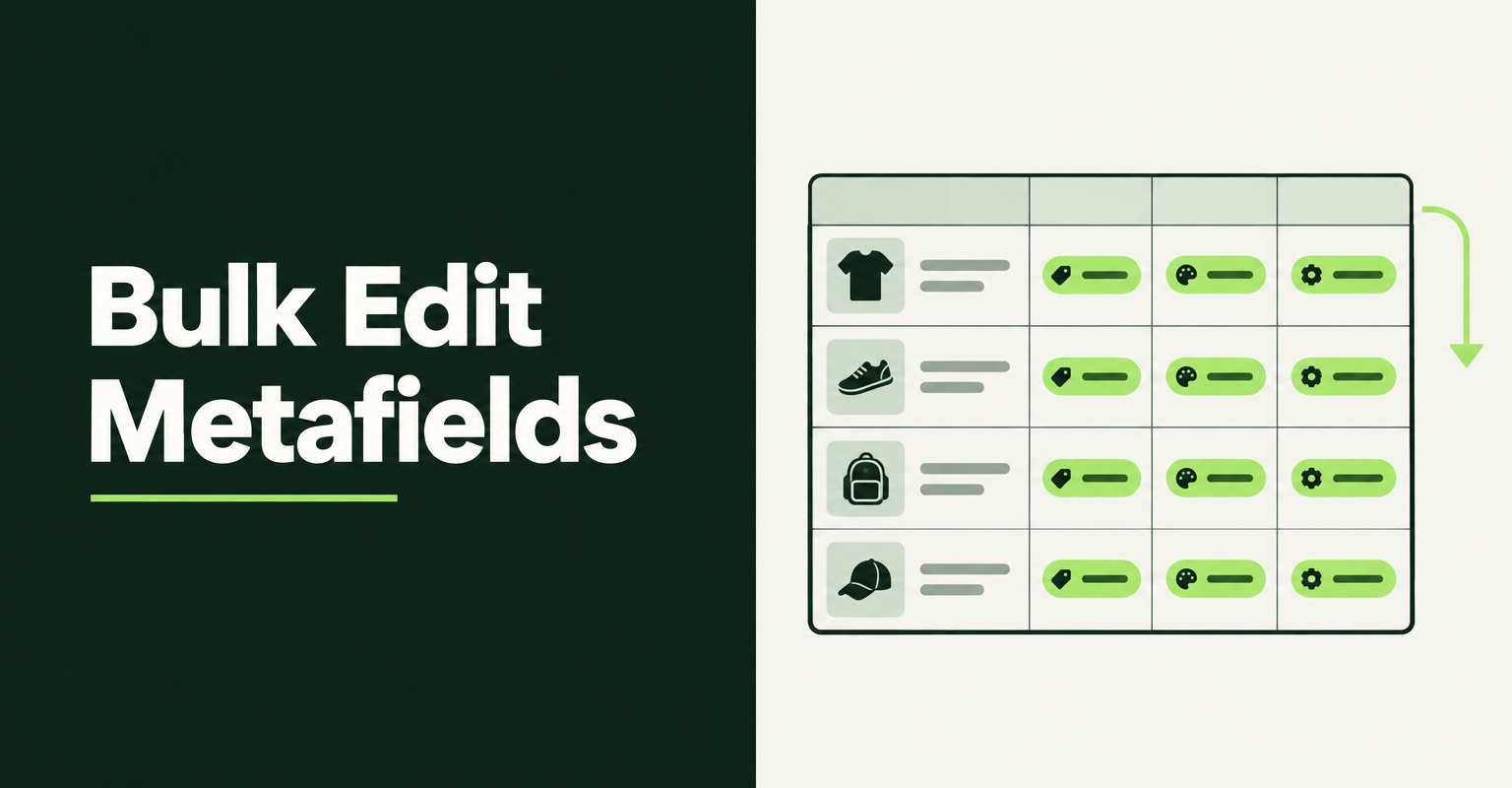
You can bulk edit metafields in Shopify three ways: the admin bulk editor, a product CSV import, or a bulk editor app. The right one depends on two questions most guides skip: is the metafield on products or on variants, and does it have a definition? This guide walks through each method, the limits Shopify documents, and how to undo a metafield edit that goes wrong. Everything below was checked on November 13, 2026.
If you are new to bulk changes in general, start with our guide to Shopify bulk product editing. This post covers only custom data: metafields on products, variants, and a few other resources.
What do you need before you bulk edit metafields in Shopify?
You need the metafield's namespace and key, its type, and in most cases a metafield definition. Without a definition, the admin bulk editor and several apps cannot see the field at all.
A definition is the schema Shopify stores for a metafield: name, namespace and key, type, and validation rules. You create one in Settings > Custom data, under the resource it belongs to (Products, Variants, Collections, Customers). Shopify's CSV documentation says the namespace and key are listed on that same Custom data page.
Check three things before you touch a single value:
- Owner. Is the value stored on the product, or on each variant? A "material" field on a T-shirt product is one value. A "material" field on each variant is many. The method you use changes with the owner.
- Type. A number field rejects text, and a true or false field rejects "yes". Type mismatches are a common reason a bulk edit fails.
- Definition count. Shopify's metafield limits page lets a merchant create up to 256 definitions per resource type. The same page caps every value at 2 MB, most types at 64 KB, and JSON values at 128 KB.
Migrating from another platform first? Our guide to migrating Magento attributes to Shopify metafields covers how to design the definitions before you fill them.
How do you bulk edit metafields in the Shopify admin bulk editor?
Select products, open the bulk editor, add metafield columns, type the values, and save. It is free and built in, and it works best for a few dozen to a few hundred products with defined metafields.
Shopify's bulk edit metafields help page gives these steps for products:
- In your Shopify admin, go to Products.
- Check the box next to each product you want to edit.
- Click Edit products.
- Click Columns, then pick the metafields you need under Metafields.
- Click into a cell, type the new value, and click Save. Fix any errors Shopify flags, then save again.
The same page says you can bulk edit metafields for products, variants, collections, and customers. It also warns that Microsoft Edge can throw errors in the bulk editor because of its URL length limit, and suggests Chrome, Firefox, or Safari instead.
What the native editor does not give you:
- No filter-and-set. You type or paste values cell by cell. There is no "set this field to X on every product tagged summer" action.
- No undo. Once you click Save, the old values are gone. Our guide on how to undo a bulk edit in Shopify covers what you can still recover.
- Defined fields only. Community answers report that a metafield shows up in the Columns menu only once its definition exists under Custom data.
How do you bulk edit variant metafields in Shopify?
Use the variant bulk editor or an app, not the product CSV. Shopify's CSV page states plainly that "variant metafields aren't supported for product CSV import/export" and points you to the variant bulk editor with metafield columns instead.
This trips up a lot of merchants. A July 2026 Shopify Community thread started with a merchant editing variant metafields one by one because the bulk editor did not seem to show them. Later replies from other users (not Shopify staff) said the fields appear once the definition exists under Settings > Custom data > Variants and you add it from the Columns menu. Treat that as user-reported, and check it on your own store.
For a variant edit, the safe order is:
- Create or confirm the variant metafield definition.
- Select the products whose variants you want to change, then open the bulk editor.
- Add the variant metafield as a column and fill it in.
- Spot check a few variants on the product page in admin before you move to the next batch.
Past a few hundred variants, typing in cells gets slow and error prone. That is the point where an app or a Matrixify spreadsheet pays for itself.
How do you bulk edit product metafields with a CSV file?
Add a column per metafield to a Shopify product CSV, using the header format Shopify documents, then import with overwrite on. Only product metafields work this way, and only defined ones are exported.
According to Shopify's CSV rules, the header is Name (product.metafields.namespace.key), for example Fabric (product.metafields.shopify.fabric). The short form without the name and brackets also works. After you define a product metafield, it is included in product CSV exports automatically.
Shopify supports many types in CSV, including single and multi-line text, integer and decimal numbers, true or false, color, date, date and time, URL, money, weight, volume, dimension, product references, and several list types. Rules worth knowing:
- Lists use semicolons. A list of decimals is written as 1.0; 2.1.
- References take an ID or a handle. A product reference accepts a GID or a product handle such as boots.
- Overwrite clears blank cells. With overwrite on, Shopify replaces existing values with the file's values, and a blank non-required column overwrites the old value as blank. Delete any metafield column you are not changing before you import.
The CSV route is free and fast for big product batches, but it shares the native editor's weakness: no undo. Export a fresh backup first. Our walkthrough on importing products to Shopify from a CSV without errors covers the header and encoding traps that break imports.
Hot take: If a metafield value matters enough to bulk edit, it deserves a definition. Undefined metafields are the custom data version of a junk drawer: every tool sees them differently, and the cleanup always costs more than the five minutes the definition would have taken.
Which apps can bulk edit metafields in Shopify, and what do they cost?
Matrixify, Ablestar, and Edify all bulk edit metafields, but they work very differently. Matrixify is a spreadsheet engine, while Ablestar and Edify use filters inside the admin. Prices below are from each app's live pricing page on November 13, 2026.
Matrixify handles metafields with and without definitions, on products, variants, collections, customers, orders, and more, per its metafields tutorial. Columns use the format Metafield: namespace.key [type], and importing an empty value deletes that metafield on the item. The tutorial warns that without a definition, the same namespace and key can end up with a different type on each product. Its pricing page lists Demo free (10 products per job), Basic $20, Big $50, and Enterprise $200 per 30 days. The plans also cap how many metafield definitions you can import: 10, 50, 500, and unlimited.
Ablestar Bulk Product Edit edits product metafields with filters, preview, and scheduling. Its metafield help article says it can only edit metafields already defined in Shopify. You refresh the list in its settings after adding a definition, and definitions are case sensitive. The same article notes that metafield edits take longer than other edits because they need more API calls. Its App Store listing shows a free Starter plan capped at 10 products, paid plans of about $30, $60, and $120 a month, and a 4.9 rating from 942 reviews.
Edify (Bulk Product Editor Pro) sets or clears one metafield across many products or variants in a single task. Per its metafield docs, you pick an existing metafield or enter a custom namespace, key, and type. Supported types are single and multi-line text, integer, decimal, true or false, URL, color, date, date and time, and JSON, so list and reference types are not on its list. Metafields are a Pro feature: Pro costs $9.99 every 30 days with a 14-day free trial and edits up to 10,000 items per task. Its App Store listing shows a 4.0 rating from 3 reviews since its March 13, 2026 launch, so its track record is short.
Quick fit guide, not a ranking:
- Undefined metafields, list or reference types, or non-product resources: Matrixify is the only one of the three that documents all of these.
- Daily product edits with filters and scheduling: Ablestar, if your metafields are defined.
- A filtered set or clear across products or variants, with per-item history: Edify Pro, if your field uses one of its supported types.
For a wider comparison on price, undo windows, and task limits, see our Shopify bulk product editor app comparison.
How do you undo a bulk metafield edit that went wrong?
With the native editor or a CSV import, you restore from a backup export you made before the edit, because neither has an undo button. Apps can only undo edits they made themselves.
Edify's docs describe the app side clearly. History shows each item's old value and new value for the metafield, and Revert puts the old value back. If the metafield did not exist before the edit, Revert deletes it, so your store's data ends up the way it was.
Matrixify's undo is a re-import. Export the products with their metafield columns first, then import that file back if the edit goes wrong. Remember its rule that an empty cell deletes the metafield, so a careless partial file can wipe values you did not mean to touch.
Whatever you use, follow the same three steps:
- Export the affected products with their metafield columns.
- Run the edit on five to ten items and check them on the storefront, not just in admin.
- Run the full batch, then spot check again.
Which metafield mistakes break storefronts after a bulk edit?
Wrong types, wrong owners, and empty values cause most of the damage. Each one can pass the import without a visible error and still break what shoppers see.
- Wrong owner. Writing a value to the product metafield when your theme reads the variant metafield (or the other way around) leaves the storefront unchanged. Check which one your theme block is connected to before you edit.
- Type drift. Without definitions, tools may infer different types for the same key, as Matrixify's tutorial warns. Theme code that expects a number then gets text.
- Blank cells on overwrite. A metafield column you left empty in a CSV can blank out existing values. Remove columns you are not editing.
- Case mismatches. Ablestar notes that definitions are case sensitive. A key typed as Material and one typed as material are different fields.
- SEO fields mixed up with metafields. SEO title, SEO description, and image alt text are standard product fields in most tools, not custom metafields. For alt text, use our guide on bulk editing image alt text on Shopify instead.
The short version: define the field, confirm the owner, back it up, test on a handful, then run the batch. That order turns most metafield mistakes into a five-product fix instead of a full catalog repair.
Related Articles

Best Shopify Bulk Product Editor App in 2026: 5 Compared on Undo and Price
Which Shopify bulk product editor app fits your store in 2026? Matrixify, Ablestar, Hextom, QuickEdit and Edify compared on undo, price, and task limits.
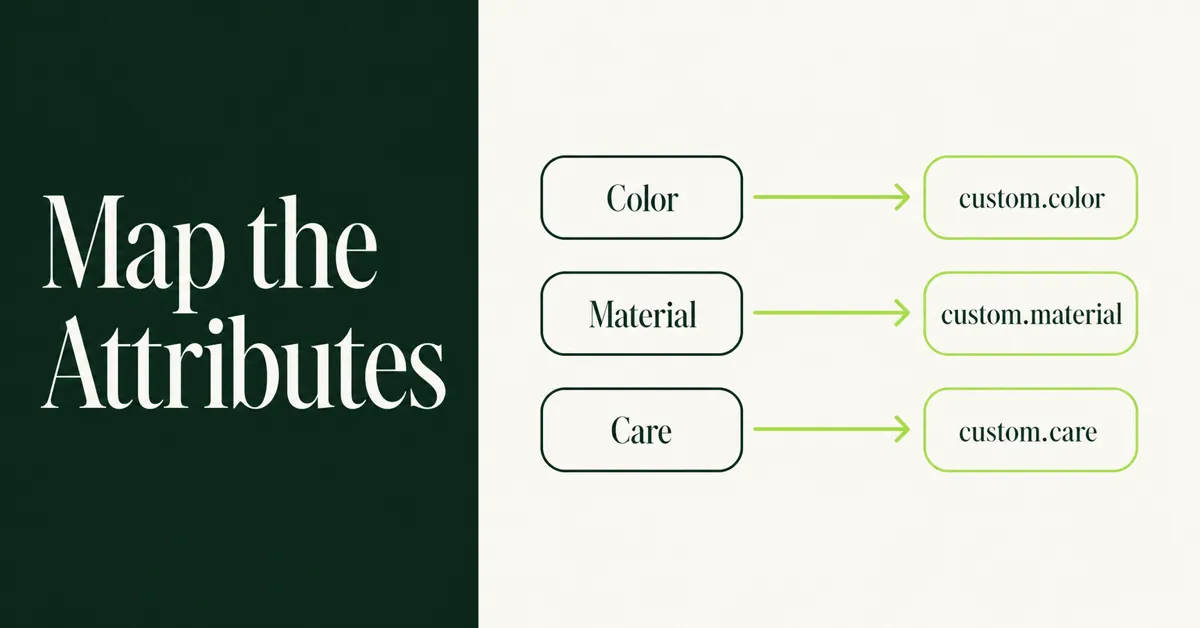
How to Migrate Magento Attributes to Shopify Metafields (3 Methods)
Migrate Magento attributes to Shopify metafields in 2026: Admin definitions, CSV/Matrixify columns, or app mapping. Collapse Magento attribute sets first.
How to Undo a Bulk Edit in Shopify (2026 Recovery Guide)
Undo a bulk edit in Shopify with CSV restore or an app that logged before-values. Revert safely and prevent the next catalog mishap. Keep a CSV backup.

How to Import Products to Shopify from a CSV File (2026): Columns, Errors and Fixes
Import products to Shopify from a CSV file without errors: current column names, the overwrite rule, variant rows, and a fix for each common import error.

Shopify Bulk Product Editing: The Complete Guide to Updating Your Catalog Fast
Master Shopify bulk product editing with the native editor, CSV imports, and third-party apps. Update prices, tags, and descriptions across your catalog fast.

Need to bulk edit image alt text on Shopify? Compare the CSV import, Matrixify, and Edify, plus the 125 character rule and a safe order for large catalogs.