
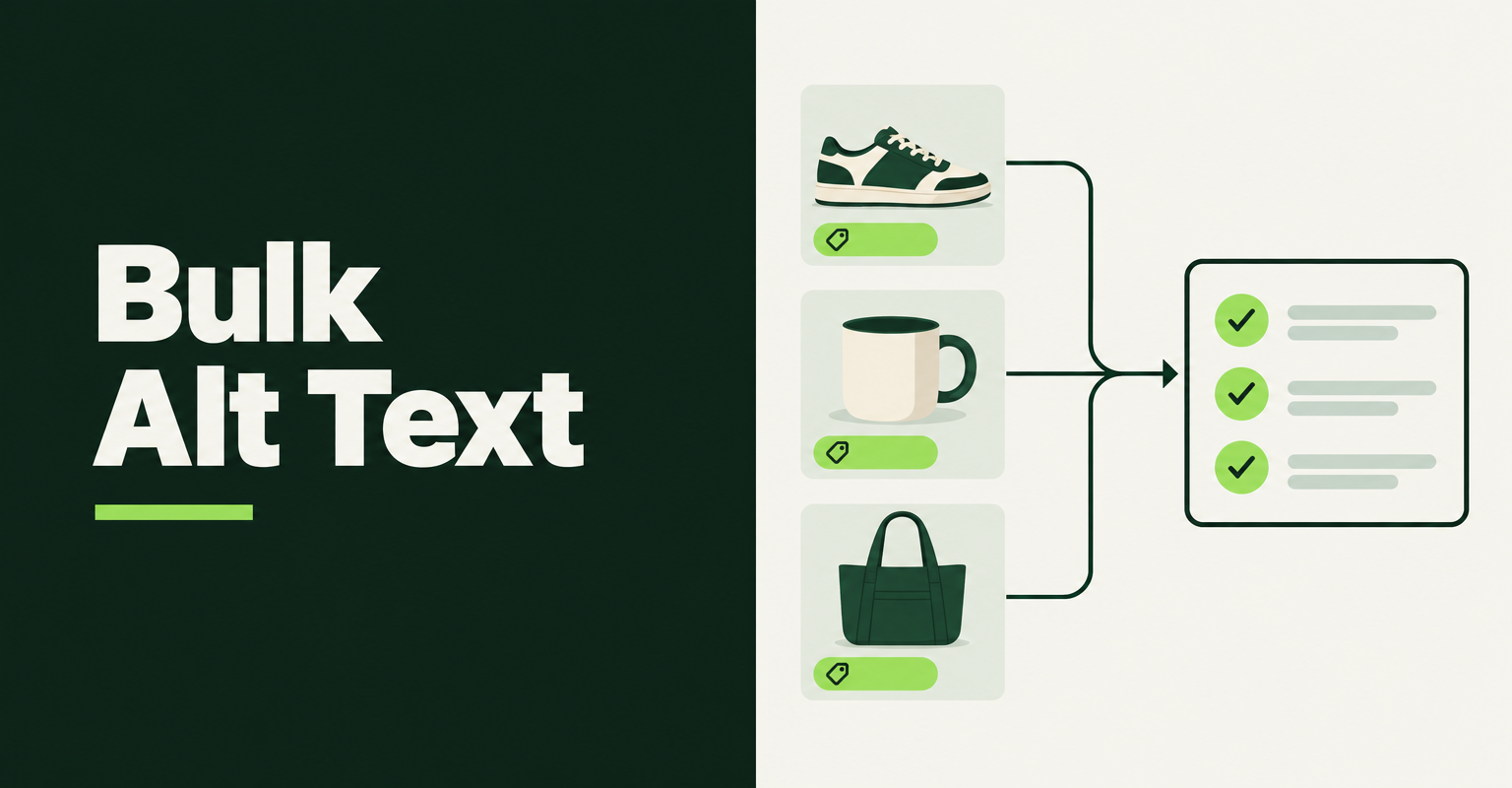
To bulk edit image alt text in Shopify, you have three real routes: a CSV import, an export-edit-import app like Matrixify, or a bulk editor such as Edify that changes alt text with a preview and an undo. Shopify's admin only lets you edit one image at a time, so any catalog bigger than a few dozen products needs one of these. This guide covers the rules for good alt text first, then each method with its limits (checked November 6, 2026).
What counts as good alt text on a Shopify product image?
Good alt text is a short, plain description of what the image shows. Shopify's alt text help page says to keep it brief and descriptive, with a maximum of 512 characters and 125 or fewer recommended.
Google's image guidance tells you to use keywords naturally and warns that filling alt attributes with keywords hurts the experience and can look like spam. Its own example moves from puppy to the better Dalmatian puppy playing fetch. The W3C image decision tree adds that purely decorative images should get an empty alt attribute, so not every image needs text.
Hot take: Do not bulk-fill every image with the product title and call it done. It fixes the blank fields, but ten photos with identical alt text tell Google and screen reader users nothing new. Use bulk tools for the floor, then hand-write the alt text for your top 20 sellers.
Which bulk method fits your store?
Pick by catalog size and how often you will repeat the job. A one-time cleanup of a few hundred products suits a CSV; repeated or filtered edits, or any job where you want a preview and an undo, suit an app.
- Under about 30 products: edit in the admin. Open the product, click a media item, choose Add alt text, and save.
- One-time cleanup, spreadsheet comfort: Shopify's product CSV, or Matrixify if you want a safer export-edit-import loop.
- Filtered or repeated edits with preview and undo: a bulk editor such as Edify.
- Thousands of images with no alt text and you want written descriptions: an AI alt-text app such as AltMate, reviewed before saving.
If you have not picked a bulk editor yet, our comparison of five bulk product editors covers undo, backups, and pricing, and the bulk product editing guide explains the wider workflow.
Can you bulk edit alt text with Shopify's CSV import?
Yes. Shopify's product CSV has an Image alt text column, and its CSV help page describes alt text as text that describes the image and the product it represents. The alt text help page confirms you can also upload it in a CSV file.
The steps:
- Export your products, or build a file with the product CSV columns.
- Put each alt text value in the Image alt text column on the row of the image it belongs to, with the same handle as the product.
- Import the file and select Overwrite products with matching handles. Per Shopify, if you do not select it, products that match an existing handle are ignored during import.
The catch is the round trip. Shopify's CSV page does not say that a default export includes the image alt text column, so test on one product before you trust a full-catalog edit, and keep your original export as a backup. Overwrite also replaces other matching fields in the file, so remove columns you do not mean to change. For general CSV errors see our CSV import guide, and if images come back missing or doubled, see the CSV image fix.
How do you bulk edit image alt text with Edify?
In Edify, choose Products, filter to the products you want, set the field to Image alt text, pick an operation, check the preview, and run it. Per Edify's alt text guide, the operations are Set to value, Set to product title, Find and replace, add text to the start or end, remove text, and change capitalization.
Two features matter most for alt text:
- Only images without alt text: a toggle that leaves images with existing alt text alone, so a bulk run never overwrites your hand-written work.
- History and revert: each image's old alt text is stored, so you can put it back from History.
The limits are worth knowing. Set to product title is the only way to copy another field into alt text, so you cannot pull in the variant name or color. Every image on a product gets the same text, which is the floor, not good alt text. Per Edify's plans documentation, the Free plan allows 10 edits a month and up to 200 products per task, with 14 days of history. Pro is $9.99 USD every 30 days after a 14-day trial, with unlimited edits and 90 days of history. The App Store listing shows 4.0 from 3 reviews and a March 13, 2026 launch, so the track record is short. It also shows the Pro price in local currency, so the USD figure above comes from Edify's own docs. For the recovery side, see how to undo a bulk edit in Shopify.
How do Matrixify and AI alt-text apps handle it differently?
Matrixify keeps the spreadsheet loop but makes it reliable, and AI alt-text apps write the descriptions for you. Neither is better for every store.
Matrixify
Per Matrixify's alt text tutorial, you export Products with the Basic Columns and Media options, keep the ID, Handle, Image Src, and Image Alt Text columns, edit the values, and import the file back. The sheet must be named Products, and errors appear in the last two columns of the results file. It is the better fit for a one-off spreadsheet job where you want a clear error report.
AI alt-text apps
AltMate's listing says it flags images with missing or weak alt text, generates alt text for you to review before saving, and charges one-time credits: 50 for $9 up to 500 for $60, with the first 10 images free. It launched June 27, 2025 and shows no reviews yet. AI descriptions are different per image, which is the strength over pattern edits, but you pay per image and still need to read them.
What is a safe order of operations for a large catalog?
Start with the lowest-risk pass and widen only after you have checked a sample. A sequence that works on any tool:
- Back up first: keep the export file or confirm your tool can revert.
- Run on one product, then open it in the admin and on the storefront to confirm the text saved.
- Fill only the blank alt text across the catalog, using the product title as the floor.
- Use find and replace for known patterns, such as removing a supplier name from imported alt text.
- Hand-write or AI-generate descriptive alt text for your best sellers and hero images.
This order fits our product page SEO checklist, where alt text is one item among titles, descriptions, and structured data.
How do you check that the alt text saved?
Open a product in the admin, click a media item, and read the alt text field. Then view the live product page source and search for the image tag to confirm your theme outputs the alt text you saved. In Edify, History lists each changed image with its old and new value.
Related Articles
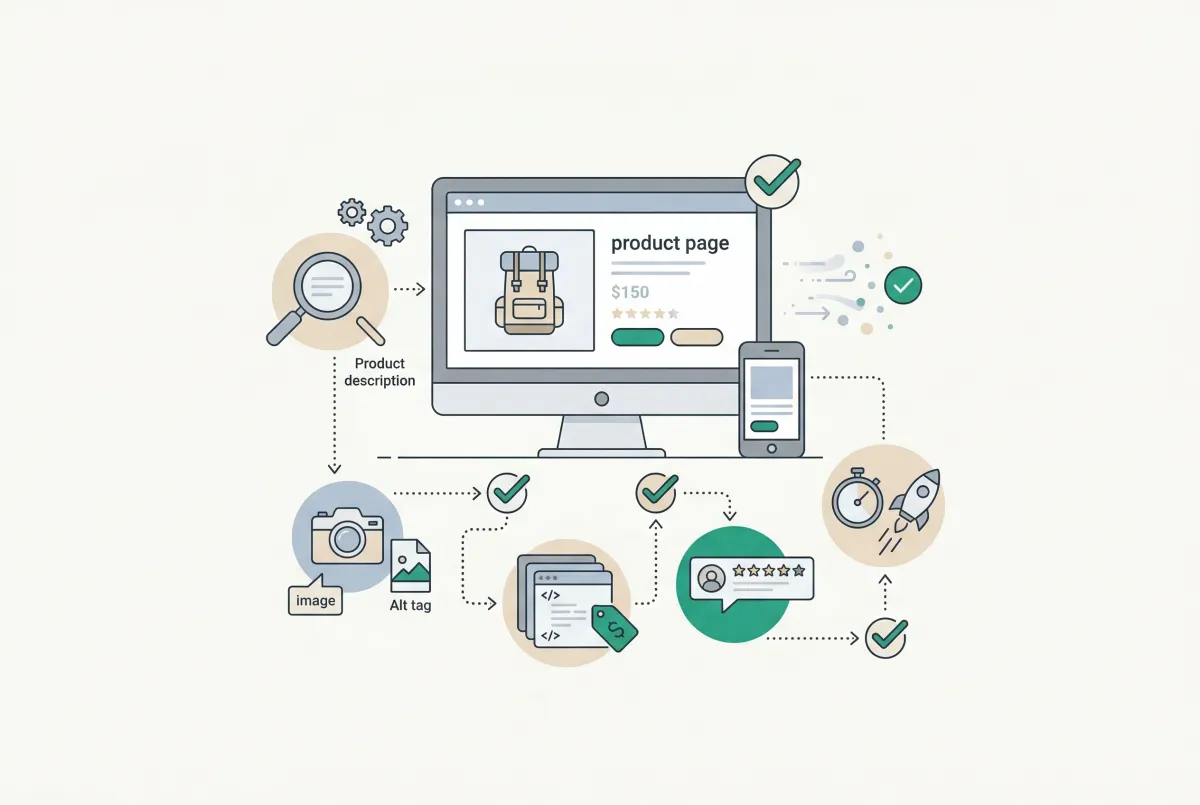
Most Shopify product pages are missing at least three core SEO elements. This 2026 checklist covers title tags, schema markup, images, and more.
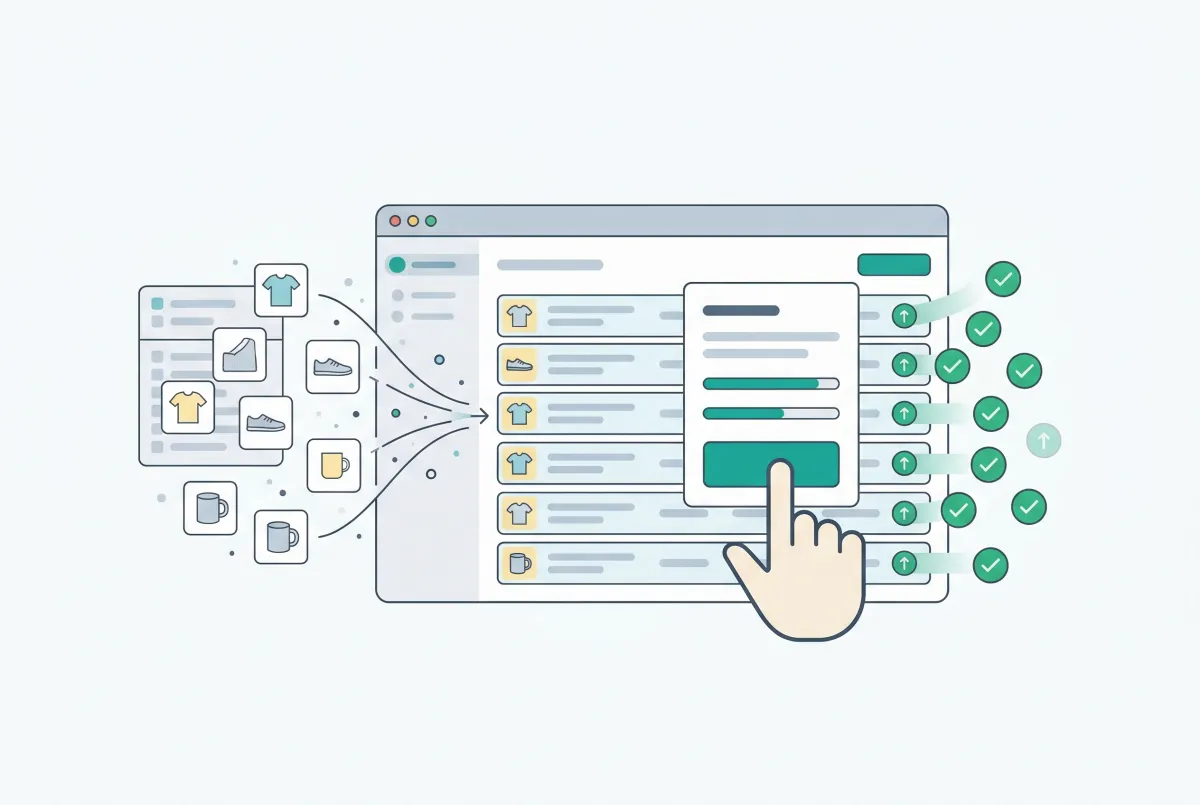
Shopify Bulk Product Editing: The Complete Guide to Updating Your Catalog Fast
Master Shopify bulk product editing with the native editor, CSV imports, and third-party apps. Update prices, tags, and descriptions across your catalog fast.
Best Shopify Bulk Product Editor App in 2026: 5 Compared on Undo and Price
Which Shopify bulk product editor app fits your store in 2026? Matrixify, Ablestar, Hextom, QuickEdit and Edify compared on undo, price, and task limits.
How to Undo a Bulk Edit in Shopify (2026 Recovery Guide)
Undo a bulk edit in Shopify with CSV restore or an app that logged before-values. Revert safely and prevent the next catalog mishap. Keep a CSV backup.
How to Import Products to Shopify from a CSV File (Without Errors)
Learn how to import products to Shopify from a CSV file without errors. Covers formatting, variants, images, and detailed fixes for every common issue.
Shopify CSV Variant Images Missing or Duplicated? How to Fix (2026)
Shopify CSV variant images missing or duplicated after import? Learn why Files re-uploads and ignored columns cause it, and how to fix each one safely.