
Shopify CSV Variant Images Missing or Duplicated? How to Fix (2026)
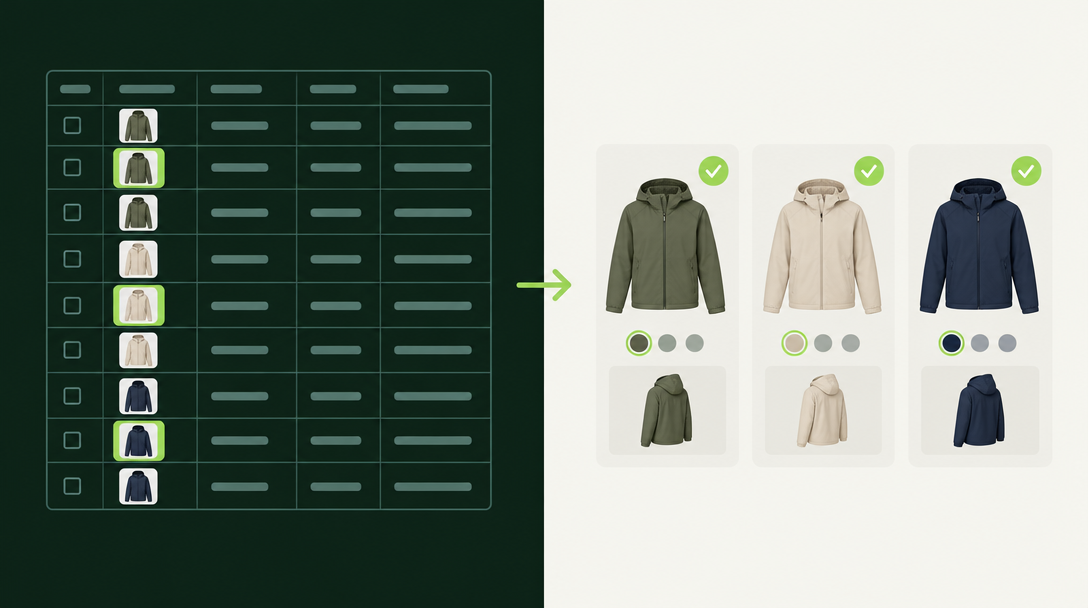
Shopify CSV variant images go wrong in three ways: the same photo appears several times, some variants get no photo, or the wrong photo lands on a variant. Each has a different cause, and most are fixable without redoing the whole import. This guide was checked against Shopify's help pages on October 30, 2026.
If you are still preparing your first file, start with our guide to importing products to Shopify from a CSV file. This post covers only what happens to images after the upload.
Why do variant images go missing or duplicate after a Shopify CSV import?
Duplicates usually come from Shopify downloading and re-uploading every image URL, and missing variant images usually come from a blank or ignored Variant Image URL column. Shopify's CSV guide says it downloads the images during the import and re-uploads them in your store, so an import never just points at a file that is already there.
Three other things matter. A variant can hold only one image, and that image must come from the product's media list. The Product image URL column is not tied to any variant. And a row with a handle that already exists is skipped unless you tick overwrite.
How do you stop a CSV import from duplicating images that are already in Files?
Host the images somewhere other than Shopify Files, or add them to the products by hand after the import. Shopify's guide says that when a CSV links to an image stored in Files, the image is redownloaded and duplicated, with the copy going to the products folder and the original staying in Files.
That is documented behavior, not a bug, so retrying the import will not change it. Shopify's own advice is: "To avoid this duplication, host images elsewhere or upload images directly to products after importing the CSV."
Why does the Variant Image column attach only some images, or none?
A likely cause is an image URL that is not publicly reachable or is not also listed as a product image. Shopify says image URLs should be behind https with no password protection, and a variant can only use an image that exists in the product's media.
A second cause has no official fix. Merchants in a long Shopify Community thread report that since late 2023 the Variant Image column is sometimes ignored, with only a few images attaching and no import error. The only staff reply in that thread told them to contact Shopify support, so treat this as a known, unresolved pattern rather than something you caused.
Hot take: If a CSV attaches only some variant images and every URL works, stop re-importing. Three failed attempts cost more time than assigning the remaining images by hand or with a bulk tool.
How should you lay out the rows so images land on the right variants?
Use one row per image, keep all rows for a product under the same handle, and put each variant's image URL in the Variant Image URL column of that variant's row. Shopify states: "You must use only one row per image." For products with variants, the rows after the first repeat the handle, then carry the variant details and an image URL.
- Product image URL: not specific to variants. It builds the product gallery, in ascending order starting from an image position of 1.
- Variant Image URL: the column Shopify says to use to add variant images. Use the same URL here and in the gallery so the variant has a media item to point at.
- Limit: up to 250 images per product.
- Filenames: final once uploaded, because you cannot edit a name after the image is in your store.
If you have to fix image order across many products afterward, the editing tools in our bulk product editing guide cover what Shopify can change in bulk.
Should you sort or trim the CSV before re-importing?
Do not sort it, and delete the Variant Image column when you are only updating other fields. Shopify's guide says that if the variant image column is left out, the existing variant images stay the same. That makes the omit-the-column route the safest way to change prices or tags without touching photos.
The sorting warning is weaker evidence. A merchant in the same community thread quoted a Shopify support agent saying sorting can break up rows and cause variants or images to be lost. It is not in Shopify's documentation, so treat it as a cautious rule: keep the exported row order and do any sorting in a separate tab.
Also remember that without the overwrite option, rows that match an existing handle are ignored. A re-import that "does nothing" is often just this. Our guide to cleaning up product data after a migration covers the wider overwrite and duplicate-handle cases.
How do you fix images that are already duplicated or missing?
Fix duplicates by deleting the extra media on each product, and fix missing variant images by re-importing a trimmed file or assigning them in the product page. Before any bulk repair, export your products as a backup and test the change on one product.
- Back up first. Export your current products so you can compare after the fix.
- Test on one product. Build a CSV with only that product's rows, tick overwrite, and check the result in the admin.
- Trim the file. A merchant in the community thread kept only the handle, option name and value columns, SKU, inventory tracker, and Variant Image URL. This is user-reported, not official, so confirm it on your own store.
- Assign by hand for stragglers. For a handful of variants, pick the image in the product page.
Apps can help in two places. Migratify imports products from a source page or Shopify store, and its docs say a variant's image is matched and attached where the source provides one, which skips the CSV step entirely. Edify can bulk edit image alt text, but its documented field list does not include the images themselves, so it will not reassign variant photos. Both are one option among others, including the apps in our bulk editor comparison. If a bulk edit goes wrong, see how to undo a bulk edit in Shopify.
Which image checks catch problems before you upload?
Check that every URL opens in a private browser window, that no image is oversized, and that every row with an image has a source URL. Shopify's common import issues page says image URLs must be a publicly accessible direct link, and that a missing file triggers the "An error occurred while trying to download the image" error.
- Size: the same page says product images can be up to 5000 x 5000 px or 25 megapixels, yet one listed error cites a 20 megapixel limit. Staying well under both is safer.
- Scheme: a URL missing its http or https prefix fails with a "getaddrinfo" error.
- Removed images: if you delete products or images after exporting and import without updating the URLs, Shopify says the import will fail.
- Duplicates in your catalog: if whole products doubled, use our guide to finding and removing duplicate products.
Related Articles

How to Import Products to Shopify from a CSV File (Without Errors)
Learn how to import products to Shopify from a CSV file without errors. Covers formatting, variants, images, and detailed fixes for every common issue.

How to Clean Up Product Data After a Shopify Migration (Duplicates, Variants, Tags, and More)
Duplicate products, broken variants, orphaned metafields? Here's how to clean up product data after a Shopify migration, fast and without wrecking SEO.
How to Find and Remove Duplicate Products in Shopify (2026)
Find and remove duplicate products in Shopify: 3 ways to spot copies by SKU, which one to keep, and how to delete them without losing reviews or rankings.
How to Undo a Bulk Edit in Shopify (2026 Recovery Guide)
Undo a bulk edit in Shopify with CSV restore or an app that logged before-values. Revert safely and prevent the next catalog mishap. Keep a CSV backup.

Best Shopify Bulk Product Editor App in 2026: 5 Compared on Undo and Price
Which Shopify bulk product editor app fits your store in 2026? Matrixify, Ablestar, Hextom, QuickEdit and Edify compared on undo, price, and task limits.
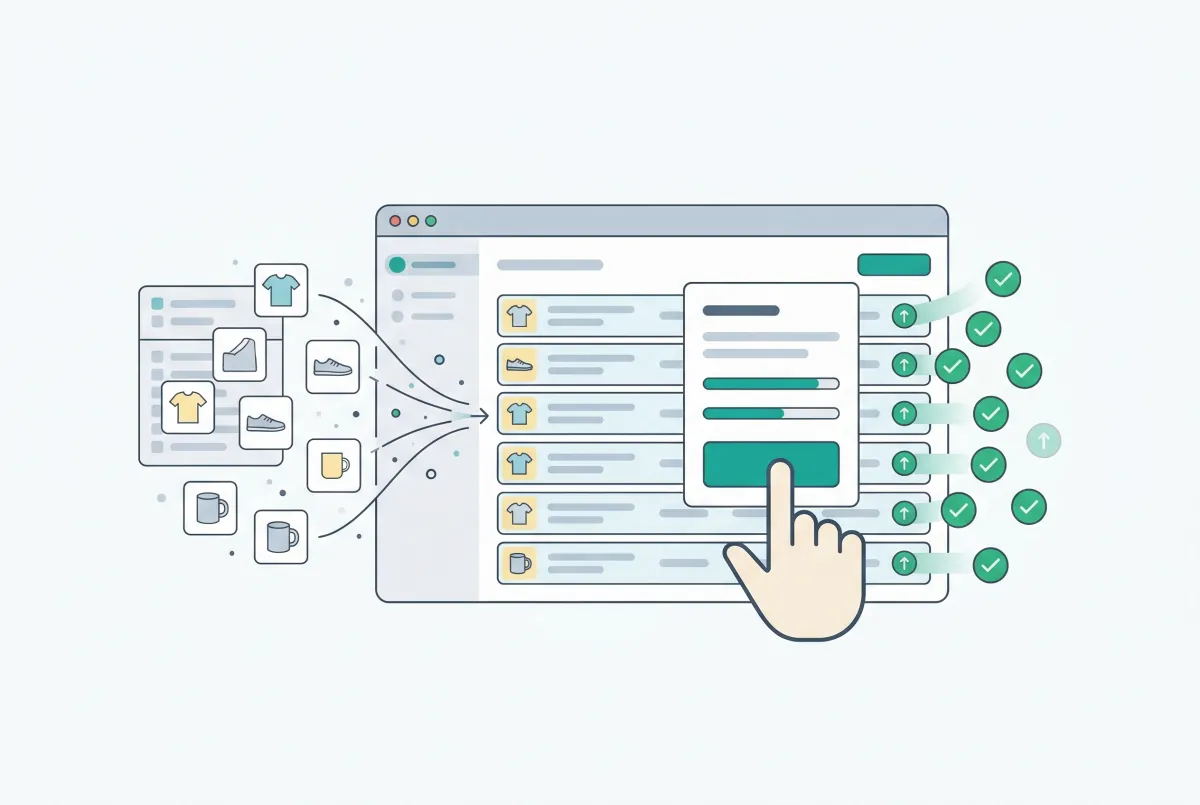
Shopify Bulk Product Editing: The Complete Guide to Updating Your Catalog Fast
Master Shopify bulk product editing with the native editor, CSV imports, and third-party apps. Update prices, tags, and descriptions across your catalog fast.