
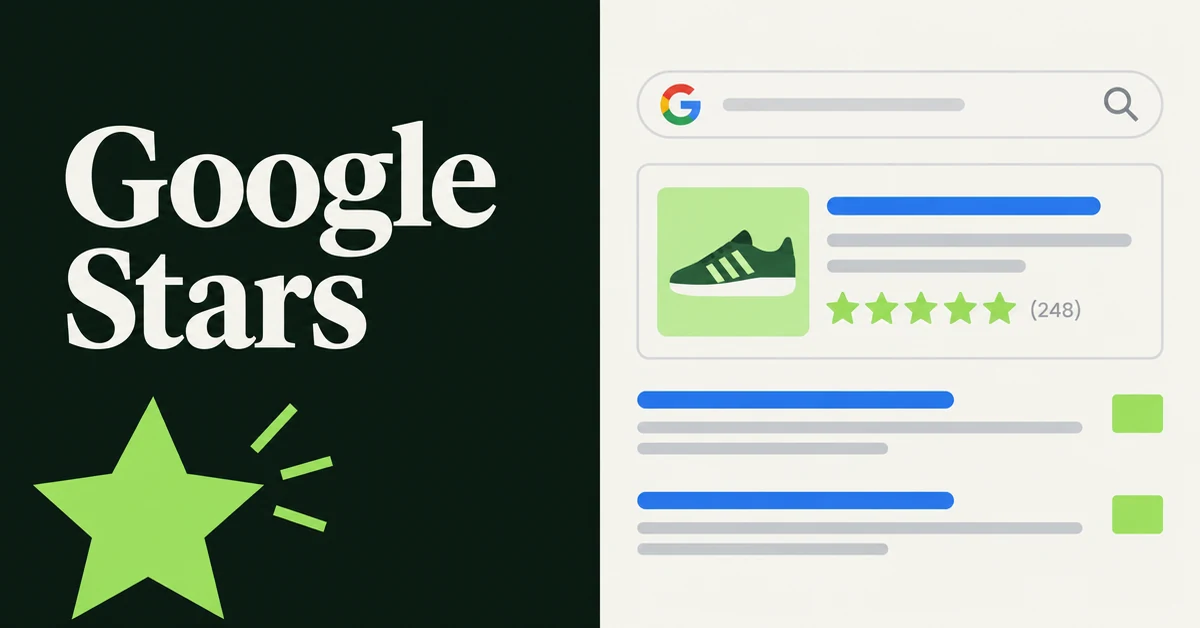
If your Shopify product pages have reviews but star ratings in Google search results never show, the problem is almost never "Google is slow." It is usually missing or JavaScript-only AggregateRating markup. Google needs valid Product structured data with a live rating and review count in the HTML it crawls, and display is never guaranteed even when the markup is perfect.
This guide walks through what Google actually requires, why storefront widgets can look fine while Search stays starless, and how to add Wise Reviews ratings into your theme's JSON-LD with a small Liquid snippet. It is the display fix, not another ranking theory piece. For the broader SEO case for reviews, see how product reviews boost Shopify SEO rankings.
Why Do Star Ratings in Google Search Results Matter for Shopify Stores?
Star ratings in Google search results matter because they turn a plain blue link into a product card shoppers can compare before they click. Ratings, review counts, and other product details sit under the title, which raises the chance someone picks your listing over a competitor at the same position.
Google's own structured data case studies put numbers on that lift. Nestlé measured an 82% higher click-through rate on pages that appeared as rich results versus pages that did not, and Rotten Tomatoes measured a 25% higher CTR after adding structured data across 100,000 pages. Those studies are not Shopify-specific, but they are the figures Google publishes for rich-result CTR.
Important boundary: structured data is not a ranking boost by itself. Google treats eligibility for rich results and web ranking as separate systems. Stars help you win more of the impressions you already earn. They do not magically move you from page three to page one.
What Does Google Need Before It Can Show Product Star Ratings?
Google needs a product page with valid Product structured data that includes an aggregateRating (rating value plus review count), visible review content that matches the markup, and a crawl that can read that markup without depending on a late JavaScript widget.
Per Google's Product structured data documentation, product snippets can show ratings and review information when the markup is eligible. For AggregateRating, the practical checklist is:
ratingValueandreviewCount(orratingCount) present insideAggregateRating- Values that match what shoppers see on the page
- Markup present for products that actually have reviews (empty AggregateRating is an error)
- Data readable at crawl time in the page HTML when possible
Google still decides whether to show stars. Valid markup makes you eligible. It does not force the SERP to decorate every URL.
Why Are Shopify Review Stars Missing From Google Even When Widgets Show?
Stars go missing when the storefront widget paints stars for humans, but the raw HTML Googlebot fetches has no usable aggregateRating. Visual stars and machine-readable ratings are two different systems.
Three failure modes show up again and again on Shopify:
- No AggregateRating at all. The theme has Product or Offer schema, and your review app shows stars on the page, but nobody added rating fields to the JSON-LD.
- JavaScript-only injection. A widget fetches reviews after load and injects schema into the DOM. Your browser shows it. View Page Source often does not. Googlebot can render JavaScript, but third-party widgets are slower and less reliable than first-byte Liquid.
- Duplicate or conflicting Product blocks. Theme schema plus an SEO app plus a review snippet can emit two Product objects with different ratings. Google may ignore both.
Wise Reviews is explicit here: it does not generate structured data automatically. You add an aggregateRating snippet that reads live ratings from shop metafields. That is the opposite of "install and forget."
Hot take: reinstalling a review app rarely fixes missing Google stars. If View Source has no
aggregateRating, Google never saw a rating. Fix the first HTML byte once.
A quick diagnostic separates these modes in under five minutes. Open the live product page, then View Page Source and search for aggregateRating. If nothing matches, you are in failure mode 1 or 2. If it matches only after you inspect the live DOM in DevTools, you are almost certainly in JavaScript injection territory. If two Product blocks disagree on the rating, clean up duplicates before you add another snippet.
This is also why comparison posts that say "most review apps inject schema automatically" mislead Shopify merchants using Wise Reviews. Auto-injection is a product choice. Wise Reviews keeps ratings in shop metafields and leaves the theme schema edit to you, which is more reliable once it is in Liquid and less magical on day one.
How Do You Add AggregateRating Markup for Wise Reviews Ratings?
You paste a small Liquid block into your theme's existing Product JSON-LD (or add a companion block when the theme uses structured_data), so Google reads the same average rating and review count Wise Reviews already stores.
Prerequisites: install Wise Reviews, enable the app embed, put Product Reviews or Star Rating widgets on product pages, and publish at least a few real reviews on the products you will test. Widget setup is covered in the Wise Reviews widget installation guide.
Duplicate your live theme before you edit code. Then pick the path that matches your theme.
Method 1: Theme already has Product JSON-LD (most common)
Open Online Store → Themes → Edit code. Find the <script type="application/ld+json"> Product block (often in sections/main-product.liquid or a product-schema snippet). Inside the Product object, after "@type": "Product",, paste:
{% capture productID %}{{ product.id }}{% endcapture %}
{% if shop.metafields.wisereviews.reviews.value.products[productID].average_rating %}
"aggregateRating": {
  "@type": "AggregateRating",
  "ratingValue": "{{ shop.metafields.wisereviews.reviews.value.products[productID].average_rating }}",
  "reviewCount": "{{ shop.metafields.wisereviews.reviews.value.products[productID].reviews_count }}"
},
{% endif %}
Watch the commas. If another property follows, keep the trailing comma after the AggregateRating object. Save the file.
Method 2: Theme uses Shopify's structured_data filter
If the product template outputs {{ product | structured_data }}, you cannot extend that filter. Add a second JSON-LD block that shares the same product @id so Google can merge rating fields. Wise Reviews documents that pattern in the same SEO and rich snippets help article.
Method 3: No Product schema yet
Add a full Product JSON-LD block at the bottom of the product template, including name, URL, offers, and the same conditional AggregateRating fields. Only output AggregateRating when the product has reviews.
Method 4: An SEO app owns your schema
If SEO Manager, Plug in SEO, or a similar app controls Product markup, send them the Method 1 snippet and ask them to nest Wise Reviews metafield ratings inside their Product object. Do not stack a second conflicting Product block "just in case."
How Do You Verify AggregateRating With Rich Results Test and View Source?
You verify in three places: Google's Rich Results Test on a live product URL, View Page Source for aggregateRating in the raw HTML, and Search Console URL Inspection after Google recrawls.
- Open Google's Rich Results Test and paste a product URL that already has published reviews.
- Confirm a Product result includes AggregateRating with your rating value and review count, and that critical errors are clear.
- On the same product page, use View Page Source (not only DevTools Elements) and search for
aggregateRating. If it appears only after JavaScript runs, treat that as unreliable for crawl-time eligibility. - In Search Console, inspect the URL later and check detected structured data once the page is recrawled.
Test a product with zero reviews too. The snippet should omit AggregateRating entirely. Empty rating fields are worse than no rating block.
When the Rich Results Test fails, read the error literally. Missing commas in JSON-LD, a rating on a product with zero published reviews, or an AggregateRating floating outside the Product object are the usual culprits. Fix the theme file, hard-refresh the product page, and retest the live URL rather than the code-snippet mode, so Googlebot sees the same HTML your storefront ships.
How Long Until Star Ratings Appear in Google After You Fix the Markup?
Expect days to weeks for Google to recrawl, and often 2 to 12 weeks before stars start showing on eligible product URLs, depending on crawl frequency and site authority. Wise Reviews documents that same window in its rich snippets guide.
You can speed the recrawl, not force the rich result:
- Submit or refresh your sitemap in Google Search Console
- Request indexing on a handful of key product URLs (roughly ten Request indexing clicks per day is the practical cap)
- Keep collecting new reviews so pages keep changing
If Rich Results Test passes and stars still never appear, you are in Google's discretionary zone: domain trust, review quality policies, and competing SERP features all play a part. Fix markup first. Then wait on crawl, not on another app reinstall.
During the wait, watch Search Console's product rich-result reports if they appear for your property, and keep a short list of hero product URLs you re-test monthly. Merchants often "fix" stars once, change themes later, and silently drop the AggregateRating block. Theme switches are the most common reason stars disappear after they finally showed up.
How Is Google Shopping Different From Organic Search Star Ratings?
Organic search stars come from on-page Product structured data. Google Shopping stars come from Merchant Center product ratings feeds and Shopping eligibility rules. They are separate programs.
Wise Reviews' Liquid AggregateRating path targets normal Google Search listings only. It does not submit a product reviews feed to Merchant Center. If your goal is stars inside Shopping ads or free listings, you need Merchant Center's product ratings setup, not only theme Liquid.
Mixing the two is how merchants "fix schema" for weeks and still see no Shopping stars. Decide which surface you care about, then use the matching pipeline.
If you need both surfaces, do them in sequence. Ship organic AggregateRating first so Search listings can qualify, then decide whether Merchant Center product ratings are worth the feed work for your category. Apparel and electronics often care more about Shopping. Niche DTC brands often get more from organic stars on informational and commercial queries.
How Should You Collect Enough Reviews Before Chasing Rich Snippets?
Collect a thin layer of real reviews on your money pages first, then add AggregateRating. Schema without visible reviews fails Google's matching check, and a single five-star review looks thin to shoppers even when markup validates.
Practical order of operations:
- Import existing marketplace or CSV reviews for products that already sold elsewhere, or start review request emails for new Shopify orders. See how to import product reviews to Shopify and how to switch review apps without losing star ratings.
- Publish widgets so ratings are visible on the product page, not only in admin.
- Add the AggregateRating Liquid snippet and verify with Rich Results Test.
- Feature strong photo reviews on the homepage if you want social proof beyond the SERP. Photo vs text trade-offs are covered in photo reviews vs text reviews.
On Wise Reviews Free, remember the hold and import rules from plans and pricing: you can hold up to 100 reviews at a time (published and unpublished), and marketplace URL plus Chrome extension imports share a lifetime allowance of 300 while you are on Free. Deleting reviews does not refund that lifetime allowance. CSV uploads and reviews customers leave on your store do not spend it. Paid plans remove the lifetime marketplace cap.
If you are choosing between import-first and collect-from-scratch apps, the comparison in Wise Reviews vs Judge.me vs Loox maps the job split. For conversion impact beyond SEO, see how product reviews increase Shopify conversion rates.
If you are early and still scraping together the first reviews, prioritize bestsellers and collection heroes over the long tail. Schema on a product nobody searches for will not move CTR. Schema on the SKUs that already sit on page one or two for commercial queries is where Nestlé-style rich-result CTR gains actually show up in Search Console.
Get the markup into the first HTML byte, keep reviews visible, and treat Google stars as a CTR upgrade on top of pages that already deserve the click.

WiseReviews ‑ Reviews Importer
SponsoredImport Photo & Video Reviews from your favorite e-commerce platforms easily!
Related Articles

How Product Reviews Boost Your Shopify SEO Rankings (And Why Most Merchants Ignore It)
Product reviews do more than build trust. They actively improve Shopify SEO rankings. Learn how UGC, rich snippets, and keywords drive organic traffic.

Learn how to import product reviews to Shopify from Amazon, AliExpress, Etsy, and more. Step-by-step guide with app recommendations and best practices.
Switch Shopify review apps without losing star ratings or photos. Export CSV, map handles, test-import, then cut over widgets and schema in one clean pass.
Wise Reviews vs Judge.me vs Loox (2026): Import Reviews or Collect Them From Scratch?
Wise Reviews vs Judge.me vs Loox (2026): import marketplace photo reviews to fill empty product pages, or collect them from scratch after each purchase?

Photo Reviews vs Text Reviews: Which Drive More Shopify Sales? (Data-Backed Answer)
Debating photo reviews vs text reviews for your Shopify store? Photo reviews convert up to 106% better, but not always. Here is the real data to decide.

How Product Reviews Increase Shopify Conversion Rates (And How to Get More of Them)
Product reviews can lift Shopify conversion rates by up to 380%. Learn how reviews, photos, and UGC turn browsers into buyers, with data to back it up.